WinX HD Video Converter Deluxe: The Definitive Guide to GPU-Accelerated 4K Conversion
In an era where visual content is the primary currency of digital communication, the ability to manipulate, convert, and optimize video files is no longer a niche skill reserved for professional editors. It is a fundamental requirement for creators, marketers, educators, and everyday users alike. Whether you are archiving family memories, preparing content for social media platforms, or ensuring compatibility across a diverse range of devices, the software you choose acts as the bridge between your raw footage and its final destination. WinX HD Video Converter Deluxe stands at the forefront of this technological landscape, offering a robust, GPU-accelerated solution that promises not just conversion, but a complete overhaul of how users interact with high-definition media.
This comprehensive guide serves as your ultimate resource for understanding, mastering, and leveraging the full potential of WinX HD Video Converter Deluxe. We will delve deep into the architecture of the software, exploring its core engine, its user interface philosophy, and the specific technical advantages that set it apart from competitors. From the intricacies of hardware acceleration to the nuances of format support, every aspect of this tool will be examined in detail. By the end of this document, you will possess a thorough understanding of why this software has become a staple in the toolkit of millions of users worldwide, and how you can utilize its features to streamline your video workflow with unprecedented efficiency.
The modern digital ecosystem is fragmented. We have smartphones recording in 4K HDR, drones capturing cinematic aerial shots, action cameras producing high-frame-rate footage, and streaming services demanding specific codecs and bitrates. Navigating this complex web of standards requires a tool that is both versatile and powerful. WinX HD Video Converter Deluxe is designed to meet this challenge head-on, providing a unified platform that handles everything from simple format changes to complex editing tasks, all while maintaining the highest possible quality and speed. This is not merely a converter; it is a comprehensive media management suite that empowers you to take control of your video library.
Understanding the Core Philosophy: Speed, Quality, and Simplicity
At the heart of WinX HD Video Converter Deluxe lies a triad of core principles: speed, quality, and simplicity. These are not just marketing buzzwords; they are the foundational pillars upon which the software’s architecture is built. In the world of video processing, these three elements are often seen as competing forces. Increasing speed usually comes at the cost of quality, while maintaining high quality often requires complex, time-consuming processes. WinX HD Video Converter Deluxe seeks to break this triangle of compromise by leveraging advanced technologies and intelligent design.
Speed is achieved through the extensive use of hardware acceleration. By offloading the heavy lifting of video encoding and decoding to your computer’s Graphics Processing Unit (GPU), the software bypasses the limitations of the Central Processing Unit (CPU). This allows for conversion speeds that are significantly faster than traditional software-only solutions. Whether you are using an NVIDIA CUDA, Intel Quick Sync, or AMD APP technology, the software automatically detects and utilizes the available hardware resources to maximize throughput. This means that a task that might take hours on a standard converter can be completed in minutes, freeing up your time and your computer’s resources for other tasks.
Quality is preserved through sophisticated algorithms that ensure minimal loss during the conversion process. The software supports a wide range of high-quality codecs, including H.264, H.265 (HEVC), and VP9, allowing you to maintain the integrity of your original footage even when compressing it for smaller file sizes. The intelligent encoding engine analyzes each frame to determine the optimal bitrate and compression settings, ensuring that the final output is as close to the source as possible. This is crucial for professionals who cannot afford to lose detail in their work, as well as for enthusiasts who want to preserve the clarity of their home videos.
Simplicity is reflected in the user interface, which is designed to be intuitive and accessible to users of all skill levels. Despite the powerful technology under the hood, the software does not overwhelm the user with complex menus and obscure settings. Instead, it presents a clean, streamlined workspace that guides you through the conversion process step by step. Pre-configured profiles for popular devices and platforms make it easy to get started, while advanced options are available for those who want more control. This balance of power and ease of use is what makes WinX HD Video Converter Deluxe a truly versatile tool.
Feature Spotlight: The Power of GPU Acceleration
One of the most significant advantages of WinX HD Video Converter Deluxe is its ability to harness the power of your computer’s GPU. But what exactly does this mean, and why is it so important? To understand this, we need to look at the difference between CPU-based and GPU-based processing.
The CPU is the general-purpose brain of your computer, designed to handle a wide variety of tasks sequentially. While it is excellent for logical operations and single-threaded tasks, it struggles with the massive parallel computations required for video encoding. Video processing involves manipulating millions of pixels simultaneously, a task that is inherently parallel in nature. This is where the GPU shines. Designed originally for rendering graphics in games, GPUs are composed of thousands of smaller cores that can work on multiple tasks at once. This makes them ideally suited for the mathematical heavy lifting of video compression and decompression.
WinX HD Video Converter Deluxe leverages this capability through support for three major hardware acceleration technologies:
- NVIDIA CUDA: For users with NVIDIA graphics cards, CUDA provides a direct interface to the GPU’s parallel computing engine. This allows for extremely fast encoding and decoding of H.264 and H.265 videos, often resulting in speed increases of up to 10x compared to CPU-only processing.
- Intel Quick Sync Video: Built into many Intel processors, Quick Sync uses dedicated media processing capabilities within the CPU package. It is highly efficient and offers excellent performance for H.264 and HEVC formats, making it a great option for laptops and ultrabooks that may not have a discrete graphics card.
- AMD APP Technology: For users with AMD graphics cards, AMD APP (Accelerated Parallel Processing) enables the GPU to accelerate non-graphics tasks, including video encoding. This provides a significant boost in performance for AMD-based systems, ensuring that all users can benefit from hardware acceleration regardless of their hardware choice.
By supporting all three major technologies, WinX HD Video Converter Deluxe ensures that it can deliver high-speed performance on a wide range of hardware configurations. Whether you have a high-end gaming rig or a modest office laptop, the software will automatically detect and utilize the best available acceleration method, ensuring that you always get the fastest possible conversion speeds.
A Deep Dive into Format Support and Compatibility
In the fragmented world of digital video, format compatibility is a constant struggle. Different devices, platforms, and applications require different file formats and codecs. A video that plays perfectly on your computer might not work on your smartphone, and a file that uploads easily to one social media platform might be rejected by another. WinX HD Video Converter Deluxe addresses this issue by offering extensive support for a vast array of video and audio formats, ensuring that you can always find the right output for your needs.
The software supports over 370+ video and audio codes, covering virtually every standard in use today. This includes popular formats such as MP4, AVI, MOV, WMV, FLV, MKV, and WebM, as well as less common formats like MTS, M2TS, TOD, MOD, and TRP. This broad compatibility is essential for users who work with footage from a variety of sources, such as digital cameras, camcorders, drones, and screen recorders. No matter where your video comes from, WinX HD Video Converter Deluxe can likely read it and convert it into a format that works for you.
Beyond simple format conversion, the software also excels at codec conversion. Codecs are the algorithms used to compress and decompress video data, and choosing the right codec can have a significant impact on file size and quality. WinX HD Video Converter Deluxe supports all major codecs, including H.264, H.265 (HEVC), MPEG-4, Xvid, DivX, and VP9. H.265, in particular, is a next-generation codec that offers superior compression efficiency compared to H.264, allowing for smaller file sizes without sacrificing quality. This is especially important for 4K and 8K video, where file sizes can quickly become unmanageable. By converting your videos to H.265, you can save significant storage space while maintaining high visual fidelity.
The software also includes specialized profiles for a wide range of devices and platforms. Instead of manually configuring settings for each device, you can simply select the appropriate profile, and the software will automatically apply the optimal settings. This includes profiles for Apple devices (iPhone, iPad, Apple TV), Android devices (Samsung, Huawei, Xiaomi), gaming consoles (PlayStation, Xbox), and social media platforms (YouTube, Facebook, Instagram, TikTok). This feature simplifies the conversion process and ensures that your videos are always optimized for their intended destination.
Tip: Optimizing for Social Media
Social media platforms have strict requirements for video uploads, including specific aspect ratios, resolutions, and file sizes. Uploading a video that does not meet these requirements can result in poor quality, long processing times, or even rejection. WinX HD Video Converter Deluxe includes pre-configured profiles for major social media platforms, making it easy to optimize your videos for each channel.
For example, Instagram favors square (1:1) or vertical (4:5) videos, while YouTube supports a wide range of aspect ratios but recommends 16:9. TikTok is primarily a vertical platform, requiring 9:16 videos. By selecting the appropriate profile, you can ensure that your videos are formatted correctly for each platform, maximizing their visual impact and engagement potential. Additionally, the software allows you to adjust the bitrate and resolution to meet the specific limits of each platform, ensuring that your uploads are processed quickly and play smoothly for your audience.
Advanced Editing Features: More Than Just Conversion
While conversion is the primary function of WinX HD Video Converter Deluxe, the software also includes a suite of advanced editing features that allow you to customize your videos before exporting them. These features eliminate the need for separate video editing software for basic tasks, streamlining your workflow and saving you time. Whether you need to trim unwanted footage, add watermarks, or adjust audio levels, WinX HD Video Converter Deluxe has you covered.
Trimming and Cutting: One of the most common editing tasks is removing unwanted sections from a video. WinX HD Video Converter Deluxe makes this easy with its intuitive trimming tool. You can set start and end points precisely, allowing you to remove intros, outros, or any other irrelevant footage. This is particularly useful for creating clips from longer videos, such as highlights from a sports event or key moments from a lecture. The software processes the trim without re-encoding the entire video, ensuring that the quality of the remaining footage is preserved.
Cropping and Resizing: Sometimes, you need to change the aspect ratio of a video to fit a specific screen or platform. The cropping tool allows you to remove black bars or unwanted edges from your video, while the resizing feature lets you change the resolution to match your target device. This is essential for converting widescreen movies to fit mobile screens or creating square videos for social media. The software maintains the aspect ratio automatically to prevent distortion, but you can also override this setting if needed.
Watermarking: Protecting your content is important, especially if you are sharing it online. WinX HD Video Converter Deluxe allows you to add text or image watermarks to your videos. You can customize the position, opacity, and size of the watermark, ensuring that it is visible but not distracting. This is a great way to brand your content or protect it from unauthorized use. The software supports various image formats for watermarks, including PNG and JPG, and allows you to add multiple watermarks if needed.
Audio Adjustment: Audio is just as important as video, and WinX HD Video Converter Deluxe gives you control over your audio tracks. You can adjust the volume, mute the audio entirely, or replace the original audio with a new track. This is useful for removing background noise, adding music, or creating voiceovers. The software supports various audio formats, including MP3, AAC, and WAV, ensuring that you can always find the right audio codec for your needs.
Subtitle Addition: For international audiences or accessibility purposes, subtitles are essential. WinX HD Video Converter Deluxe allows you to add external subtitle files to your videos. You can customize the font, size, color, and position of the subtitles, ensuring that they are easy to read and visually appealing. The software supports common subtitle formats such as SRT and ASS, making it easy to integrate subtitles into your videos.
Feature Box: The Benefit of Integrated Editing
By integrating editing features directly into the conversion process, WinX HD Video Converter Deluxe eliminates the need for multiple software applications. This not only saves you money but also simplifies your workflow. Instead of exporting a video from an editor, importing it into a converter, and then exporting it again, you can perform all these tasks in a single application. This reduces the risk of quality loss due to multiple re-encodings and saves you valuable time. For users who need to make quick edits to their videos, this integrated approach is a game-changer.
Step-by-Step Usage Guide: Mastering WinX HD Video Converter Deluxe
To help you get the most out of WinX HD Video Converter Deluxe, we have created a detailed step-by-step guide. This guide will walk you through the process of converting a video file, from launching the software to exporting the final product. Whether you are a beginner or an experienced user, these steps will ensure that you achieve the best possible results.
Step 1: Launching the Software
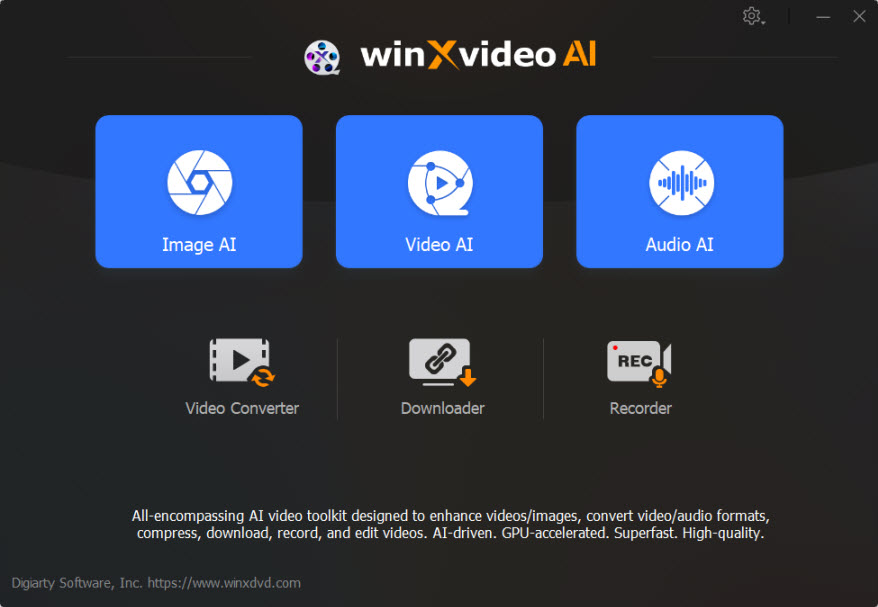
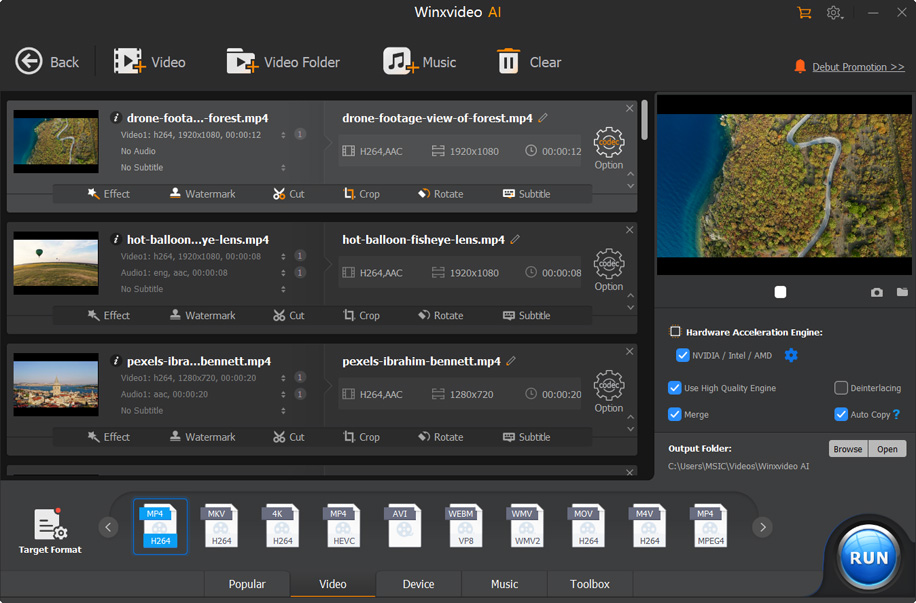
Begin by launching WinX HD Video Converter Deluxe on your Windows computer. You can do this by double-clicking the desktop icon or selecting it from the Start menu. Upon launch, the software will display its main interface, which is divided into several key areas: the toolbar at the top, the file list in the center, and the settings panel on the right. Take a moment to familiarize yourself with the layout. The toolbar contains buttons for adding files, selecting output profiles, and starting the conversion. The file list displays the videos you have added, along with their duration and status. The settings panel allows you to configure output parameters such as format, resolution, and quality.
Step 2: Adding Your Video Files
The next step is to add the video files you wish to convert. Click the "Add Video" button in the toolbar, or simply drag and drop your files into the main window. The software supports batch processing, so you can add multiple files at once. This is particularly useful for converting entire folders of videos or creating a playlist of clips. Once your files are added, they will appear in the file list. You can reorder them by dragging and dropping, or remove them by clicking the "Delete" button. The software will automatically analyze each file and display its properties, such as resolution, bitrate, and duration.
Step 3: Selecting an Output Profile
Now that your files are added, you need to select an output profile. Click the "Profile" button in the toolbar to open the profile library. The library is organized into categories, such as "General Video," "Apple Device," "Android Device," "Game Console," and "Social Media." Browse through the categories to find the profile that matches your needs. For example, if you are converting a video for your iPhone, select the "iPhone" category and choose the appropriate model. If you are unsure, the "General Video" category offers a range of standard formats such as MP4 and AVI. You can also create custom profiles by clicking the "Edit" button, allowing you to fine-tune settings such as codec, bitrate, and frame rate.
Step 4: Configuring Advanced Settings (Optional)
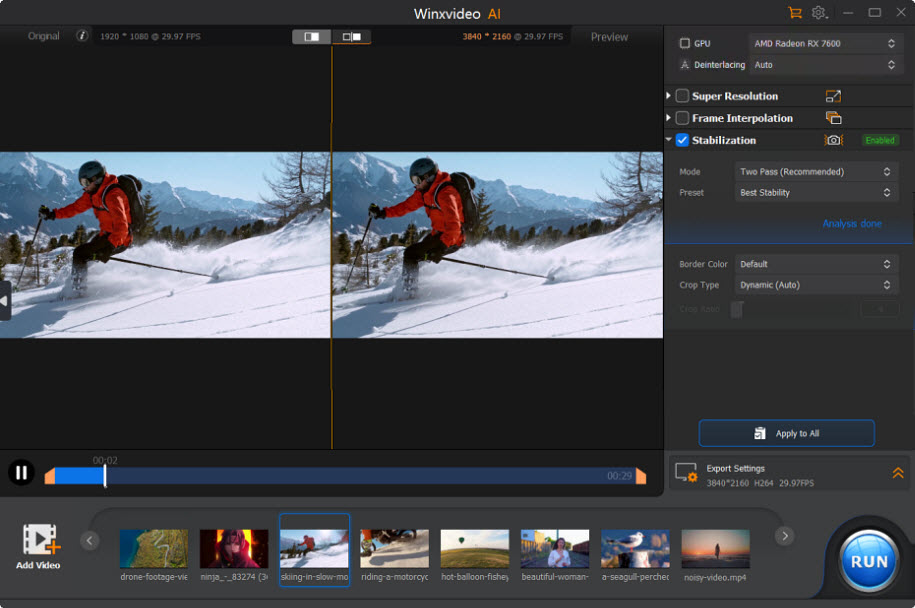
If you need more control over the output, you can configure advanced settings. Click the "Settings" button next to the profile selection to open the settings panel. Here, you can adjust various parameters, such as video resolution, bitrate, frame rate, and audio quality. You can also enable hardware acceleration if it is not already enabled by default. Additionally, you can access the editing tools by clicking the "Edit" button in the file list. This will open the editing window, where you can trim, crop, add watermarks, and adjust audio. Make sure to save your changes before closing the window.
Step 5: Choosing the Output Destination
Before starting the conversion, you need to specify where the converted files will be saved. Click the "Browse" button next to the output folder field to select a destination directory. You can choose an existing folder or create a new one. It is recommended to use a dedicated folder for your converted videos to keep them organized. You can also choose to save the output files in the same folder as the source files, but this may lead to confusion if you have many files. Make sure you have enough free disk space for the output files, especially if you are converting high-resolution videos.
Step 6: Starting the Conversion
Once you have configured all the settings, you are ready to start the conversion. Click the "Start" button in the toolbar. The software will begin processing your files, displaying a progress bar for each file. You can monitor the conversion speed, estimated time remaining, and current status. If you have multiple files, the software will process them sequentially. You can pause or stop the conversion at any time by clicking the "Pause" or "Stop" button. During the conversion, you can continue to use your computer for other tasks, as the software is designed to run efficiently in the background.
Step 7: Reviewing the Output
Once the conversion is complete, the software will display a notification. You can click the "Open Folder" button to view your converted files. Play the videos to ensure that they meet your expectations in terms of quality and compatibility. If you are satisfied with the results, you can now transfer the files to your device, upload them to social media, or archive them for future use. If you are not satisfied, you can adjust the settings and try again. The software keeps a history of your previous conversions, making it easy to repeat successful configurations.
User Testimonials: Real Experiences with WinX HD Video Converter Deluxe
"A Lifesaver for My YouTube Channel"
- Sarah J., Content Creator
"I run a busy YouTube channel and need to upload videos regularly. WinX HD Video Converter Deluxe has been a lifesaver. The hardware acceleration makes conversions incredibly fast, and the pre-set profiles for YouTube ensure that my videos always look great. I used to spend hours waiting for renders, but now it takes just minutes. Highly recommended!"
"Perfect for Archiving Family Memories"
- Michael T., Home User
"I had hundreds of old home videos in various formats that wouldn't play on my new TV. This software allowed me to convert them all to MP4 in one go. The batch processing feature is fantastic, and the quality is excellent. I can now enjoy my family memories on the big screen without any hassle."
"Professional Quality at a Consumer Price"
- David L., Freelance Videographer
"As a freelance videographer, I need reliable tools that don't break the bank. WinX HD Video Converter Deluxe offers professional-grade features at a consumer price. The editing tools are surprisingly robust, and the support for H.265 is a huge plus for saving storage space. It has become an essential part of my workflow."
"Easy to Use, Even for Beginners"
- Emily R., Student
"I am not tech-savvy, but I needed to convert some videos for a school project. This software was so easy to use. I just dragged and dropped my files, selected the iPhone profile, and clicked start. It worked perfectly, and the video played smoothly on my phone. Great software for beginners!"
"Fast and Efficient for 4K Video"
- James K., Tech Enthusiast
"I shoot a lot of 4K video with my drone, and file sizes are a major issue. WinX HD Video Converter Deluxe allows me to compress these files without losing noticeable quality. The GPU acceleration makes the process much faster than other converters I have tried. It is a must-have for anyone working with 4K footage."
"Great Customer Support"
- Linda W., Small Business Owner
"I had a question about how to add subtitles to my videos, and the customer support team was very helpful. They responded quickly and provided clear instructions. The software itself is excellent, but the support makes it even better. I feel confident using this product."
"Versatile and Reliable"
- Robert H., IT Professional
"I use this software to convert training videos for our company. It supports a wide range of formats, which is essential for our diverse device ecosystem. The software is stable and reliable, and I have never had any issues with corrupted files. It is a solid choice for business use."
"Best Converter I Have Used"
- Jessica M., Hobbyist
"I have tried several video converters, and this is by far the best. It is fast, easy to use, and produces high-quality output. The editing features are a nice bonus, and I appreciate the regular updates. I will definitely continue to use this software."
Comparative Analysis: WinX HD Video Converter Deluxe vs. The Competition
To truly understand the value of WinX HD Video Converter Deluxe, it is helpful to compare it with other popular video conversion tools on the market. While many converters offer similar basic features, there are significant differences in performance, usability, and feature set. Below, we compare WinX HD Video Converter Deluxe with two common alternatives: generic open-source converters and premium professional suites.
Comparison: WinX HD Video Converter Deluxe vs. Open-Source Converters
Performance: Open-source converters often rely solely on CPU processing, which can be significantly slower than the GPU-accelerated engine of WinX HD Video Converter Deluxe. For large files or high-resolution videos, the difference in speed can be substantial. WinX leverages NVIDIA CUDA, Intel Quick Sync, and AMD APP to maximize throughput, whereas open-source tools may require complex configuration to achieve similar results, if at all.
Usability: Open-source tools frequently have steep learning curves, with command-line interfaces or cluttered GUIs that can intimidate novice users. WinX HD Video Converter Deluxe offers a polished, intuitive interface with pre-configured profiles for devices and platforms, making it accessible to users of all skill levels. The drag-and-drop functionality and clear visual feedback further enhance the user experience.
Support: With open-source software, support is typically community-driven, which can be inconsistent and slow. WinX HD Video Converter Deluxe comes with dedicated customer support, regular updates, and a comprehensive knowledge base. This ensures that users can get help when they need it and that the software remains compatible with the latest devices and formats.
Features: While open-source converters may offer basic conversion capabilities, they often lack the advanced editing features found in WinX HD Video Converter Deluxe, such as trimming, cropping, watermarking, and subtitle addition. These integrated tools save time and eliminate the need for additional software, providing a more complete solution.
Comparison: WinX HD Video Converter Deluxe vs. Premium Professional Suites
Cost: Professional video editing suites can cost hundreds of dollars, making them prohibitive for many users. WinX HD Video Converter Deluxe offers a much more affordable alternative, providing many of the same conversion and basic editing features at a fraction of the price. For users who do not need advanced editing capabilities, WinX represents a better value proposition.
Complexity: Professional suites are designed for complex editing workflows and can be overwhelming for simple conversion tasks. WinX HD Video Converter Deluxe is streamlined for efficiency, allowing users to convert videos quickly without navigating through layers of menus and options. This focus on simplicity makes it ideal for users who want to get the job done without unnecessary complexity.
Speed: While professional suites offer powerful encoding options, they are not always optimized for speed in the same way as WinX HD Video Converter Deluxe. WinX’s dedicated focus on hardware acceleration ensures that conversions are as fast as possible, whereas professional suites may prioritize quality and flexibility over speed. For users who need to convert large volumes of video quickly, WinX is often the superior choice.
Specialization: Professional suites are general-purpose tools, whereas WinX HD Video Converter Deluxe is specialized for conversion and optimization. This specialization allows WinX to offer deeper support for specific formats and devices, as well as more refined presets for social media and mobile platforms. For users whose primary need is conversion, WinX provides a more targeted and effective solution.
System Requirements and Technical Specifications
To ensure optimal performance, it is important to verify that your computer meets the system requirements for WinX HD Video Converter Deluxe. While the software is designed to be efficient, video processing is a resource-intensive task, and having adequate hardware will significantly improve your experience.
Operating System: WinX HD Video Converter Deluxe is designed for Windows operating systems. It is compatible with Windows 10, Windows 8, and Windows 7. Ensure that your operating system is up to date with the latest service packs and updates to avoid compatibility issues.
Processor: A 1 GHz or faster processor is required. However, for optimal performance, especially when using hardware acceleration, a multi-core processor is recommended. Intel Core i5 or AMD Ryzen 5 processors or higher will provide the best experience.
Memory (RAM): 4 GB of RAM is the minimum requirement. However, 8 GB or more is recommended for handling large files and multitasking. Adequate RAM ensures that the software runs smoothly and prevents slowdowns during conversion.
Hard Disk Space: At least 500 MB of free disk space is required for installation. Additionally, you will need sufficient space for the input and output video files. High-resolution videos can consume significant storage, so ensure you have ample free space on your drive.
Graphics Card: For hardware acceleration, a compatible graphics card is required. NVIDIA GeForce series with CUDA support, Intel HD Graphics with Quick Sync support, or AMD Radeon series with APP support are recommended. Ensure that your graphics drivers are up to date to maximize performance.
Internet Connection: An internet connection is required for activation and updates. A broadband connection is recommended for downloading updates and accessing online support resources.
Frequently Asked Questions (FAQs)
Q: Can WinX HD Video Converter Deluxe convert 4K videos?
A: Yes, WinX HD Video Converter Deluxe fully supports 4K video conversion. It can handle 4K input files and convert them to various formats, including 4K MP4, MKV, and others. The software also allows you to downscale 4K videos to 1080p or 720p if needed.
Q: Does the software support Mac OS?
A: This version of WinX HD Video Converter Deluxe is designed for Windows. However, the vendor offers a separate version for Mac OS. Please check the vendor’s website for the Mac-compatible version.
Q: Can I edit videos after converting them?
A: The software includes basic editing features such as trimming, cropping, and watermarking, which can be applied before or during the conversion process. However, it is not a full-featured video editor. For complex editing tasks, you may need to use dedicated video editing software.
Q: Is it safe to download and install?
A: Yes, WinX HD Video Converter Deluxe is safe to download and install. It is free from malware and viruses. Always download the software from the official vendor website to ensure you get the genuine product.
Q: Can I convert protected DVDs?
A: WinX HD Video Converter Deluxe is primarily a video converter and does not include DVD decryption capabilities. For protected DVDs, you may need to use a separate DVD ripper tool before converting the videos.
Q: How long does it take to convert a video?
A: The conversion time depends on several factors, including the length and resolution of the video, the chosen output format, and your computer’s hardware. With hardware acceleration, conversions can be significantly faster, often completing in minutes rather than hours.
Q: Can I use the software for commercial purposes?
A: The license agreement typically allows for personal use. For commercial use, please review the specific license terms provided with the software or contact the vendor for clarification.
Q: What happens if I encounter an error during conversion?
A: If you encounter an error, first check that your input file is not corrupted and that you have sufficient disk space. Ensure that your graphics drivers are up to date. If the problem persists, contact customer support for assistance.
Q: Does the software support batch conversion?
A: Yes, WinX HD Video Converter Deluxe supports batch conversion. You can add multiple files to the queue and convert them all at once, saving time and effort.
Q: Can I customize the output settings?
A: Yes, the software allows you to customize various output settings, including resolution, bitrate, frame rate, and codec. You can create custom profiles to save your preferred settings for future use.
Conclusion: Elevating Your Video Workflow
WinX HD Video Converter Deluxe represents a powerful, efficient, and user-friendly solution for anyone who needs to manage and convert video files. Its combination of GPU-accelerated speed, high-quality output, and intuitive interface makes it a standout choice in a crowded market. Whether you are a professional creator, a business user, or a home enthusiast, this software provides the tools you need to handle the complexities of modern video formats with ease.
By leveraging advanced hardware acceleration, WinX HD Video Converter Deluxe breaks the traditional trade-off between speed and quality, allowing you to convert videos faster than ever before without compromising on visual fidelity. Its extensive format support ensures compatibility with virtually any device or platform, while the integrated editing features streamline your workflow by eliminating the need for multiple applications. The software’s commitment to simplicity and usability means that you can focus on your content, not on the technical details of conversion.
As video continues to dominate the digital landscape, having a reliable and versatile conversion tool is more important than ever. WinX HD Video Converter Deluxe empowers you to take control of your video library, ensuring that your content is always ready for its intended audience. From archiving precious memories to creating engaging social media content, this software is an indispensable asset for anyone who values efficiency, quality, and ease of use. Invest in WinX HD Video Converter Deluxe today and experience the difference that true performance and thoughtful design can make in your video workflow.