EaseUS Todo PCTrans Professional: Move Programs, Files and Accounts to a New Windows PC
EaseUS Todo PCTrans Professional is a Windows migration tool that copies your installed programs, files, user accounts and settings from an old PC to a new one, over the network, a cable or a backup file, so you don't have to reinstall everything. One license covers two PCs and costs $59.95 a year, $49.95 for a month, or $69.95 with lifetime upgrades.
A new laptop is fast, but getting it to feel like your old one takes a weekend: hunting for installers, finding license keys, copying folders, redoing settings. PCTrans runs on both machines, lists what it found on the old one, and moves what you tick.
Quick facts
- Developer: EaseUS (Chengdu Yiwo Tech Development Co., Ltd.), the maker of Todo Backup, Partition Master and Data Recovery Wizard
- Version: 14.2.4, dated July 16, 2026 (the 14.x line added direct cable transfers in November 2024)
- Platform: Windows 11, 10, 8.1, 8, 7 and Vista (32- and 64-bit); Windows XP 32-bit only up to version 13.16; no Mac version
- Price: one license for two PCs: $49.95 a month, $59.95 a year, $69.95 with lifetime upgrades (all with free remote assistance)
- Trial: the trial shows everything it would move but won't transfer without a license code; the separate Free mode moves up to 2 GB of files and 5 programs
- Refunds: 30 days, on technical grounds only (a problem support can't solve)
- Languages: 14, including English, German, French, Spanish, Japanese and Arabic
- What we checked: the three plan prices on the order page ($49.95 monthly, $59.95 yearly, $69.95 lifetime, USD, no discount applied), the trial link (a 1.5 MB web installer signed by Chengdu Yiwo Tech Development), and the current full installer on EaseUS's download server (version 14.2.4, 79 MB, dated July 16, 2026). Checked on November 19, 2026. We didn't migrate a PC ourselves.
Download Free TrialBuy Now
Overview
Microsoft dropped Windows Easy Transfer after Windows 8.1, and Windows itself still won't move installed programs from one PC to another. That's the gap Todo PCTrans fills. You install it on both PCs, tell each one whether it's the old or the new PC, and it connects them, scans the old one and sorts its programs into Supported, Unsupported and Existing (already on the new PC). You choose the programs, folders and accounts, and it copies them across with their registry entries and settings.
The same program also moves installed apps from drive C: to another drive, rescues programs and files from a PC that won't boot, and adds a handful of tools: file sharing between PCs, junk and large-file cleanup, an app manager and a product key finder.
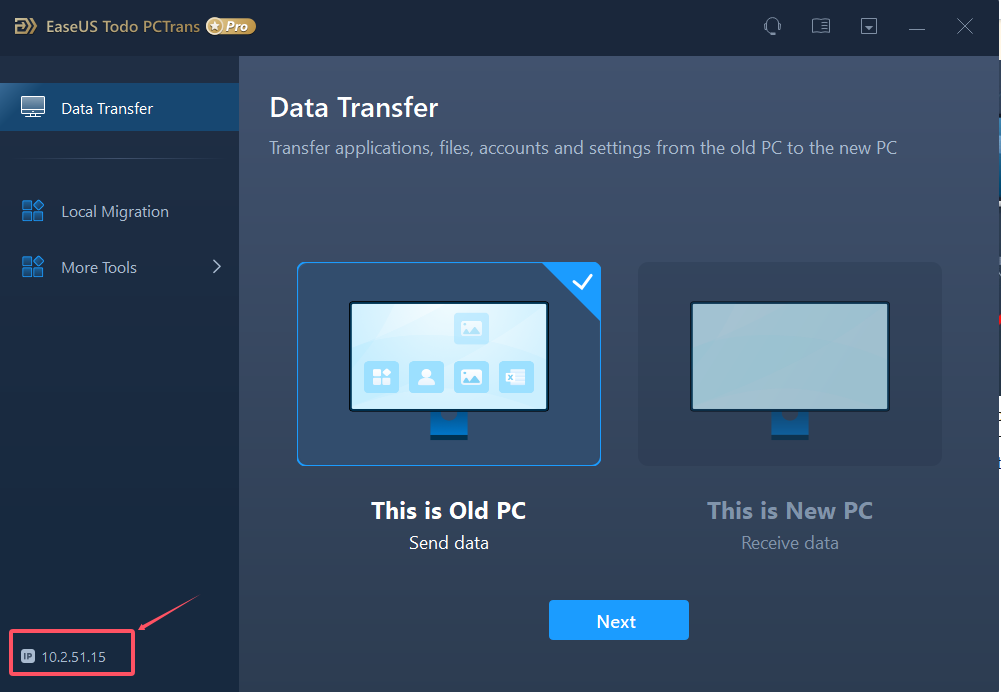
The Data Transfer start screen in PCTrans Pro: pick "This is Old PC" or "This is New PC". The PC's IP address shows at the bottom left (highlighted by EaseUS).
Features
PC-to-PC transfer over the network or a cable
EaseUS Todo PCTrans Pro connects two PCs on the same Wi-Fi or Ethernet network, or directly with a cable, which EaseUS says makes transfers 5-10 times faster. If the network transfer is slow, you can plug in a cable mid-transfer and PCTrans switches over without starting again. An optional verification code stops other PCs on the network from connecting to yours, and it can create a Windows restore point on the new PC before it copies anything.
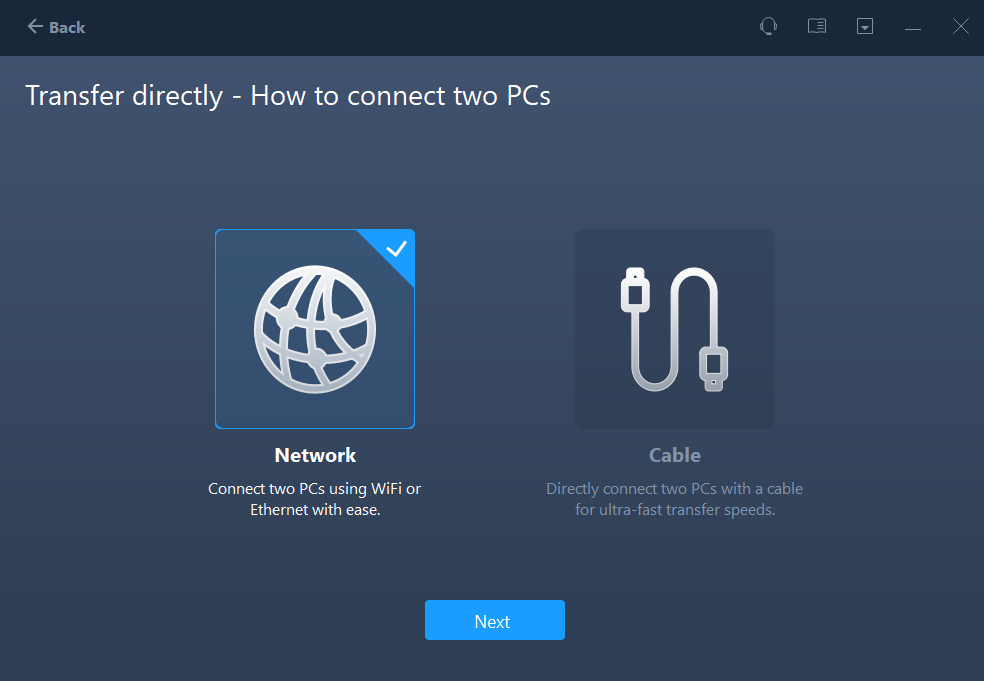
Transfer directly: connect the two PCs over the network (Wi-Fi or Ethernet) or with a cable.
Programs, files and whole user accounts
EaseUS Todo PCTrans Pro moves installed programs (EaseUS lists Microsoft Office, Adobe Creative Cloud, AutoCAD, Chrome, Zoom, Spotify, Dropbox and hundreds more), any folders you pick, and Windows user accounts with their data, personalization, power options and lock-screen wallpaper. You can filter out file types or paths, choose to replace, skip or keep duplicate files, and redirect files to another drive on the new PC. Programs always land in the new PC's Program Files folder.
Transfer via a backup file
EaseUS Todo PCTrans Pro can pack programs, data and accounts into a single .pct image on an external drive or network share, then restore it on the new PC, or on the same PC after you reinstall Windows. That's the way to go when the two PCs can't be online together. Double-clicking the .pct file on the new PC opens the restore, and the files inside can be copied out by hand too.
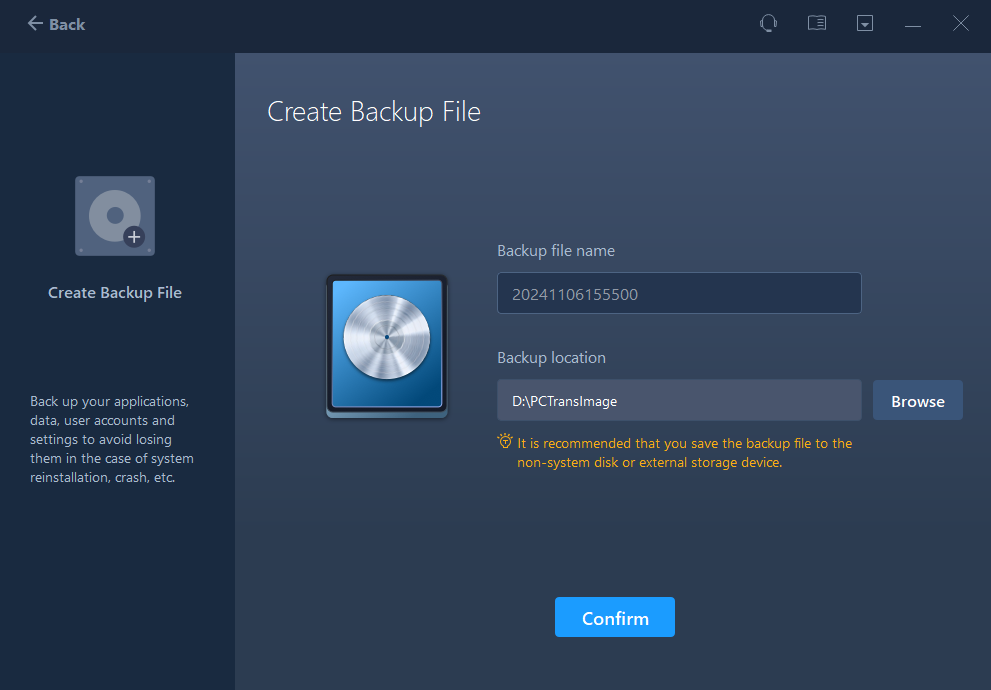
Creating a transfer image on the old PC, saved to D:\PCTransImage, with a tip to store it on a non-system or external drive.
Rescue programs from a dead PC
EaseUS Todo PCTrans Pro's Transfer via disk (formerly Data Rescue) reads the system drive of a PC that no longer boots: take the drive out, connect it to the new PC, and PCTrans lists the old programs, files and accounts so you can move them into the new Windows. It needs the old drive's registry to be readable. If it's corrupted, PCTrans can't rescue programs, and you should copy your files off straight away.
Move installed apps off a full C: drive
EaseUS Todo PCTrans Pro's Local Migration moves installed programs from C: to another partition on the same PC, with a "Migration Suggestion" column that marks which ones are safe to move. It's the quickest fix for a small SSD that keeps filling up. Large File Cleanup goes further, moving or deleting big files and relocating Desktop, Downloads and Documents to another drive.
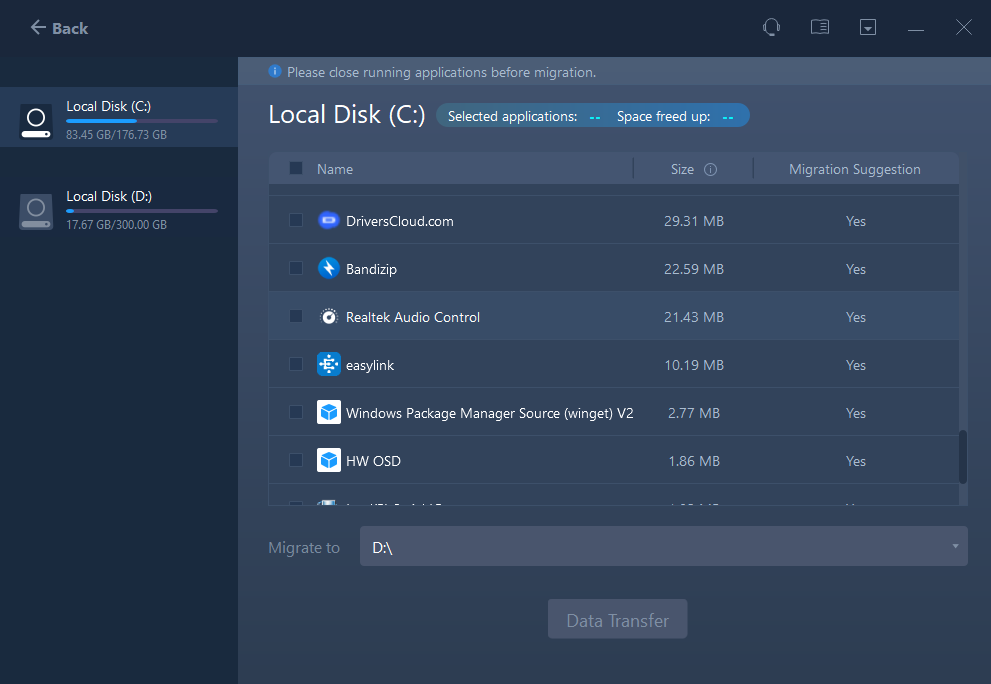
Local Migration: apps on Local Disk (C:) with their size and a migration suggestion, to be moved to D:\.
Product keys, cleanup and file sharing
EaseUS Todo PCTrans Pro's Product Key tool scans out the license keys of Windows and installed applications so you can copy them or save them to a text file before you migrate or reinstall. System Cleanup removes system, browser and app junk, App Management uninstalls, repairs or removes the registry entries of programs, and File Sharing sends files between PCs with a connection code.
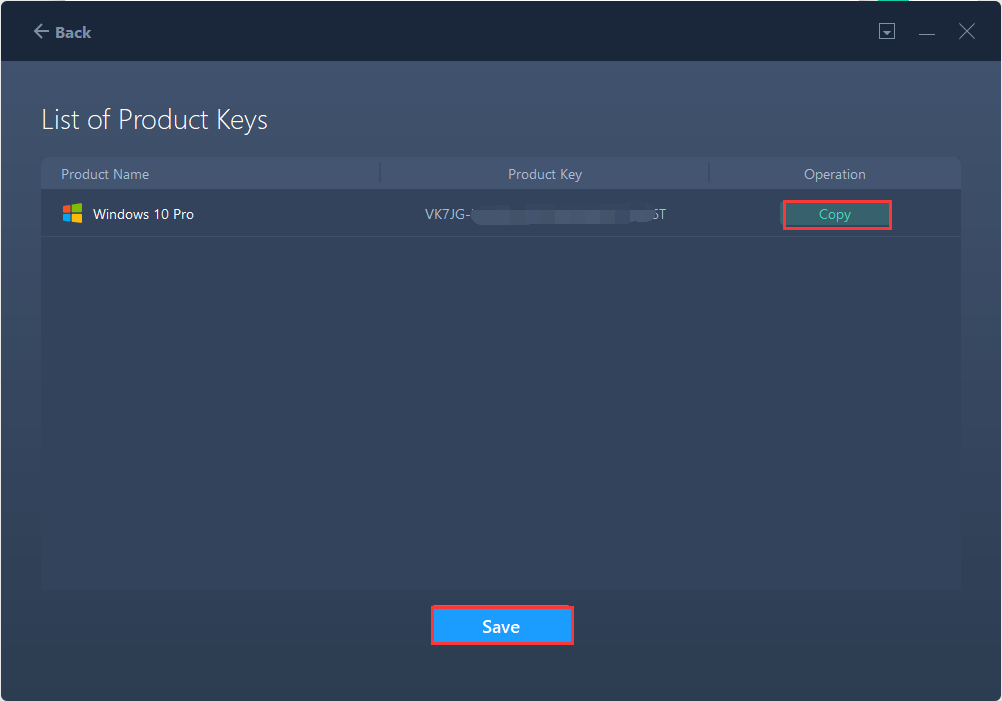
The product key list: a Windows 10 Pro key (partly blurred by EaseUS) with Copy and Save buttons.
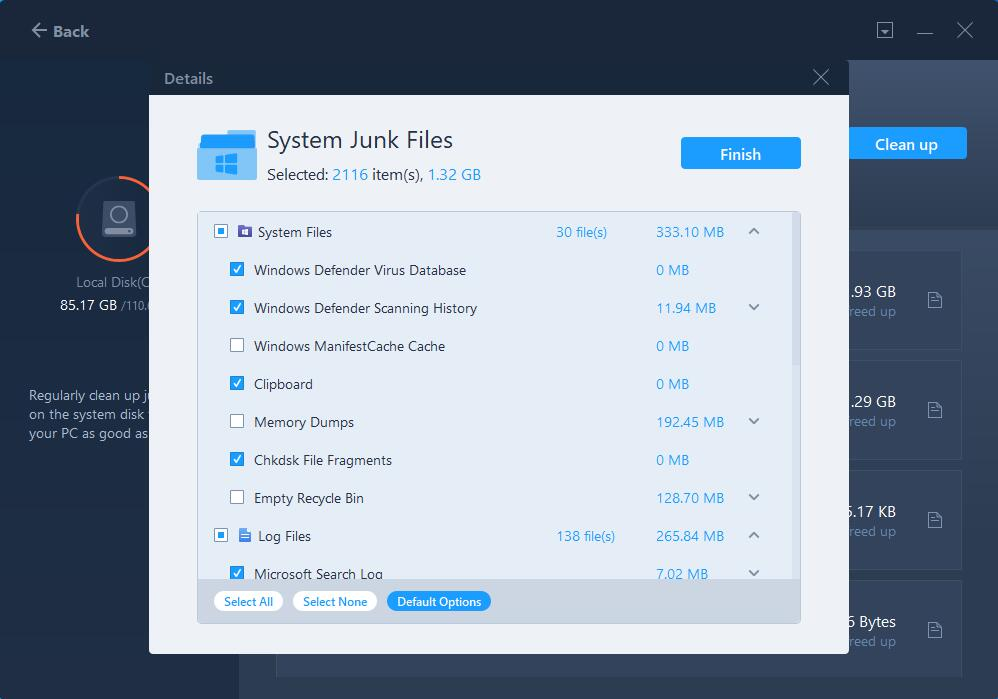
System Cleanup details: 2,116 junk items (1.32 GB) selected, from Windows Defender history to memory dumps and log files.
Benefits
- Days of setup become an afternoon. The programs arrive installed, with their settings, rather than as a to-do list of installers.
- Old programs you can't reinstall survive. Software from a vendor that's gone, or whose installer you lost, can still move to the new PC.
- Two PCs per license, so the old and new machine are both covered, and a lifetime license is available for the next upgrade too.
Real-World Uses
- Windows 10 to a new Windows 11 laptop: both PCs on the same Wi-Fi, old one as "This is Old PC", and Office, browsers and your Documents move across in one run.
- A desktop that died: pull its drive, connect it by USB to the replacement PC, and use Transfer via disk to bring the programs and files over.
- A clean reinstall of Windows: make a .pct backup image first, reinstall, then restore your programs from the image.
- A 256 GB SSD that's always full: move games and big apps from C: to a second drive with Local Migration.
Who It's For, and Who Should Skip It
Todo PCTrans Pro is for people moving to a new Windows PC who have a lot of installed software: niche business apps, old programs without installers, or simply dozens of tools they don't want to set up again. It's also handy for anyone rescuing programs from a dead PC.
Skip it if your stuff is mostly documents and photos in OneDrive or another cloud: sign in on the new PC and they're there, and a USB drive handles the rest. It's not for Macs, and it doesn't move Windows itself (for that, clone the drive with a backup tool). Companies migrating domain accounts or Windows Server need the Technician or Server edition, not Pro.
Usage Guide
- Install on both PCs: run the installer on the old and the new PC, and activate the license on the PC where the transfer runs (one license covers both).
- Prepare: connect both PCs to the same network (or a cable), and temporarily turn off antivirus and firewalls on both, as EaseUS's guide asks.
- Connect: on the old PC choose Data Transfer > This is Old PC; on the new PC choose This is New PC > Transfer directly, then Network or Cable, and pick the old PC from the list.
- Choose what to move: wait for the scan, then tick programs on the Applications tab, folders on Files and users on Accounts. Use the edit icon to send files to another drive.
- Transfer and reboot: click Transfer, wait, then restart the new PC so the moved programs and accounts register. Check the Migrate Logs for anything that failed.
- Sign in and reactivate: set a new password on moved accounts, then reactivate programs that tie their license to the old PC.
Before you buy
- Run the trial first. It lists exactly which programs it would mark Supported or Unsupported on your PCs, which is the best test of whether PCTrans is worth paying for. EaseUS only refunds on technical grounds within 30 days.
- Monthly and yearly plans renew automatically until you cancel. For a one-off move, the monthly plan costs only $20 less than the lifetime license.
- The license covers two PCs, not three. Moving several old PCs onto one new PC, or using it for clients, needs another license or the Technician edition.
- The new PC must run the same or a newer Windows than the old one: Windows 7 to 11 works, 11 to 10 doesn't.
Download Free TrialBuy Now
Where it falls short
- Not every program moves. Anything listed as Unsupported stays behind, and programs that bind their license to the hardware need reactivating; PCTrans doesn't carry licenses over.
- OneDrive folders are skipped by default. Files that live only in the cloud can't be copied, and if OneDrive is on in the new PC, moved Documents and Pictures can end up under its OneDrive folder.
- Moved accounts get a blank password and you set a new one at first sign-in. App install paths can't be changed: programs go to the new PC's Program Files on C:.
- Connections can be fiddly. Firewalls and antivirus must be off, and one Trustpilot reviewer's PCs only connected after support disabled a second network adapter.
- Some transfers stall. Several user reviews describe a progress bar stuck for hours or a transfer that never finished; EaseUS says the bar can pause while it recalculates.
What Users Say
TechRepublic (Collins Ayuya, April 9, 2024, rated 5/5)
"These features are presented via an appealing, sleek blue interface that never once felt convoluted or overwhelming." The verdict: "It proved to be easy to use, with a clean interface and a straightforward purpose."
- Pros: "A simple user-friendly interface ensures an intuitive experience.", "It transfers not only files but also applications and settings.", "Its packages consider both home and business use.", "It works with various Windows OS versions."
- Cons: "The free version has limited capabilities.", "Couldn't find a USB transfer option", "Transfers and scans can be slow." (The cable option arrived with version 14.0 in November 2024, after this review.)
TechRadar (Sofia Elizabella Wyciślik-Wilson, December 4, 2019, reviewing version 11.0)
An older review, but its judgment still holds: "While not essential for every new PC purchase, EaseUS Todo PCTrans Professional 11.0 makes it an absolute breeze to migrate from an old OS like XP, and embrace the latest version of Windows." And: "It's hard to fault the ease of use, even for relative novices."
- Reasons to buy: "Great for novices migrating from older versions of Windows", "Moving apps is a real boon", "Migrates some settings that Windows cannot"
- Reasons to avoid: "A little pricey for an app you'll use once", "Cloud storage somewhat negates the need for the software"
Trustpilot (EaseUS company page: TrustScore 4.9 from 39,743 reviews, all products)
The company score covers every EaseUS product and is mostly thank-you notes after support chats. Reviews that name PCTrans are split between smooth moves and frustrating ones:
- "EaseUS makes many good products" (Stephane B., CA, 5 stars, November 2, 2025): after an update broke a specialized program from a vendor that no longer exists, he used PCTrans to move it to newer PCs without reinstalling: "I'm not sure how PCTrans did it, but it worked on both Windows 10 and 11".
- "Claire's live chat support was amazing" (BC, US, 5 stars, March 27, 2026): pre-purchase questions answered, two programs moved successfully.
- "I cannot recommend Jesse highly enough" (Brigitte Maier, DE, 5 stars, July 24, 2026): after hours of failed attempts to connect two PCs, support found a second Ethernet adapter getting in the way; with it disabled, the transfer ran.
- "Great chat experience" (Gary, US, 5 stars, December 2, 2025): a quick answer from support, with a suggestion that EaseUS publish a list of programs PCTrans can and can't reliably move.
- "Good job Felix!" (Guthrie Miller, US, 4 stars, April 3, 2026): happy with support, but "PCtrans does seem to have some bugs, it was stopping for 3 hrs before we killed it".
- "Not performed as described" (Fred, US, 3 stars, October 6, 2026): the transfer didn't work, he moved his data by hand, and his refund was first refused, then paid in full. EaseUS apologized in its reply.
- "Easeus Todo PCTrans simply doesn't work as they say" (Chris Paul, GB, 1 star, January 25, 2026): moving from Windows 10 to 11, the network transfer froze at 11% again and again, the backup-image route created an account he couldn't sign into, and he finished by hand over two and a half days. EaseUS replied that the progress bar can pause while recalculating, that moved accounts need a new password and licenses aren't migrated, and that the interface could be clearer.
Put together: reviewers agree PCTrans is easy to use and good at moving programs that would otherwise need reinstalling, and EaseUS's live chat gets a lot of praise. The complaints are stalled or slow transfers, connection trouble between the two PCs, and accounts and licenses that need attention afterwards, which is why the trial's preview is worth running before you pay.
Comparisons
PCTrans Free vs Pro
Both run the same program. Free moves up to 2 GB of files and 5 programs (plus user accounts and settings) and cleans or moves up to 2 GB of files; Pro removes the limits and adds the product key finder, Transfer via disk for dead PCs, moving games between drives, and remote assistance. Free is enough to move a couple of small apps from C: to D:. For a full PC move, you need Pro.
Pro vs Server and Technician
Server ($299, two servers) adds Windows Server 2003 to 2022. Technician ($399) covers many PCs and servers for one company or for paid client work, with domain account transfer and batch installation. A home user moving one PC needs only Pro.
PCTrans vs cloning the drive
Cloning (with a tool like EaseUS Todo Backup) copies the whole old drive, Windows included, onto a new drive in the same PC. PCTrans is for a different PC that already has its own Windows: it moves the programs and data into that fresh install instead of overwriting it.
Editions and Pricing
| Plan | Price (USD) | Term | PCs | Upgrades |
|---|
| Free | $0 | Unlimited, 2 GB and 5 programs | Both PCs run Free | Free technical support |
| Pro Monthly | $49.95 | 1 month, auto-renews | 2 | 1 month |
| Pro Yearly | $59.95 | 1 year, auto-renews | 2 | 1 year |
| Pro Lifetime Upgrades | $69.95 | One-time | 2 | Lifetime |
All Pro plans are on the same order page and include free remote assistance; verified students get a lower education price there.
FAQs
Do I need a Todo PCTrans license on both computers?
No. One EaseUS Todo PCTrans Pro license covers two PCs, so the old and the new computer are both covered by a single purchase. A third PC needs another license.
Can Todo PCTrans move programs from Windows 7 to Windows 11?
Yes. EaseUS Todo PCTrans moves programs and files from Windows 7, 8 or 10 to Windows 11, as long as the new PC runs the same or a newer Windows than the old one. It can't move programs to an older Windows.
Will my transferred programs still be activated?
Not always. Todo PCTrans copies the program, its registry entries and settings, but not licenses tied to the old hardware, so some programs ask for reactivation. Run the Product Key tool on the old PC first and save the keys.
Can Todo PCTrans work without an internet connection?
Yes. EaseUS Todo PCTrans can connect two PCs with a cable instead of a network, or move everything through a .pct backup file on an external drive. You'll still want a connection once to activate the license.
Can I move my PCTrans license to another computer later?
Not by yourself. EaseUS Todo PCTrans licenses are locked to the PCs they're activated on, but EaseUS support resets a license on request, for example after a crash or when you replace one of the two PCs.
Is there a Mac version of Todo PCTrans?
No. EaseUS Todo PCTrans runs only on Windows, and both the old and the new computer must be Windows PCs.
System Requirements
- Windows 11, 10, 8.1, 8, 7 or Vista, 32- or 64-bit (Windows XP 32-bit only with version 13.16)
- Windows Server 2003 to 2022 only with the Server or Technician edition
- Todo PCTrans installed on both PCs; the target PC on the same or a newer Windows version
- Both PCs on the same LAN, or a transfer cable, or an external drive or network share for the .pct image
- Languages: English, German, Japanese, French, Spanish, Portuguese, Italian, Polish, Dutch, Chinese (Traditional and Simplified), Arabic, Turkish, Korean
Conclusion
EaseUS Todo PCTrans Pro is worth it if you're moving to a new Windows PC with a lot of installed software you don't want to reinstall. The one reason to buy it is that it moves programs, not just files, which Windows still can't do, and reviewers consistently find it easy. The $69.95 lifetime license makes more sense than $49.95 for a month if you'll ever do this again.
The main reason not to buy: if your files live in the cloud and you only use a few easily reinstalled apps, you'll get little out of it. Expect to reactivate some programs and reset account passwords afterwards, and run the trial's scan first, since it shows which of your programs PCTrans can move before you spend anything.
Download Free TrialBuy Now