EaseUS Todo Backup Home: Image Backups, Disk Cloning and File Backups for Windows PCs
EaseUS Todo Backup Home is a Windows backup program for home users: it makes image backups of Windows, whole disks and single files, clones a drive to a new SSD, and restores a PC that no longer boots from a USB emergency disk. It runs on Windows 11, 10, 8 and 7 and costs $39.95 a year for one PC, $59.95 for a perpetual license, or $79.95 with lifetime upgrades.
The free edition already backs up files, partitions and the system. Home is what you pay for when you want to clone your system drive to an SSD, back up Outlook mail and game saves, keep backups in a hidden partition that ransomware can't reach, or restore a system image onto a different PC.
Quick facts
- Developer: EaseUS (Chengdu Yiwo Tech Development Co., Ltd.), founded in 2004, also the maker of Data Recovery Wizard, Partition Master and Todo PCTrans
- Version: 18.1, dated July 27, 2026; the program and the store call it Todo Backup 2026
- Platform: Windows 11, 10, 8.1, 8 and 7; no Mac version of the Home edition
- Price: $39.95 a year for 1 PC, $59.95 a year with 1 TB of EaseUS Cloud, $59.95 perpetual (no upgrades), $79.95 with lifetime upgrades; prices exclude VAT
- Trial: the full Home edition for 30 days; there's also a permanent Free edition with fewer features
- Refunds: 30 days, but only on technical grounds (a problem support can't fix), not for a change of mind
- Backup targets: internal and external drives, NAS, network shares, FTP/SFTP, DVD, EaseUS Cloud, and for file backups OneDrive, Dropbox, Google Drive and Amazon S3
- What we checked: the four plan prices on the order page (yearly $39.95, yearly with 1 TB cloud $59.95, perpetual $59.95, lifetime upgrades $79.95, all in USD with no discount applied), the trial link (a 3.2 MB web installer signed by Chengdu Yiwo Tech Development), and the current full installer on EaseUS's download server (version 18.1, 174 MB, dated July 27, 2026). Checked on November 19, 2026. We didn't run a backup, clone or restore ourselves.
Download Free TrialBuy Now
Overview
Todo Backup has been around since 2009 and is one of the best-known Windows backup tools, largely because its free edition is genuinely usable. The Home edition is the same program with the paid features switched on. The window is simple: your backup tasks sit in a list on the left, the selected task's source, destination and last result fill the middle, and Backup Now, Recover and Options sit at the bottom. Cloning, the emergency disk, Security Zone and image mounting live under Tools.
EaseUS updates it a few times a year. Recent builds added support for Windows on ARM (March 2025), Microsoft and Google OAuth sign-in for mail backups, NAS discovery for file backups and FTP/SFTP targets (2024), and a customer service chat inside the app (18.0, December 2025).
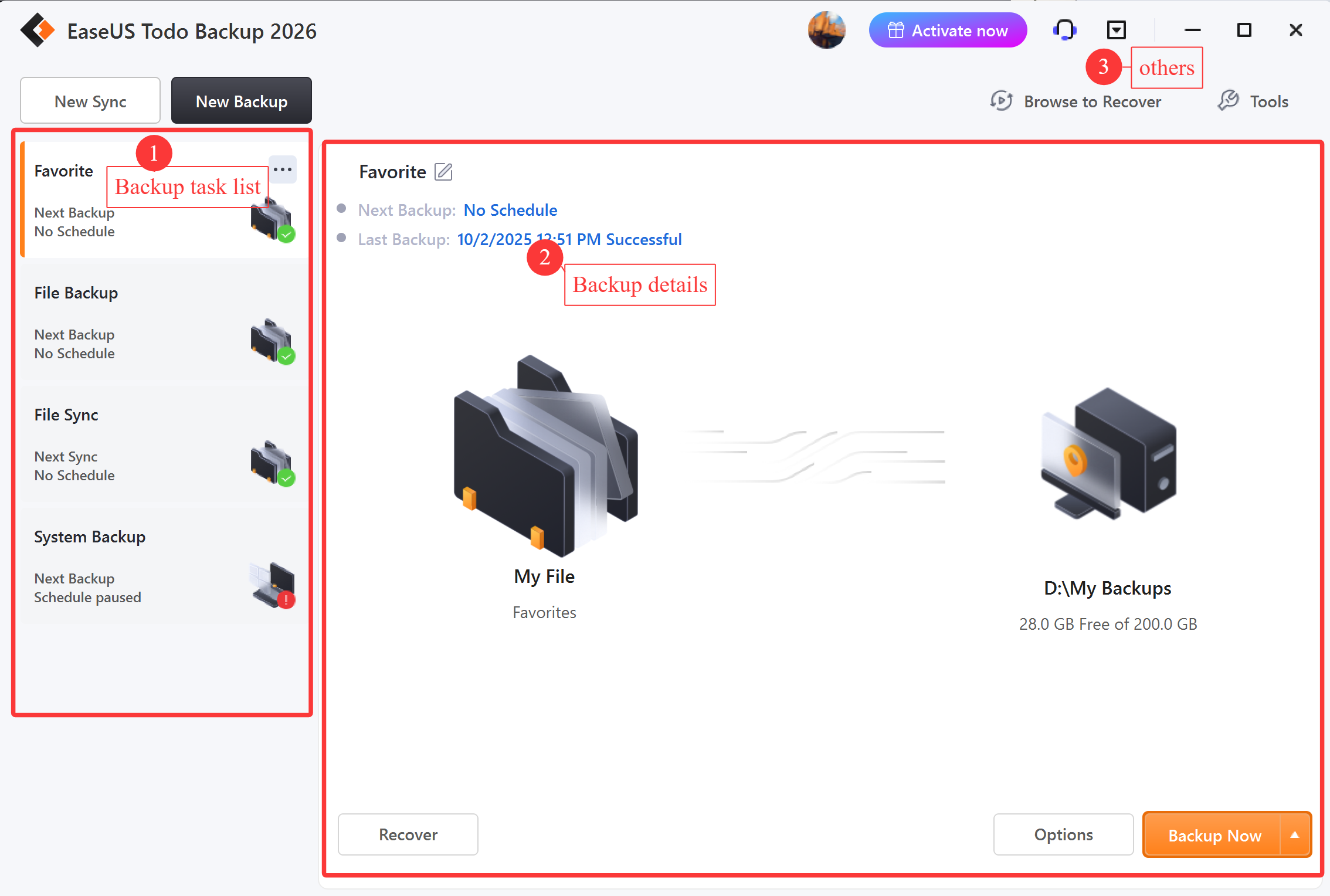
The Todo Backup 2026 main window, annotated by EaseUS: (1) the backup task list, (2) the selected task's next and last backup, (3) the account, support and menu buttons.
Features
Four kinds of backup from one button
EaseUS Todo Backup Home starts every backup with the same question: back up File, Disk, OS or Apps data. OS picks the Windows and boot partitions for you, Disk takes whole drives or single partitions, File takes folders or file types, and Apps data covers Outlook mailboxes, Chrome settings and game saves. Each can run full, incremental or differential, on a one-time, daily, weekly or monthly schedule, or on an event such as shutdown.
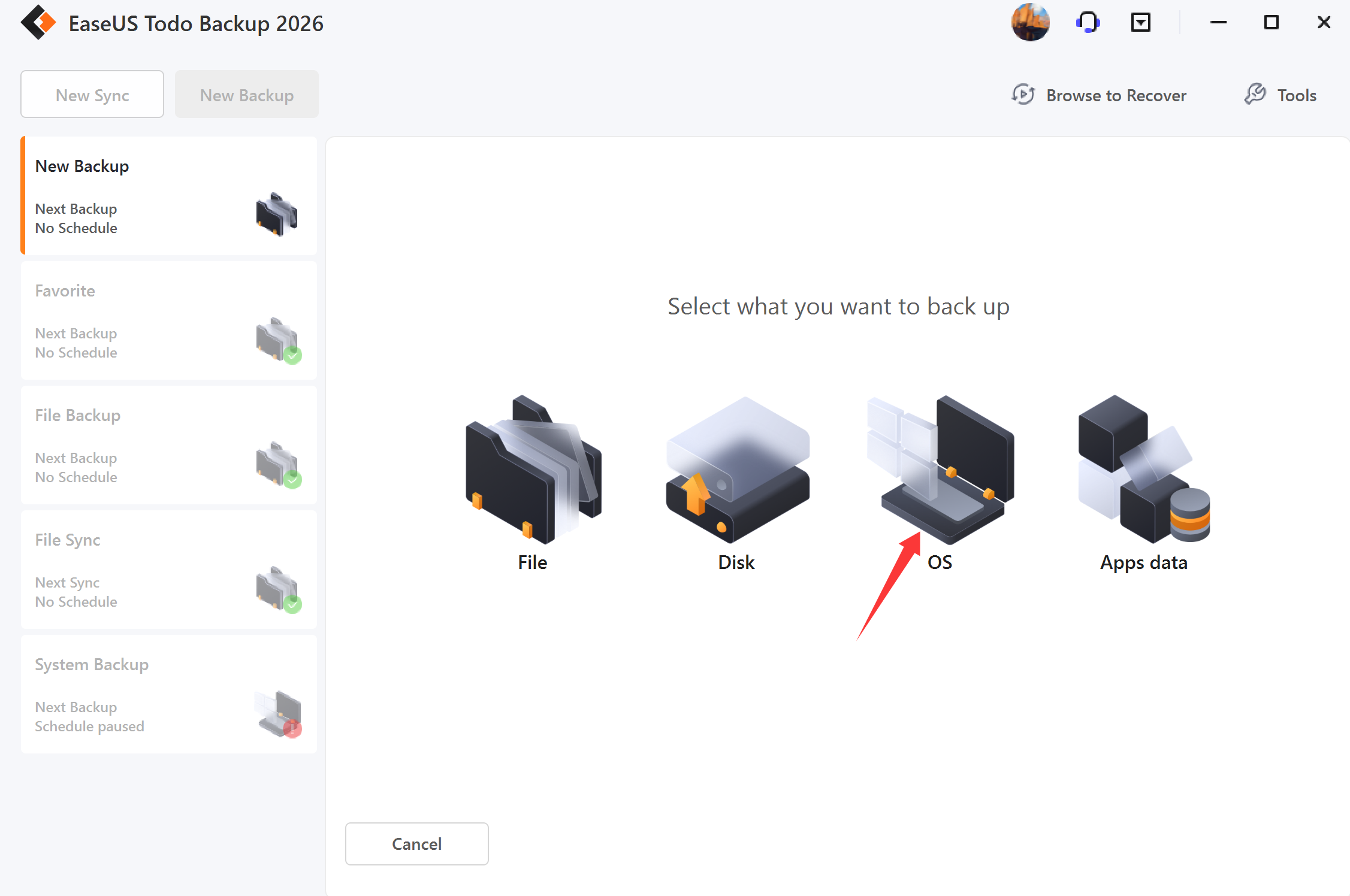
Starting a new backup: File, Disk, OS or Apps data.
Clone a hard drive to an SSD
EaseUS Todo Backup Home clones a whole disk, one partition, or only the Windows and boot partitions (System Clone) to another drive, so you can move to a bigger or faster SSD without reinstalling. It clones a larger drive to a smaller one as long as the used space fits, and lets you autofit the partitions, copy the layout as it is, or edit it. Options include SSD sector alignment, a sector-by-sector copy, and a portable Windows USB drive. Cloning isn't in the free edition.
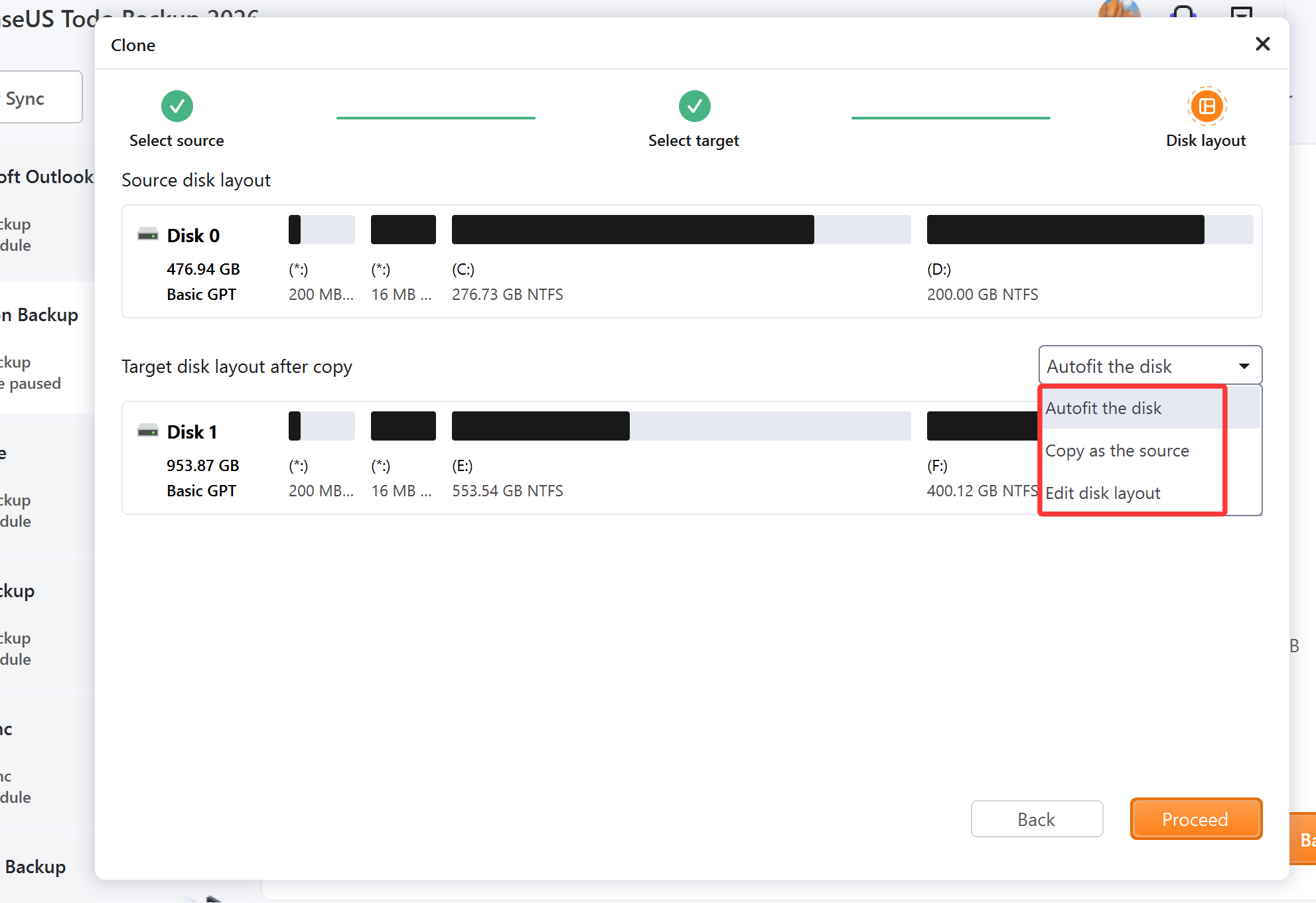
The last step of a disk clone: a 477 GB source disk laid out on a 954 GB target, with the Autofit / Copy as the source / Edit disk layout choices.
Restore Windows, even to different hardware
EaseUS Todo Backup Home restores a system image back to its own disk or, with System Transfer, to a PC with different hardware (or from a physical PC to a virtual machine). If Windows won't start, the WinPE emergency disk on a USB stick or DVD boots into Todo Backup so you can restore from there. For single files you don't have to restore at all: Mount Backup opens an image as a virtual drive you can copy files from, and Instant Access lets you work with files while a disk restore is still running.
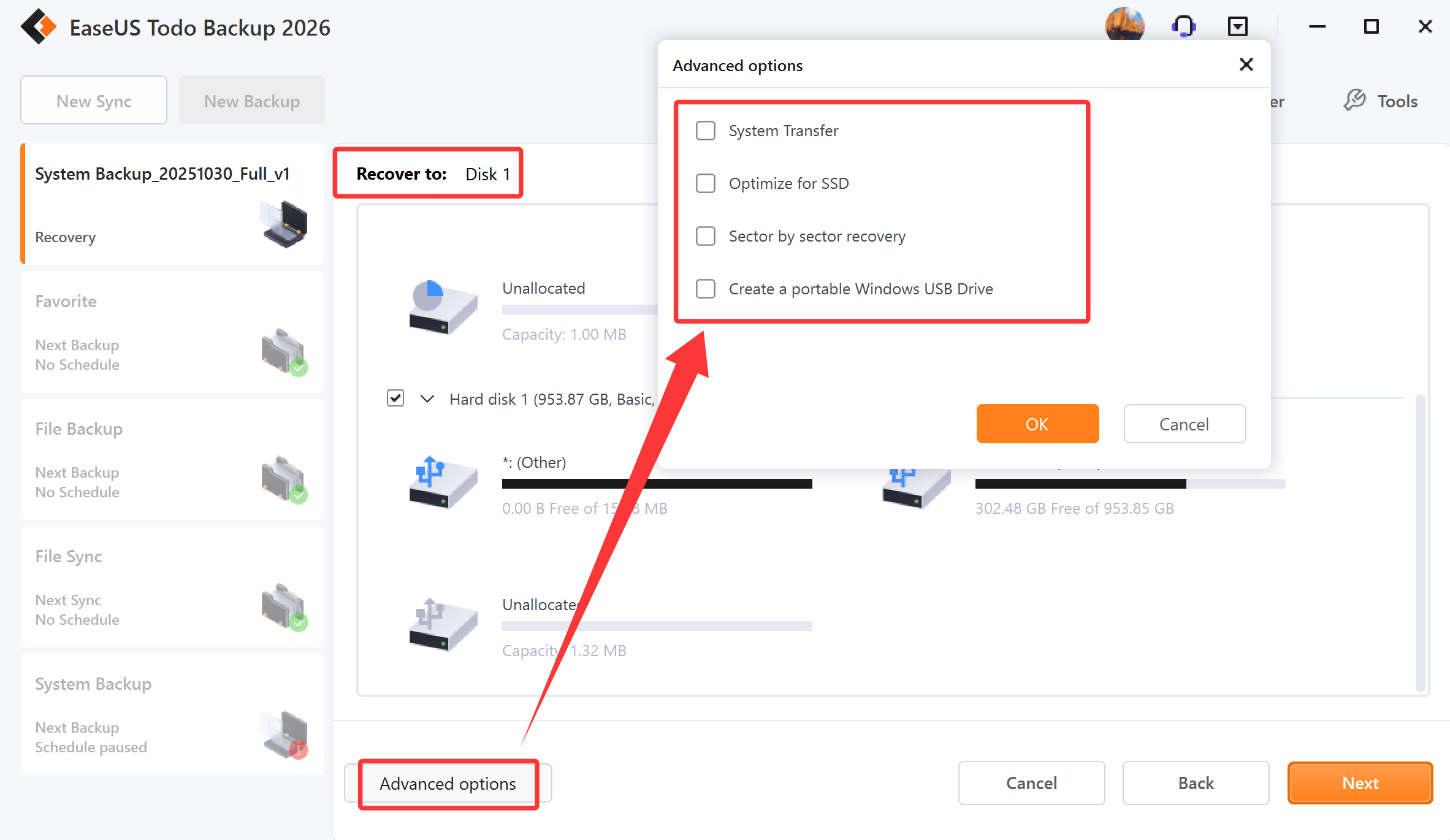
Restoring a system backup to Disk 1, with the advanced options: System Transfer, Optimize for SSD, sector-by-sector recovery and a portable Windows USB drive.
A hidden Security Zone for your backups
EaseUS Todo Backup Home can create a Security Zone, a password-protected partition that Windows doesn't show, so ransomware that encrypts every drive letter can't touch the backups stored in it. Only one Security Zone can exist per computer, and its size comes out of an existing partition. A separate Backup Protection tool stops malware from modifying the backup files on the volumes you choose (it doesn't stop a partition being formatted or deleted).
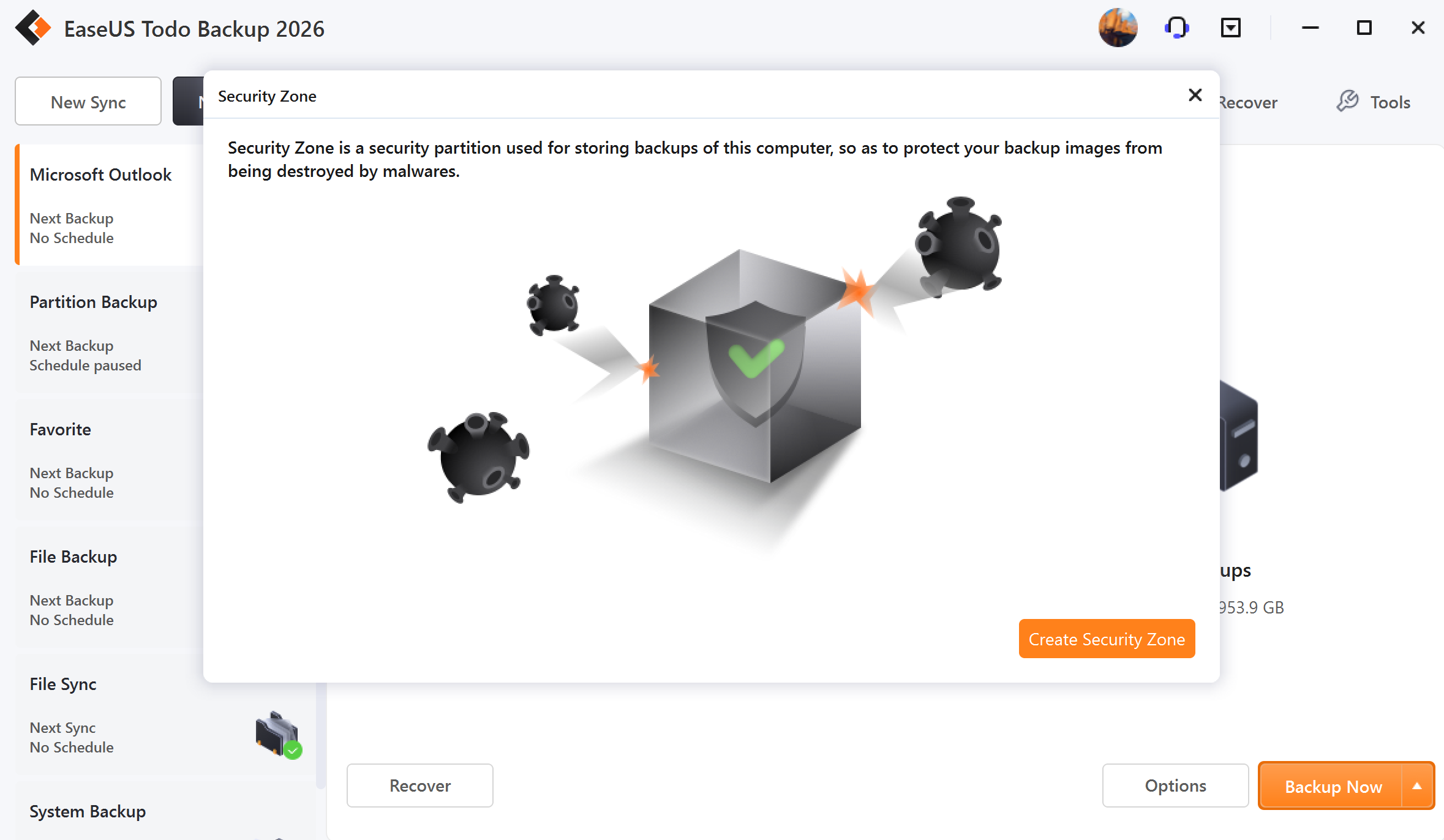
The Security Zone dialog, opened from Tools.
Smart Backup and automatic cleanup of old images
EaseUS Todo Backup Home's Smart Backup watches chosen files and folders and backs them up every half hour when something changed, in a 7-day cycle: a full image on day one, then differential and incremental images. You can also start it by right-clicking a folder in File Explorer. For scheduled backups, the image reserve strategy deletes old images after a number of days or keeps only the last N backups, so the backup drive doesn't fill up.
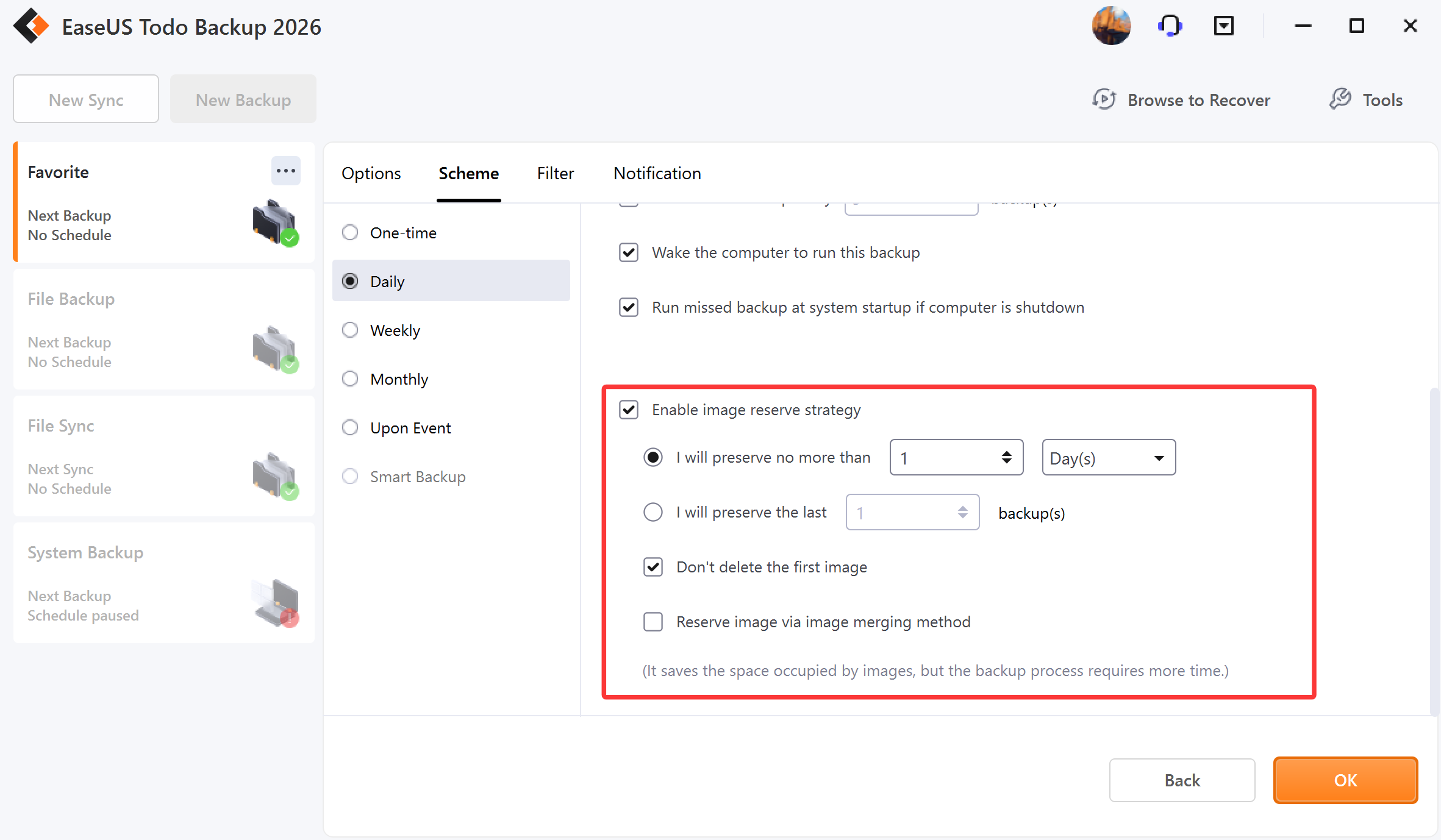
A daily schedule with the image reserve strategy turned on, plus "Wake the computer" and "Run missed backup at system startup".
Cloud, FTP, NAS and file sync
EaseUS Todo Backup Home saves backups to local and external drives, NAS boxes, network shares, FTP/SFTP servers and DVDs. Offsite Copy sends a second copy of each image to an FTP server after the backup finishes. File, Smart and mail backups can also go to OneDrive, Dropbox, Google Drive, Amazon S3, Wasabi, SugarSync or Mega, and any backup type can go to EaseUS Cloud if you pay for it. A File Sync tool keeps two folders in step one way or both ways. Backups can be encrypted with AES-256 and you get an email when a task succeeds or fails.
Benefits
- One tool for the SSD upgrade and the backups after it. You clone the old drive, then keep the same program running nightly images of the new one.
- A dead Windows install becomes an hour's job, not a weekend. Boot the emergency USB, pick the last good image, restore.
- Backups that survive ransomware, if you use the Security Zone or a drive that's unplugged between backups.
Real-World Uses
- Moving a laptop from a 256 GB drive to a 1 TB SSD: System Clone copies Windows and the boot partitions, autofit stretches the partitions, and the laptop boots from the new drive.
- A family PC that gets a nightly image: a daily OS backup to a USB drive, with the reserve strategy keeping two weeks of images, plus an emergency USB in the drawer.
- Protecting years of Outlook mail: an Apps data backup of the mailbox, restorable to another PC with the same or newer Outlook version.
- A gamer's save files: the game-save backup covers more than 10,000 games, so a reinstall or a new PC doesn't cost hours of progress.
- Replacing a dead motherboard: restore the old system image to the new hardware with System Transfer instead of reinstalling every program.
Who It's For, and Who Should Skip It
Todo Backup Home suits Windows users who want full-system images and drive cloning in one friendly program, without learning the jargon of business backup suites. It's a good fit for anyone about to upgrade to an SSD, anyone who has lost a Windows install before, and anyone who wants a perpetual license rather than another subscription.
Skip it if you only need copies of documents and photos: Windows File History or the free edition of Todo Backup does that. Mac users need a different tool. Businesses that back up Windows Server, SQL Server or Exchange need Todo Backup Enterprise, which EaseUS sells separately from $49. If you mostly want everything in the cloud, note that third-party clouds only take file-level backups here, not system images.
Usage Guide
- Install: run the small trial installer, which downloads the full program. The trial runs for 30 days; to switch to the full version, click Activate and paste the 25-digit license code from your order email.
- Make an emergency disk first: Tools > Create Emergency Disk, then write the WinPE image to a USB stick. You'll need it if Windows ever stops booting.
- Back up the system: New Backup > OS, pick the destination (an external drive is safest), and click Backup Now.
- Schedule it: open Options > Scheme, choose Daily or Weekly, and turn on the image reserve strategy so old images get cleared.
- Clone to a new SSD: Tools > Clone (whole disk) or System Clone (Windows only), pick the target, tick Optimize for SSD, check the layout and click Proceed.
- Restore: select the task and click Recover, choose the backup version and the target. From the emergency USB, use Browse to Recover to find the image.
Before you buy
- Use the 30-day trial for the job you need. EaseUS refunds only on technical grounds within 30 days, after its support has had a go at the problem; buying the wrong plan or changing your mind doesn't qualify.
- The yearly plans renew automatically until you cancel. The $59.95 perpetual license gets no free upgrades to later major versions; the $79.95 one does.
- The 1 TB of EaseUS Cloud costs extra: $59.95 a year for the Home license plus storage, against $39.95 without it.
- One license is for one computer. Support can reset a license when you replace your PC.
Download Free TrialBuy Now
Where it falls short
- System and disk images can't go to OneDrive, Dropbox or Google Drive. Third-party clouds take file, Smart, mail and Exchange backups only; full images go to a local or network drive, FTP or EaseUS Cloud.
- The sync module still has bugs. PCWorld's reviewer reported non-fatal sync errors and "interface oddities" in the 2026 version.
- Smart Backup is files only. It can't back up disks or partitions, or folders on a network drive.
- Licenses are tied to versions. A Trustpilot reviewer found an old license deactivated after a long gap and tied to a specific version, and another said an update dropped a lifetime license back to the basic edition; both needed support to fix.
- Some resizing is off the table: a sector-by-sector clone can't resize partitions, and native-format (uncompressed) file backups can't use Offsite Copy or public clouds.
What Users Say
PCWorld (Jon L. Jacobi, August 11, 2026, reviewing Todo Backup Home 2026)
PCWorld's verdict: "Super capable, and super easy to use, Todo Backup 2026 is still one of our favorite backup suites — despite some non-fatal bugs in the sync module and the occasional interface oddity."
On speed: "It took the program around 13 minutes to create a 700GB image file". On the cloud plan: "$60 a year ($39.95 plus $20) for 1TB is one of the better deals out there". On licensing: "a perpetual license is a major plus in my book".
- Pros: "Imaging, file backup, sync, and disaster recovery", "Super-friendly interface", "Disaster recovery media even with the free version", "1TB of online storage for $60 a year"
- Cons: "No support for third-party online storage", "Still some bugs with sync", "Interface oddities"
TechRadar (Daniel Blechynden, with Mike Jennings, last updated September 2, 2024)
"EaseUS Todo Backup is the fastest backup app we've tested, and it's got a good range of features, too". On the interface: "No matter your version, the interface is decent – attractive and clean."
- For: "Very, very fast", "Lots of business features", "Free version available"
- Against: "Business options get pricey", "Constant popups", "Limited customer support"
Trustpilot (EaseUS company page: TrustScore 4.9 from 39,743 reviews, all products)
The EaseUS score covers every product and is dominated by short thank-you notes after support chats. The reviews that name Todo Backup are mostly about licenses and support:
- Laura (US, 5 stars, November 18, 2026): "I purchased the EaseUS Todo Backup lifetime upgrade license a few years ago, and since then" she has had no trouble getting a new download link and activation code each time she changed computers.
- "EaseUS Todo Backup works well for me." (Peter Burch, GB, 5 stars, September 22, 2026): a user of several years whose license was reset for a new computer, and whose C: drive was restored by support after a laptop failure, through a paid premium support service.
- "I had an issue re-installing and activating Todo Backup home" (Gulfislander, CA, 5 stars, November 4, 2026): live chat fixed it quickly.
- "The software does what it is supposed to do." (John Korpershoek, NL, 5 stars, October 29, 2026): about the free edition, which he found good for backups and disk images but missing Smart Backup and disk cloning.
- "Backup licenses are version-specific" (Ter, US, 1 star, November 11, 2026): licenses were deactivated after a long period of non-use and tied to specific versions, and calls, email and chat didn't resolve it. EaseUS replied asking for a case number.
- Tony L (US, 1 star, November 16, 2026): "I used to have the Lifetime Home edition, but during software updates, I was backed down to the basic version."
- "Waste of Time and Money" (Barbara Parendo, US, 1 star, September 24, 2026): the program mostly showed her ads she couldn't get past. EaseUS replied that an unactivated copy or adware could be the cause and asked her to contact support.
The pattern is consistent: reviewers praise the speed and the easy interface, and the price of a perpetual license. The complaints are about the sync module, license activation after updates or long gaps, and upgrade pop-ups, and most license problems were solved by EaseUS's live chat once the user got through.
Comparisons
Todo Backup Free vs Home
Both make full, incremental and differential backups of files, partitions, disks and the system, back up to the cloud, and build a WinPE emergency disk. Home adds faster backup and recovery, Apps data backup (Outlook, Chrome, game saves), disk, partition and system cloning, the Security Zone, System Transfer to different hardware, Smart Backup, Universal Restore and priority support. If your plan is "image the system drive to a USB disk once a week", Free is enough. If you're replacing a drive, Home pays for itself.
Todo Backup Home vs Enterprise
Enterprise ($49.00 and up) adds Windows Server support, SQL Server and Exchange backup and central management of many machines. A home PC doesn't need any of that.
Editions and Pricing
| Plan | Price (USD) | Term | Upgrades and support |
|---|
| Free | $0 | Unlimited, personal use | Backup and restore only, no cloning |
| Home Yearly | $39.95 | 1 year, auto-renews, 1 PC | Free upgrades for a year, standard support |
| Home Yearly + 1 TB Cloud | $59.95 | 1 year, auto-renews, 1 PC | As Yearly, plus 1 TB of EaseUS Cloud |
| Home Perpetual | $59.95 | One-time, 1 PC | No free major upgrades, standard support |
| Home Lifetime Upgrades | $79.95 | One-time, 1 PC | Lifetime free upgrades, premium support |
All paid plans are on the same order page; pick the plan there. Verified students get a lower education price on the same page, and prices exclude VAT.
FAQs
Can EaseUS Todo Backup Home clone Windows to a smaller SSD?
Yes. EaseUS Todo Backup Home clones a larger drive to a smaller one as long as the target is bigger than the space actually used on the source. Use System Clone to copy only the Windows and boot partitions, which is the easiest way to fit a big, half-empty hard drive onto a smaller SSD.
Does EaseUS Todo Backup Home work on Windows 11 on ARM?
Yes. EaseUS added support for ARM versions of Windows in March 2025 and fixed booting its WinPE emergency environment on ARM in version 17.5.
Can I move my Todo Backup Home license to a new computer?
Yes. A Todo Backup Home license covers one computer at a time, and EaseUS support resets the license code by email or live chat when you replace the PC, so you don't need to buy it again.
What happens when the Todo Backup Home trial ends?
Todo Backup Home's 30-day trial asks for a license code when it ends. You can enter a Home code to keep every feature, or move to the Free edition, which still restores file, partition and system backups but not the Home-only features.
Can Todo Backup Home back up a Windows PC to OneDrive or Google Drive?
Partly. Todo Backup Home sends file backups, Smart Backups and Outlook mail backups to OneDrive, Dropbox, Google Drive, Amazon S3 and similar services, but a full system or disk image needs a local or network drive, an FTP server or EaseUS's own cloud storage.
Are Todo Backup Home backups encrypted?
They can be. Todo Backup Home encrypts a backup image with AES-256 when you set a password in the backup options (up to 15 characters). Keep the password safe: there's no way to open an encrypted image without it.
Is a Todo Backup Home image readable without the program?
Not in the default image mode: Todo Backup Home writes compressed .pbd image files that you open with Todo Backup or its emergency disk. For file backups you can choose Native Format Mode instead, which copies the files uncompressed so they can be browsed directly in File Explorer.
System Requirements
- Windows 11, 10, 8.1, 8 or 7 (Windows on ARM supported)
- 500 MHz processor or faster, at least 1 GB of RAM
- At least 1 GB of free disk space for the program
- File systems: NTFS, FAT32, FAT16, FAT12
- Drives: IDE, SATA, eSATA, SCSI, iSCSI, FireWire, SSDs, hardware RAID, MBR and GPT disks up to 16 TB, up to 32 disks; USB 1.0/2.0/3.0 removable drives
- Internet connection for activation, cloud backups and the web installer
Conclusion
EaseUS Todo Backup Home is worth $39.95 a year, or better, $59.95 once, if you want system images and drive cloning in one program that you'll actually understand. The single best reason to buy it is the SSD upgrade: clone the old drive, then keep imaging the new one with the same tool and an emergency USB ready. Independent reviewers rate it fast and easy, and the perpetual license is rarer than it should be in this category.
The main reason not to buy is if you only back up documents, since the free edition or Windows' File History covers that. Also expect the odd sync bug, and keep your order email handy in case the license needs resetting after an update. Try the 30-day trial on your own hardware first, because EaseUS only refunds for technical problems.
Download Free TrialBuy Now