HT Family Shield: Manage Your Child's Windows PC From Any Device, Wherever You Are
HT Family Shield is parental control software for Windows 11, 10, 8 and 7 that you install on your child's PC and run from an online dashboard, so you can block sites and apps, set screen-time limits and read activity reports from your phone or work computer. It costs $48 a year per computer (also $18 a quarter or $7.50 a month), and the 14-day trial needs no credit card.
You're at the office, it's 4 PM, and you'd like to know whether homework happened before Roblox did. That's the situation this program is built for: the rules live in a web page you can open from anywhere, and you never have to walk over to the child's computer again after installing it.
Quick facts
- Developer: HT Vector (formerly HideTools)
- Version: HT Family Shield 12, listed as version 14.5.27, updated May 27, 2026
- Platform: the agent runs on Windows 11, 10, 8 and 7. The dashboard opens in a browser on any device. There's no agent for Mac, Android or iPhone.
- Browsers filtered: Chrome, Edge, Firefox, Opera, Brave and Tor, including private windows
- Price: $48 a year per computer, $18 a quarter or $7.50 a month. All plans renew automatically.
- Free trial: 14 days with every feature, no payment details
- Refund: 15-day money-back guarantee on the first purchase and on the latest renewal
- What we checked: the setup file (family_shield_setup.exe, 0.36 MB, digitally signed for support@ht-vector.com) downloaded from the vendor, and the order page prices of $48.00 a year, $18.00 a quarter and $7.50 a month for one computer, all on November 10, 2026. We didn't install it on a child's PC or try to get around its filters.
Before you buy
HT Family Shield is a subscription per computer, and HT Vector doesn't sell lifetime or one-time licenses. You get an email reminder 7 days before each renewal and can cancel anytime; the license keeps working to the end of the period you paid for.
The 15-day refund has exceptions: it doesn't apply if the license was used on more computers than purchased, on a computer you don't own or aren't allowed to monitor, or on a computer with no internet connection. Because rules and reports travel through HT Vector's online service, you'll also be creating an account there, and your child's activity logs are shown through it.
Download Free TrialBuy Now
Overview
HT Family Shield has two halves. A small agent sits on the child's Windows PC, starts with Windows and enforces the rules. The dashboard at family.ht-vector.com is where you set those rules and read what happened, with each child listed in a side panel. One account covers every computer you add.
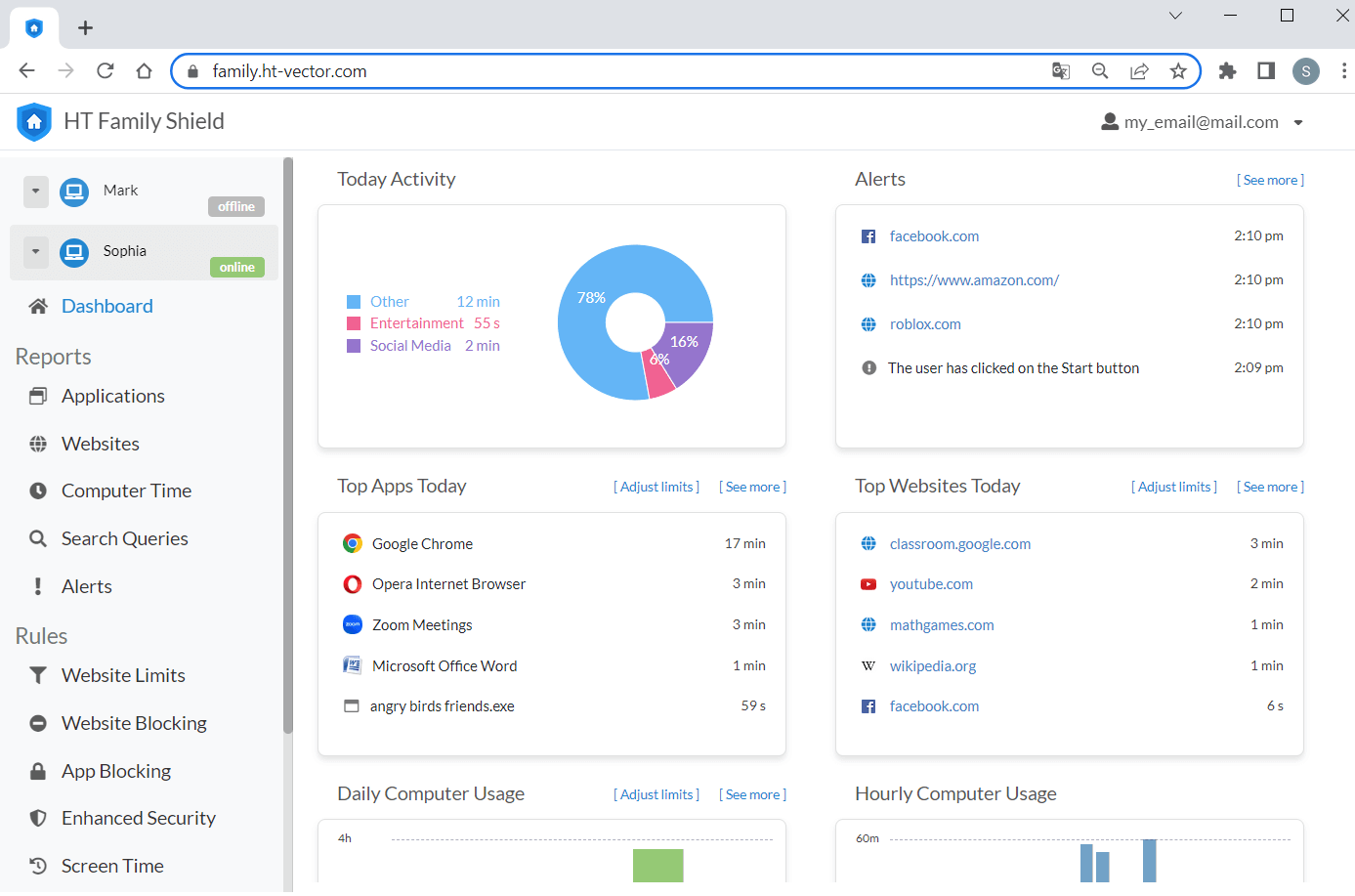
The web dashboard: two children on the left, a day's activity by category, recent alerts, and the top apps and websites, with a green banner you can click to pause everything.
Out of the box nothing is blocked. It records activity from the moment it's installed, and you decide what to restrict.
Features
Website categories, block lists and an allow-only mode
HT Family Shield sorts websites into categories (YouTube/Video, Games, Social Media, Instagram, Messengers, Torrents, Dating, Adult and more) that you set to Allow, Limit or Block, and adds your own list of sites. Its Website Blocking tab takes domains and keywords, and an allowlist rescues sites caught by mistake. Turn on "Allow access only to the websites above" and your child can reach nothing but that list.
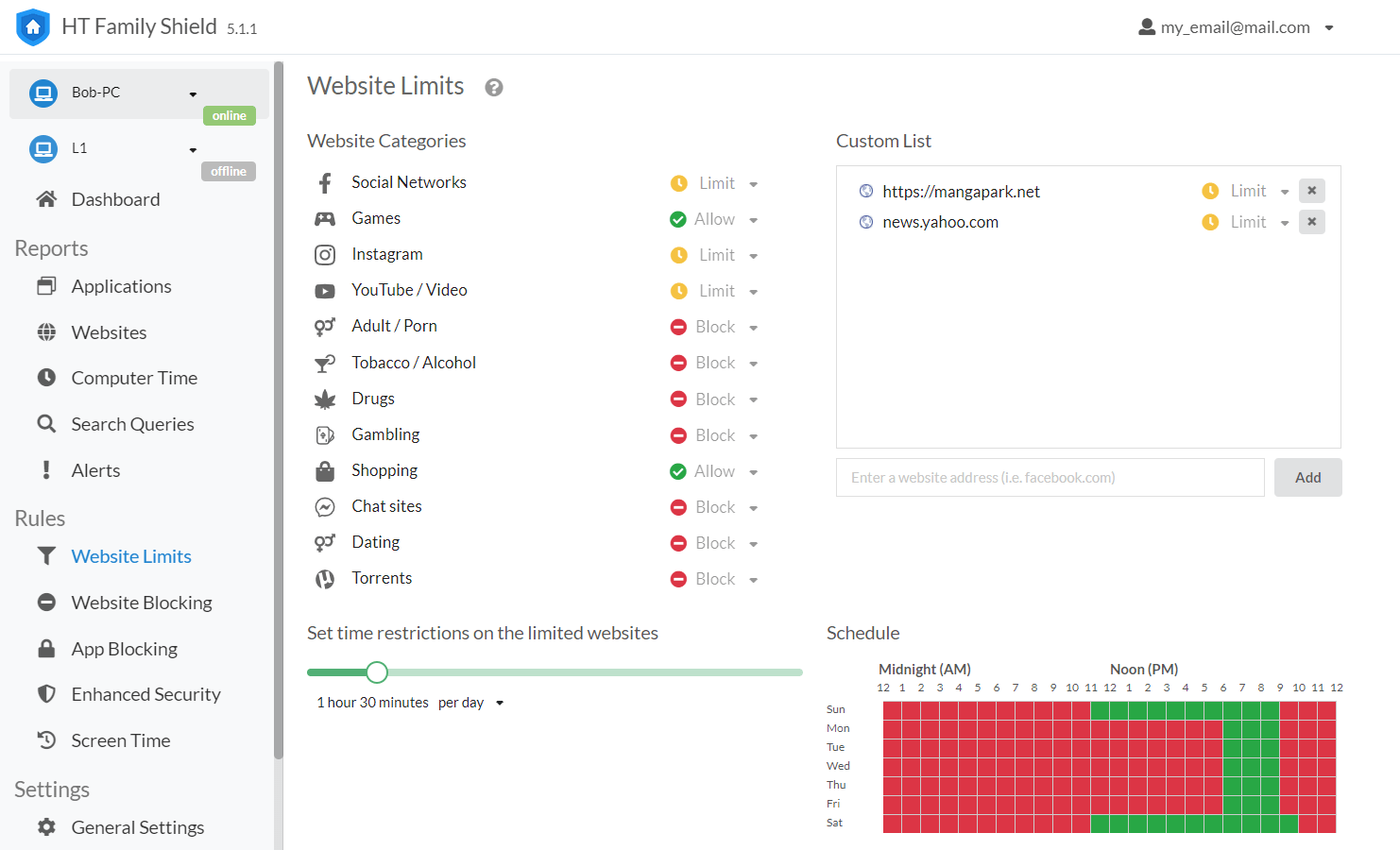
Website Limits: categories set to Limit, Block or Allow, a custom list (tiktok.com blocked, chess.com allowed), a 1 hour 30 minute daily allowance and a weekly grid of allowed hours.
Daily allowances instead of outright bans
HT Family Shield can give limited sites and apps a shared daily allowance and an hourly schedule. Note the word shared: one quota covers everything marked Limit, so 90 minutes means 90 minutes across YouTube, games and social media together, not 90 minutes each.
App and game blocking
HT Family Shield groups programs into categories such as Games, Browsers, Video Players, Torrents, Messengers, Installers, Process Managers and Unsupported Browsers. Add individual programs from a drop-down list, which shows only apps that have been opened at least once on the child's PC. Blocking Installers stops new games from going on the computer.
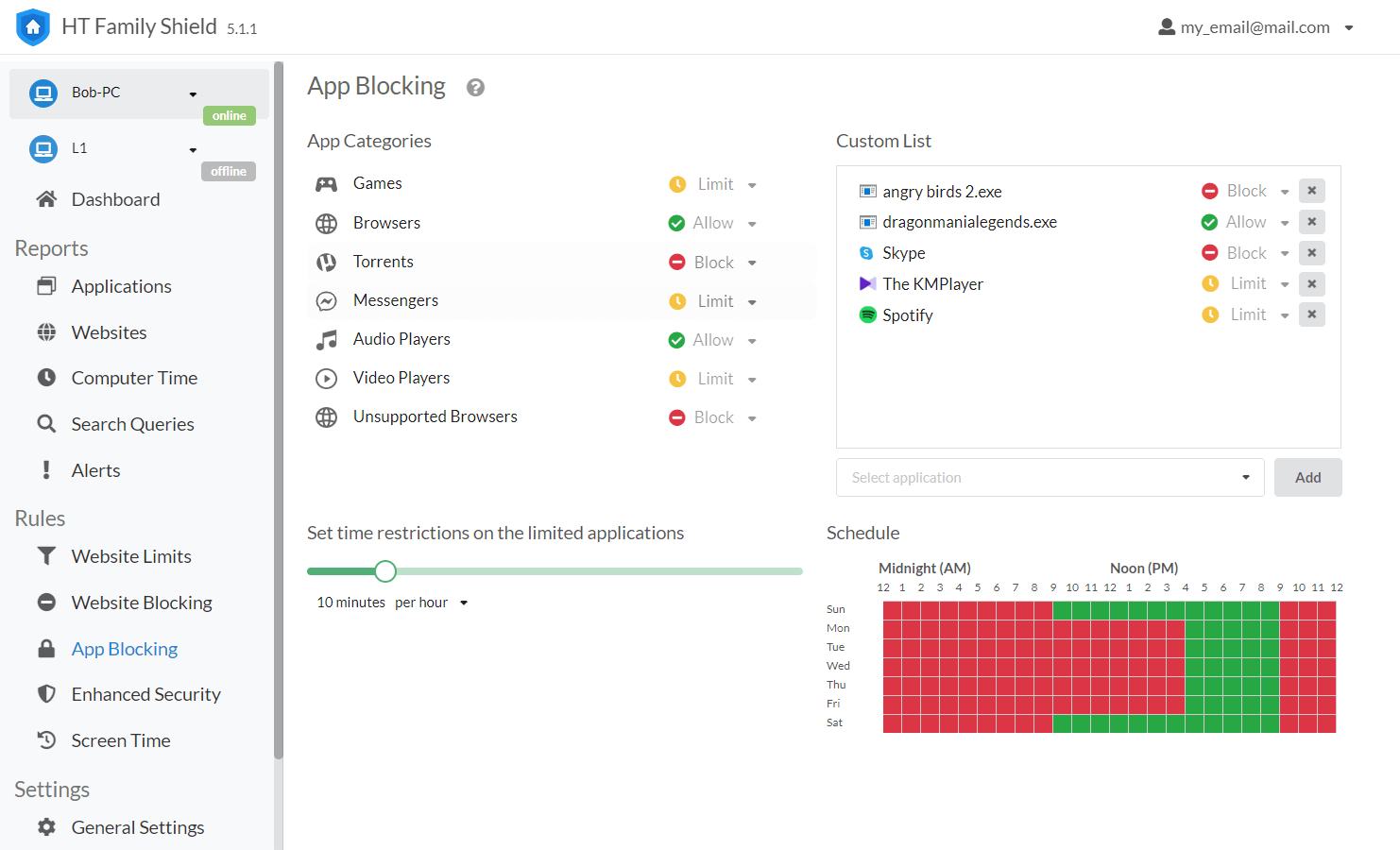
App Blocking: nine categories, a custom list with Discord, Minecraft, Roblox and Xbox blocked, and a one-hour daily limit for the rest.
Screen time with a bedtime grid
HT Family Shield sets a maximum computer time per day or week and a click-and-drag weekly grid of allowed and blocked hours. Your child sees a warning before time runs out, and the PC then logs out or shuts down, whichever you pick.
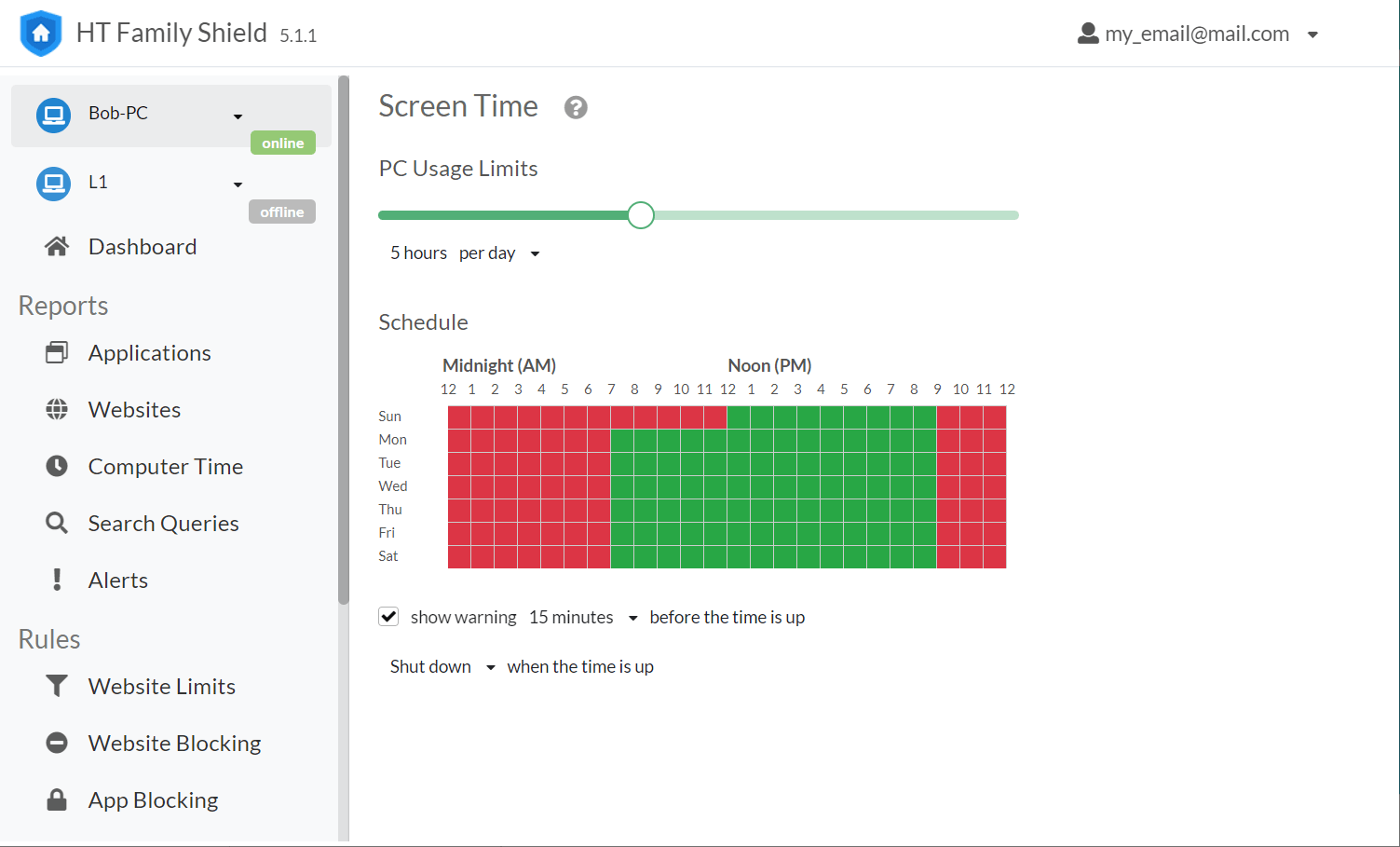
Screen Time: a 5-hour daily limit, blocked hours in red, a 30-minute warning and "Shut down" when the time is up.
Reports on sites, apps, searches and computer time
HT Family Shield reports the websites and apps your child uses with time spent, their search queries on Google, Bing and YouTube, and total computer time. A menu next to each entry lets you block or limit it on the spot, without typing the address into a rule.
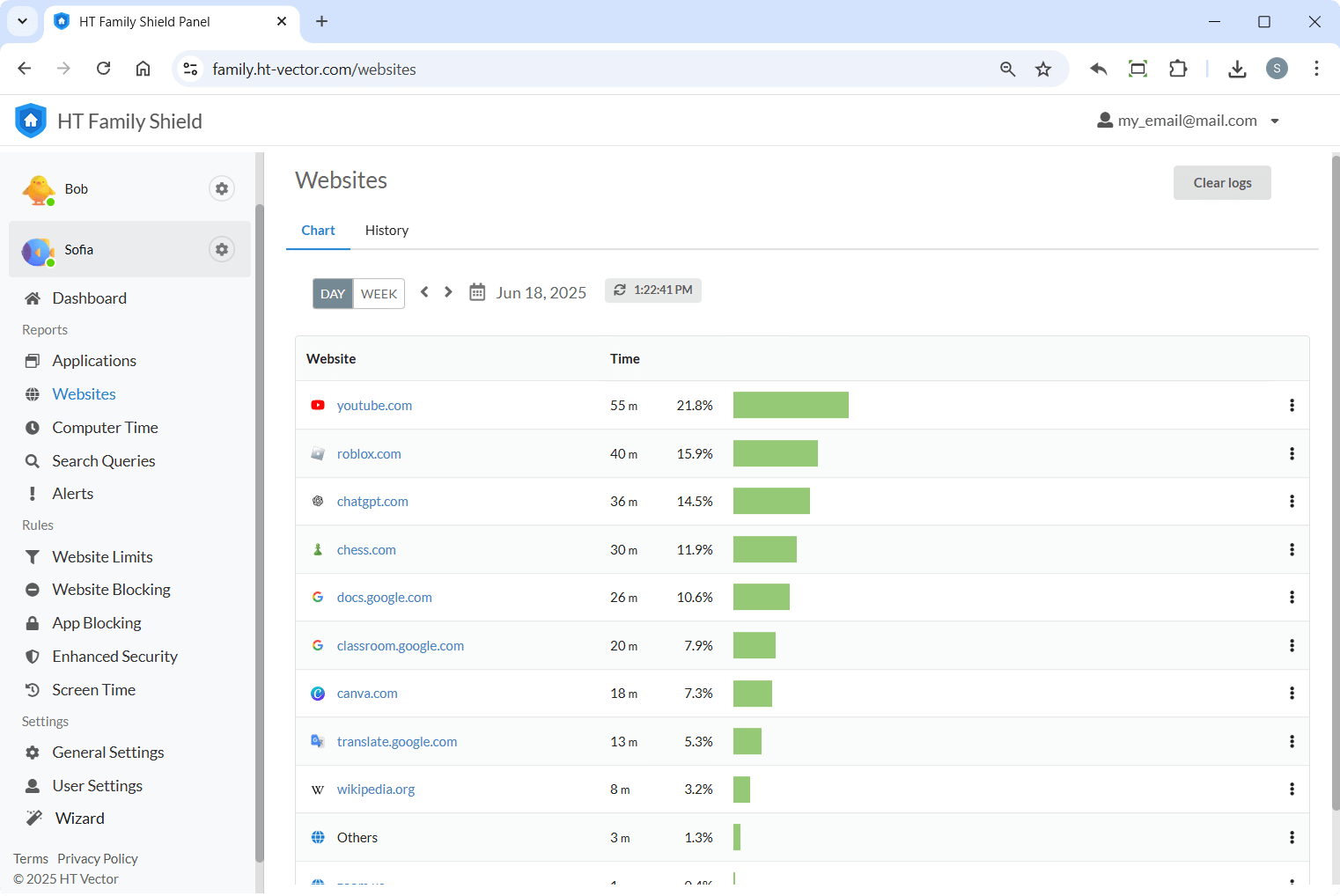
The Websites report for one day: youtube.com at 55 minutes, then roblox.com, chatgpt.com, chess.com and school sites, each with its share of the time.
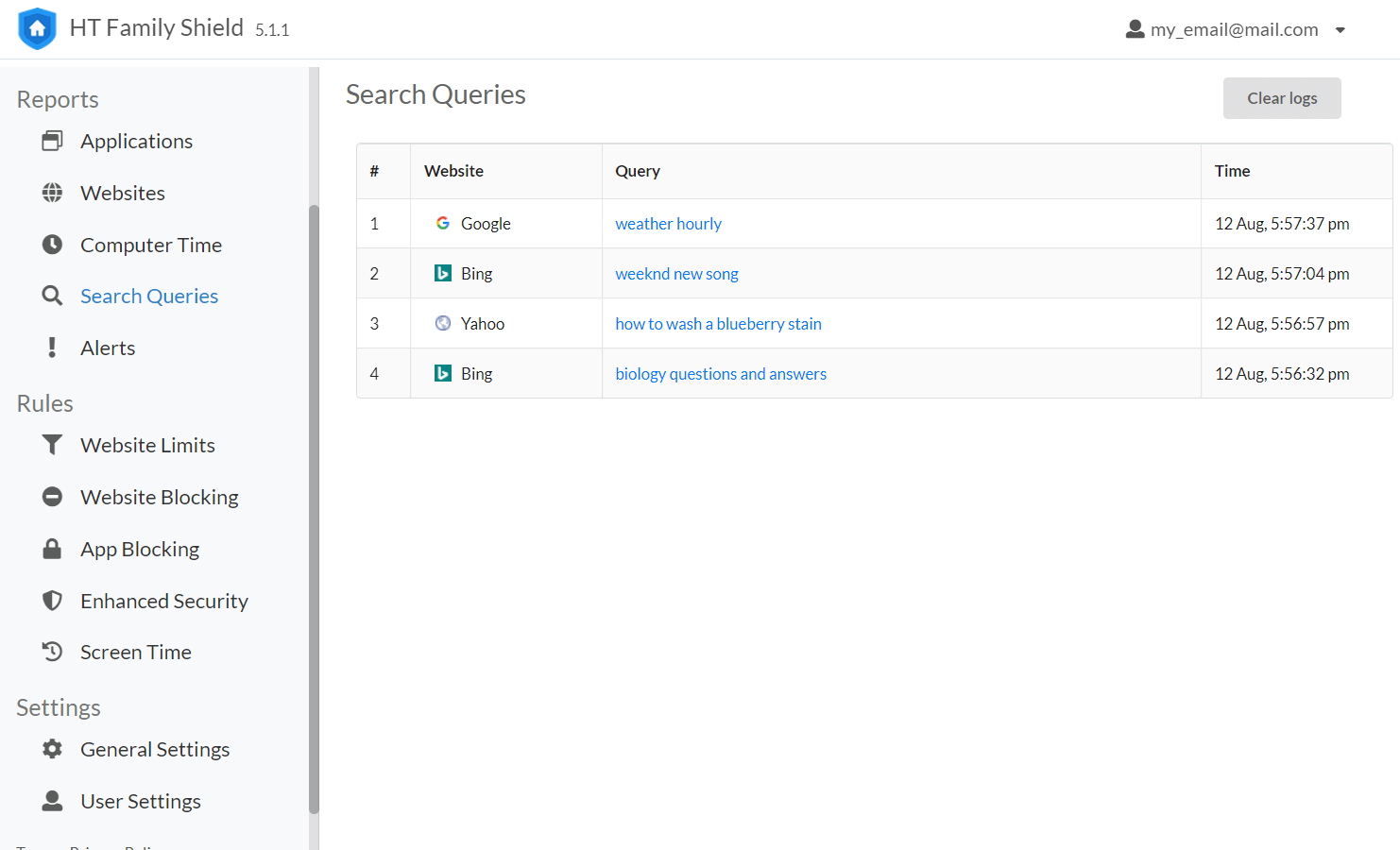
Search Queries: each search with the engine it was typed into and the time.
Alerts that show which rule fired
HT Family Shield logs every blocked attempt in its Alerts report with the reason, so a false alarm is easy to trace. It also records when someone clicks Stop or Start on the program from the dashboard.
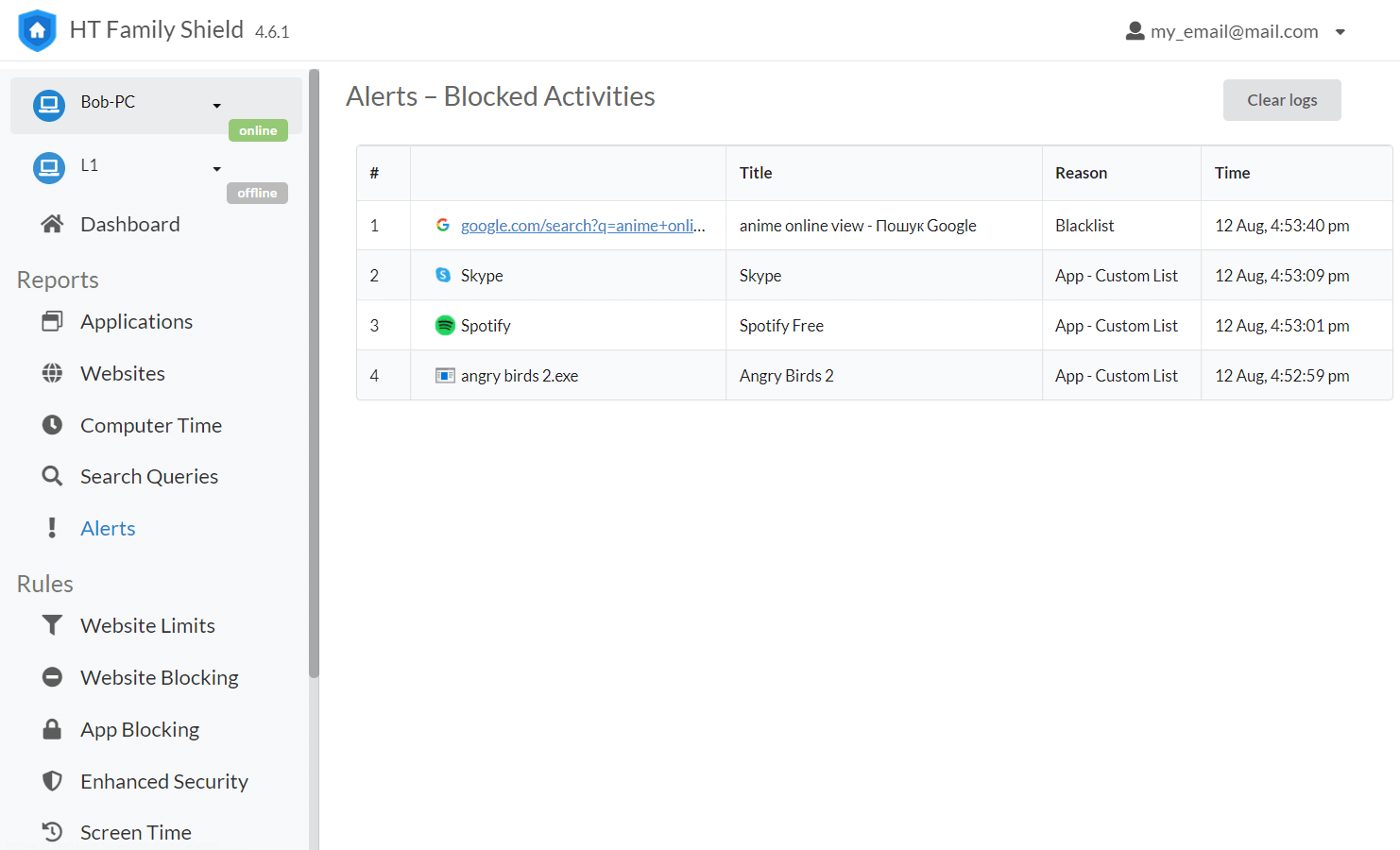
Alerts: Telegram, WhatsApp, VLC and Discord stopped by app rules, YouTube and Instagram by website rules, each with its reason and time.
Tamper protection
HT Family Shield's Enhanced Security rule restricts Task Manager, and uninstalling asks for the account's email and password. HT Vector says the filter handles HTTPS sites and private browsing and stays effective when VPNs and proxies are used. Settings can differ per Windows user, so a parent's account on the same PC can run unrestricted.
Benefits
- Parenting from a distance. A rule changed at lunchtime applies before the school bus gets home, with no remote desktop and no trip to the child's room.
- Less friction with the child. The PC enforces the schedule, so you're not the one announcing that the time is up.
- Fast corrections. Blocking from inside a report means you act on what actually happened rather than guessing at rules in advance.
Real-World Uses
- Working parents. Check from your desk whether the afternoon went to schoolwork or to YouTube, and tighten the limit if it didn't.
- Parents who travel. Keep the same bedtime rule in force from another time zone.
- Two kids, two sets of rules. Give a 7-year-old an allow-only list and a teenager a daily allowance, all from one account.
- Shared-custody households. Either parent can sign in to the same dashboard from their own device.
Who It's For, and Who Should Skip It
It's a good fit for parents whose kids use a Windows PC or laptop and who want to manage it from outside the house.
Skip it if:
- Your child mostly uses a phone, tablet, Mac or Chromebook. The agent is Windows-only, so use Apple Screen Time, Google Family Link or a cross-device service instead.
- You'd rather keep logs off anyone's servers, or you want periodic screenshots and emailed reports. HT Vector's HT Parental Controls, at the same price, is managed locally and has both.
- You only want to block a site or two. Microsoft Family Safety is free and built around Windows accounts.
Usage Guide
- Download family_shield_setup.exe on the child's computer and run it. Nothing needs installing on your own devices.
- Open the app and sign up (or sign in). The computer then appears in your dashboard by itself.
- Go to family.ht-vector.com on your phone or PC and open Rules.
- Set Website Limits, Website Blocking, App Blocking and Screen Time. Remember that nothing is blocked until you do.
- Open Enhanced Security and restrict Task Manager, then block the Unsupported Browsers and Process Managers app categories.
- Give your child a Standard Windows account if they have admin rights.
- Enter your license key before the 14-day trial ends.
Tips
- Wrap short keywords in underscores:
_bra_ blocks that word only, while plain bra also catches "Brave" and "librarian".
- Paste exact addresses into allow-only mode, with no slashes or "www".
- Apps and websites are separate rules. Blocking discord.com doesn't stop the Discord desktop app, so add both.
- After changing your password, sign in again in the app on the child's PC, or it stays signed out.
Where it falls short
- Stops at Windows. The phone or tablet, where many kids spend most of their time, isn't covered.
- Fewer reports than its sibling. HT Vector's own comparison gives Screenshots and Email Reporting to HT Parental Controls only.
- One shared allowance. You can't give YouTube and games separate daily quotas in the same list.
- Keyword filters can overblock. HT Vector's own example is that blocking "chat" also blocks chatgpt.com until you allowlist it.
- Admin children can undo it. HT Vector itself advises moving a child with admin rights to a Standard account.
- No lifetime license, and every additional PC adds to the subscription.
What Users Say
Independent write-ups
TrishTech's Trisha, writing in March 2022, found it simple: "Using HT Family Shield is very easy." She adds, "The first thing that this application does is that it blocks all of the websites with inappropriate content." Her article is a feature overview and doesn't list drawbacks.
Softpedia's summary, as HT Vector quotes it, reads: "Filter the Internet content and track the PC usage with this application, all to make sure your children are protected while on the computer."
Customer comments on HT Vector's site
"This program is excellent when it's configured correctly. I initially wanted to block all websites except for a few, but I had trouble getting it to work. So I contacted customer support, and they were able to configure it for me." — Sunil
"I purchased HT Family Shield and used it to block the sites on my daughter's laptop. It works perfectly, and the reports are also very helpful." — Oscar
"I installed the program on my son's laptop. Without it, getting him to do his homework was impossible." — Julia
There isn't much independent feedback to go on: we found no listing for HT Family Shield on Trustpilot, Capterra or G2, and the customer comments above were chosen by the vendor. The one recurring note is Sunil's, that allow-only mode can take some setting up.
Comparisons
HT Family Shield vs. HT Parental Controls
Both cost the same and share website blocking, app blocking, time controls, Enhanced Security, website and app logs, search queries and alerts. HT Family Shield is managed from an online dashboard anywhere. HT Parental Controls is managed on the child's PC or from the same home network, needs no online account, and adds screenshots and email reports. Choose Family Shield for remote control, Parental Controls for local storage and those two extra reports.
Editions and Pricing
| Plan (1 computer) |
Price |
Works out to |
| Annual |
$48.00 a year |
$4.00 a month |
| Quarterly |
$18.00 every 3 months |
$6.00 a month |
| Monthly |
$7.50 a month |
$7.50 a month |
Every plan includes all features and free updates. More computers lower the price: on an annual plan, HT Vector's pricing page shows $3 per computer per month for 2 computers and $2 for 10. Change the quantity at checkout. Payment is by card, PayPal, wire transfer or purchase order through PayPro Global, and card and PayPal orders activate within minutes.
Buy Annual ($48)Buy Quarterly ($18)Buy Monthly ($7.50)
FAQs
Do I have to install HT Family Shield on my own phone or computer?
No. HT Family Shield installs only on the child's Windows computer. You manage it by signing in to family.ht-vector.com in a browser on any device.
Can HT Family Shield monitor an iPhone or Android phone?
No. HT Family Shield's agent runs only on Windows 7, 8, 10 and 11 desktops and laptops. Phones can open the parent dashboard, but they can't be monitored by it.
How do I add a second child's computer to HT Family Shield?
Install HT Family Shield on that PC and sign in with the same account, and it appears in your dashboard. Each computer needs its own license; the per-computer price falls as the quantity rises.
Can I pause HT Family Shield for an evening?
Yes. HT Family Shield's dashboard has a banner at the top that pauses all monitoring and blocking with a click, and the Alerts report records when it was stopped and started.
How do I uninstall HT Family Shield?
Remove HT Family Shield from Windows' Installed apps list, and enter your account's email and password when asked. If you've forgotten the password, reset it from the dashboard's login page; the app then signs out, and you can uninstall it with an empty email and password.
Can I use HT Family Shield to monitor employees?
No. HT Family Shield is meant for parents, legal guardians and schools, and all monitoring needs their consent. HT Vector sells HT Work Focus for workplaces.
System Requirements
- Child's computer: Windows 11, 10, 8 or 7
- Parent's device: any device with a web browser
- Browsers filtered: Chrome, Edge, Firefox, Opera, Brave, Tor
- Internet connection: needed for the dashboard, and required for the money-back guarantee to apply
Conclusion
HT Family Shield is worth $48 a year if your kids use a Windows PC and you want to manage it while you're out. The controls cover what parents usually need, and being able to change a rule from your phone is the whole point of choosing it.
The one reason to buy it is the remote dashboard. The main reason not to is that it stops at the PC: phones and tablets aren't covered, and if you stay home and want screenshots and emailed reports, HT Parental Controls suits you better. The 14-day trial needs no card, so set it up on one PC and see whether the dashboard fits how you work.
Download Free TrialBuy Now