Program Protector: Put a Password on Any Windows Program
Program Protector is a small Windows utility from Blumentals that makes a chosen program ask for a password before it opens. The Home license costs $29.95 once on the order page and runs on Windows 7 through Windows 11. It's meant for a shared family or office PC where you want to keep certain apps, such as a browser, an e-mail client, a game or the accounting software, away from the other people who use it.
Windows user accounts are the proper way to separate people, but on many home PCs everyone shares one login. Program Protector fills that gap with a lock on individual programs: double-click a protected app and a "Password Protection" box appears instead of the program.
Quick facts
- Developer: Blumentals Solutions SIA (Latvia)
- Version: 4.15
- Platform: Windows 11, 10, 8 and 7 (Windows 7 needs Service Pack 1 and update KB3033929), 32-bit and 64-bit
- Protects: Windows applications (.exe files), not documents or folders
- Price: Home $29.95, Family $39.95, Professional $39.95, Business Pack (5 PCs) $79.95, all one-time
- Trial: free evaluation in which the password prompt has a Bypass Protection button
- What we checked: the installer on the vendor's server (pprotect4.exe, 2.4 MB, file version 4.15, dated November 27, 2025), and the order page on November 4, 2026, which charged $29.95 for "Program Protector 4 Home" as a one-time purchase with no renewal. We didn't try to defeat the protection ourselves.
Before you buy
- The trial doesn't really lock anything. Until you activate a license, anyone can click Bypass Protection on the prompt. Use the trial to check that your programs still run normally when protected, not as a free lock.
- Pick the right license. Home covers one computer at home. Family ($39.95) covers every computer at home. Any business use needs Professional ($39.95 per PC) or the Business Pack.
- Keep your passwords safe. You need a program's current password to unprotect it, and forgetting the administrative password locks you out of Program Protector itself.
Download Free TrialBuy Now
Overview
Program Protector is one window with five big buttons: Protect Program, Unprotect Program, Change Password, Run Program and Help Topics. Below them sits the list of every protected program on the PC, with its title and file path. A Tools menu holds the extras: the administrative password, the options for the prompt, and the usage log.
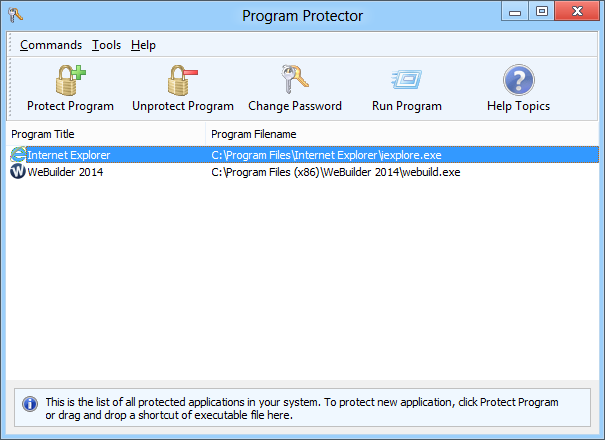
The main window (vendor screenshot from an older Windows version) with two protected programs and the toolbar buttons.
According to Snapfiles' description, Program Protector changes the protected program's executable itself, so it doesn't need to be running in the background for the lock to work. Blumentals adds that renaming the protected file doesn't remove the lock and that Program Protector can't be uninstalled without the password.
Features
Lock a program with a drag and drop
Program Protector protects an application when you drag its .exe file or its shortcut from the Desktop, Start Menu or File Explorer onto its window, or browse to it. You type the password twice (up to 20 characters, case-sensitive) and click Protect Program. If the program is already running, close and restart it for the lock to take effect.
A password prompt you can reword
Program Protector shows a small "Password Protection" box whenever someone starts a locked program. In Options you can change its title, message and prompt text, which lets you translate it or leave a note for the kids or co-workers explaining why the app is locked. Clear the fields to get the default wording back.

The default prompt. The Bypass Protection button at the bottom left appears in the evaluation version.
A log of who ran what
Program Protector can keep a usage log of protected programs, opened from Tools > Protected Program Usage Log, with a button to clear it. Logging is off by default; switch on "Log Protected Program Usage" in Options.
An administrative password for the tool itself
Program Protector can ask for its own administrative password every time it starts, so nobody else can open it to unprotect programs or change their passwords. Blumentals strongly recommends setting one.
Separate passwords per program
Program Protector gives each protected program its own password, which you can change at any time from the toolbar, and Run Program lets you test a lock straight from the list. Unprotect Program removes the lock completely once you enter the current password.
Benefits
- Selective locking. The rest of the PC stays open to everyone; only the apps you choose are guarded.
- No extra accounts to manage. Useful where a single shared Windows login is how the household or shop actually works.
- Small and simple. A 2.4 MB install and a one-window interface that a non-technical owner can manage.
- One payment. No subscription for a tool you'll set up once and leave alone.
Real-World Uses
- Lock the web browser and games on a family PC so children ask before using them.
- Keep the accounting or point-of-sale back-office program on a shop's shared counter PC away from casual staff use, with the usage log switched on.
- Protect the e-mail client on a PC that visitors or relatives sometimes borrow.
- Stop a remote-access or system tool from being started by anyone who sits down at a reception computer.
Who It's For, and Who Should Skip It
It's for owners of a shared Windows PC who want to put a few specific programs behind a password without setting up separate user accounts or a full parental-control suite.
Skip it if you need to hide files or folders: Program Protector protects applications only, so an encryption or folder-locking tool is the right kind of software. Skip it for children's screen time or web filtering, where Windows Family Safety or a dedicated parental-control program (time limits, website filtering) does more. And on PCs where everyone already has their own Windows account, standard account permissions are the sturdier solution.
Usage Guide
- Install and launch. Download the 2.4 MB installer and run it. To activate the full version, click Activate and enter the license key from your order e-mail.
- Set an administrative password. Tools > Administrative Password, enter it twice, click OK. Write it down somewhere safe.
- Close the program you want to lock, then drag its shortcut onto the Program Protector window (or click Protect Program and Browse to its .exe).
- Enter the password twice and click Protect Program. The app appears in the protected list.
- Test it. Select it and click Run Program; the password prompt should appear.
- Optional: in Tools > Options, reword the prompt and switch on the usage log.
- To remove a lock, close the app, select it, click Unprotect Program and enter its current password.
Where it falls short
- It stops casual users, not determined ones. Blumentals says the protection can't be bypassed, but a toolkit that removes Program Protector 4.x protection has been published on GitHub. Treat it as a lock against family members and co-workers, not as security for sensitive data.
- Protection stays on one PC. Copying a protected program to another computer doesn't carry the password; you install Program Protector and protect it again there.
- Applications only. Documents, photos and other files can't be protected.
- Older Windows needs an old version. Version 4.9 and later need Windows 7 with SP1 and KB3033929 or newer; for older systems Blumentals points to version 4.8, which it doesn't recommend.
- Long passwords have caused trouble. A user reported on the vendor forum in 2013 that a 25-character password wasn't accepted at the prompt; the current limit is 20 characters, so stay within it.
- If a protected program misbehaves. If a protected program doesn't start properly, Blumentals' advice is to unprotect it, so test each app after protecting it.
What Users Say
Program Protector has very little independent feedback. Snapfiles shows no user reviews yet, and the rest comes from download sites and Blumentals' own support forum, so treat this section as a short record rather than a consensus.
Snapfiles
Snapfiles' editors describe it: "You can password protect any Windows application by simply dragging the EXE file or a shortcut into the application interface. The protection cannot be bypassed, even if the executable is renamed." They also note: "Protection can by bypassed during trial."
Blumentals forum
rogerparrenas, April 21, 2013, after his long password wasn't accepted: "But thanks to the Evaluation Function with "Bypass Password" I can open my "Google Chrome" without the password." He later added: "I just changed the 25 letter password to 4 digit password." A Blumentals developer replied: "Thanks for reporting, we'll take a look."
bobo, April 5, 2010, testing the evaluation on Vista: "I have installed the evaluation version of the software on Vista and added both Outlook and Windows mail to the password protected program list but I can open both programs with out a password prompt." At the time the developer answered that Program Protector "currently is not compatible with 64-bit OS systems"; the current version 4.15 supports 32-bit and 64-bit Windows.
In short, the reviews that exist praise the drag-and-drop simplicity, and the reported problems are old ones about passwords and compatibility that predate the current version.
Editions and Pricing
| Edition |
Price |
Use |
Computers |
Upgrade from older version |
| Home | $29.95 | Home and personal | 1 computer at home | $19.95 |
| Family | $39.95 | Home and personal | Every computer at home | $25.95 |
| Professional | $39.95 | Commercial | 1 office computer | $25.95 |
| Business Pack | $79.95 | Commercial | Up to 5 office computers | $49.95 |
Our Buy Now button sells the Home edition. Larger offices can buy Professional volume licenses at $32 per seat for 5-9 seats, $30 for 10-19 and $28 for 20 or more, and there's academic pricing. EU residents pay VAT on top of these prices.
FAQs
Can Program Protector password protect a folder or a document?
No. Program Protector only protects Windows applications. For folders and files you need an encryption or folder-locking tool.
Does Program Protector work on Windows 11?
Yes. Program Protector 4.15 supports Windows 11, 10, 8 and 7 (with Service Pack 1 and update KB3033929), on 32-bit and 64-bit systems.
Can someone get around Program Protector by uninstalling it?
Blumentals says Program Protector can't be uninstalled without the password and that renaming a protected program doesn't remove its lock. In the evaluation version, though, anyone can click Bypass Protection.
Is Program Protector a subscription?
No. Every Program Protector license is a one-time payment; the Home license was $29.95 on the order page with no renewal.
Which Program Protector license do I need for a small office?
Program Protector's Home and Family licenses are for home and personal use only. An office needs Professional for one PC or the Business Pack for up to five.
What happens if I forget a program's password?
Program Protector needs a program's current password to unprotect it or change it, so keep your passwords written down. If you lose your license key rather than a password, Blumentals has a key recovery form on its support page.
System Requirements
- Windows 11, 10 or 8, or Windows 7 with Service Pack 1 and security update KB3033929
- 32-bit or 64-bit Windows
- About 2.4 MB for the installer
Conclusion
Program Protector is worth $29.95 if you share one Windows login and want a few specific programs to ask for a password, with no subscription and nothing to learn. The reason to buy it is how directly it does that one job: drag a shortcut in, set a password, done, with an optional log of who ran what. The reason not to is its narrow scope: it doesn't protect files, filter websites or limit screen time, and on a PC where everyone has their own Windows account you may not need it at all. Test your programs with the trial first, keeping in mind that the trial's lock can be bypassed.
Download Free TrialBuy Now