HT Parental Controls: Block Sites and Games, Limit Screen Time and See What Your Kids Do on a Windows PC
HT Parental Controls is parental control software for Windows 11, 10, 8 and 7 that you install on your child's PC to block or time-limit websites, apps and games, set daily screen-time limits and a bedtime schedule, and review reports of visited sites, searches, apps and periodic screenshots. It costs $48 a year per computer (also $18 a quarter or $7.50 a month), and the 14-day trial needs no credit card.
If your evenings involve negotiating "five more minutes" of Roblox, or you've found a browser history full of sites you never approved, this is the kind of tool that takes the arguing out of it. You set the rules once, and the computer enforces them.
Quick facts
- Developer: HT Vector (formerly HideTools; the product used to be called Hidetools Parental Control)
- Version: HT Parental Controls 25, updated May 27, 2026
- Platform: Windows 11, 10, 8 and 7, installed on the child's computer. No Mac, Android or iPhone version.
- Browsers filtered: Chrome, Edge, Firefox, Opera, Brave and Tor, including private/incognito windows
- Price: $48 a year per computer ($4 a month), $18 a quarter or $7.50 a month. All plans renew automatically.
- Free trial: 14 days with every feature, no payment details
- Refund: 15-day money-back guarantee on the first purchase and on each renewal
- What we checked: the installer (parental_controls_install.exe, 1.40 MB, digitally signed for support@ht-vector.com) downloaded from the vendor, and the order page prices of $48.00 a year, $18.00 a quarter and $7.50 a month for one computer, all on November 2, 2026. We didn't install it on a child's PC or try to get around its filters.
Before you buy
HT Parental Controls is a subscription per computer. Each child's PC needs its own license (a multi-computer key is blocked if you use it on more PCs than you paid for), and HT Vector doesn't sell lifetime or one-time licenses. You get an email reminder 7 days before each renewal, and you can cancel anytime; the license keeps working to the end of the period you paid for.
The 15-day refund is "no questions asked", with a few exceptions: it doesn't apply if the license was used on more computers than purchased, used in a business, installed on a computer you don't own or aren't allowed to monitor, or if the computer has no internet connection.
Download Free TrialBuy Now
Overview
HT Vector has been making Windows parental control and computer monitoring tools since 2007. HT Parental Controls is its home product: one program that combines a web filter, an app and game blocker, a screen-time timer and an activity monitor. Everything is set up on the child's PC itself, behind a password, and there's no online account to create.
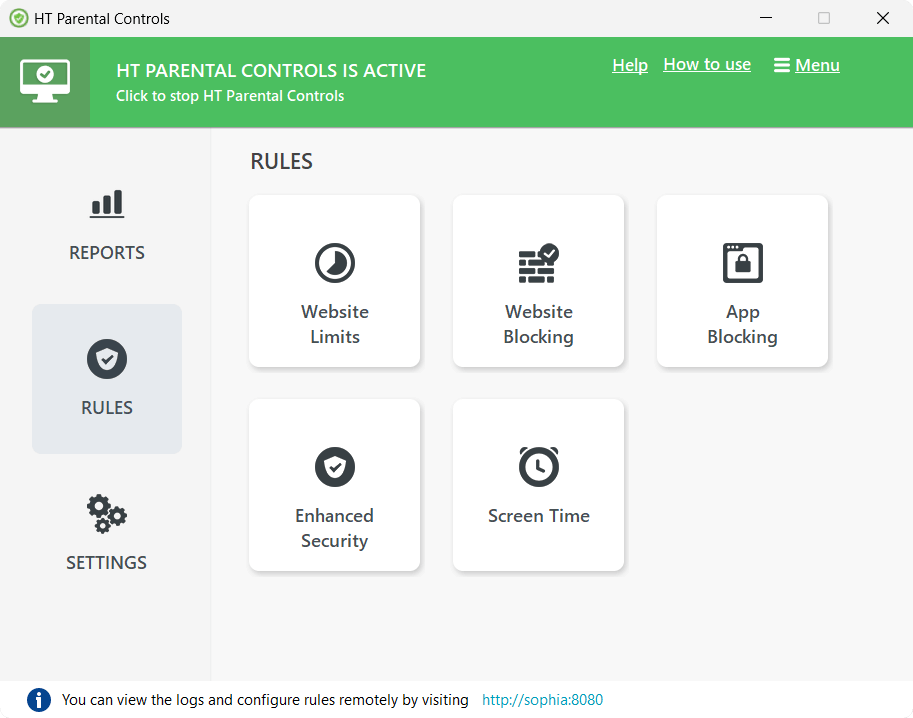
The main window: Reports, Rules and Settings on the left, the five rule types (Website Limits, Website Blocking, App Blocking, Enhanced Security, Screen Time) on the right, and the address for managing it from another computer on the home network at the bottom.
The interface is clean and current-looking, with large tiles and plain labels. Three steps get you going: install it on the child's computer, set the rules, and check the reports when you want to.
Features
Block websites by address, keyword or category
HT Parental Controls blocks inappropriate content by category and lets you add your own blocklist of sites and keywords (snapchat.com, "free movies", a game's name) and an allowlist of approved sites. Tick "Allow access only to the websites above" and your child can visit nothing but the allowlist, which suits young children. A Force Safe Search on Google box is on the same tab, and the filter works with pages in any language.
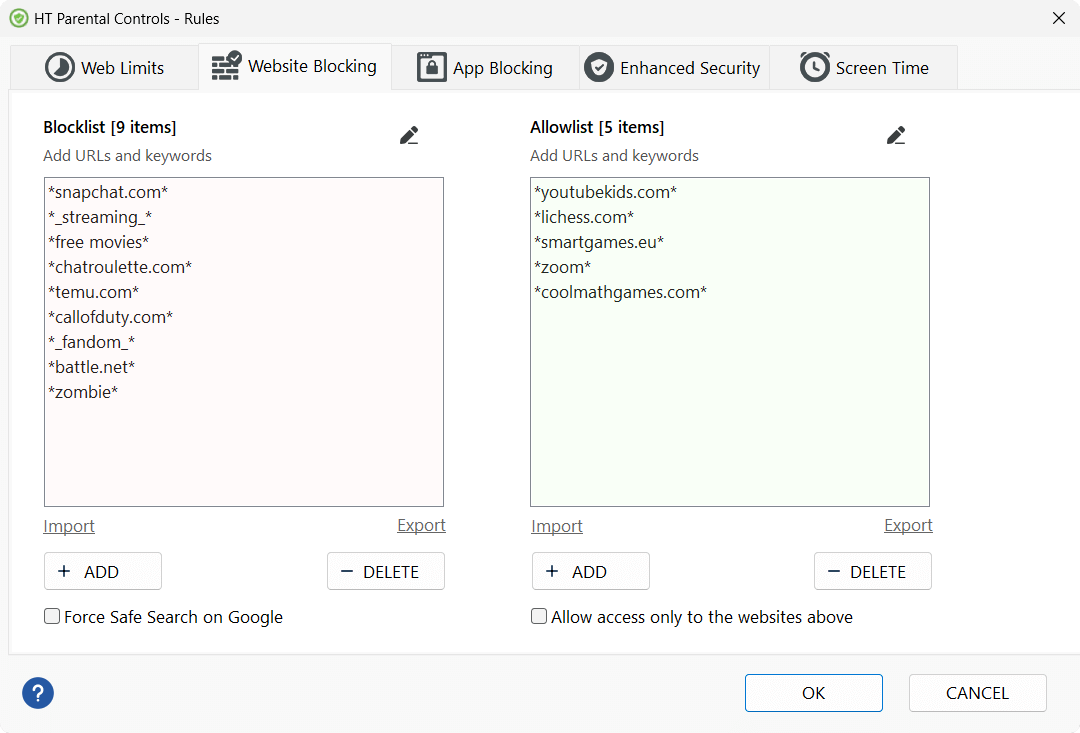
The Website Blocking tab: a blocklist of sites and keywords on the left, an allowlist (youtubekids.com, coolmathgames.com) on the right, plus Force Safe Search and the allowlist-only option.
Time limits for the sites that eat the evening
HT Parental Controls' Website Limits give a site a daily allowance instead of a ban: an hour of YouTube or TikTok, then it's closed for the day. That's often the fairer rule for older kids than blocking a site outright.
Block or limit apps and games like Roblox and Minecraft
HT Parental Controls sorts programs into categories (Games, Messengers, Torrents, Video Players, Installers, Process Managers and more) and lets you set each to Allow, Limit or Block. You can also add individual apps such as Discord, Roblox or the Epic Games Launcher, and give the limited ones a shared daily allowance and schedule. Blocking Installers stops new games from going on the PC, and blocking Unsupported Browsers stops a child from installing an obscure browser to dodge the web filter.
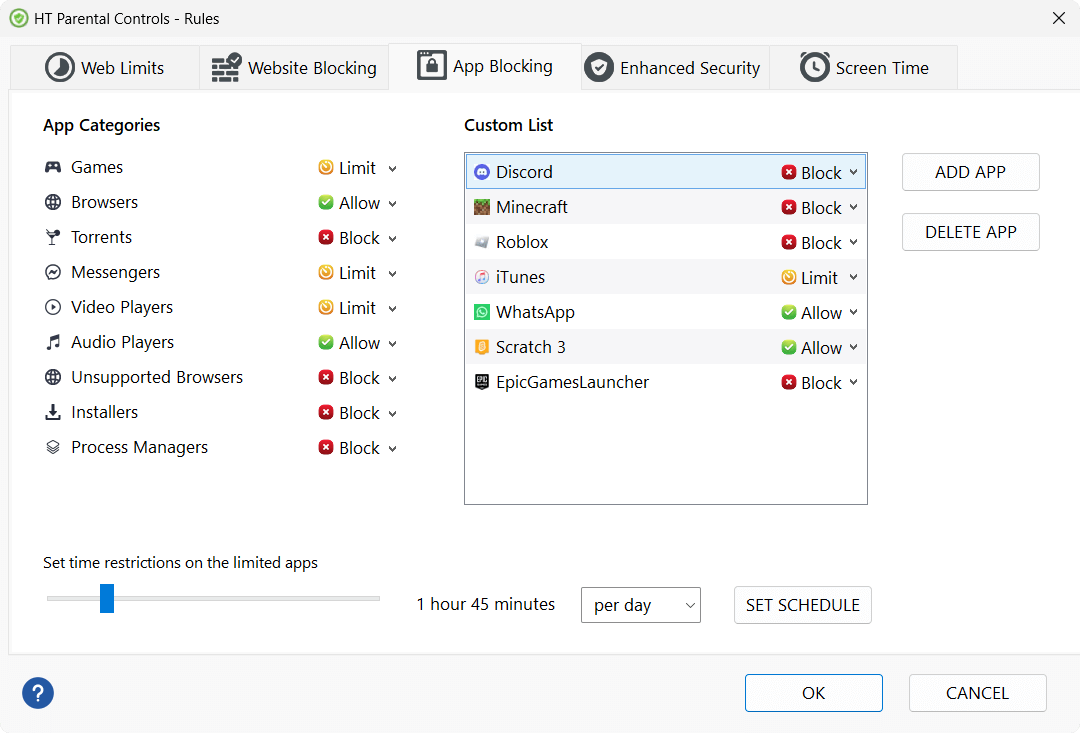
App Blocking: categories on the left set to Limit, Allow or Block, a custom list with Discord, Minecraft and Roblox blocked, and a 1 hour 45 minute daily limit for the limited apps.
Screen time with a daily limit and a weekly schedule
HT Parental Controls sets a total computer time per day or week and a color-coded weekly grid of allowed and blocked hours, such as no computer before 7 AM or after 9 PM on school nights. Your child gets a warning before time runs out (10 minutes by default), and then the PC logs out or shuts down, whichever you choose.
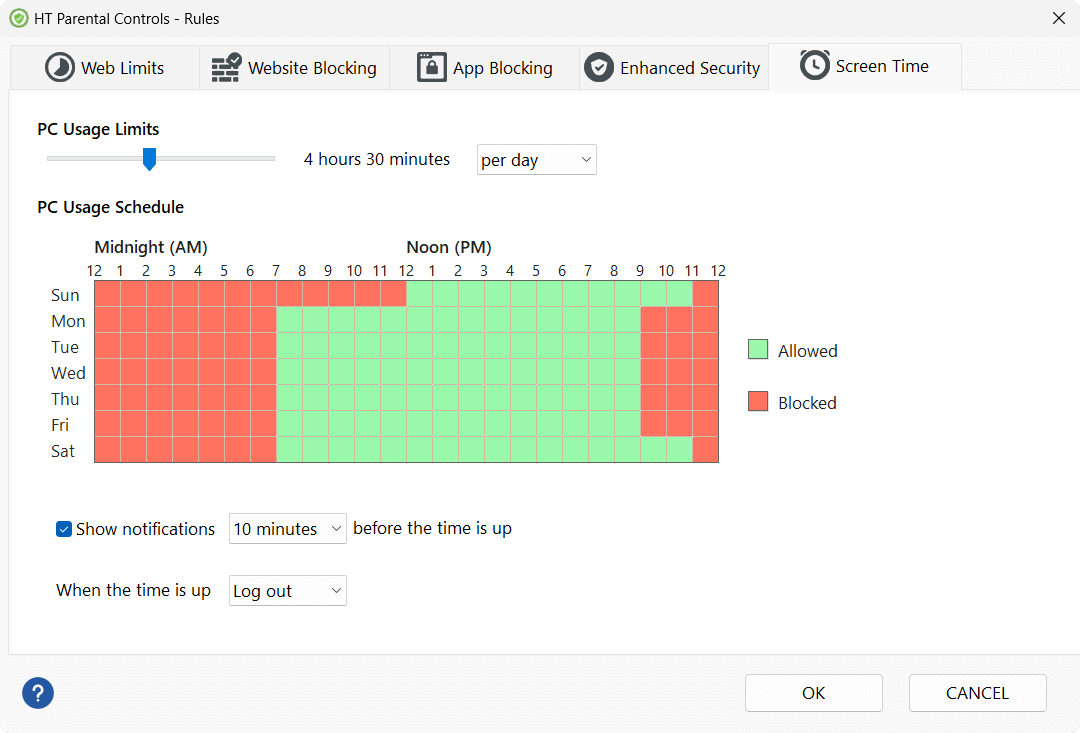
Screen Time: a 4 hours 30 minutes daily limit, a weekly schedule with blocked mornings and late evenings, a 10-minute warning and "Log out" when time is up.
Reports on websites, apps, searches and screenshots
HT Parental Controls logs every website and app your child uses with the time spent, their searches on Google, Bing, YouTube, Facebook and other sites, total computer time, and screenshots taken at the interval you choose. You can limit or block a site straight from the report, and have the logs emailed to you on a schedule.
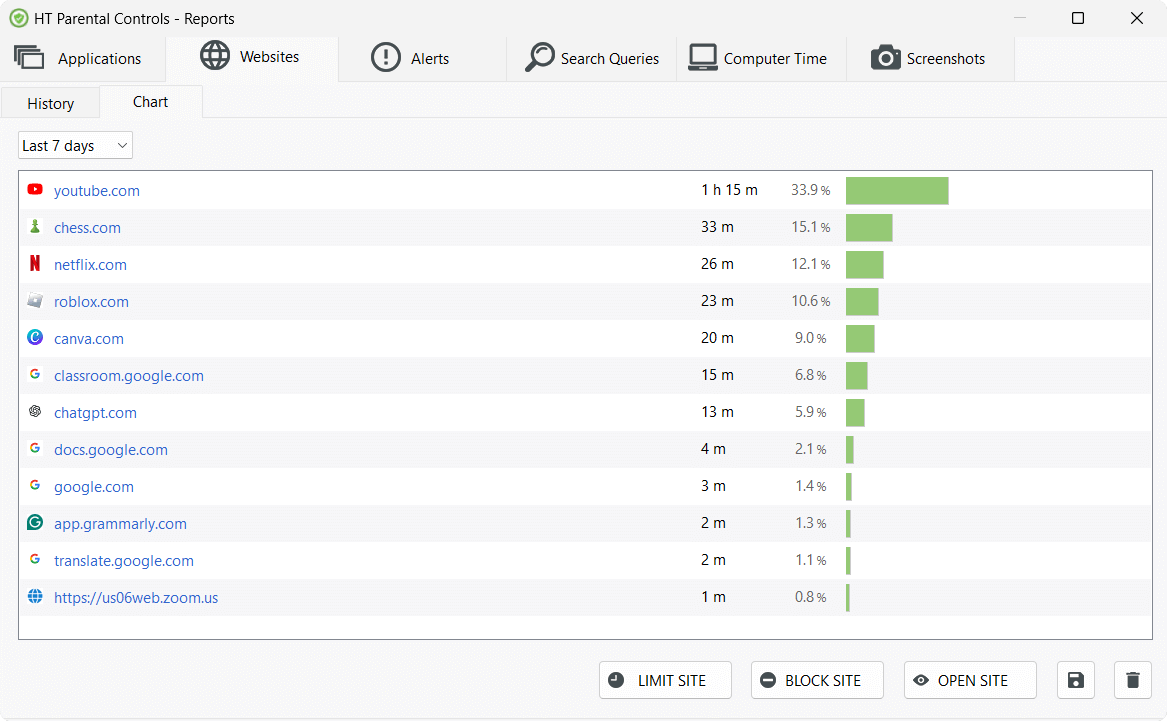
The Websites report for the last 7 days: YouTube at 1 h 15 m, then chess.com, Netflix and Roblox, with Limit Site and Block Site buttons underneath.
Alerts when a rule is hit
HT Parental Controls records an alert every time something is blocked or limited: a blocked game launch, a blocked site, a search that tripped a keyword, an attempt to open Windows Settings. Each alert shows the reason, so you can see which rule caught it and click Allow if it was a false alarm.
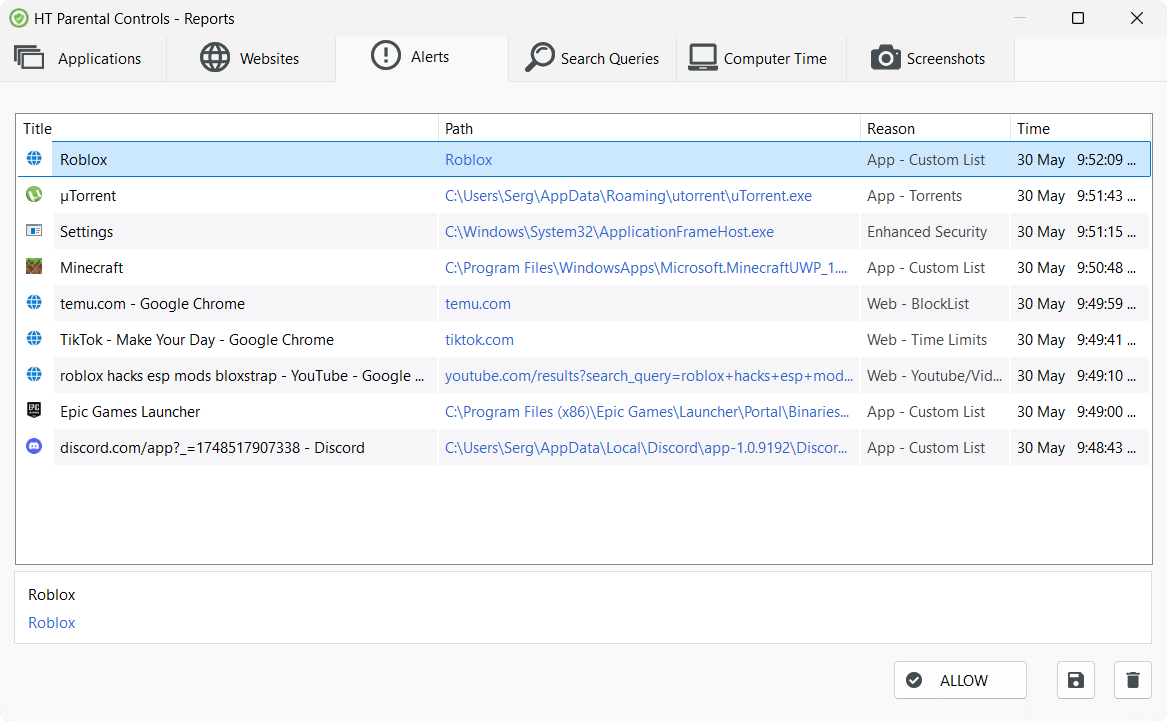
The Alerts report: Roblox, uTorrent, Minecraft and Discord blocked by app rules, temu.com by the blocklist, TikTok by a time limit and a "roblox hacks" YouTube search, each with its reason and time.
Tamper protection and home-network management
HT Parental Controls protects its settings with an access password, and its Enhanced Security option adds a further layer against workarounds such as opening Windows Settings (the Process Managers app category can block Task Manager too). You can also open the logs and change the rules from another computer or phone on the same home network, through the address shown at the bottom of the main window.
Benefits
- Fewer arguments. The schedule and the warning before time is up do the enforcing, so you're not the one pulling the plug.
- Limits instead of bans. An hour of YouTube or games a day is easier to agree on than a blanket block, and HT Parental Controls supports both.
- Hard to dodge. Incognito windows are still filtered, unknown browsers and installers can be blocked, and the settings sit behind a password.
- Private. The standard edition keeps rules and reports on your own PC, with no cloud account holding your child's activity.
Real-World Uses
- Homework first. Allow school sites (Google Classroom, Docs) all day and limit games and YouTube to the evening.
- A safe first computer. For a 7-year-old, switch on allowlist-only mode with a handful of approved sites like YouTube Kids.
- Digital bedtime. No computer after 9 PM on school nights; the PC logs out by itself.
- The Roblox and Discord question. Block Discord entirely, give Roblox an hour a day, and see in the alerts when someone tries to open it after hours.
- Checking in on a teenager. The search and website reports show what's being looked up, without reading every message.
Who It's For, and Who Should Skip It
It's a good fit for parents whose kids use a Windows PC or laptop at home, who want filtering, game limits and screen time in one program, and who are happy to manage it at home.
Skip it if:
- Your child mostly uses a phone, tablet, Mac or Chromebook. HT Parental Controls only runs on Windows, so use the device's own controls (Screen Time on Apple devices, Google Family Link) or a cross-device service.
- You want to check reports and change rules from work or anywhere outside the home. That's what HT Vector's HT Family Shield does, with an online dashboard, for the same price.
- You only need one or two sites blocked. Windows' own Microsoft Family Safety is free and may be enough.
- You need to monitor computers at a business. The license excludes commercial use; HT Vector sells separate business products.
Usage Guide
- Download and install on the child's computer. Run parental_controls_install.exe on the PC your child uses; it installs in under a minute.
- Set a password so only you can change the rules or stop the program.
- Open Rules and work through the tabs: Website Blocking (categories, blocklist, allowlist, Safe Search), Web Limits (daily time on chosen sites), App Blocking (categories and custom apps) and Screen Time (daily limit and weekly schedule).
- Turn on Enhanced Security and block the Process Managers app category so the rules are hard to switch off.
- Check Reports after a few days: Websites, Applications, Search Queries, Alerts, Computer Time and Screenshots. Adjust the rules where they're too tight or too loose.
- Enter your license key before the 14-day trial ends to keep the protection running.
Tips
- Start with limits rather than blocks for older kids, and use the Alerts tab to see which rules they actually run into.
- If you forget your password on a registered copy, enter your license key instead and set a new one.
- Moving to a new PC? Uninstall it from the old computer first, then install and register it on the new one with the same key.
- Talk to your child about the rules. HT Vector requires that monitoring is done by a parent, guardian or school with the right to supervise that computer.
Where it falls short
- Windows only. It doesn't cover the phone or tablet, which is where many kids spend most of their screen time.
- Remote access only at home. The standard edition's remote view works on the same network; away from home you need HT Family Shield.
- Possible overblocking. Keyword and category filters can catch harmless pages (FileHorse lists "Potential Overblocking" as a con), so check the alerts at first and allow what's fine.
- Some setup time. FileHorse also lists "Initial Setup Complexity": there are many tabs and options, and a good setup takes some thought about what each child should be allowed.
- Limited social media monitoring. FileHorse's third con: it logs, limits and blocks social sites and apps and captures screenshots, rather than monitoring activity inside the social networks themselves.
- No lifetime license, and every child's PC is a separate subscription.
What Users Say
Download sites and reviewers
FileHorse's review by Michael Reynolds sums it up as "the best way to protect your child against any online threats. HT Parental Control combines monitoring with powerful filters that protect children from abusive websites and ensure their safety." Its pros are effective content filtering, comprehensive website blocking, app and game control, detailed website monitoring and emailed reports; its cons are "Potential Overblocking", "Initial Setup Complexity" and "Limited Social Media Monitoring".
On BytesIn, HT Parental Controls has a user rating of 4.6 out of 5 from 7 votes.
HT Vector's own reviews page quotes Softopaz (7.3/10 expert score): "HT Parental Controls offers unique Email Reports feature for parents. You can get email reports with logs about happening activities on the monitoring computer frequently." and WinningPC (7.6 expert score): "HT Parental Controls easily blocks any application on the child's computer. Block games, messengers, chats, and any unwanted software." Both of those sites have run license giveaways for HT Vector.
Parents' comments on HT Vector's site
"Extraordinary parental software for Windows. I tried many parental programs, and not one met my needs. My son always found ways to get around the bans. HT Parental Controls is strong enough. It works great." — David Giles, Canada
"I like it. It allows me to monitor my kids so I'm not worried about them while they're using the computer. I set time controls to make them do their homework." — Anna Lopez, USA
"I have used it for quite some time. HT Parental Controls does not slow down Internet speed. It's simple and has many features at the same time." — Frankie Flanagan, UK
The same themes come up across these sources: parents like that kids can't easily get around it, that time limits make homework time stick, and that it doesn't slow the PC. The criticisms are about scope and setup rather than reliability: it's Windows-only, filters can overblock at first, and there are a lot of settings to work through. We couldn't find reviews of HT Parental Controls on Trustpilot, Capterra or G2, and the parent comments above were chosen by the vendor.
Comparisons
HT Parental Controls vs. HT Family Shield
Both are HT Vector products with the same filtering, app blocking, time controls, security and reports, at the same price. The difference is where you manage them. HT Parental Controls is managed on the child's computer or from another device on the same home network, with no online account. HT Family Shield adds an online dashboard, so you can read reports and change rules from your phone or work computer while your child is at home. Choose Parental Controls for privacy and simplicity, Family Shield if you need to check in from outside the house.
Editions and Pricing
| Plan (1 computer) |
Price |
Works out to |
Best for |
| Annual |
$48.00 a year |
$4.00 a month |
Families who'll use it all year (the cheapest) |
| Quarterly |
$18.00 every 3 months |
$6.00 a month |
A school term or a summer holiday |
| Monthly |
$7.50 a month |
$7.50 a month |
Trying it beyond the 14-day trial |
Every plan includes all features and free updates, and renews automatically until you cancel. Buying for two or more computers lowers the price per computer; change the quantity at checkout. Payments are handled by PayPro Global by card, PayPal, wire transfer or purchase order, and the license key arrives by email within minutes for card and PayPal orders.
Buy Annual ($48)Buy Quarterly ($18)Buy Monthly ($7.50)
FAQs
Can my child get around HT Parental Controls with incognito mode or another browser?
No. HT Parental Controls keeps filtering private and incognito windows in Chrome, Edge, Firefox, Opera, Brave and Tor, and you can block any browser it doesn't support with one click, so a newly installed browser won't open.
Does HT Parental Controls work on iPhone, Android or Mac?
No. HT Parental Controls runs only on Windows 7, 8, 10 and 11 computers and laptops. For phones and tablets, use the device's built-in controls alongside it.
Do I need a license for each child's computer?
Yes. HT Parental Controls is licensed per computer. Buy the number of computers you need in one order and you get a multi-key for that many PCs; the price per computer drops as the quantity goes up.
What happens if I cancel my HT Parental Controls subscription?
HT Parental Controls keeps working until the end of the period you've paid for, and then you're expected to uninstall it. Earlier charges aren't refunded, except a renewal you cancel within 15 days of being billed.
Does HT Parental Controls slow down the computer?
HT Parental Controls is built to run in the background without a noticeable slowdown, even on entry-level hardware, according to HT Vector, and one parent's comment on the vendor's site says it "does not slow down Internet speed".
Is HT Parental Controls the same as Hidetools Parental Control?
Yes. HT Parental Controls is the current name of Hidetools Parental Control; HideTools became HT Vector, and the old hidetools.com site now forwards to ht-vector.com. Updates are free, so download the current version rather than an old copy.
Can I use HT Parental Controls to monitor employees?
No. The HT Parental Controls license is for parents, guardians and schools, and the refund doesn't apply if it's used in a business. HT Vector sells separate products for workplaces, such as HT Work Focus.
Can I switch from monthly to annual later?
Yes. HT Vector lets you change or cancel your plan at any time by sending a request through its site, so you can start monthly and move to the cheaper annual plan once you know it works for your family.
System Requirements
- Operating system: Windows 11, 10, 8 or 7 (home PCs and laptops)
- Installed on: the child's computer
- Browsers: Chrome, Edge, Firefox, Opera, Brave, Tor
- Internet connection: the money-back guarantee doesn't apply to a computer without one
Conclusion
HT Parental Controls is worth $48 a year if your kids use a Windows PC. It covers the things parents actually fight about, namely which sites, which games, how long and how late, in one program that's hard for a child to get around, and it shows you what happened through clear reports and alerts.
The one reason to buy it is how complete the Windows controls are, from allowlist-only browsing to per-app time limits and a bedtime schedule. The main reason not to is that it stops at the PC: phones, tablets and Macs aren't covered, and managing it from outside the home needs HT Family Shield instead. Start with the 14-day trial; no card is needed.
Download Free TrialBuy Now