Short answer
To get one picture out of a PDF for free, open the PDF in desktop Word, right-click the picture and save it, or take a screenshot if quality doesn't matter. To pull every embedded image out at its original quality, use an extractor: Vovsoft PDF to Image Converter ($19 once, saves PNG, JPG, TIF, GIF or BMP) or Coolmuster PDF Image Extractor ($15.95 a year, JPEG only) handle whole folders of PDFs. If you also edit PDFs, Wondershare PDFelement ($129.99 once) has an "Extract all images in the PDF" setting, and SwifDoo PDF ($129 once) saves any picture with a right-click.
At a glance
| PDFelement | SwifDoo PDF | Vovsoft PDF to Image Converter | Coolmuster PDF Image Extractor |
|---|
| Price at checkout | $129.99 one-time | $129.00 one-time, 1 PC | $19.00 one-time | $15.95 a year, auto-renews |
| Extract all images at once | ✓ | N (one at a time in the app) | ✓ | ✓ |
| Save one picture with a right-click | ✓ | ✓ | ✗ | ✗ |
| Many PDFs in one run | Batch convert | N (for images) | ✓ | ✓ |
| Output formats | JPEG, PNG, GIF, TIFF, BMP | Your choice when saving | PNG, JPG, TIF, GIF, BMP | JPG only |
| Page range | ✓ | One picture at a time | ✓ | ✓ |
| Also edits and converts PDFs | ✓ | ✓ | ✗ | ✗ |
| Free trial | 14 days, watermark on saved files | 7 days, every feature | Full, with a nag screen, non-commercial use | Free download, limits not published |
| Platforms | Windows (Mac version sold separately) | Windows (Mac app sold separately) | Windows | Windows (Mac version sold separately) |
How we picked
- We looked through the PDF tools on our site for ones whose vendors document pulling out the embedded pictures, not just saving whole pages as images, and left out the ones that only convert pages.
- We read each vendor's own extraction guide, menus and screenshots to confirm the steps and output formats.
- We checked the prices on each order page and the versions on each vendor's site.
What we checked: on November 15, 2026, the order pages showed PDFelement at $129.99, SwifDoo PDF at $129.00 and Coolmuster PDF Image Extractor at $15.95 for one year, all with no discount, and Vovsoft PDF to Image Converter at $19.00; Vovsoft's site listed version 1.6 of April 1, 2026. Each tool's installer link returned the vendor's installer file. We compared features, formats, trials and prices from the vendors' documentation and didn't run an extraction on our own PDFs.
First: extract or convert?
There are two different jobs that both get called "extracting images from a PDF", and picking the wrong one is the most common reason people end up with blurry or useless files.
- Extracting saves the pictures stored inside the PDF, such as the photos in a catalog, at the resolution they were placed in the document. You get only the pictures, no text around them. This is what you want for "high quality" images.
- Converting saves each whole page as one image, text and all. That's right for a page preview or a slide, and our guide on how to convert a PDF to JPG or PNG covers it.
One exception: in a scanned PDF, each page is already a single picture of the paper. Extracting gives you those page scans, not the separate photos printed on them.
The free ways first
One picture, Windows: open the PDF in Word
Desktop Microsoft Word opens a PDF by converting it into an editable document. Right-click the picture you want and choose Save as Picture. It costs nothing if you have Word, and it keeps the picture rather than a screen capture. The catch: Word rebuilds the layout, and on a graphics-heavy page it may merge several pictures and drawings into one, so check what you saved.
One picture, any system: a screenshot
Zoom in until the picture fills the screen, then use the Snipping Tool (Windows + Shift + S) or Command + Shift + 4 on a Mac. It's instant and free, but you only get the resolution your screen shows, so a photo that was sharp in the PDF can come out soft. Fine for a quick message, wrong for print.
A whole file, free: Vovsoft's trial or an online extractor
Vovsoft PDF to Image Converter works in full during its free trial, with a nag screen, and the trial may be used for personal, non-commercial jobs. Choose Extract all images and it saves every embedded picture. If you'd rather not install anything, SwifDoo's free online PDF to JPG tool has an Extract images option under its gear icon, for PDFs up to 25 MB. That means uploading the file, so keep confidential documents on your own PC.
Wondershare PDFelement: extract one image or all of them, inside a full editor
- Price: $129.99 one-time at checkout, single platform (sold as the "V11 Single-platform Perpetual Plan"; the current version is 13.0.0)
- Platforms: Windows 7, 8, 10 and 11; Mac, iOS and Android versions sold separately
- Trial: 14 days after sign-up; every saved file is watermarked, and batch jobs are limited to 3 files within 20 MB
- Best for: people who edit, convert and sign PDFs anyway and want image extraction as one of many tools
Wondershare PDFelement gives you two ways to get pictures out. For one picture, open the PDF, click Edit, right-click the image and choose Save Image As, then pick JPEG, PNG, GIF, TIFF or BMP. For every picture in the file, go to Convert, open Settings, choose PDF To Image and select Extract all images in the PDF, with Image Quality left at Keep Original DPI.
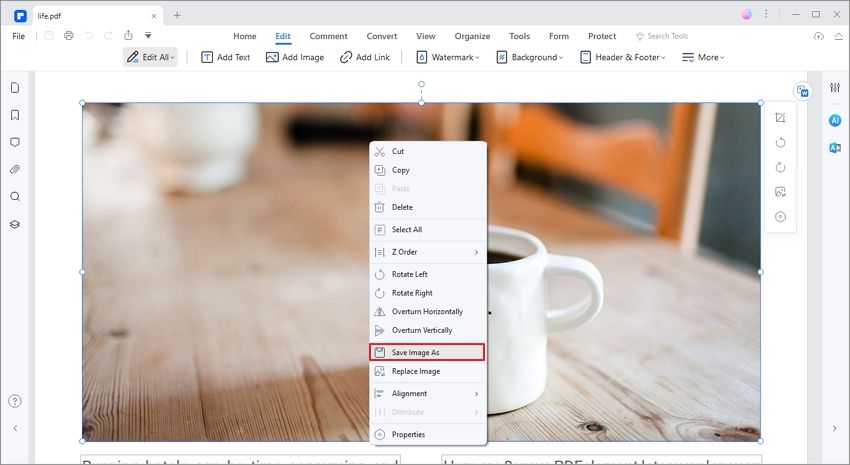
PDFelement in Edit mode with a photo selected: the right-click menu has Cut, Copy, Delete, rotate and flip options, and Save Image As (highlighted by Wondershare).

PDFelement's Convert settings, PDF To Image tab (an earlier version of the toolbar): Image Quality set to Keep Original DPI, and the three Image Settings choices, including "Extract all images in the PDF". Wondershare's numbered markers show the steps.
It's far more than you need for extraction alone, at eight times Vovsoft's price. Buy it when you also want to edit text, run OCR, convert to Office or sign forms. Test the extraction in the trial, but expect the trial's watermark rule to apply to what it saves.
What we like
- Both single-image and whole-file extraction
- Five output formats and an original-DPI setting
- One payment, not a subscription
Watch out for
- Expensive if extraction is all you need
- The license name says V11 while the app is at 13; confirm what your key activates
- Trial output is watermarked
What users say
Trustpilot shows Wondershare PDFelement at 4.6 out of 5 from 3,097 reviews. "Wondershare PDF Element has always been my go to PDF editor. It is easy to use, no yearly subscriptions are required, plenty of tools and options." (Norman Sims, 5 stars, November 2025)
The main complaint is upgrades: "I received Version 10. 2 weeks later I get messages that I have to upgrade to version 12 for the same price I just paid." (david williams, 2 stars, September 2025)
Download Wondershare PDFelement Free Trial Buy Wondershare PDFelement
SwifDoo PDF: right-click Save as Image
- Price: $129.00 one-time for 1 PC, with lifetime updates
- Platforms: Windows 11, 10, 8 and 7; Mac, iOS and Android apps sold separately
- Trial: 7 days with every feature; after that the free version only views PDFs
- Best for: a Windows PDF editor buyer who saves a picture now and then
SwifDoo PDF saves pictures one at a time. Open the PDF, right-click the image and choose Save as Image, then name it, choose the image format and click Save. The same menu has Copy Image, Crop, Resize and Remove Background, so you can trim a picture before saving it. For a whole file, SwifDoo points to its free online tool's Extract images option rather than a batch command in the desktop app.

SwifDoo PDF with a picture selected: the right-click menu offers Copy Image, rotate, flip, Crop, Resize, Remove Background, Transparency and Save as Image (marked by SwifDoo's red box and arrows).
SwifDoo PDF is a sensible buy if you want a full editor for about the same money as PDFelement and only need a picture occasionally. If you regularly need every image from long PDFs, an extractor is quicker.
What we like
- Seven-day trial with every feature
- Crop or resize a picture before saving it
- One payment with lifetime updates
Watch out for
- SwifDoo's guides show only the one-at-a-time method in the desktop app
- License is tied to a SwifDoo account that asks you to sign in
- Refunds only for bugs it can't fix
What reviewers say
PCWorld gave SwifDoo PDF 4 out of 5 (Michael Ansaldo, updated February 3, 2025): "Swifdoo PDF is a full-featured, low-priced Acrobat alternative that should serve most users well."
On Trustpilot SwifDoo scores 3.3 out of 5 from 80 reviews. "I dislike having to re-log into the perpetual version of this program on a somewhat frequent basis." (Dan Gomer, 3 stars, June 2026)
Download SwifDoo PDF Free Trial Buy SwifDoo PDF
Vovsoft PDF to Image Converter: every image, any format, $19 once
- Price: $19.00 one-time on the order page, lifetime license with free updates, no auto-renewal
- Version: 1.6, released April 1, 2026
- Platforms: Windows 11, 10, 8/8.1, 7 and Vista; installer and portable editions
- Best for: pulling every picture out of many PDFs, offline, in the format you choose
Vovsoft PDF to Image Converter does both jobs in one small window. Load one or more PDFs, set Method to Extract all images (or Snapshot for whole pages), choose all pages or a range such as 1-10, and press Save Image Files. It saves PNG, JPG, TIF, GIF or BMP, and everything stays on your PC.

Vovsoft PDF to Image Converter: three PDFs queued with their page counts (544, 2 and 113), the Method choice between Snapshot and Extract all images, and the Pages setting.
For extraction alone it's the best value here: a one-time $19, more output formats than Coolmuster, and a trial that works in full for personal use. What it lacks is any preview or per-picture choice: it takes everything in the pages you set.
What we like
- Extract all images or whole pages, in five formats
- One-time $19, no subscription
- Works offline, with a portable edition
Watch out for
- No preview of the pages or pictures
- The trial isn't for commercial use
- Vovsoft generally doesn't refund, since the trial comes first
What users say
Vovsoft PDF to Image Converter has few public reviews: its product page shows 4.7 out of 5 from 3 reviews, including "Powerful software. Works fine !" (Laurent Belt). Treat that as too small a sample to mean much, and use the trial.
Download Vovsoft PDF to Image Converter Free Trial Buy Vovsoft PDF to Image Converter
Coolmuster PDF Image Extractor: the cheapest batch extractor, JPEG only
- Price: $15.95 for one PC for one year at checkout, renewing automatically unless you cancel
- Version: 2.3.3 for Windows
- Platforms: Windows 11, 10, 8 and 7; the Mac version is a separate product
- Best for: a batch job this year where JPEG output is fine
Coolmuster PDF Image Extractor does only extraction. Add files or a whole folder, pick All, Current or a Range of pages for each PDF, set an output folder and press Start. A preview pane shows each page, so you can find the pages that hold the pictures before you extract. Every picture is saved as a JPEG.

Coolmuster PDF Image Extractor with five PDFs listed, one selected with pages 10-12, the page preview on the right, the output folder and the Start button.
Softpedia's review found the batch processing and page ranges useful and the image quality preserved, while noting there are no extra settings such as scaling. The JPEG-only output is the real limit: a PNG with a transparent background, such as a logo, comes out as a JPEG.
What we like
- Lowest first-year price
- Page preview and per-file page ranges
- Batch extraction from a whole folder
Watch out for
- JPEG output only
- A yearly license that renews automatically
- Trial limits aren't published
What users say
"It extracts images from PDFs quickly and maintains their quality. However, I wish it could handle larger files more efficiently." (John Smith, on Coolmuster's site, December 30, 2024)
Coolmuster's site also offers free licenses for writing reviews, so read its reviews as a guide to what buyers care about rather than independent tests.
Download Coolmuster PDF Image Extractor Free Trial Buy Coolmuster PDF Image Extractor
Prices side by side
Price for one PC at checkout (USD)
Wondershare PDFelement (one-time)$129.99
SwifDoo PDF (one-time)$129.00
Vovsoft PDF to Image Converter (one-time)$19.00
Coolmuster PDF Image Extractor (per year)$15.95
Order page prices checked November 15, 2026 (Vovsoft: $19.00 on its order page, November 15, 2026). Coolmuster's price is for one year and renews; the others are one-time.
Over two years Coolmuster costs $31.90, so for a tool you'll keep, Vovsoft's one-time $19 is the cheaper extractor.
Which should you choose?
| Your situation | Pick | Why |
|---|
| One picture, once | Word or a screenshot (free) | No install; a screenshot only if quality doesn't matter |
| Every picture from a few PDFs, personal use | Vovsoft trial | Works in full for non-commercial use |
| Every picture from many PDFs, regularly | Vovsoft PDF to Image Converter | $19 once, five formats, offline batch |
| A one-off batch, JPEG is fine | Coolmuster PDF Image Extractor | $15.95 for the year, with page preview |
| You also edit, convert and sign PDFs | Wondershare PDFelement | Single-image and extract-all, plus a full editor |
| A full editor; images now and then | SwifDoo PDF | Right-click Save as Image, with crop and resize first |
Who should skip each: skip PDFelement and SwifDoo PDF if extraction is the only job, since both cost more than six times an extractor. Skip Coolmuster if you need PNG or don't want a yearly renewal. Skip Vovsoft if you need to pick individual pictures from a preview, or if you're on a Mac.
What commonly goes wrong
- Converting when you meant to extract. Saving pages gives you the text and layout around the picture; choose an extract option for the picture alone.
- Expecting more detail than the PDF holds. Extraction can't add resolution. If the PDF was saved with compressed, downsized pictures, that's what you get back.
- Scanned PDFs. Each page is one image, so you get page scans; crop them afterward.
- Logos and drawn graphics. Charts and logos are often vector drawings, not pictures, so an extractor skips them. Convert that page at a high resolution and crop it instead.
- Too many tiny files. Extract-all tools also save small icons, bullets and background slices. Sort the output folder by size and delete the clutter.
- Copy-protected PDFs. A PDF whose permissions block copying may refuse extraction. Extraction also doesn't change who owns the pictures' copyright.
FAQs
How do I extract images from a PDF for free?
For one picture, open the PDF in desktop Word, right-click the picture and choose Save as Picture. For every picture in a PDF, Vovsoft PDF to Image Converter's free trial extracts them all for personal, non-commercial use, and SwifDoo's free online PDF to JPG tool has an Extract images option for files up to 25 MB.
How do I extract images from a PDF without losing quality?
Use an extract option rather than a screenshot or a page conversion. Vovsoft PDF to Image Converter's Extract all images method and PDFelement's "Extract all images in the PDF" setting with Keep Original DPI save the pictures stored in the PDF instead of re-drawing the page.
Can I extract all images from a PDF at once?
Yes. Vovsoft PDF to Image Converter, Coolmuster PDF Image Extractor and Wondershare PDFelement each extract every picture in one run, and Vovsoft and Coolmuster process several PDFs at a time. SwifDoo PDF's desktop app saves pictures one at a time.
Can I save the extracted images as PNG?
Yes, with Vovsoft PDF to Image Converter (PNG, JPG, TIF, GIF or BMP) or Wondershare PDFelement (JPEG, PNG, GIF, TIFF or BMP). Coolmuster PDF Image Extractor saves JPEG only.
Why are the extracted images blurry?
Extracted images are only as sharp as the copies stored in the PDF. Many PDFs are saved with downsized pictures to keep the file small, and no extractor can restore the detail. If you took a screenshot, you got your screen's resolution; use an extract option instead.
Why didn't the extractor find the logo or chart in my PDF?
Logos and charts in PDFs are often vector drawings rather than pictures, so tools like Coolmuster PDF Image Extractor don't see them as images. Save that page as an image at a high resolution with Vovsoft PDF to Image Converter's Snapshot method and crop it.
Can I extract images from a PDF on a Mac?
The extractors in this guide run on Windows. Wondershare PDFelement and Coolmuster PDF Image Extractor are also sold in separate Mac versions. For a single picture, a Command + Shift + 4 screenshot works, at screen resolution.
Is Coolmuster PDF Image Extractor a one-time purchase?
No. Coolmuster PDF Image Extractor's $15.95 license on the order page covers one PC for one year and renews automatically unless you cancel. Coolmuster offers a 30-day refund on one-year licenses.