Short answer: on a Mac, open the PDF in Preview, choose View > Thumbnails, select the pages and press Delete. It's free and built in. On Windows, open the PDF in Microsoft Edge, press Ctrl+P, and save only the pages you want to keep as a new PDF. That's free too, but the result is a printed copy. When you do this often, or need the links and form fields kept, use an editor: Wondershare PDFelement ($129.99 once, Windows or Mac) can select odd, even or blank pages in one click, Cisdem PDFMaster for Mac ($89.99 once) is the cheapest pay-once editor here for a Mac, and SwifDoo PDF ($129 once, one Windows PC) has a 7-day trial with every feature.
At a glance
| Preview (free) | Edge print (free) | PDFelement | Cisdem PDFMaster | SwifDoo PDF |
|---|
| Price at checkout | Built into macOS | Built into Windows | $129.99 one-time | $89.99 one-time, 1 Mac | $129 one-time, 1 PC |
| Runs on | Mac | Windows, or Edge on a Mac | Windows or Mac (one platform per license) | macOS 11 or later | Windows 7 to 11 |
| How pages go | Deleted from the file | You print the pages you keep to a new PDF | Deleted from the file | Deleted, or the keepers extracted | Deleted from the file |
| Type a page list (2,5,7-9) | ✗ Click thumbnails | ✓ Pages to keep | ✓ | ✓ | ✓ |
| Pick odd, even or blank pages in one go | ✗ | Odd or even only | ✓ Odd, even and blank | Odd or even, in Extract | ✗ |
| Trial | Not needed | Not needed | 14 days, every saved file watermarked | 7 days, every feature | 7 days, every feature |
How we picked
- We started with what every Mac and Windows PC already has, because removing a few pages rarely needs a paid tool.
- We took the free steps from Apple's Preview guide and Microsoft's guide to printing in Edge, including the parts that trip people up.
- We read each editor's page-deletion steps in its own guides, and looked at each screenshot below.
- We read today's price on each order page, and each trial's limits, since a trial that watermarks the saved file isn't a free way to finish the job.
What we checked: the three order pages on November 11, 2026 (PDFelement $129.99, SwifDoo PDF $129.00, Cisdem PDFMaster for Mac $89.99, all one-time with no discount line), Cisdem's own store page and Wondershare's trial FAQ on the same day. We didn't install the three editors or delete pages in them ourselves, so this guide compares the steps, prices and trials, not speed.
Before you start: list the pages by position
Every method here counts pages by their position in the file, the number under each thumbnail, not the number printed on the page. A report with a cover and roman-numbered contents might print "page 1" on its fifth sheet. Open the thumbnails, write down the positions of the pages you want gone, and work from that list. On Windows you'll need the opposite list too, the pages you keep, so write both.
Then make a copy of the PDF. Deleting pages and saving is the end of those pages, and none of the methods below keeps them for you once the file is saved.
Free on a Mac: Preview
Preview, the PDF viewer that comes with every Mac, deletes pages directly. It's the quickest way to remove a page from a PDF on a Mac, and it keeps the rest of the file as it was.
- Open the PDF in Preview and choose File > Duplicate, then File > Save to keep the copy under a new name. Work on the copy.
- Choose View > Thumbnails, or View > Contact Sheet for a long document.
- Click a page, or Command-click to add more pages to the selection.
- Press the Delete key, or choose Edit > Delete.
- Choose File > Save.
Two Preview details are worth knowing. Deleting a page also deletes every annotation on it, so a note you left on page 4 goes with page 4. And when you only want to keep a handful of pages out of hundreds, it's faster the other way round: select the pages you want in the thumbnail sidebar and drag them to the desktop, which makes a new PDF from just those pages.
Preview's limits show up on big jobs. There's no box to type "2, 5, 7-9", no way to pick every even page or every blank page, and in a 300-page file you click every thumbnail yourself.
Free on Windows: print the pages you keep
On Windows, the free route is Microsoft Edge, the browser that comes with Windows and also opens PDFs. It can print any range of pages to a new PDF. Leave out the pages you don't want and you have the same document without them. Edge works the same way on a Mac.
- Open the PDF in Microsoft Edge and press Ctrl+P (Command+P on a Mac).
- Under Printer, choose Save as PDF.
- Under Pages, choose Custom and type the pages to keep, such as
1-4, 6-10 to drop page 5 from a 10-page file. The same list also offers odd or even pages only.
- Under More settings, set Scale to Actual size and leave Headers and footers unticked, so Edge doesn't shrink the pages or stamp a date and page number on them.
- Click Save and give the new file a different name.
Where printing to PDF falls short
- You type what stays, not what goes. Getting this backwards is the most common mistake: typing "5" saves page 5 alone.
- Pick Save as PDF, not Microsoft Print to PDF. Both are in the list. Users on Microsoft's Q&A forum have long reported that Microsoft Print to PDF produces files whose links don't click and whose text can't be searched, and the accepted fix is to use Save as PDF.
- It's a printed copy. The new file is built from the printed pages, so bookmarks and fillable form fields may not carry over. Open the result and check it before you delete the original.
- Some PDFs refuse to print. If the author set permissions that block printing, this route won't work. Our guide to removing a password from a PDF covers what you can do when you have the right to change the file.
One more free option comes up in every search: web tools that delete pages after you upload the PDF. They work, but you're handing the file to someone else's server. For a contract, a bank statement or anything with personal details, stay with the routes on this page, which all run on your own computer.
Wondershare PDFelement
Wondershare PDFelement is a full PDF editor, and its Organize tab is the most complete page-deletion tool in this guide. Price: $129.99 one-time at checkout, for one platform. Platforms: Windows 7 to 11, or Mac. Best for: long documents, scanned files with blank pages, and anyone who also edits or converts PDFs.
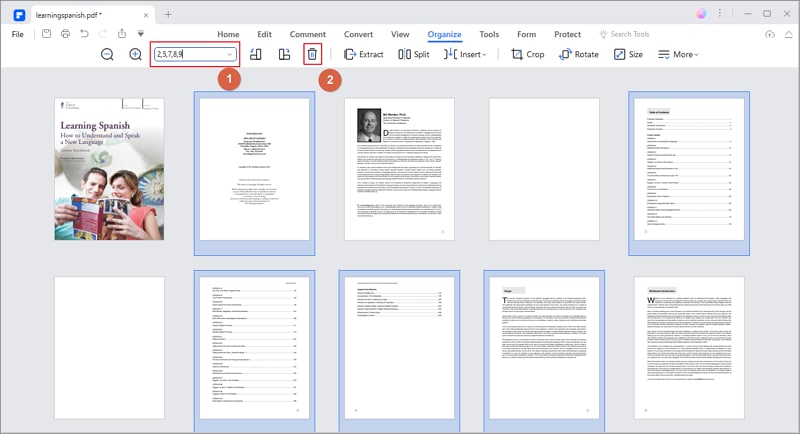
PDFelement's Organize tab with 2,5,7,8,9 typed in the page box. Those pages are highlighted, and the bin button next to it deletes them. The numbered markers are Wondershare's.
PDFelement turns the job into two steps. Open the PDF, choose the Organize tab, type the pages in the page box (for example 2,5,7,8,9), press Enter, then click the bin icon and confirm. To delete one page, click its thumbnail instead, or right-click it and choose Delete. Save with File > Save As so the original stays untouched.
The same page box has a drop-down that selects Even Pages, Odd Pages, All Pages or Blank Page. Blank Page is the one Preview and Edge can't match: a scanned document with an empty back side on every sheet loses all of them in one click. Wondershare also lists a batch job, Tool > Batch Process > Delete Blank Pages, for clearing blank pages from several files at once.
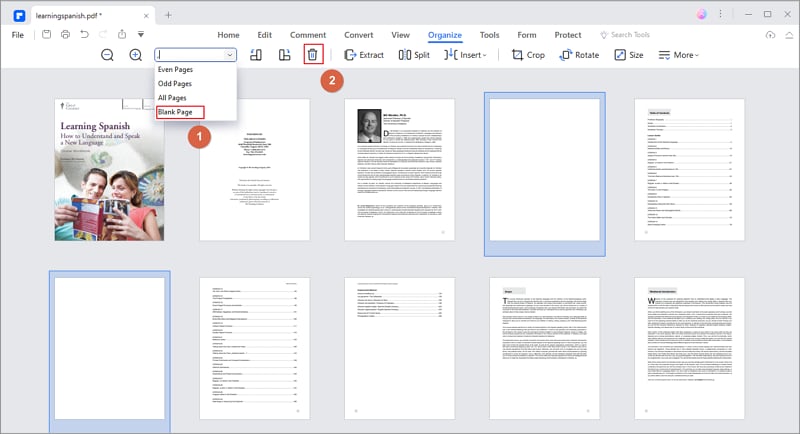
The drop-down in PDFelement's Organize tab, with Blank Page chosen. The two blank pages in the document are highlighted, ready for the bin button.
The catch is the trial. Page organizing works even without signing up, but Wondershare's FAQ says both the unregistered and the 14-day registered trial add a watermark to the PDF when you save it. You can see exactly which pages the Blank Page option catches in your own scan, but you can't use the trial to deliver a finished file.
What we like
- Type a page list, or select odd, even or blank pages in one click
- One payment, no renewal
- Windows or Mac
- A full editor for the rest of the document
Watch out for
- Every file the trial saves is watermarked
- One license covers one platform
- The order page names it a V11 plan while the current release is 13, so confirm which version your key activates
TechRadar gave PDFelement 4 out of 5 in a review last updated in October 2024, listing "somewhat expensive" and "occasionally slow" among its reasons to avoid it.
Trustpilot showed 4.6 out of 5 from 3,097 reviews when we read it in October 2026, through a summarizing tool, so the wording may differ slightly. Norman Sims (5 stars): "It is easy to use, no yearly subscriptions are required, plenty of tools and options." Most complaints come from perpetual owners asked to pay for a new major version. Chris Young (1 star): "Never buy the perpetual license, they do not honour it."
Download PDFelement Free Trial Buy PDFelement
Cisdem PDFMaster for Mac
Cisdem PDFMaster for Mac is a Mac PDF editor with a page toolbar that does what Preview can't: type a page range, delete it, or pull the pages you want into a new file. Price: $89.99 one-time at checkout, for one Mac. Platform: macOS 11 Big Sur or later, Intel and Apple Silicon. Best for: Mac users who have outgrown Preview and don't want a subscription.

Cisdem PDFMaster's page view with 6-9,14 typed in the range box and pages 6 to 9 highlighted. Insert, Extract, Replace, Split, Reverse, rotate and the bin icon sit on the same toolbar.
Cisdem PDFMaster puts every page tool on one toolbar. Open the PDF, switch to the page view, and either Command-click thumbnails, drag across them, or type a range such as 6-9,14 in the box. Then click the bin icon, or right-click the selection and delete. Save with File > Save, after making a copy if you need the original.
The feature that sets it apart from Preview is Extract. When you need ten pages out of two hundred, select them, click Extract and choose Extract as PDF. The dialog takes a custom range or odd or even pages, can save each page as its own file, and has a Delete pages after extraction box. That last option splits one PDF into two in a single move: the extracted pages become a new file and disappear from the original. Preview's drag-to-desktop trick does the first half, and you then delete the pages from the original by hand.
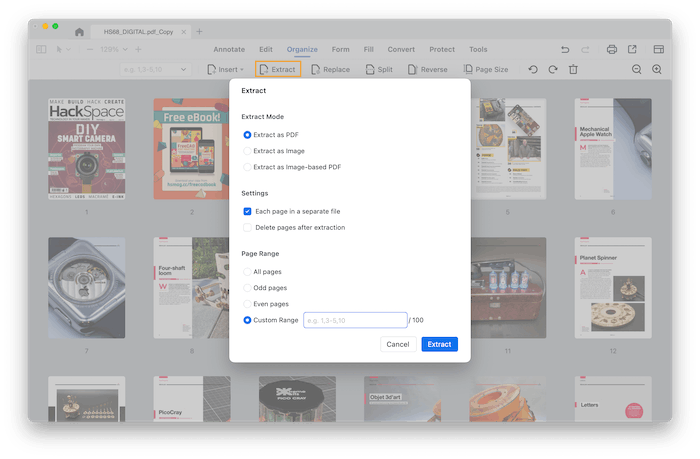
The Extract dialog in Cisdem PDFMaster: Extract as PDF, as Image or as Image-based PDF, "Each page in a separate file", "Delete pages after extraction", and a page range of all, odd, even or custom pages.
Price is the other reason to look at PDFMaster on a Mac. At $89.99 for a lifetime license it costs $40 less than PDFelement, and the 7-day trial has every feature, so you can do a real job with it before paying. Cisdem's own store page listed the same lifetime license at $79.99 on November 11, 2026, so it's worth comparing before you buy. Cisdem offers a 30-day money-back guarantee. The license covers one Mac, there's no iPhone or iPad version, and AI tools cost extra as credits.
What we like
- Type a range and delete, which Preview can't do
- Extract with "Delete pages after extraction" splits a file in one step
- Lowest one-time price here
- 7-day trial with every feature, 30-day money-back guarantee
Watch out for
- Mac only on this license, with no iPhone or iPad app
- Blank-page selection isn't among its page tools
- A MacUpdate reviewer says it keeps making itself the default PDF viewer
Macworld (Mahmoud Itani, October 2024) listed "Fluid performance with minimal lags" among the pros and "Some functionalities don't always work reliably" among the cons, concluding: "Cisdem PDFMaster for macOS is a decent app for those looking to make casual adjustments to their documents, although it lacks features for professionals."
MacUpdate showed 4.0 out of 5 from 5 ratings. One complaint recurs there: "Amazed to find that this sets your default PDF reader to itself, without asking, every time it's launched." (bdikkat, October 2024). You can switch that off in Preferences > General. The Macworld and MacUpdate text was read through a page summarizer.
On Cisdem's own review page, Luis (May 2026) wrote: "Adding watermarks, annotations, and rearranging pages is so easy... If it could be used on all my devices, Windows, Mac and iPad, that will be fantastic!"
Download Cisdem PDFMaster Free Trial Buy Cisdem PDFMaster for Mac
SwifDoo PDF
SwifDoo PDF is a Windows PDF editor with a Delete Pages dialog that takes a typed page list. Price: $129 one-time at checkout, for 1 PC, with lifetime updates. Platform: Windows 7 to 11. Best for: one Windows PC, when you want a real editor rather than the print route, and want to test it fully first.

SwifDoo PDF's Page tab with the Delete Pages dialog open on a 408-page file. Delete Selected Pages is chosen with 8,10,12,20 entered, and the hint below shows the format (1,6,1-9). The red boxes and arrows are SwifDoo's.
SwifDoo PDF keeps it to one dialog. Open the PDF, choose the Page tab, click Delete, and pick Delete Current Page or Delete Selected Pages, where you type a list such as 8,10,12,20 or a range such as 1-9. Click OK, then save from the SwifDoo menu at the top left, using Save as if you want to keep the original.
The trial is SwifDoo's strong point for this job. It runs 7 days with every feature, so you can remove pages from real documents during that week. When it ends, SwifDoo drops to a free version that only views PDFs and adds a trial watermark. If you only need to fix a few files once, that week may be all you need. Comparing it with PDFelement on more than page deletion? Our PDFelement vs SwifDoo PDF comparison covers editing, OCR and licensing.
What we like
- Full-feature 7-day trial
- Delete Pages dialog takes lists and ranges
- One payment with lifetime updates
Watch out for
- No odd, even or blank page selection in its delete steps
- The license covers one PC and is tied to an account you sign in to
- Refunds only for bugs SwifDoo can't fix, not a change of mind
PCWorld gave SwifDoo PDF 4 out of 5 (updated February 3, 2025): "Swifdoo PDF is a full-featured, low-priced Acrobat alternative that should serve most users well."
Trustpilot showed 3.3 out of 5 from 80 reviews when we read it in October 2026, through a summarizer, so the wording may differ slightly. Jim Stoddart (5 stars): "It's a reliable and easy to use application and I've never encountered a pdf it could not handle." Dan Gomer (3 stars, June 2026): "I dislike having to re-log into the perpetual version of this program on a somewhat frequent basis."
Download SwifDoo PDF Free Trial Buy SwifDoo PDF
Price at checkout for one license, one-time (USD)
Wondershare PDFelement, one platform$129.99
Cisdem PDFMaster for Mac, 1 Mac$89.99
Checkout prices read on November 11, 2026, before any tax. Preview and Edge cost nothing.
Which should you choose?
| Your situation | Pick | Why |
|---|
| A few pages, on a Mac | Preview | Free, built in, and edits the file itself |
| A few pages, on Windows, plain document | Edge, Save as PDF | Free, and fine when the file has no forms or bookmarks to keep |
| One-off job on Windows, file has forms or links | SwifDoo PDF trial | Deletes pages from the file itself, 7 days with every feature |
| Scans full of blank pages, or long files every week | Wondershare PDFelement | Odd, even and blank page selection, on Windows or Mac |
| Regular page work on a Mac, pay once | Cisdem PDFMaster for Mac | Typed ranges and extract-and-delete, $40 less than PDFelement |
| Everyday PDF editing on one Windows PC | SwifDoo PDF | A full editor with lifetime updates that you can test fully first |
Who should skip each one: skip PDFelement if you only remove pages now and then, because the free routes do that and its trial can't save a clean file. Skip Cisdem PDFMaster if you also work on Windows or an iPad, since this license is for one Mac. Skip SwifDoo PDF if you're on a Mac or often work offline, since the license depends on account sign-ins. And skip all three if Preview or Edge already handles your files.
What commonly goes wrong
- Saving over the only copy. Once the PDF is saved, the deleted pages are gone. Duplicate the file first, in any tool.
- Using printed page numbers. Every tool here counts positions in the file. Check the thumbnail numbers before typing a range.
- Typing the wrong list in Edge. The print route wants the pages you keep. Deleting tools want the pages you remove.
- Losing notes with the page. In Preview, deleting a page also deletes the annotations on it. Move a comment you still need to a page you keep first.
- Trusting a printed copy. Microsoft Print to PDF is known for dead links and unsearchable text, and any printed copy may lose bookmarks and form fields. Use Save as PDF and check the result.
- A locked PDF. If you can view a PDF but not change it, its author probably set permissions that block editing. See our PDF password guide first.
- Judging an editor on its trial output. PDFelement's trial watermarks every saved file. That says nothing about the paid version, but it means the trial can't finish your job.
FAQs
Can I delete pages from a PDF for free?
Yes. On a Mac, Preview deletes pages for free: View > Thumbnails, select the pages, press Delete and save. On Windows, Microsoft Edge can print the pages you want to keep to a new PDF with Save as PDF and a custom page range, which leaves the others out.
How do I delete a page from a PDF in Windows 11 without Adobe Acrobat?
Microsoft Edge removes a page on Windows 11 without Acrobat: open the PDF in Edge, press Ctrl+P, choose Save as PDF, set Pages to Custom and type every page except the one you want gone. To delete the page from the file itself instead, use an editor such as SwifDoo PDF or Wondershare PDFelement.
How do I delete several pages at once?
Wondershare PDFelement, Cisdem PDFMaster and SwifDoo PDF all take a typed list such as 2,5,7-9 and delete those pages together. In Preview, Command-click each thumbnail and press Delete once.
How do I remove blank pages from a scanned PDF?
Wondershare PDFelement selects every blank page at once with the Blank Page option in its Organize tab, and then you delete them together. The free tools and the other two editors here make you find blank pages by eye.
Can I get deleted PDF pages back?
Not from the saved file. Once you save a PDF after deleting pages, every tool in this guide writes the file without them, so keep a copy of the original and work on the copy.
Why can't I delete pages from my PDF?
A PDF that won't let you delete pages usually has a password or permission restrictions set by its author, which turn off editing and sometimes printing. If you have the right to change it, get the permission or remove the restriction first, then delete the pages.
Does the PDFelement free trial delete pages?
Wondershare PDFelement's trial deletes pages, even without signing up, but it adds a watermark to the PDF when you save it. Use it to see how the tools work, and use Preview, Edge or the SwifDoo PDF trial for a free finished file.
How do I split one PDF into two?
Cisdem PDFMaster for Mac does it in one step: select the pages, choose Extract as PDF and tick Delete pages after extraction, so those pages become a new file and leave the original. In Preview, drag the thumbnails to the desktop, then delete them from the original.
Conclusion
Try the free way first. Preview on a Mac deletes pages properly, and Edge's Save as PDF does the job on Windows for plain documents. Pay when the job gets big or regular. Wondershare PDFelement is our pick for most of those buyers: it selects odd, even or blank pages in one click, takes typed page lists, and works on Windows or Mac for one payment. Its trial watermarks what it saves, so treat the trial as a test drive. On a Mac where price matters more than blank-page detection, Cisdem PDFMaster for Mac does typed ranges and extract-and-delete for $89.99.
Download PDFelement Free Trial Buy PDFelement