AKVIS Refocus AI: Rescue Slightly Blurry Photos and Add Lens Blur Effects
AKVIS Refocus AI is a Windows, macOS and Linux program that sharpens out-of-focus and shaky photos with an AI deblur option and adds tilt-shift, bokeh, motion and zoom blur, for photographers who want to save a soft shot or steer the viewer's eye. The Home license costs $39 once; selective focus and Iris Blur need Home Deluxe at $49.
Everyone has a photo that would be perfect if it were sharp: a child who moved, a hand that shook in low light, an autofocus that picked the background. Refocus AI aims at those pictures. It can't rebuild a hopeless blur, but it can recover a picture that is only a little soft, and it can do the opposite, too, blurring a busy background so the subject stands out.
Quick facts
- Version: 11.9
- Developer: AKVIS
- Platforms: Windows 10-11 (64-bit), macOS 10.15 Catalina to macOS 27 (Intel and M1), Linux 64-bit (standalone only)
- Editions: standalone app, or a plugin for AliveColors, Adobe Photoshop, Photoshop Elements, Corel PaintShop Pro and other editors
- Modes: Refocus AI, Tilt-Shift, Iris Blur, Motion Blur, Radial Blur
- Price: $39 Home (plugin or standalone), $49 Home Deluxe, $72 Business, all one-time
- License: never expires, covers 2 computers
- Trial: 10 days, all features, no registration
- What we checked: the license comparison table and tutorials on the vendor site, the 64-bit Windows installer on the download server (54 MB, file dated April 16, 2026), and the price of all four licenses on the order page on November 8, 2026. We didn't install the program or test it on our own blurry photos
Before you buy
The $39 Home license sharpens the whole photo only. The Focus Area and Background Area pencils, which let you sharpen the subject and leave or blur the rest, are a Home Deluxe and Business feature. So are Background Defocus and the Iris Blur mode with its bokeh. If selective focus is why you want Refocus AI, Home Deluxe at $49 is the real price.
Home Standalone and Home Plugin each give you one edition, not both, and Home licenses are for personal use only. Paid work needs Business at $72.
Download Free TrialBuy Now
Overview
Refocus AI opens your photo, applies the selected preset straight away and shows the result in a quick preview square that you can drag around the picture. You choose one of five modes from a menu, adjust its sliders, and press Run to process the full image. Before and After can be shown as tabs or side by side.
Version 11.8 brought a redesigned interface with Dark, Gray and Light themes, moved the neural network to ONNX Runtime, and added graphics card acceleration: DirectML for AMD and NVIDIA cards on Windows and CoreML on Macs. The same release dropped Windows 7 and 8 and macOS versions before 10.15.

AKVIS Refocus AI 11.8 on Windows in Refocus AI mode, with Motion Deblur AI and Image Sharpening both on, and the before and after views side by side.
Features
Motion Deblur AI for camera shake
AKVIS Refocus AI uses a trained neural network to remove blur caused by camera or subject movement. It has two controls: Focus (2 to 9), which you raise for stronger blur, and Remove Artifacts, which lowers the chance of the AI adding details that weren't there. AKVIS warns that high Remove Artifacts values can make the result soft again, so it is a balance.
Classic Image Sharpening
AKVIS Refocus AI also keeps its older sharpening method, with sliders for Smoothing, Color Blur (which removes color fringing and halos), Level of Detail and Sharpness, plus a Remove Noise option for the grain that sharpening brings out. You can use it alone or together with Motion Deblur AI, which suits a photo that is soft from missed focus rather than from movement.
Selective focus and Background Defocus (Deluxe and Business)
AKVIS Refocus AI lets Home Deluxe and Business users mark the subject with a blue pencil and the background with a red one. The subject is sharpened, and the background stays as it was or is blurred with Background Defocus, which imitates a shallow depth of field from a fast lens.

The Mac version with the "AKVIS In Focus" preset on a sepia portrait. Image Sharpening is on and Motion Deblur AI is off.
Tilt-Shift and Iris Blur with bokeh
AKVIS Refocus AI's Tilt-Shift mode keeps a sharp strip across the photo and blurs the rest, which makes real streets and landscapes look like miniature models. Iris Blur (Deluxe and Business) keeps an ellipse or rectangle sharp instead. Both can add bokeh, with a choice of bokeh shape and glow settings for bright points of light.

Iris Blur mode turning the Christmas lights and fireworks behind a family into round bokeh, with the Bokeh Shape and Glow controls on the right.
Motion Blur and Radial Blur
AKVIS Refocus AI can also add movement to a still photo. Motion Blur smears the image in a straight line, for the whole picture or only the background. Radial Blur has two options: Zoom, which makes the picture rush toward or away from the viewer, and Spin, which makes it whirl around a center you set.
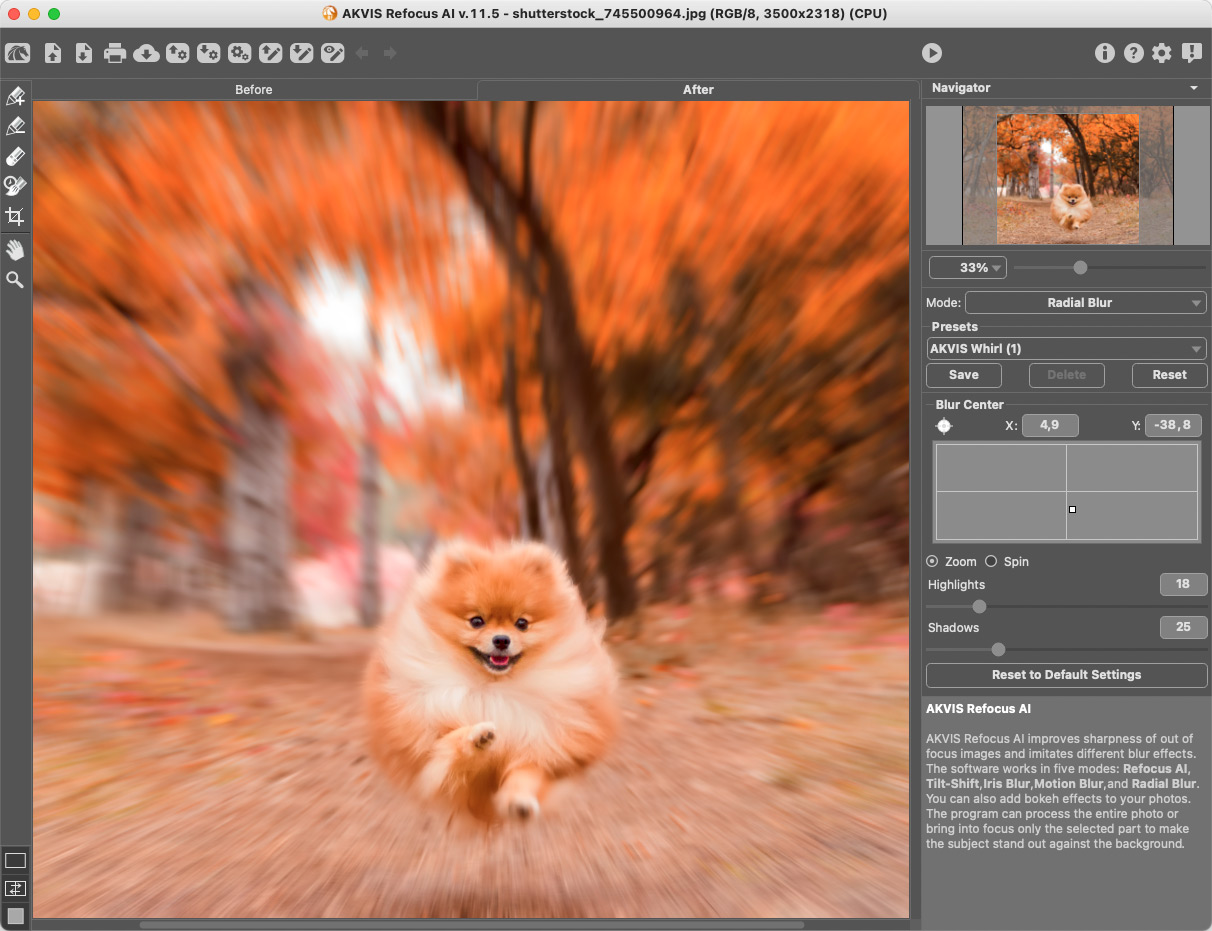
Radial Blur in Zoom mode on a snow monkey, with the blur center set in the grid on the right.
Batch processing, presets and formats
AKVIS Refocus AI can apply one preset to a whole folder on every license, which helps after a shoot where a whole series came out soft. It reads TIFF, JPEG, BMP, PNG, WEBP, RAW and DNG files (TGA since version 11.8), and PSD through the plugin, in RGB, CMYK, Lab and Grayscale at up to 32 bits per channel.
Benefits
The practical gain is fewer lost photos. A shot that would have gone in the bin because of a little camera shake can become usable for a print or an album, and a batch run fixes a whole set at once. The blur modes give you lens effects you'd otherwise need a fast prime or a tilt-shift lens for, applied after the fact and adjustable as often as you like.
Real-World Uses
- Indoor family photos: sharpen pictures that came out soft in low light because the shutter speed was too slow.
- Kids and pets in motion: reduce the slight movement blur of a subject that wouldn't stay still.
- Portraits with a busy background: sharpen the face and blur the room behind it (Home Deluxe or Business).
- Travel shots: turn a city view from a high window into a toy-town miniature with Tilt-Shift.
- Sports and product images: add a zoom or motion blur to give a still picture energy.
Who It's For, and Who Should Skip It
AKVIS Refocus AI suits home photographers and hobbyists who regularly end up with slightly soft photos and want a dedicated, preset-driven fix, plus Photoshop users who want deblur and lens blur as one plugin.
Skip it if your photos are badly blurred: no sharpening tool restores detail that was never captured. Skip it too if you already pay for an editor with strong built-in sharpening and lens blur filters; try those first. And if you are on Windows 7 or 8, the current version no longer runs there.
Usage Guide
- Download the installer and run it. On Windows it installs both the standalone app and the plugin. On a Mac they are two separate downloads.
- Open a photo in the standalone app, or open it in your editor and start Refocus AI from the filter menu.
- Pick a mode. For a blurry photo, start with Refocus AI.
- Choose a preset, then drag the preview square over the most important detail, such as the eyes.
- Turn Motion Deblur AI on for shake, Image Sharpening on for missed focus, or both, and adjust the sliders.
- On Home Deluxe or Business, mark the subject in blue and the background in red, and set Background Defocus.
- Press Run and save. During the trial, test the selective tools so you know whether you need Deluxe.
Where it falls short
- AI can invent detail. AKVIS's own manual says the Remove Artifacts slider exists to reduce "non-existent details", and turning it up softens the result again. Check faces and text closely.
- Sharpening brings out noise. AKVIS notes that a high Level of Detail "can produce noise", which is why there's a Remove Noise option.
- The cheapest license misses the selective tools, which are the main draw for portraits.
- Hardware. The minimum is 8 GB of RAM, and AKVIS recommends 16 GB and a discrete AMD or NVIDIA graphics card with 3 GB or more of memory.
- No crop tool in the plugin, and the Linux build has no plugin at all.
What Users Say
AKVIS Refocus has been reviewed many times since 2012, but most reviews are of versions before the AI deblur arrived in version 11, and we found no ratings on the large user-review sites. The reviews below are labeled with the version they cover.
Reviews of the AI versions
"AKVIS Refocus is best suited for images that are a wee-bit blurred while being clicked, probably due to camera shake." Geetesh Bajaj, Indezine, May 2021 (Refocus AI 11)
Bajaj's review is mostly a walkthrough of the modes and gives no score. His point about "a wee-bit blurred" photos is the honest scope of this kind of tool.
Earlier versions: praise
"AKVIS Refocus is a reliable photo editor that can help you repair the unpleasant out-of-focus effect." Elizabeta Virlan, Softpedia, March 2019
"First, and foremost, it enables automatic sharpening of out-of-focus images that possibly can avoid the cost, frustration, and inconvenience of reshooting an image." Michael Kleper, The Kleper Report, version 8.0
"I found the application used what appears to be a nice way of applying the sharpening command. In my experience it is much more selective, and since you can control the way the sharpening is applied, it is more effective. Is it perfect – no, but until something better comes along, this will be another photo enhancement application in my tool chest." Russ Merritt, The Computer Club, Sun City Center, April 2012 (version 1.5)
Earlier versions: criticism
"An interesting focus-manipulation tool, but not one that we'd pay £40 for." Ben Pitt, Expert Reviews, March 2012 (version 1.5, 2 stars)
Pitt found that it did a decent job on moderately blurry images, but not clearly better than Photoshop Elements' own sharpening, that it took up to two minutes on a 12-megapixel photo, and that its blur lacked real bokeh. That review predates the AI deblur, GPU support and the bokeh settings of the current version, so take it as history rather than a verdict on 11.9.
The recurring themes: reviewers like the control over where and how sharpening is applied and the extra blur effects, and they agree it works best on photos that are only slightly soft. The main complaint, from the one critical review, was value against the sharpening already built into photo editors.
Editions and Pricing
| License | Price at checkout | Edition | Use | What you get |
|---|
| Home Standalone | $39 | Standalone app only | Personal, non-commercial | Four modes, whole-image only, Crop, no PSD |
| Home Plugin | $39 | Plugin only | Personal, non-commercial | Four modes, whole-image only, PSD, no Crop |
| Home Deluxe | $49 | Plugin and standalone | Personal, non-commercial | All five modes, selection tools, Background Defocus |
| Business | $72 | Plugin and standalone | Commercial use allowed | Everything in Deluxe |
Buy Home Standalone ($39)Buy Home Plugin ($39)Buy Home Deluxe ($49)Buy Business ($72)
FAQs
Can AKVIS Refocus AI fix a very blurry photo?
Usually not. AKVIS Refocus AI works best on photos that are slightly soft from camera shake or missed focus. Heavy blur has lost the detail, and pushing the AI harder raises the risk of invented detail.
Is AKVIS Refocus AI a subscription?
No. AKVIS Refocus AI is a one-time purchase and the license never expires. Updates are free for 12 months; after that, a new version costs $19.95, or $49.95 to update all your AKVIS programs.
Does AKVIS Refocus AI use my graphics card?
Yes, since version 11.8. AKVIS Refocus AI uses DirectML with AMD and NVIDIA cards on Windows and CoreML on Macs, which speeds up the AI mode.
Does AKVIS Refocus AI run on Windows 7?
No. AKVIS Refocus AI 11.8 and later need 64-bit Windows 10 or 11, and macOS 10.15 Catalina or newer on a Mac.
Can I upgrade AKVIS Refocus AI Home to Deluxe later?
Yes. AKVIS lets you pay the difference: $10 from Home to Home Deluxe, $33 from Home to Business, and $23 from Home Deluxe to Business.
How many computers can I install AKVIS Refocus AI on?
Every AKVIS Refocus AI license registers on 2 computers, and the two can run different operating systems.
Can I use AKVIS Refocus AI for client work?
Only with the Business license. AKVIS Refocus AI Home and Home Deluxe are for non-commercial personal use.
System Requirements
- Windows: Windows 10-11, 64-bit. Minimum Intel Core Duo, 8 GB RAM, 8 GB disk, DirectX 9 graphics. Recommended Core i5, 16 GB RAM, 10 GB disk and a discrete AMD or NVIDIA card with DirectX 12 and 3 GB or more of memory.
- macOS: 10.15 Catalina to macOS 27, 64-bit. Minimum Intel, 8 GB RAM, 8 GB disk. Recommended Intel or M1, 16 GB RAM, 10 GB disk.
- Linux: 64-bit Debian, Ubuntu, Red Hat, CentOS, Fedora or openSUSE, standalone only. Minimum Core i3 and 8 GB RAM, recommended Core i5 and 16 GB RAM.
- Plugin: needs a photo editor that supports plugins.
Conclusion
AKVIS Refocus AI is worth it if you often have photos that are almost sharp, and Home Deluxe at $49 is the version to get, because selective focus and background blur are what make the results look natural. The reason to buy is that it rescues soft shots and adds real lens-style effects in one tool, with GPU support and batch processing. The main reason not to: it can't work miracles on badly blurred pictures, and if your editor already has good sharpening, the gain may be small. Try it on your own problem photos during the 10-day trial before you pay.
Download Free TrialBuy Now