IDAutomation Barcode Add-in for Word and Excel: a free toolbar for older Office versions
The IDAutomation Barcode Add-in is a free toolbar for Microsoft Word and Excel that turns the text you highlight into a barcode, using IDAutomation's barcode fonts. IDAutomation itself now calls it a legacy product that works with Office 2010 and earlier, so if you run Microsoft 365 or Office 2016 and later, read the alternatives section below before you install it.
Easily generate barcodes in Microsoft Word and Excel with this add-in. The add-in changes the selected data to a barcode when applied. In Excel, it may be used to convert an entire column or row of data into barcodes. This product may be used royalty free with a valid license to any of IDAutomation's Barcode Fonts. Barcodes supported include Code-39, ITF, Code-93, Code-128, UPC, EAN, GS1-128, MSI, USPS Postnet and Intelligent Mail as well as Universal and Databar.
Quick facts
- Developer: IDAutomation.com, Inc.
- Price: free download; it is royalty-free once you own a license to any IDAutomation barcode font (the fonts are sold separately).
- Office versions: Word and Excel 2003, 2007 and 2010 on Windows, and Word and Excel 2004 and 2011 on the Mac. The vendor says it is not compatible with Office 365 online or with versions after Office 2013.
- Needs the fonts: on Windows the toolbar stays hidden until an IDAutomation barcode font is installed; on a Mac it only encodes the data until the matching font is installed.
- What we checked: on November 23, 2026 IDAutomation's add-in page was live and marked the add-in as a legacy product for Office 2010 and earlier, and its download (IDAutomation_WordExcelAdd-in.zip, 4.5 MB, last changed December 2011) still downloads from idautomation.com. We didn't install it in a current copy of Office.
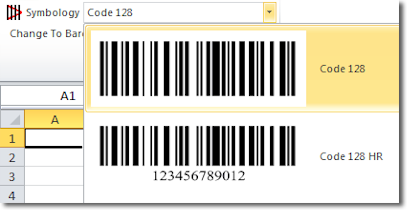
The add-in's Symbology drop-down on Excel 2010's Add-Ins tab, with Code 128 and Code 128 HR (human-readable) previews.
How it works
- Install an IDAutomation barcode font first (a licensed or demo copy).
- Run the add-in installer: the setup.exe in the "2007 and Above" folder for Office 2007 and 2010, or the installer in the "2003" folder for Office 2003.
- Highlight the data to encode, pick the symbology on the Add-Ins tab and click Change To Barcode. In Excel you can convert a whole column or row at once.
Check your Office version first
This add-in dates from the Office 2003 to 2010 era. For newer Office, IDAutomation itself points Excel users to its Native Barcode Generator for Excel or its VBA Font Encoder, and Word users to a VBA macro with its barcode fonts. If you're on Microsoft 365, plan on one of those or on one of the alternatives below rather than this toolbar.
Alternatives worth comparing
If you need barcodes in a current version of Word or Excel, these barcode font packages on our site work with Excel 2007 through Microsoft 365, are one-time purchases and come with a free trial (the trial fonts print demo lines across the bars).
ConnectCode Barcode Font Pack: every common 1D barcode
Fonts for Code 128, Code 39, UPC/EAN, GS1-128, ITF14, Interleaved 2 of 5 and GS1 DataBar, with Excel formulas such as =Encode_Code128Auto(A2) that work out the check characters, Word mail-merge support, an Office Barcode Add-In for Microsoft 365, and Crystal Reports and Access formulas. It's the closest match to the range of symbologies IDAutomation's add-in covers. Read our ConnectCode Barcode Font Pack review
ConnectCode Code 128 Barcode Font: shipping labels and serial numbers
Only need Code 128 or GS1-128? This smaller package covers Code 128 Auto, A, B and C plus GS1-128, with the same Excel formulas, Word mail merge and Crystal Reports support, for less than the full pack. Read our ConnectCode Code 128 review
ConnectCode Code 39 Barcode Font: asset tags and internal labels
Code 39, Code 39 Extended, Code 93, MSI and POSTNET fonts. Code 39 is the barcode you can type straight into Word or Excel between asterisks, which makes it the easiest choice for asset tags, ID badges and bin labels. Read our ConnectCode Code 39 review
Where IDAutomation's add-in still wins: it's free, so if you already own IDAutomation fonts and still use Office 2010 or earlier, there's no reason to switch.
FAQs
Does the IDAutomation Barcode Add-in work with Microsoft 365?
No. IDAutomation says it isn't compatible with Office 365 online or with versions after Office 2013, and lists it as a legacy product for Office 2010 and earlier.
Is the add-in free?
The add-in is a free download, and it's royalty-free to use with a license to any IDAutomation barcode font. The fonts themselves are paid; without an installed font you only see the encoded text, not bars.
Why don't I see the barcode toolbar in Excel?
On Windows the toolbar stays hidden until an IDAutomation barcode font is installed. Install the font first, then the add-in, and look on the Add-Ins tab.
Is there an alternative to the IDAutomation Barcode Add-in for newer Excel?
Yes. A barcode font package with Excel formulas, such as the ConnectCode Barcode Font Pack, works from Excel 2007 through Microsoft 365. IDAutomation also offers its own Native Barcode Generator for Excel.
Does it work on a Mac?
Only with Word and Excel 2004 and 2011 for Mac, by copying the add-in files into Office's Add-ins and Startup folders. Current Mac versions of Office aren't supported.
Conclusion
The IDAutomation Barcode Add-in is still a handy free toolbar if you own IDAutomation fonts and use Office 2010 or earlier. On Microsoft 365 or any Office after 2013, it isn't supported, so compare the ConnectCode Barcode Font Pack, or the smaller Code 128 and Code 39 packages, which work in current Excel and Word.
Download Free Add-in