Wondershare UniConverter for Mac: Batch Convert, Compress and Enhance Video on macOS
Wondershare UniConverter for Mac is a macOS toolbox that converts video, audio and images between more than 1,000 formats, compresses videos to a size you choose, downloads online video, records the screen and burns DVDs, with AI enhancement tools on top. It runs on macOS 10.13 or later, on Apple silicon and Intel Macs, and costs $59.99 a year, $79.99 for two years or $85.99 for a perpetual license.
Mac users who remember Wondershare Video Converter Ultimate for Mac or Video Converter Pro for Mac will find the same job here under a new name: get a video that won't open in QuickTime, Photos or Final Cut into a format that does, and do it for a whole folder at once.
Quick facts
- Developer: Wondershare Technology (Shenzhen, China)
- Version: UniConverter 18 for Mac (version 18 released October 15, 2026)
- Platform: macOS 10.13 High Sierra through macOS 26 Tahoe, Apple silicon and Intel; AI video enhancement needs macOS 10.15+, AI Video Blur macOS 12+
- Formats: 1,000+ video, audio and image formats, 4K, 8K, HDR and ProRes
- Price: $59.99 a year, $79.99 for two years (both auto-renew) or $85.99 perpetual
- Free trial: converts the first third of each file, 1 download, 1 compressed file up to 5 minutes
- Guarantee: 30-day money-back guarantee, under Wondershare's refund conditions
- What we checked: the Mac download on Wondershare's server (uniconverter-mac_full14207.dmg, a 3,970,231-byte downloader that fetches the full app), the trial limits in Wondershare's Mac plan comparison and the US-dollar prices on the Mac order page ($59.99 yearly, $79.99 two-yearly, $85.99 perpetual), on November 21, 2026. We didn't run it on a Mac ourselves.
Before you buy
- The Mac version costs more than the Windows one ($59.99 against $49.99 a year), and a Windows license doesn't cover it.
- Perpetual covers this version. A later major version is a free, discounted or full-price upgrade depending on when you bought, which is the most common complaint in UniConverter's reviews.
- AI tools use credits. The yearly and two-year plans include 600 bonus AI credits and the perpetual plan 1,000. Some video enhancement models run locally on Apple silicon; other AI features run in the cloud and need sign-in and credits.
Download Free TrialBuy Now
Overview
UniConverter for Mac opens on a home screen with three big tiles, Converter, Downloader and Video Enhancer, and shortcuts to the watermark remover, image enhancer, background remover, AI Video Blur, Compressor and Cutter. The sidebar keeps the three tools you use most (Converter, Downloader, Compressor) one click away, and an Explore section groups the rest by task.
The engine handles 4K, 8K and HDR, remuxes compatible formats without re-encoding (Wondershare's "130x faster lossless conversion") and uses hardware acceleration. For Mac editors it adds ProRes output and Apple editing presets, so footage from a phone, drone or action camera can be prepared for Final Cut Pro or iMovie.
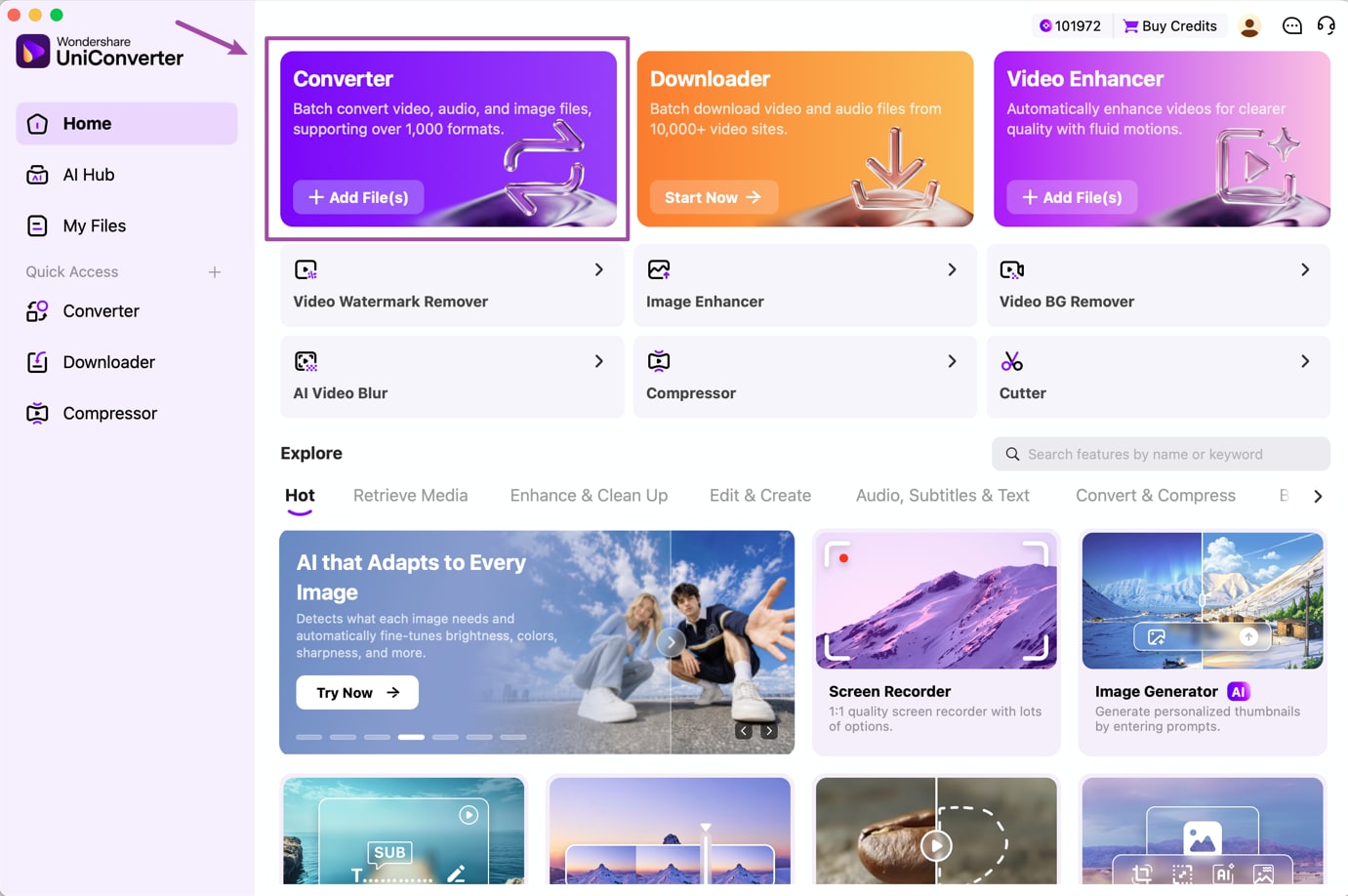
UniConverter for Mac's home screen: Converter, Downloader and Video Enhancer tiles above shortcuts to the Video Watermark Remover, Image Enhancer, Video BG Remover, AI Video Blur, Compressor and Cutter.
Features
Batch conversion with subtitles, chapters and audio tracks kept
Wondershare UniConverter for Mac converts batches of video, audio and image files to the format or preset you pick, and keeps audio tracks, subtitles, chapters and metadata in supported workflows. Its Watch Folder converts files automatically as they land in a folder, and the AI Media Agent (beta) plans settings from a plain-language request.
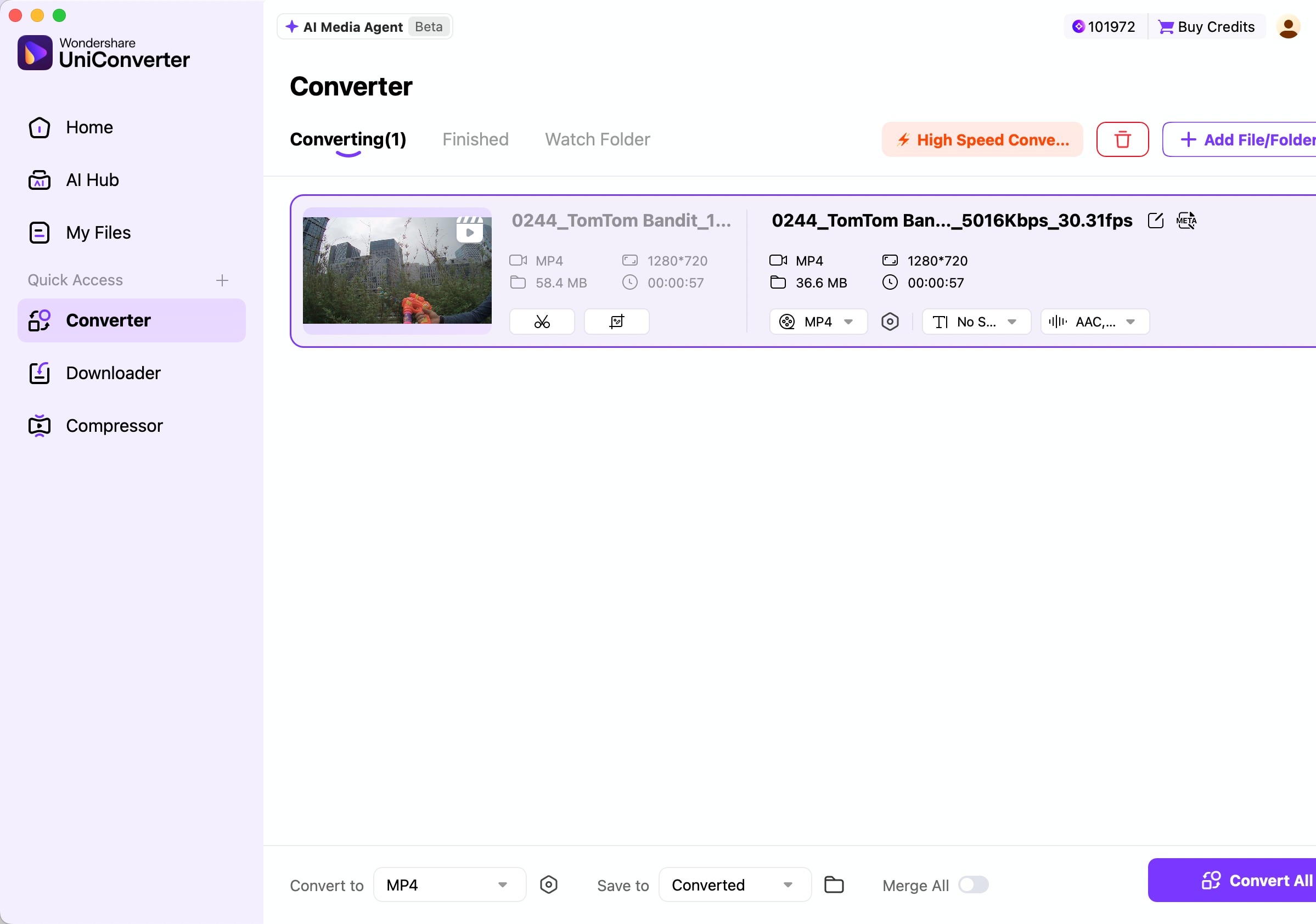
The Mac Converter tab: a 58.4 MB 720p MP4 queued for conversion, with output format, subtitle and audio-track menus, High Speed Conversion and the Watch Folder tab.
Compression by ratio, file size or quality
Wondershare UniConverter for Mac's Compressor offers three modes, Size Ratio, Max. File Size and Quality Level, shows the estimated output size before you start, and has an AI Detail Preservation switch with presets for film, anime, tutorials and sports. You can preview 20 seconds before compressing the whole batch.
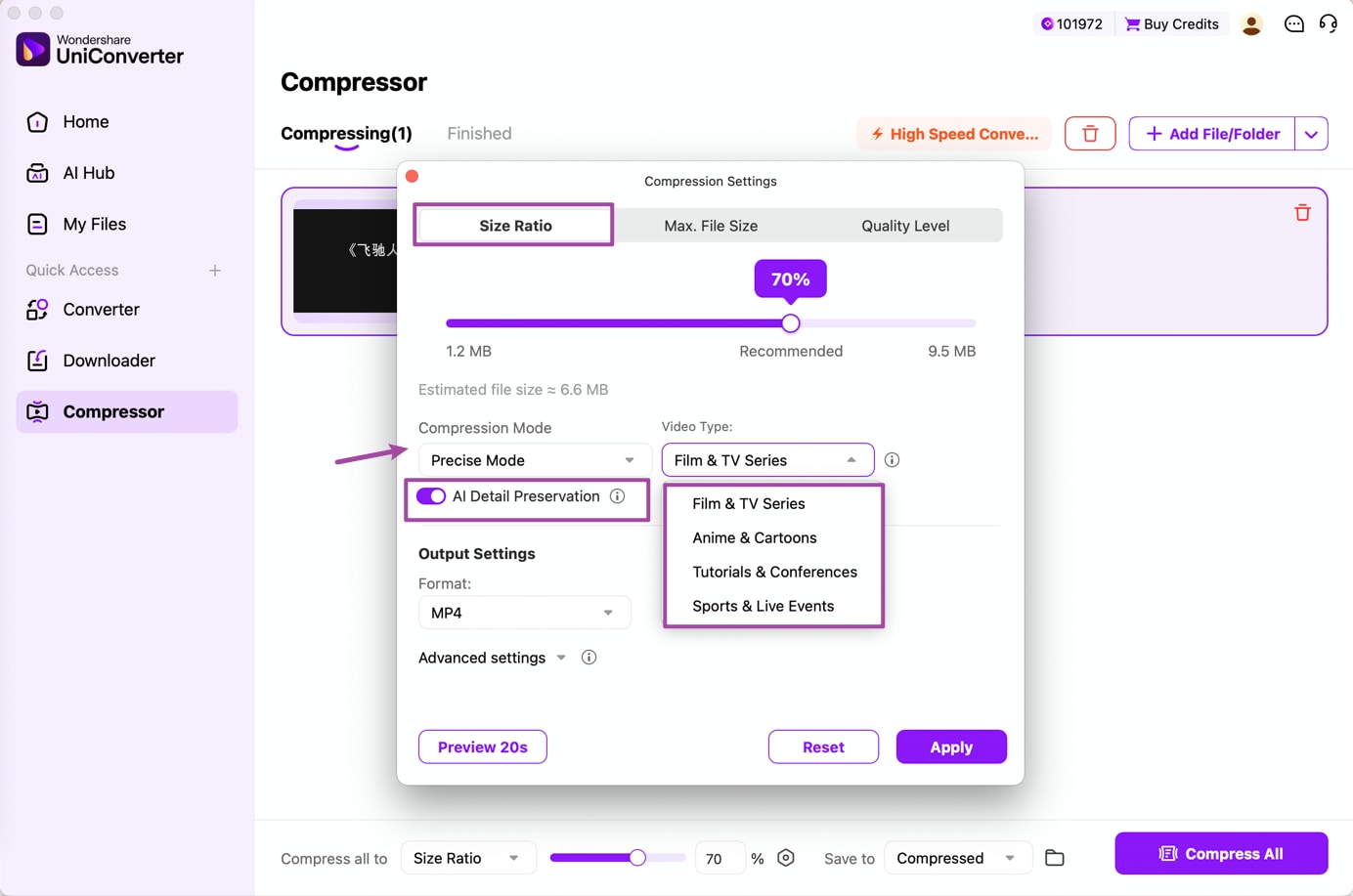
Compression settings on the Mac: a 70% size ratio with an estimated 6.6 MB output, Precise Mode, AI Detail Preservation and the video type list.
AI video enhancement, with local processing on Apple silicon
Wondershare UniConverter for Mac's Video Enhancer sharpens soft footage, reduces noise and upscales to 1080p, 2K or 4K, with Standard, Ultra (Gen AI) and premium Topaz Ultra models plus face and anime modes. Selected enhancement models run locally on Apple silicon Macs; the rest of the AI tools (watermark and background removal, AI blur, subtitles, voice tools) work through Wondershare's cloud and use AI credits.
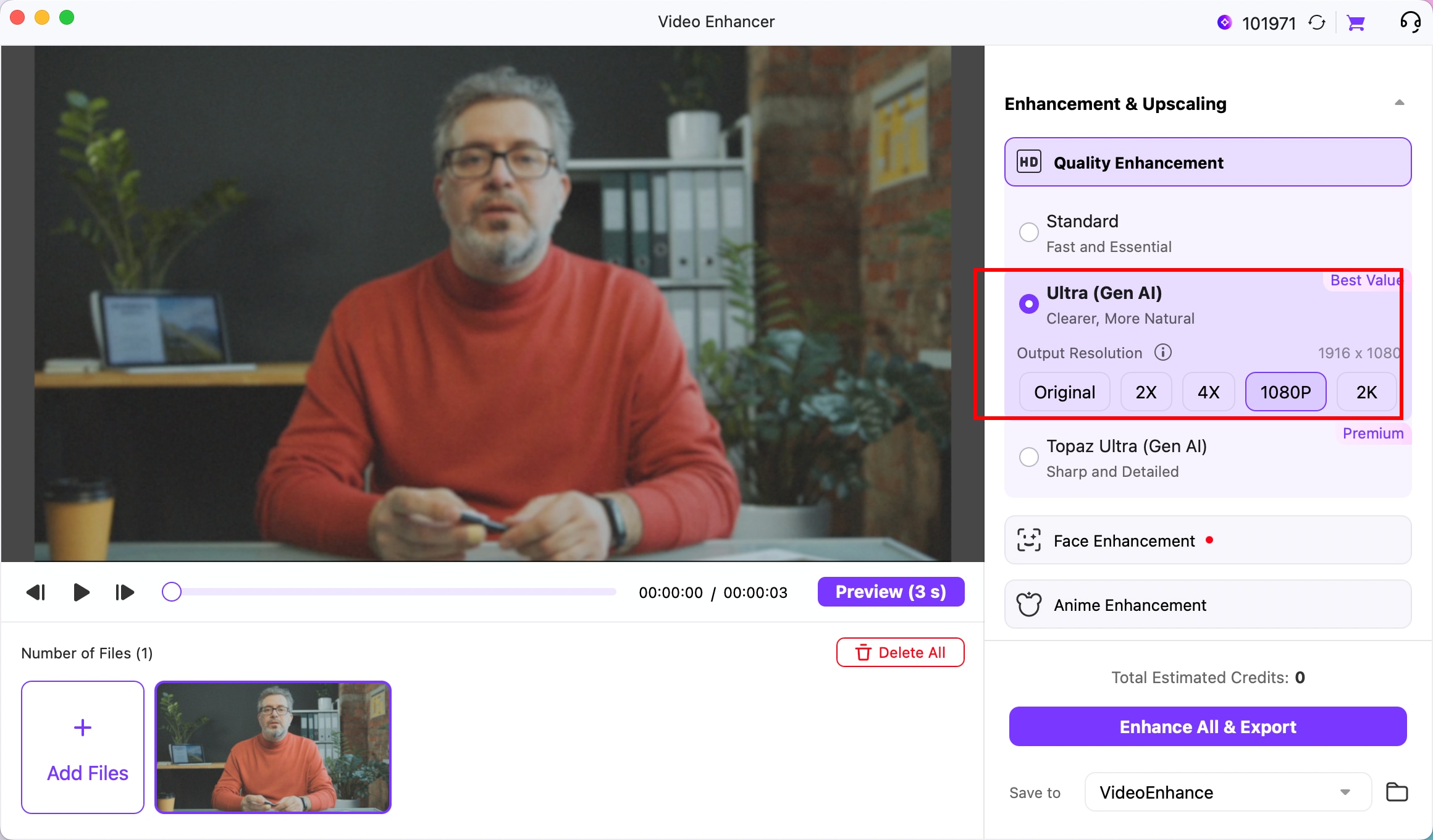
The Mac Video Enhancer: Ultra (Gen AI) quality enhancement set to output 1080p, with Topaz Ultra, Face Enhancement and Anime Enhancement below.
Downloader, recorder and DVD burner
Wondershare UniConverter for Mac downloads video, audio and playlists from sites such as YouTube, records the screen, a webcam or audio, including the sound of one chosen app, and burns videos to DVD. It also trims, crops, merges, adds subtitles and watermarks in batches, makes GIFs and edits metadata.
Benefits
- Fills the gaps in macOS. QuickTime and Photos don't open MKV, AVI, WMV or many camera formats; UniConverter turns them into files they do.
- Works on old and new Macs. Support starts at macOS 10.13, so an older Intel MacBook can run it, while Apple silicon gets local AI models.
- Fewer separate apps. Conversion, compression, downloading, recording and DVD burning share one interface.
- Repeatable. Presets and Watch Folder make weekly jobs one-click jobs.
Real-World Uses
- Edit footage in Final Cut: convert a folder of H.265 drone clips to ProRes before editing.
- Play an MKV on Apple TV: convert it to MP4 keeping the original audio and subtitle tracks.
- Fit an email or upload limit: compress a screen recording to a set maximum file size.
- Record a lesson: capture your screen and webcam, then trim the start and end in the same app.
Who It's For, and Who Should Skip It
Good fit: Mac users who regularly deal with formats macOS won't play, video editors who prepare footage in batches, and anyone who wants converting, compressing and downloading in one paid app with support behind it.
Skip it if you convert a file once in a while: HandBrake is free on the Mac, and UniConverter Online gives three free uses in a browser. If you need a real editor, look at Filmora for Mac or Final Cut Pro instead. And if you also need it on a Windows PC, remember that's a second license.
Usage Guide
- Download the installer with the Download Free Trial button, open the DMG and let it download and install the full app.
- Click Add File(s) on the Converter tile, or drag files or a folder onto the window.
- Choose the output in Convert to (a format, a device preset or ProRes) and pick the resolution.
- Switch on High Speed Conversion, choose where to save, and click Convert All.
- To shrink files, open Compressor, add the files, pick Size Ratio, Max. File Size or Quality Level, and click Compress All.
Where it falls short
- Some features need newer macOS: AI video enhancement needs macOS 10.15 and AI Video Blur macOS 12; local AI models need Apple silicon.
- Not the same as the Windows version: Wondershare says the two platforms support different functions, so check that a feature you saw in a Windows tutorial is in the Mac app.
- Downloader depends on the sites: users report failed or low-resolution YouTube downloads after site changes until an update arrives.
- Upgrade costs: perpetual buyers pay to move to the next major version unless they bought recently.
What Users Say
Wondershare's page for UniConverter shows 4.7/5 on Trustpilot, 4.3/5 on G2, Software Advice and Capterra, and 9.1/10 on TrustRadius. Trustpilot's UniConverter page (Windows and Mac reviews together) has 1,705 reviews, 89% of them five stars and 5% one star.
Independent review: TechRadar
TechRadar's Steve Paris (October 2024) found UniConverter "very well designed and easy to use" and called it "a veritable Swiss-army knife of software, allowing you to perform numerous actions to work on, download, alter and improve videos." His reservations: "calling it a 'video editor' is a bit of a stretch", and the AI tools scored 2.5/5 because of the credit system.
Trustpilot: praise
Bradley McCallum, 5 stars, "After installing Uniconverter 18" (November 6, 2026): "I am overwhelmed by their concern and helpfulness. I would highly recommend Wondershare."
Chloe James, 5 stars (February 11, 2026): "Very user friendly and simple to use"
Caleb Donnelly, 5 stars (November 28, 2025): "with tools that worked smoothly without overcomplicating anything."
Trustpilot: complaints
Cornelius Brody, 1 star, "Misleading practice" (November 10, 2026): "I bought a lifetime licence some time ago and all of a sudden they don't allow downloads anymore."
Fernando Antunez, 2 stars (November 3, 2026): "Wondershare effectively forces you onto a new paid version by imposing update limits"
anthony kendrick, 1 star (November 27, 2025): "can not download YouTube bach downloads keeps saying failed to analyse on uniconverter 17 ??"
Eva Hildebrand, 3 stars (January 26, 2026): "Too many additional charges , but good product"
Testimonial on Wondershare's page
From Capterra: "The price is fair. The user interace is actually pleasant (I like the dark aesthetic). It's easy to queue up a large batch of conversions and leave them running in the background. Everything is generally pretty fast and snappy."
The pattern: conversion and compression get steady praise for ease and speed, and Wondershare's support gets credit for fixing problems. The complaints center on perpetual licenses that stop getting new versions or downloader fixes, and on extra charges.
Comparisons
UniConverter for Mac vs HandBrake
HandBrake is free on the Mac and an excellent MP4/MKV encoder, but it doesn't download, record, compress to a target size in one step, burn DVDs or offer AI tools. UniConverter is the easier choice for batch jobs across many formats; HandBrake is the free choice for straightforward encoding.
UniConverter for Mac vs Apple Compressor
Apple's Compressor ($49.99 one-time) is built for Final Cut Pro users who need precise encoding and distribution settings. UniConverter covers more everyday tasks (downloading, recording, DVDs, AI enhancement) with simpler presets, but on a subscription or a version-bound perpetual license.
Mac vs Windows version
UniConverter for Windows costs less ($49.99 a year, $69.99 for two years, $79.99 perpetual) and has a few Windows-only extras such as NVIDIA GPU acceleration. Each license covers one platform.
Editions and Pricing
| Plan | Price | Billing | What you get | Buy |
|---|
| Yearly | $59.99 | Renews every year until cancelled | All basic features, new versions while subscribed, 600 bonus AI credits | Buy Yearly |
| 2-Yearly | $79.99 | Renews every 2 years until cancelled | Same as Yearly for two years, 600 bonus AI credits | Buy 2-Year |
| Perpetual | $85.99 | One-time payment | Lifetime use of the basic features of this version, 1,000 one-time bonus AI credits | Buy Perpetual |
Prices are in US dollars for one Mac, as shown on the order page on November 21, 2026. Each Buy button opens Wondershare's order page for that plan.
FAQs
Is UniConverter for Mac the same as Video Converter Ultimate for Mac?
Yes. Wondershare UniConverter for Mac is the renamed Wondershare Video Converter Ultimate for Mac, which also replaced Video Converter Pro for Mac.
Does UniConverter run natively on M1, M2, M3 and M4 Macs?
Yes. Wondershare UniConverter for Mac supports Apple silicon natively as well as Intel Macs, and some AI video enhancement models run locally only on Apple silicon.
Will UniConverter work on an older Mac with macOS High Sierra?
Yes, for the core tools. UniConverter for Mac needs macOS 10.13 or later for converting, compressing and recording, but AI video enhancement needs macOS 10.15 and AI Video Blur needs macOS 12.
Can UniConverter for Mac record audio from just one app?
Yes. UniConverter for Mac can record audio from a selected application as well as the screen and webcam, depending on your macOS version and the recording permissions you grant.
Are UniConverter's AI features processed on my Mac?
Partly. UniConverter for Mac runs selected video enhancement models locally on Apple silicon; its other AI tools are cloud-based and need an internet connection, sign-in and credits.
Can I cancel the yearly plan?
Yes. The UniConverter for Mac yearly and two-year plans renew automatically until you cancel the subscription in your Wondershare account.
System Requirements
- macOS: 10.13 High Sierra or later, including macOS 26 Tahoe (10.15+ for AI video enhancement, 12+ for AI Video Blur)
- Processor: Apple silicon (native) or Intel
- RAM: 4 GB minimum, 8 GB or more recommended
- Disk space: 2 GB or more free
- Internet: needed for installation, downloads, activation and the cloud AI tools
Conclusion
Wondershare UniConverter for Mac is worth it if you regularly convert, compress or download video on a Mac and want batches handled with presets, ProRes output and Apple silicon support. The yearly plan at $59.99 is the one to pick, because it includes new versions.
The reason to buy it is that it replaces several single-purpose apps with one well-organized toolbox. The reason to hesitate is the price, higher than on Windows, plus AI credits and paid major upgrades. Run the trial on your own files first.
Download Free TrialBuy Yearly PlanBuy Perpetual License