Wondershare DemoCreator: Screen Recorder and Video Editor for Tutorials, Demos and Lessons
Wondershare DemoCreator is a screen recorder with a built-in video editor for Windows and Mac. It records your screen, webcam, microphone and system audio on separate tracks, then lets you add annotations, cursor effects, zooms and captions before you export. Plans cost $59.99 a year or $29.99 a quarter (both cover Windows and Mac), or $79.99 for a perpetual license to version 8.
It's made for people who explain things on screen: teachers recording lessons, trainers making software walkthroughs, marketers recording product demos and gamers capturing play. Recording and editing in one program saves the export-import step between a recorder and a separate editor.
Quick facts
- Developer: Wondershare Technology (Shenzhen, China)
- Version: DemoCreator 8 (installer product version 8.8.7)
- Platforms: Windows 11, 10 and 7 (64-bit); macOS 10.15 or later
- Recording: screen, camera, audio, game, virtual avatar and video presentation modes, up to 4K and 120 fps
- Price: $29.99 a quarter or $59.99 a year (cross-platform, auto-renew), $79.99 perpetual (version 8.x)
- Free version: exports carry a watermark, recordings export up to 5 minutes, 1080p at 30 fps
- Guarantee: 30-day money-back guarantee, under Wondershare's refund conditions
- What we checked: the Windows installer on Wondershare's download server (democreator_full7743.exe, a 2,498,040-byte online installer reporting "Wondershare DemoCreator 8", product version 8.8.7), the free-versus-paid limits in Wondershare's plan comparison and the US-dollar prices on the Windows order page ($29.99 quarterly, $59.99 yearly, $79.99 perpetual), on November 21, 2026. We didn't record a video ourselves.
Before you buy
- The free version's watermark is large. A Trustpilot reviewer said it covers "nearly three-quarters of the screen", so the free version is for testing, not for publishing.
- Perpetual means version 8. The $79.99 plan gives lifetime access to DemoCreator 8.x; a future major version would be a new purchase or upgrade.
- AI features use credits. The yearly and quarterly plans include 500 AI credits a month and the perpetual plan 2,000 credits; AI subtitles, text to speech, the AI clips generator and voice changer are paid with them.
- Refunds are conditional. Wondershare approves refunds "under the accepted circumstances", and one reviewer's request was turned down.
Download Free TrialBuy for WindowsBuy for Mac
Overview
DemoCreator's home screen has two big buttons, Video Recorder and Video Editor, and lists your edited, recording and AI clips projects below them. A recording opens straight into the editor with the screen, camera and microphone on separate tracks, so you can cut a cough out of the narration without touching the screen capture, or resize the webcam without re-recording.

DemoCreator's home screen: Video Recorder and Video Editor, with Edited Projects, Recording Projects and AI Clips Generator Projects tabs, Cloud Drive and Academy in the sidebar.
Features
Six recording modes
Wondershare DemoCreator records in six modes: Screen (full screen, a window or an area, with or without the webcam), Camera, Audio, Game (up to 4K and 120 fps), Virtual Avatar (one of 30 AI avatars stands in for your face) and Video Presentation, which puts you next to your slides and works with Zoom, Teams, Google Meet and Skype. Recordings can be scheduled.
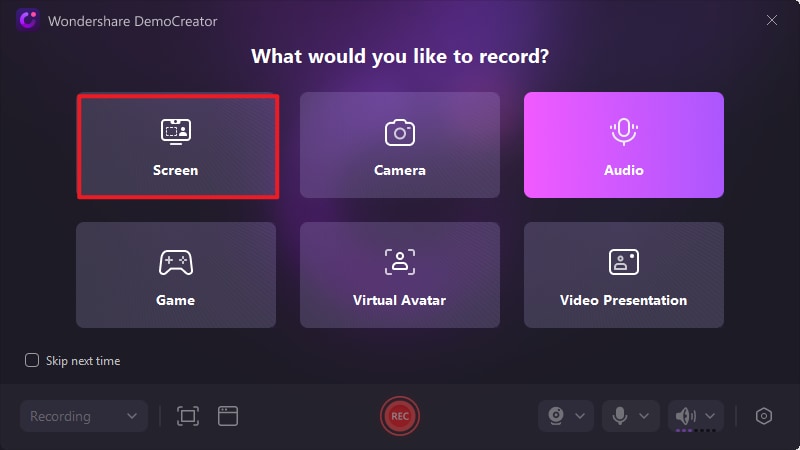
"What would you like to record?": the six recording modes, with area, webcam, microphone and system audio controls along the bottom.
Draw on the screen while you record
Wondershare DemoCreator's screen drawing toolbar lets you highlight, write, draw shapes, arrows and lines, and add text on top of whatever you're recording, which is handy for pointing at a chart or a menu during a live explanation.
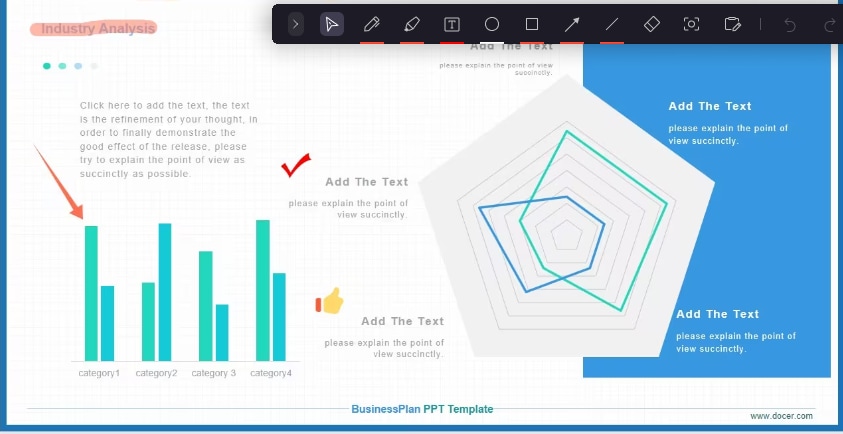
The screen drawing toolbar over a slide being recorded: pen, highlighter, text, shapes, arrows, lines and eraser, with an arrow and a check mark drawn on the slide.
An editor built for screen recordings
Wondershare DemoCreator's editor has the effects screen tutorials need: layout templates for screen-plus-webcam, annotations (text boxes, arrows, callouts), cursor effects (highlight, spotlight, magnify, click sounds), pan and zoom, animated subtitles, green screen, transitions, brand kits and batch export. Version 8.7 added smart annotations with automatic spotlight and magnifier effects, and 8.8 added audio ducking, which lowers background music while you speak.
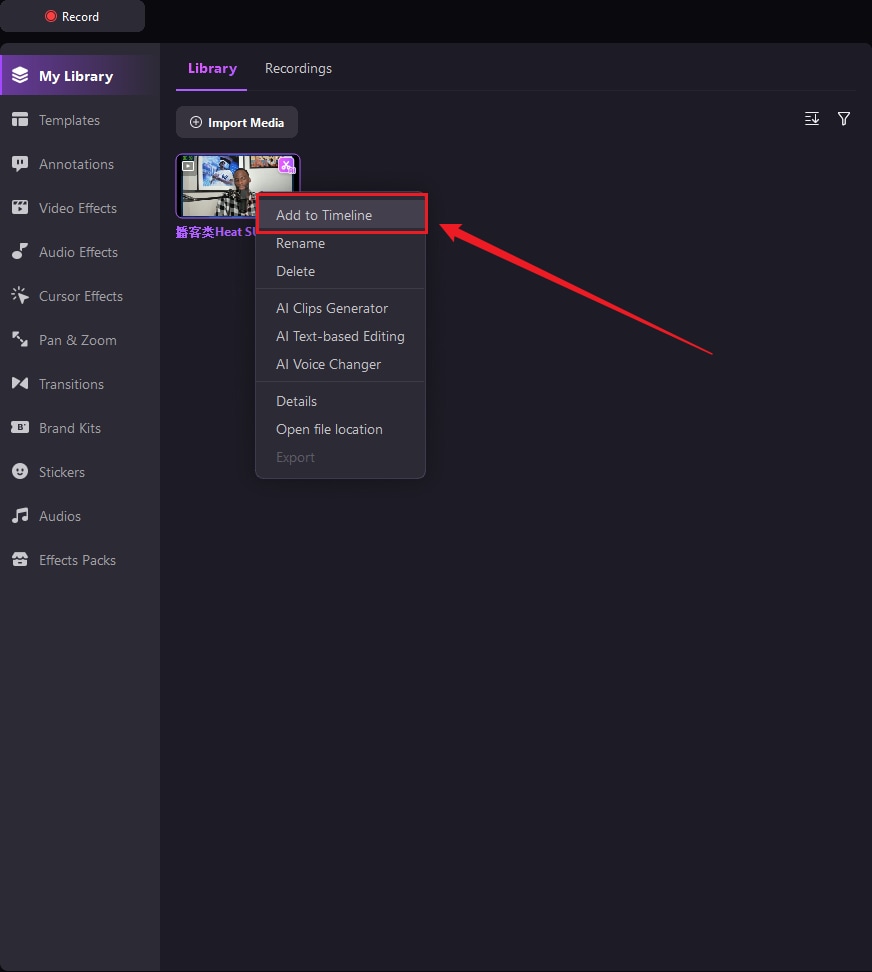
The editor's library: Templates, Annotations, Video and Audio Effects, Cursor Effects, Pan & Zoom, Transitions, Brand Kits and more, with a clip's menu offering Add to Timeline, AI Clips Generator, AI Text-based Editing and AI Voice Changer.
AI tools for captions, clips and voice
Wondershare DemoCreator's AI tools write subtitles, let you edit a recording by deleting words from its transcript, cut a long video into short clips, generate voice-overs and background music, change or clean up your voice, remove the background or objects, and add a teleprompter for camera recordings. Most use AI credits.
Benefits
- Separate tracks fix mistakes. Screen, webcam, microphone and system audio can each be edited on their own.
- Tutorial effects built in. Cursor highlights, zooms and annotations are one drag away instead of keyframed by hand.
- One license for Windows and Mac. The subscription plans are cross-platform.
Real-World Uses
- Software tutorial: record a walkthrough, zoom in on the menus you click and add cursor highlights.
- Online lesson: present slides in Video Presentation mode with your webcam beside them, then add captions automatically.
- Product demo for sales: record once, add your brand kit, and export a long version plus short clips for social media.
- Gameplay: capture at up to 120 fps and add stickers and highlights.
Who It's For, and Who Should Skip It
Good fit: teachers, trainers, YouTubers and marketers who make screen-based videos regularly and want recording and tutorial-style editing in one inexpensive tool.
Skip it if you only need a quick screen capture now and then (OBS Studio is free, and Windows has a built-in recorder in the Snipping Tool), or if you need a full editor for camera footage (Filmora or DaVinci Resolve fit better). Mac users should read the TechRadar note on Mac glitches below and test the trial first.
Usage Guide
- Install DemoCreator with the Download Free Trial button and sign in with a Wondershare ID.
- Click Video Recorder and choose a mode, such as Screen.
- Pick the area, the webcam and the audio sources, then press REC; use the drawing toolbar if you want to mark up the screen.
- Stop the recording to open it in the editor, with each source on its own track.
- Add annotations, cursor effects, zooms and captions, then export to MP4 or share.
Where it falls short
- Performance: some Trustpilot users report lag and freezes, especially on modest PCs; Wondershare's specs ask for an Intel Core i3-7100U or better and 8 GB of RAM for HD and 4K.
- Mac glitches: TechRadar found issues on the Mac that it didn't see on Windows.
- Editing smoothness: the editor is capable but not as fluid as a dedicated editor.
- Disk space: the Mac version needs at least 10 GB free for installation.
What Users Say
DemoCreator's Trustpilot page shows a TrustScore of 4.6 from 161 reviews, 86% five-star and 5% one-star.
Independent review: TechRadar
Steve Paris (August 2024) scored DemoCreator 5/5 for pricing and plans, 4.5/5 for recording and 4/5 for editing: "Wondershare DemoCreator is a well designed cross-platform application that makes recording your screen, internal audio, webcam and microphone easy (once the setup is completed)."
On recording: "An excellent series of options, clearly laid out and simple to use." On editing: "DemoCreator is a very capable editor." His warning for Mac users: "the glitches we discovered feel like a deal-breaker for Mac users".
Trustpilot: praise
Krishna Menon, 4 stars (December 4, 2025): "excellent recording quality and stands out with its smooth, high-resolution output."
Tushar, 5 stars, "DemoCreator Makes Video Creation Effortless" (December 3, 2025): "the program does not have any significant lags or crashes."
Sakass, 5 stars, "A very easy App for new user" (August 14, 2025): "for now its a good Editor."
Trustpilot: complaints
Helena Ivanova, 2 stars, "Slow, glitchy, unusable." (January 3, 2026): "this tool is so incredibly laggy"
Kayden "Kush" Mangena, 1 star (December 15, 2025), on the free version: "applies an excessively large watermark that covers nearly three-quarters of the screen"
Sachin Vinith, 1 star (September 2, 2025): "they said they cannot refund unless a valid reason is being furnished"
The pattern: people like the recording quality and how easy it is to start; the complaints are about lag on some systems, the free version's watermark and refunds.
Comparisons
DemoCreator vs Camtasia
Camtasia is the long-standing tutorial recorder and editor, with deeper editing, quizzes and a larger template library, at a much higher yearly price. DemoCreator covers the same everyday needs (screen plus webcam, cursor effects, annotations, captions) for a fraction of the cost, with AI tools on credits.
DemoCreator vs OBS Studio
OBS Studio is free and excellent for recording and live streaming, but has no editor. DemoCreator is the easier choice if you want to record and polish in one place.
DemoCreator vs Wondershare Filmora
Filmora is Wondershare's general video editor and also records the screen. DemoCreator is built around screen recording, with separate tracks, a drawing toolbar and presentation mode, so it's the better pick for tutorials.
Editions and Pricing
| Plan | Price | Billing | Platforms | Includes |
|---|
| Cross-Platform Quarterly | $29.99 | Renews every 3 months until cancelled | Windows and Mac | Future versions while subscribed, 4K/120 fps, 500 AI credits a month |
| Cross-Platform Yearly | $59.99 | Renews every year until cancelled | Windows and Mac | Future versions while subscribed, 4K/120 fps, 500 AI credits a month |
| Perpetual | $79.99 | One-time payment | Bought for Windows here (the Mac order page sells its own) | Lifetime access to version 8.x, 4K/120 fps, 2,000 AI credits |
Prices are in US dollars as shown on the Windows order page on November 21, 2026, against struck-through $49.99, $69.99 and $99.99. The Buy buttons open Wondershare's DemoCreator order page for Windows or Mac, where you choose the plan.
FAQs
Does one DemoCreator plan work on both Windows and Mac?
Yes, for the subscriptions. DemoCreator's quarterly and yearly plans are sold as cross-platform plans; the perpetual license isn't labelled cross-platform, so buy it from the order page for the system you use.
How long can I record with the free version of DemoCreator?
Wondershare's plan comparison lists a 5-minute recording export length for the free version, at up to 1080p and 30 fps, with a watermark; paid plans remove those limits.
Can DemoCreator record system audio and my microphone at the same time?
Yes. DemoCreator records system audio and the microphone together, on separate tracks, so you can adjust or clean up each one in the editor.
Can DemoCreator record a Zoom or Teams meeting?
Yes. DemoCreator's Video Presentation mode works with Zoom, Skype, Google Meet and Teams, and its screen mode can record a meeting window. Ask participants before recording them.
Does DemoCreator run on Windows 7?
Wondershare lists Windows 7, 10 and 11 in 64-bit editions for DemoCreator, with at least 3 GB of RAM (8 GB for HD and 4K) and a GPU with 2 GB of video memory.
What happens to the perpetual license when DemoCreator 9 comes out?
The DemoCreator perpetual plan is lifetime access to version 8.x, so it keeps working, but a new major version isn't included.
System Requirements
- Windows: Windows 11, 10 or 7, 64-bit; Intel Core i3-7100U or better; 3 GB RAM (8 GB for HD and 4K); Intel HD 5000, NVIDIA GTX 700 or AMD Radeon R5 or later with 2 GB vRAM (4 GB for HD/4K); 2 GB disk; 1280 x 720 screen
- Mac: macOS 10.15 or later; Intel i5 2 GHz or better recommended; 8 GB RAM (16 GB for HD and 4K); 10 GB disk
- Internet: needed for registration, activation and cloud resources
Conclusion
Wondershare DemoCreator is worth it for anyone who records tutorials, lessons or demos every week: recording on separate tracks plus cursor effects, zooms and annotations make polished screen videos quick to produce, and the $59.99 yearly plan covers both Windows and Mac.
The reason to buy it is the record-then-polish workflow at a low price. The reason to hold off is performance on modest hardware and the Mac glitches reviewers mention. Test the free version on your own computer first.
Download Free TrialBuy for WindowsBuy for Mac