AKVIS SmartMask AI: Cut Out People and Objects With a Few Clicks
AKVIS SmartMask AI is a selection and background-removal tool for Windows, Mac and Linux that uses AI to select a subject, a part of it, or objects with soft and semi-transparent edges, then cuts it out or places it on a new background. It runs standalone or as a plugin for Photoshop, AliveColors, Corel PaintShop Pro and other editors. A Home license is $69 for life on two computers (plugin or standalone); Home Deluxe is $90 and Business $120.
Selecting hair, fur, a veil or a person in a crowded group photo is where most editing time goes. SmartMask AI's AI tools make the first selection for you, and its brushes fix the edges the AI gets wrong.
Quick facts
- Developer: AKVIS
- Version: 15.1 (version 15.0 added the AI Point Selection tool)
- Platforms: Windows 10 and 11 (64-bit), macOS 10.15 Catalina to macOS 27, Linux 64-bit (standalone only)
- Plugin hosts: AliveColors, Adobe Photoshop, Corel PaintShop Pro and other editors that take AKVIS plugins
- Price: Home Plugin or Home Standalone $69, Home Deluxe $90, Business $120, all lifetime licenses for 2 computers
- Trial: 10 days, all features, no registration
- What we checked: the Windows installer on November 22, 2026: akvis-smartmask-setup-x64.exe, 65.1 MB, AKVIS SmartMask AI version 15.1.3028, digitally signed by AKVIS Lab LLC; and the order page on November 22, 2026: Home Standalone $69.00, Home Plugin $69.00, Home Deluxe $90.00 and Business $120.00. We didn't make selections ourselves.
Before you buy
- Chroma Key, Refine Edges and the History panel are Deluxe and Business only. Home licenses get the AI and manual selection tools but not those three.
- Home means one edition: plugin or standalone, your choice. Home Deluxe covers both. Home and Home Deluxe are for non-commercial use.
- Lifetime license, paid updates later. Updates are free for 12 months after purchase; later versions cost $19.95 for a year of updates.
- A discrete graphics card helps the AI tools: AKVIS recommends one with 3 GB or more on Windows.
Download Free TrialBuy Home Standalone ($69)Buy Home Plugin ($69)Buy Home Deluxe ($90)Buy Business ($120)
Overview
SmartMask AI opens your image with Original and Processing tabs, a toolbar of selection tools on the left and settings, History and hints on the right. The fastest route is an AI tool: Select Subject picks the main subject, Quick Selection grows a selection as you brush, and the new Point Selection takes a few clicks (blue points to include, red to exclude) and builds the selection with optional AI Refine, Compress and Expand settings.
When the AI misses, the touch-up tools take over: the Magic Brush and Background Eraser for soft edges and colors close to the background, standard selection tools, and in Deluxe and Business, Chroma Key for solid backgrounds and Refine Edges for hair. Finished cut-outs can be dropped onto a Custom Background, and a project can be saved as an .akvis file to continue later.

SmartMask AI 15.0 on Windows: Select Subject has outlined the model in a 7627 x 5085 photo, with the History panel on the right.
Features
AI selection in one click
AKVIS SmartMask AI selects the main subject of a photo automatically with Select Subject, which is often all you need for a product shot or a portrait on a plain background.
Point Selection for parts of an image
AKVIS SmartMask AI 15 adds Point Selection: click points on what you want and what you don't, and a neural network selects the whole object or just a part of it, with automatic edge refinement.
Point Selection on macOS: two blue points include the man in front, a red point excludes the skateboard, and the rest of the group stays unselected.
Brushes for hair, fur and glass
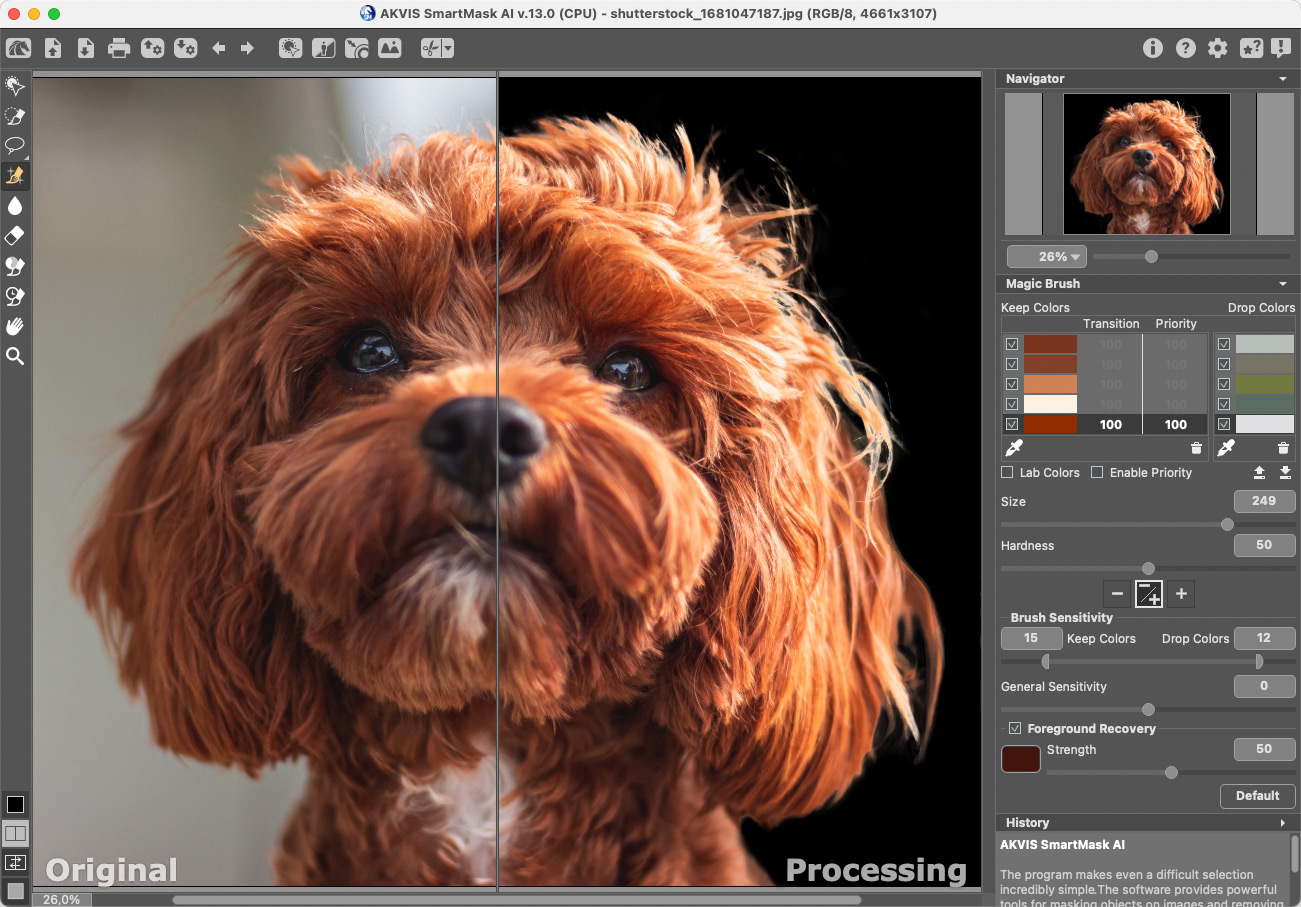
AKVIS SmartMask AI's Magic Brush and Background Eraser handle soft, blurry and semi-transparent edges, and can remove leftover color from the old background on the cut-out.
Chroma Key and Refine Edges
AKVIS SmartMask AI Deluxe and Business remove a solid-color background, such as a green screen, with Chroma Key and clean up hair and fur with Refine Edges.

A sky replacement: Point Selection, Custom Background and Refine Edges in the History list, with the original on the left.
New backgrounds and saved projects
AKVIS SmartMask AI places the cut-out on a Custom Background in the standalone app and saves projects as .akvis files with the original, the current state and, in Deluxe and Business, history checkpoints.
Benefits
- Less time on selections: the AI tools do in seconds what the Pen tool does in half an hour.
- Better hair and edge detail than a quick lasso, thanks to the dedicated edge brushes.
- Works with the editor you have, as a plugin, or without one as a standalone app.
- No subscription: the license is yours for good.
Real-World Uses
- Product photos for a web shop on clean white or transparent backgrounds.
- Pulling one person out of a group photo for an invitation or a memorial card.
- Replacing a dull sky in a landscape.
- Green-screen portraits keyed out with Chroma Key (Deluxe or Business).
Who It's For, and Who Should Skip It
It's for photographers and designers who cut out subjects often and want AI speed with manual control, especially users of AliveColors, PaintShop Pro or older Photoshop versions without Adobe's own AI selection.
Skip it if you have a current Photoshop subscription: its Select Subject and Remove Background cover much of this. For an occasional cut-out, free online background removers are quicker. And Home buyers who need Chroma Key or Refine Edges must choose Deluxe.
Usage Guide
- Install the trial and launch SmartMask AI, or open an image in your editor and start the plugin.
- Select with Select Subject, Quick Selection or Point Selection.
- Touch up edges with the Magic Brush or Background Eraser, or Refine Edges in Deluxe and Business.
- Remove the selected areas or add a Custom Background, and check the Processing tab.
- Apply and save the image, or save an .akvis project to continue later.
Where it falls short
- Key edge tools are locked to Deluxe and Business, so the $69 Home license is a cut-down version.
- AI isn't perfect on busy backgrounds: a German reviewer of an earlier version noted small bits of background left in the cut-out.
- Learning curve on the advanced tools, as reviewers going back to 2009 point out.
- Recent independent reviews are scarce: most published reviews cover versions before the AI tools.
What Users Say
Independent reviews
Ionut Ilascu wrote on Softpedia in April 2019: "Despite the program being aimed at professionals, working with it is a simple job that can be carried out by less advanced users." iCreate magazine was more cautious: "SmartMask does have some advanced tools for those that wish to make an absolutely perfect cutout and these take some time to learn. Overall this is a plug-in that will only really suit those who do an awful lot of cutting out." Michele McDonough of Bright Hub found that "It may take a little more time to learn to use than other applications, but that is mostly due to the richness of the application."
From the user groups
L. Davenport of the Silicon Mountain Macintosh User's Group was "very surprised and pleased with how easy it was to remove the background of even complex images" and liked being able to buy the standalone version without a photo editor. Donna Kamper of the Tucson Computer Society, who was "still looking for the perfect result" after hours in Photoshop, wrote: "I'm impressed enough with the results I got that I feel comfortable recommending this product."
The pattern
Reviewers like how much time it saves and how easy the basics are; the cautions are the learning curve for perfect cut-outs and leftovers on difficult backgrounds. All these reviews predate the AI tools added from version 13 on, so try Point Selection on your own photos during the trial.
Comparisons
SmartMask AI versus Photoshop's own selection tools
A current Photoshop subscription already has Select Subject, Object Selection and Remove Background, so SmartMask AI adds most for people who don't pay for Photoshop: AliveColors, PaintShop Pro and older Photoshop users, or anyone who wants a standalone app on Linux. Inside Photoshop, its Chroma Key and edge brushes are the main extras.
Editions and Pricing
All four licenses are lifetime licenses for 2 computers, at the prices the order page showed on November 22, 2026. Each Buy button orders that license.
Owners of an older license can buy 1 Year of Updates for $19.95, and Home owners can upgrade to Deluxe or Business by paying the difference.
FAQs
Does AKVIS SmartMask AI Home include Refine Edges?
No. In AKVIS SmartMask AI, Chroma Key, Refine Edges and the History panel come only with Home Deluxe and Business licenses.
Which editors can run the AKVIS SmartMask AI plugin?
AKVIS lists AliveColors, Adobe Photoshop and Corel PaintShop Pro among the editors that run the SmartMask AI plugin, and others that accept AKVIS plugins.
Does AKVIS SmartMask AI run on Linux?
Yes, as a standalone app. AKVIS SmartMask AI has a 64-bit Linux version for Debian, Ubuntu, Red Hat, CentOS, Fedora and openSUSE; the plugin is Windows and Mac only.
Is AKVIS SmartMask AI a subscription?
No. AKVIS SmartMask AI licenses never expire. Updates are free for 12 months; later versions cost $19.95 for a year of updates.
Does AKVIS SmartMask AI run on Apple Silicon Macs?
Yes. AKVIS lists SmartMask AI for M1 and Intel Macs on macOS 10.15 to macOS 27, with separate app and plugin downloads.
Can I use one license on Windows and Mac?
Yes. An AKVIS SmartMask AI license registers the program on two computers, which can run different systems.
System Requirements
- Windows 10 or 11 (64-bit): Intel Core Duo, 8 GB RAM, 8 GB disk and a DirectX 9 card minimum; Core i5, 16 GB RAM and a discrete DirectX 12 card with 3 GB+ recommended
- macOS 10.15 Catalina to macOS 27: Intel, 8 GB RAM minimum; Intel or Apple M1 with 16 GB recommended
- Linux 64-bit (standalone): Core i3 and 8 GB RAM minimum; Core i5 and 16 GB recommended
- Plugin: a photo editor that supports AKVIS plugins
Conclusion
AKVIS SmartMask AI is worth it for people who cut out subjects regularly and don't have Photoshop's newest AI tools: Point Selection and Select Subject do the bulk of the work, and the brushes fix the edges. Buy Home Deluxe ($90) rather than Home ($69) if you work with hair, fur or green screens, because Refine Edges and Chroma Key are locked out of Home. Photoshop subscribers should try it first, since Adobe already covers much of the same ground.
Download Free TrialBuy Home Standalone ($69)Buy Home Plugin ($69)Buy Home Deluxe ($90)Buy Business ($120)