Auto Reply Manager for Outlook: Out-of-Office Replies, Forwards and Redirects With Real Rules
Auto Reply Manager is a $39.95 add-in for classic desktop Outlook on Windows that automatically replies to, forwards, redirects or resends incoming email based on rules you define: which account or folder it arrived in, who sent it, when, on which weekdays, and which keywords it contains. It's for freelancers and small businesses on POP3, IMAP or Outlook.com accounts who want more than Outlook's built-in Automatic Replies, without needing an Exchange administrator.
Outlook's own out-of-office tool is all or nothing: one message, to everyone, until you switch it off. Auto Reply Manager lets you answer only weekend emails that mention "urgent", send a different acknowledgement for each mailbox, or hand support requests to a colleague while keeping the customer as the sender.
Quick facts
- Version: 3.0.221, last updated September 8, 2022
- Developer: DS Development SRL, Bucharest, Romania
- Works with: classic desktop Outlook 2003, 2007, 2010, 2013, 2016, 2019, 2021 and Microsoft 365, 32-bit or 64-bit, on Windows XP through Windows 11. No Mac version, and not for Outlook on the web or the new Outlook for Windows.
- Actions: reply to the sender, to CC or to all, reply to an address found in the message body, forward, redirect and resend
- Important: Outlook has to be open and running for any automatic email to go out
- Price: $39.95 on the order page, one-time. Lifetime license with one year of upgrades, for up to two computers.
- Free trial: 30 days according to the vendor's download page (its product specs say 15 days)
- Guarantee: 30-day money-back guarantee
- What we checked: the 8.7 MB installer (dated June 20, 2022 and signed by Digital Software Development SRL) downloaded from the vendor and the $39.95 price on the order page, both on November 3, 2026. We didn't run rules on a live mailbox.
Before you buy: your PC has to stay on
Auto Reply Manager runs inside Outlook on your computer, not on the mail server. While you're on vacation, the PC must stay on with Outlook open and set to check mail regularly, or nobody gets a reply. If you have Microsoft 365 or Exchange and a simple "I'm away" message is enough, Outlook's built-in Automatic Replies runs on the server and needs no PC at all.
Download Free TrialBuy Now
Overview
Auto Reply Manager adds its own ribbon tab to Outlook with Edit Rules, Manual Run and Show Log. Edit Rules opens a list of your rules, each with its type and a "stop if applied" setting, which you can enable, pause, reorder and edit. Every rule is built in a dialog with six tabs: Name, Accounts and Folders Filter, Sender Filter, Date and Keywords Filter, Rule Action and Message Settings.
When a new message arrives that matches a rule, the add-in creates the reply, forward or redirect, puts it in the Outbox and logs what it did. You can pause a rule with one click, and Manual Run applies a rule to messages already sitting in your folders.
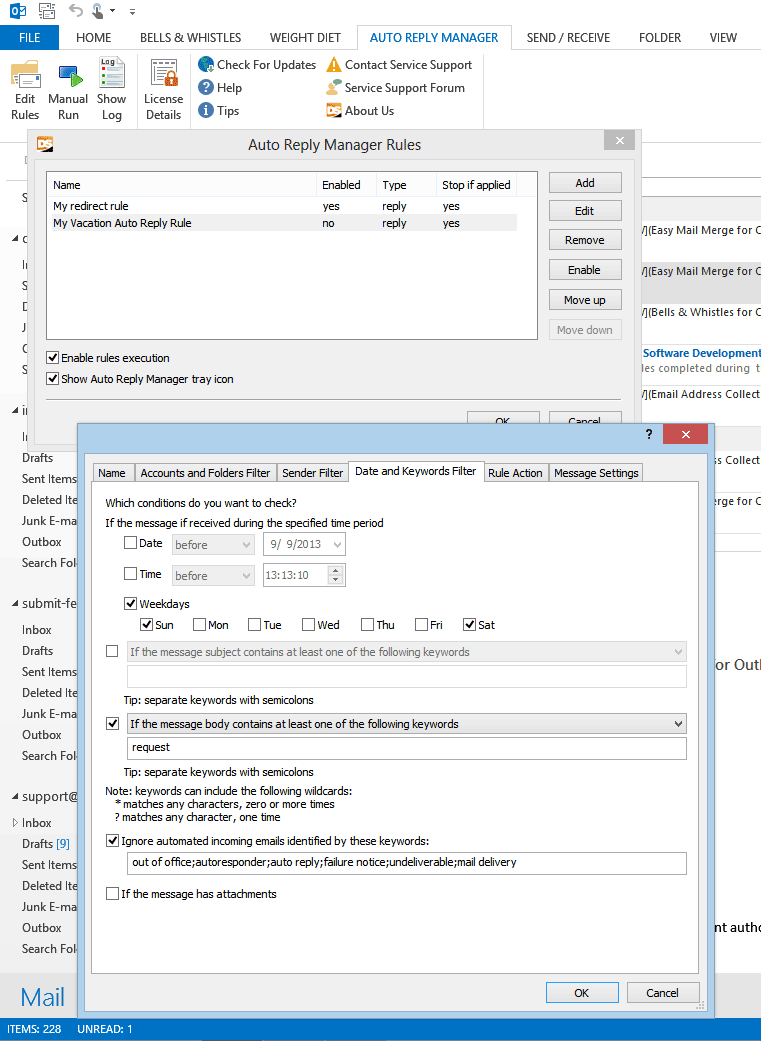
The Auto Reply Manager ribbon tab and Rules window in Outlook 2013, with a rule's Date and Keywords Filter tab: active on Saturdays and Sundays only, for messages whose body contains "request", ignoring automated emails such as out-of-office notices and delivery failures.
Features
Rules that combine accounts, folders, senders, dates and keywords
Auto Reply Manager triggers a rule only when all of its filters match: selected email accounts and mail folders, specific senders, domains or a whole distribution list, a date and time range or chosen weekdays, keywords in the subject or body (with * and ? wildcards), and whether the message has attachments. You can reply to every message from a sender or only to the first one, so a busy correspondent doesn't get ten copies of your vacation note.
Protection against reply loops
Auto Reply Manager can ignore incoming automated messages identified by keywords such as "out of office", "autoresponder", "failure notice" or "undeliverable". That stops two auto-responders from answering each other forever, or your reply bouncing back into another reply.
Reply, forward, redirect or resend
Auto Reply Manager's actions go beyond a reply. It can reply to the sender, to CC or to all, or to an address found in the message body (useful for web-form emails sent from your own site), forward the email, redirect it so the original sender stays in the From field and your colleague can answer them directly, or resend an email you sent before.
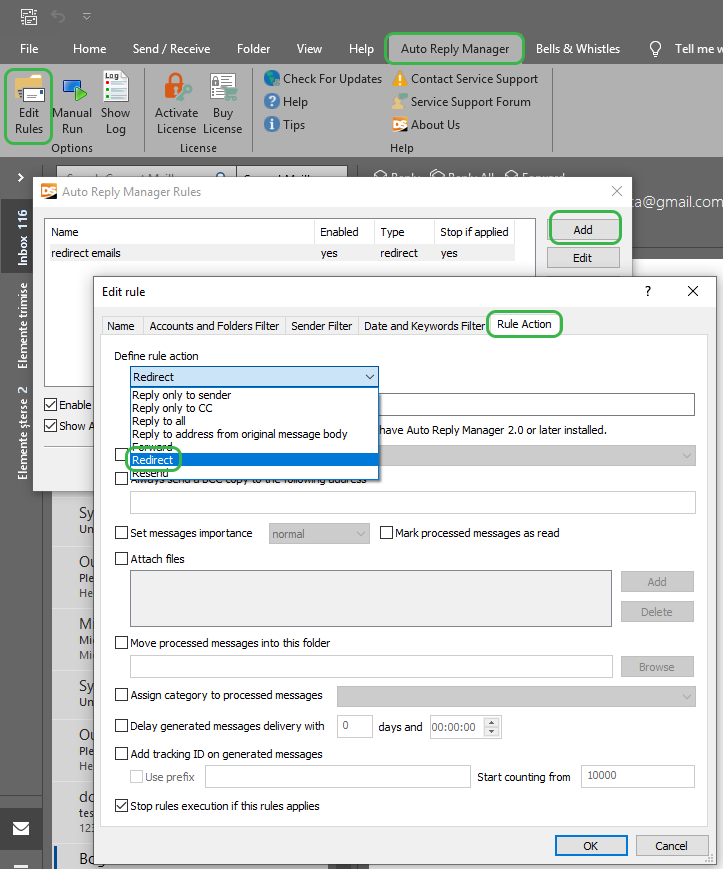
Auto Reply Manager in a newer Outlook, with the vendor's green highlights: the Rule Action tab's action list (reply to sender, CC, all or an address from the body, forward, redirect, resend) and the options for BCC, importance, attachments, moving and categorizing processed messages, delay and tracking IDs.
Reply templates with attachments, delays and tracking IDs
Auto Reply Manager writes replies in its own editor, so you don't need Outlook template files. Each rule can choose the sending account, keep the original subject, add a BCC copy, set the importance, attach files (or include the original attachments), add a tracking ID to the subject, mark processed messages as read, move them to a folder or give them a category, and delay the reply by days, hours or minutes so it doesn't look instant and robotic.
Activity log and diagnostics
Auto Reply Manager records every automatic action, so you can see when and to whom a reply went without leaving Outlook. With diagnostic logging turned on, the log also shows how each incoming message was handled, which is the quickest way to find out why a rule didn't fire.
Benefits
- Server-style rules without a server. You get conditional auto-replies on POP3, IMAP and Outlook.com accounts, with no Exchange admin rights needed.
- Answers that fit the message. Different replies per account, keyword or day of the week instead of one blanket notice.
- Nothing slips while you're out. Redirected messages reach a colleague with the original sender intact, so they can reply straight away.
- A one-time cost. $39.95 for a lifetime license, compared with paying for a hosted helpdesk.
Real-World Uses
- A freelancer sends a weekend-only reply saying they'll answer on Monday, and only to clients, not newsletters.
- A small online shop automatically thanks buyers when a PayPal payment notification arrives, replying to the address in the message body.
- A sales office redirects emails with "quote" in the subject to the sales manager while the owner is travelling, so customers get an answer from a real person.
- A support mailbox acknowledges every new request with a tracking ID in the subject and moves the message into a "To do" folder.
Who It's For, and Who Should Skip It
It's for people who use classic desktop Outlook on Windows with POP3, IMAP or Outlook.com accounts, keep the PC running, and need auto-replies or forwarding that depend on who wrote, when and about what.
Skip it if:
- You turn your computer off when you leave. The rules stop with Outlook. A server-side rule from your mail provider or Microsoft 365's Automatic Replies keeps working with the PC off.
- You use a Mac, Outlook on the web or the new Outlook for Windows. It's a COM add-in for classic Windows Outlook only.
- You need a full helpdesk. Ticket queues, assignment and team reporting call for a helpdesk system, not a mailbox add-in.
Usage Guide
- Install. Close Outlook, run the downloaded setup file and finish the wizard. Restart Outlook and the Auto Reply Manager tab appears.
- Create a rule. Click Edit Rules, then Add. Give the rule a name.
- Set the filters. Pick the accounts and folders, the senders, and on the Date and Keywords Filter tab the period, weekdays and keywords. Keep the "ignore automated emails" keywords switched on.
- Choose the action. On the Rule Action tab, choose reply, forward, redirect or resend, plus BCC, attachments, delay and what happens to the processed message.
- Write the message. On the Message Settings tab, write the reply text and choose whether to keep the original subject.
- Test it. Let the rule process messages from your own accounts, send yourself a test email, and check the log.
Tips
- Turn on "Stop if applied" for specific rules placed above general ones, so a message gets one reply, not two.
- For redirects, the vendor notes that Auto Reply Manager should be installed for both your account and the account the messages go to.
- Rules apply to new mail as it arrives. Use Manual Run if you also want to process messages already in a folder.
Where it falls short
- Only as reliable as your PC. A Windows update restart, a sleep setting or an Outlook crash silently stops all replies until Outlook is running again.
- Tied to classic Outlook. Microsoft is moving users to the new Outlook for Windows, which doesn't load COM add-ins like this one.
- No updates since 2022. Version 3.0.221 is the latest, and the interface dates from the 2013 version 3 redesign.
- Confusing vendor details. The FAQ still names version 2.0.118 as the latest, and the trial length is given as 30 days on one page and 15 on another.
What Users Say
Auto Reply Manager has almost no public user reviews. Here is what we could find.
SnapFiles (user rating 5, no written reviews)
SnapFiles' editor describes it as providing "an easy way to create auto-responders in Outlook", with rules based on "sender, folder or email account, as well as keywords in the subject or body of the message", and vacation responders "triggered during a specific time period".
The write-up also points out the main catch: "it requires that Outlook is running and in case of vacation responders, it must be configured to automatically download email while you are away." Its verdict: "Even though you can create auto-responders with the standard Outlook rules, Auto Reply Manager offers a few advantages and a easier configuration."
That matches the picture from the vendor's documentation: flexible rules and easy setup, with the dependence on a running Outlook as the trade-off. There's no recent independent feedback on version 3.0.221, so lean on the free trial.
Comparisons
Auto Reply Manager vs Outlook's Automatic Replies and rules
Outlook's Automatic Replies (with Exchange or Microsoft 365) run on the server and work with the PC off, with an inside and outside message and a time range. Outlook rules can reply with a template or forward on any account, but the reply-with-template action only answers each sender once per Outlook session and has no weekday schedule. Auto Reply Manager adds weekday and time conditions, keyword and attachment filters, true redirects, delays, tracking IDs and a log, at the cost of needing Outlook open.
Auto Reply Manager vs Bells & Whistles
Both are DS Development add-ins. Auto Reply Manager answers incoming mail for you. Bells & Whistles ($29.95) helps you write your own replies faster with greetings, templates and send-time alerts.
Editions and Pricing
| License |
Price |
Free upgrades |
Computers |
| Free trial |
$0 |
None |
Any |
| Standard license (lifetime) |
$39.95 |
1 year |
2 |
| Standard + 2 years of upgrades (vendor's store) |
$49.95 |
2 years |
2 |
Volume discounts apply automatically: 10% off for 5-15 licenses, 15% for 16-25 and 25% for 26-50.
FAQs
Does Auto Reply Manager keep replying when my computer is off?
No. Auto Reply Manager is an Outlook add-in, so Outlook must be running for it to send anything. For replies while you're away, leave the PC on with Outlook open and set to download mail automatically.
Does Auto Reply Manager work without Exchange?
Yes. Auto Reply Manager works with any account in classic desktop Outlook, including POP3, IMAP and Outlook.com, because it runs on your PC rather than the mail server.
Can one Auto Reply Manager rule cover several email accounts?
Yes. In the rule's Accounts and Folders Filter tab, select every account the rule should apply to.
Can I run Auto Reply Manager on a server around the clock?
Yes, as long as Outlook is installed and kept running on that machine. DS Development says you can install Auto Reply Manager on a server under that condition.
What's the difference between forward and redirect in Auto Reply Manager?
When Auto Reply Manager forwards an email, you become the sender. When it redirects one, the original sender stays in the From field, so the person receiving it can reply directly to your customer.
Is Auto Reply Manager a subscription?
No. Auto Reply Manager is a one-time purchase with lifetime use and one year of free major upgrades, activated on up to two computers. A 30-day money-back guarantee applies.
System Requirements
- Operating system: Windows XP, Server 2003, Vista, Server 2008, 7, 8, 10 or 11, 32-bit or 64-bit (not Windows RT)
- Outlook: classic desktop Outlook 2003, 2007, 2010, 2013, 2016, 2019, 2021 or Microsoft 365, 32-bit or 64-bit
- Running: Outlook must be open for rules to work
- Download: 8.7 MB installer
Conclusion
Auto Reply Manager is worth $39.95 if you run classic Outlook on a Windows PC that stays on, use POP3, IMAP or Outlook.com accounts, and want auto-replies, forwards or redirects that depend on the sender, the day and the content. The one reason to buy it is the rule engine: weekday schedules, keyword filters, loop protection, delays and true redirects that Outlook's own tools don't combine. The main reason not to is that it only works while Outlook is running on your PC, and it hasn't been updated since 2022. If you're on Microsoft 365 and a plain away message will do, use the free built-in Automatic Replies. Otherwise, set up one rule in the trial and test it against your own mail first.
Download Free TrialBuy Now