Skyvia Backup: Daily Snapshots and Record-Level Restore for Salesforce, HubSpot and Other SaaS Apps
Skyvia Backup is a cloud-to-cloud backup service from Devart that copies the data in your business SaaS apps (Salesforce, HubSpot, Zoho CRM, Dynamics 365, Pipedrive, Jira, QuickBooks Online and about 30 others) into encrypted Azure storage and lets you restore anything from a single field to a whole object. It runs in the browser with nothing to install, and costs $99 a month for the Professional plan (200 GB), with a Free plan and a $9 Standard plan for smaller accounts.
The reason it exists is simple: most SaaS vendors keep their service running, but they don't promise to undo your mistakes. A bad mass import that overwrites 5,000 contact phone numbers, an integration that deletes the wrong deals, or a departing employee who cleans out "their" accounts can't always be fixed from the app's own recycle bin. Skyvia keeps dated snapshots outside the app, so you can see exactly what changed and put it back.
Quick facts
- What it is: a hosted backup and restore service, part of Devart's Skyvia data platform
- Developer: Devart
- Runs on: any modern web browser. There's no desktop program or installer
- Backs up: Salesforce, Salesforce Marketing Cloud, HubSpot, Zoho CRM, Zoho Books, Zoho Inventory, Dynamics 365, NetSuite, Pipedrive, Freshdesk, Freshsales, Insightly, Jira, Asana, Podio, QuickBooks Online, FreshBooks, Shopify, BigCommerce, Magento, Stripe, Mailchimp, Marketo, Zendesk, SurveyMonkey, WordPress, Google Workspace (G Suite) and more
- Schedule: automatic backups up to once a day, plus manual backups any time
- Storage: Microsoft Azure geo-redundant storage in West US data centers, AES-256 encrypted with a unique key per user
- Price: Professional $99 per month (200 GB), or $79 a month billed annually. Standard $9 per month (20 GB), Enterprise $499 per month (1 TB), and a Free plan (1 GB)
- Trial: 14 days of the Professional plan when you register, then the Free plan on request
- Latest release: October 2026, which brought a redesigned Backup Wizard
- What we checked: the Buy Now order page sells "Skyvia Backup" as the Professional plan billed monthly at $99.00, renewing every month, with Standard, Enterprise, Enterprise 2TB and annual billing as options. We also read the plan limits on Skyvia's pricing page and the backup, restore, security and limitation pages of its documentation, all on November 2, 2026. We didn't run a backup or a restore ourselves.
Before you buy
- The Buy Now button orders the Professional plan, monthly. That's $99 a month for 200 GB. If 20 GB is enough, Standard at $9 a month is the better buy, and paying annually cuts every paid plan by 20%. You can change the plan and the billing term on the order page.
- It renews automatically every month until you turn auto-renewal off in your Skyvia account. Downgrading to a cheaper plan doesn't refund the difference.
- Start with the free trial. Registering gives you 14 days of Professional, enough to back up your real app, compare two snapshots and test a restore before paying anything.
- Daily is the fastest schedule. If you need hourly or continuous backups of a busy Salesforce org, this isn't that kind of tool.
Buy Now
Overview
In Skyvia, a backup is a saved configuration: which app connection to read from, which objects and fields to include, any filters, and a schedule. Each run creates a snapshot, a full copy of everything the backup covers at that moment. Snapshots aren't incremental, so any one of them can be opened on its own and holds the complete picture for that date.
Everything happens in the browser. You open a backup, pick a snapshot from the list on the left, and browse its objects and records much as you would in the app itself. From there you can search, compare against another snapshot, export to CSV, or select records and press Restore. Skyvia then writes them back to the source app through its API.
Skyvia Backup is one of several products on the Skyvia platform (Data Integration, Automation, Query, Connect), and each is billed separately. You only pay for Backup if Backup is all you use.
Features
Choose exactly what gets backed up
Skyvia Backup lets you pick the objects to include, drop fields you don't need, and add filter conditions so only matching records are copied. Because plans are priced by storage, leaving out large objects you'll never restore keeps you on a cheaper plan. The Backup Wizard walks you through four steps: connection, objects, schedule and name.
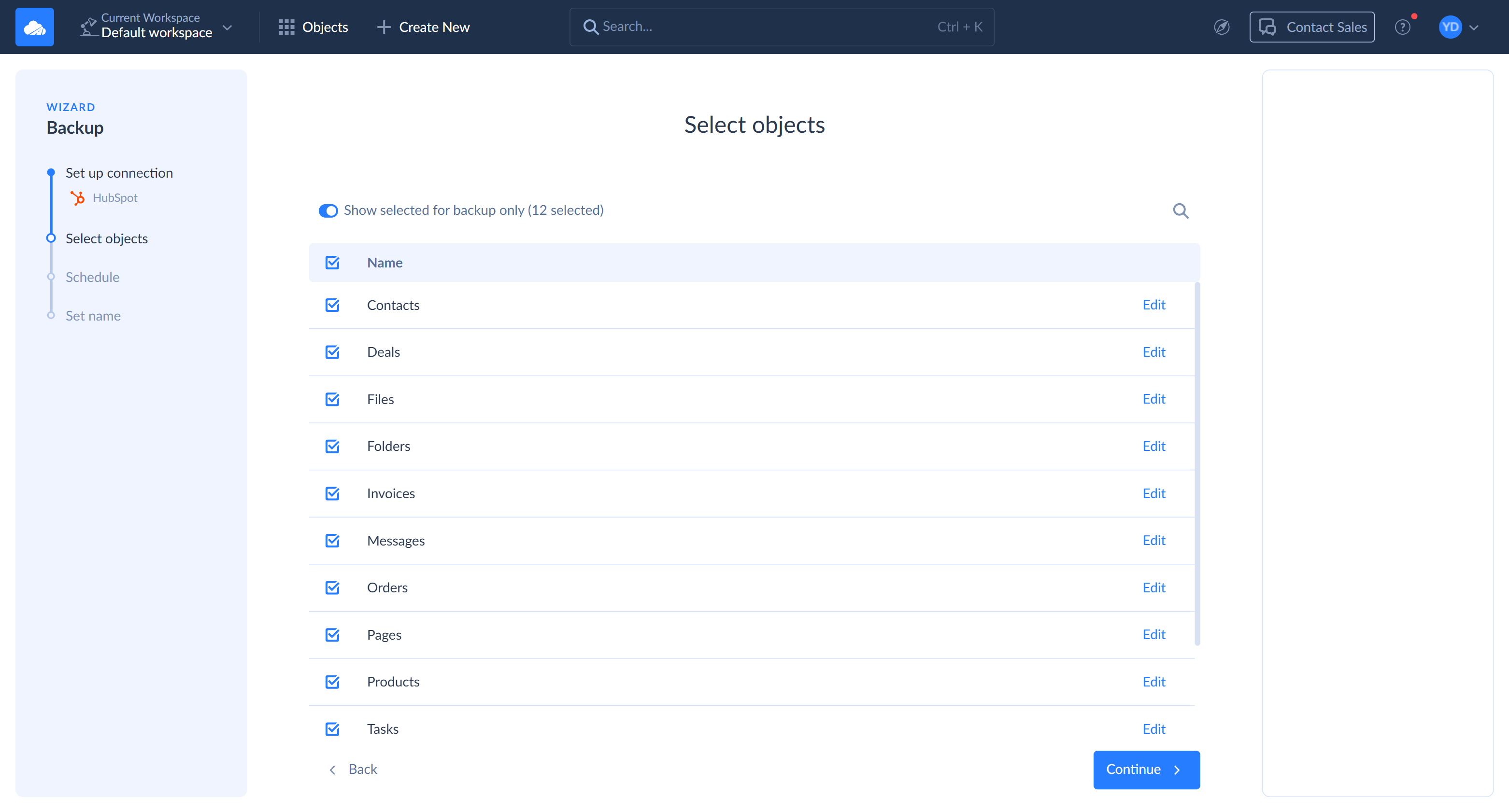
The Backup Wizard's Select objects step for a HubSpot connection: 12 objects ticked, including Contacts, Deals, Files, Invoices and Orders, each with an Edit link for field and filter settings.
Daily automatic backups, plus manual ones
Skyvia Backup can run on a recurring schedule (daily, weekly or monthly, at a set time and time zone) on any paid plan, and you can press Backup now whenever you're about to do something risky. On the Free plan backups are manual only.
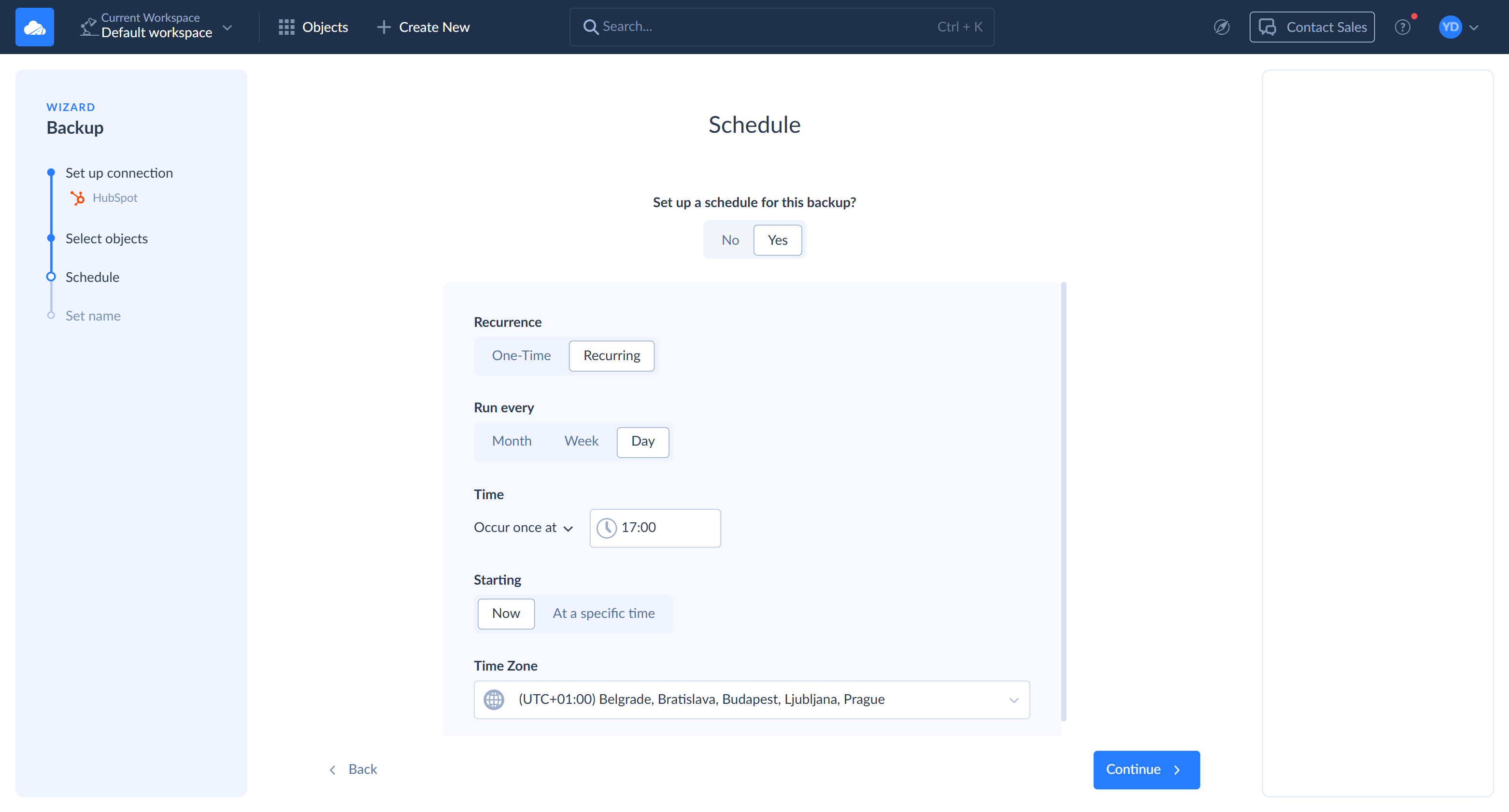
The Schedule step: a recurring backup that runs every day at 17:00, starting now, in the chosen time zone.
Restore single records, whole objects or everything
Skyvia Backup restores whatever you select in a snapshot, using one of three operations: Insert (bring back deleted records), Update (put old values back) or Delete (remove records that shouldn't be there). An insert can also go to a different connection, such as a sandbox. Related records, like an account and all its contacts, must be restored together in one operation, so Skyvia can link them to the new IDs the app assigns.
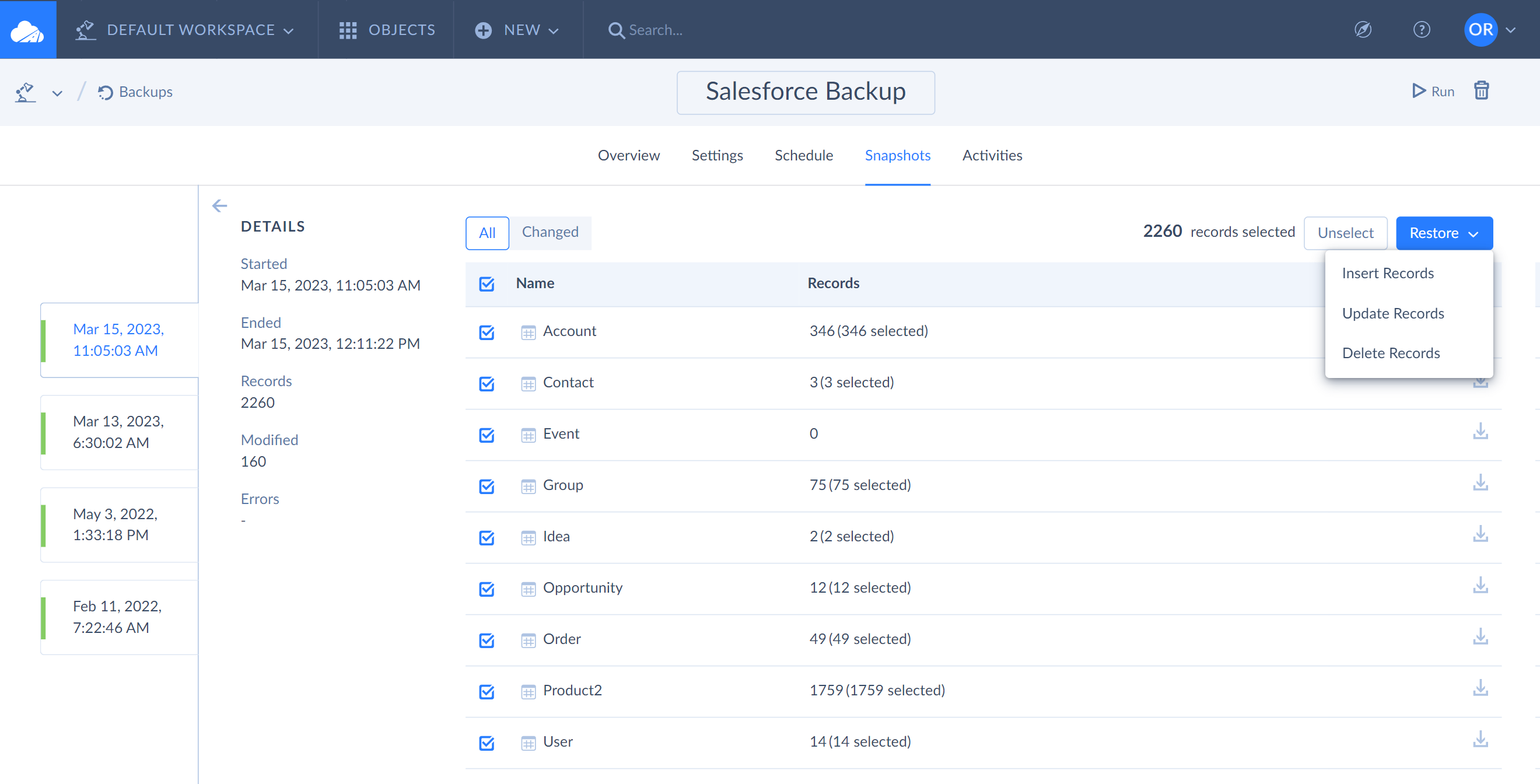
A Salesforce backup snapshot with Account, Case, Contact, Opportunity and User selected (543 records) and the Restore menu open: Insert Records, Update Records, Delete Records.
Compare snapshots and undo changes
Skyvia Backup's Changed view compares two snapshots and lists every inserted, updated and deleted record, down to the old and new value of each field. Select a change and press Restore, and Skyvia picks the operation that reverses it: inserted records are deleted, deleted ones are inserted, and updated ones get their previous values back. This is the feature that fixes a bad mass update without restoring everything else.
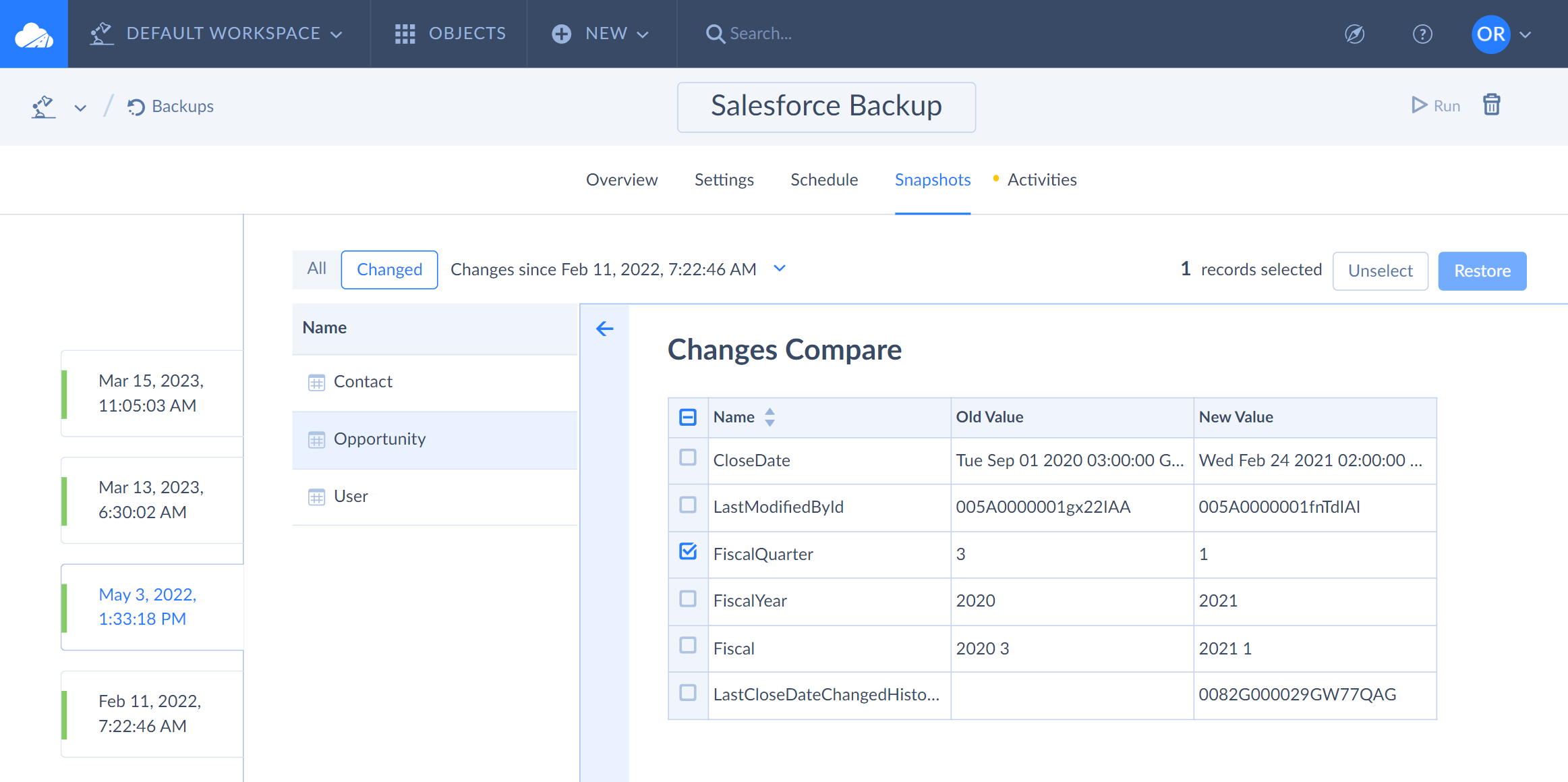
Changes Compare for a Salesforce Opportunity: old and new values of LastModifiedById, LastActivityDate and ContactId, with ContactId selected for restore.
Browse, search and export backed-up data
Skyvia Backup shows every record in a snapshot in the browser, with its related records listed underneath and foreign keys you can click to jump to the parent. Search finds a record by part of any field (a name, address or phone number), and the "Search in older backup" and "Search in newer backup" buttons step through its versions, so you can restore even a single field's earlier value. Any object can be exported to a CSV file.
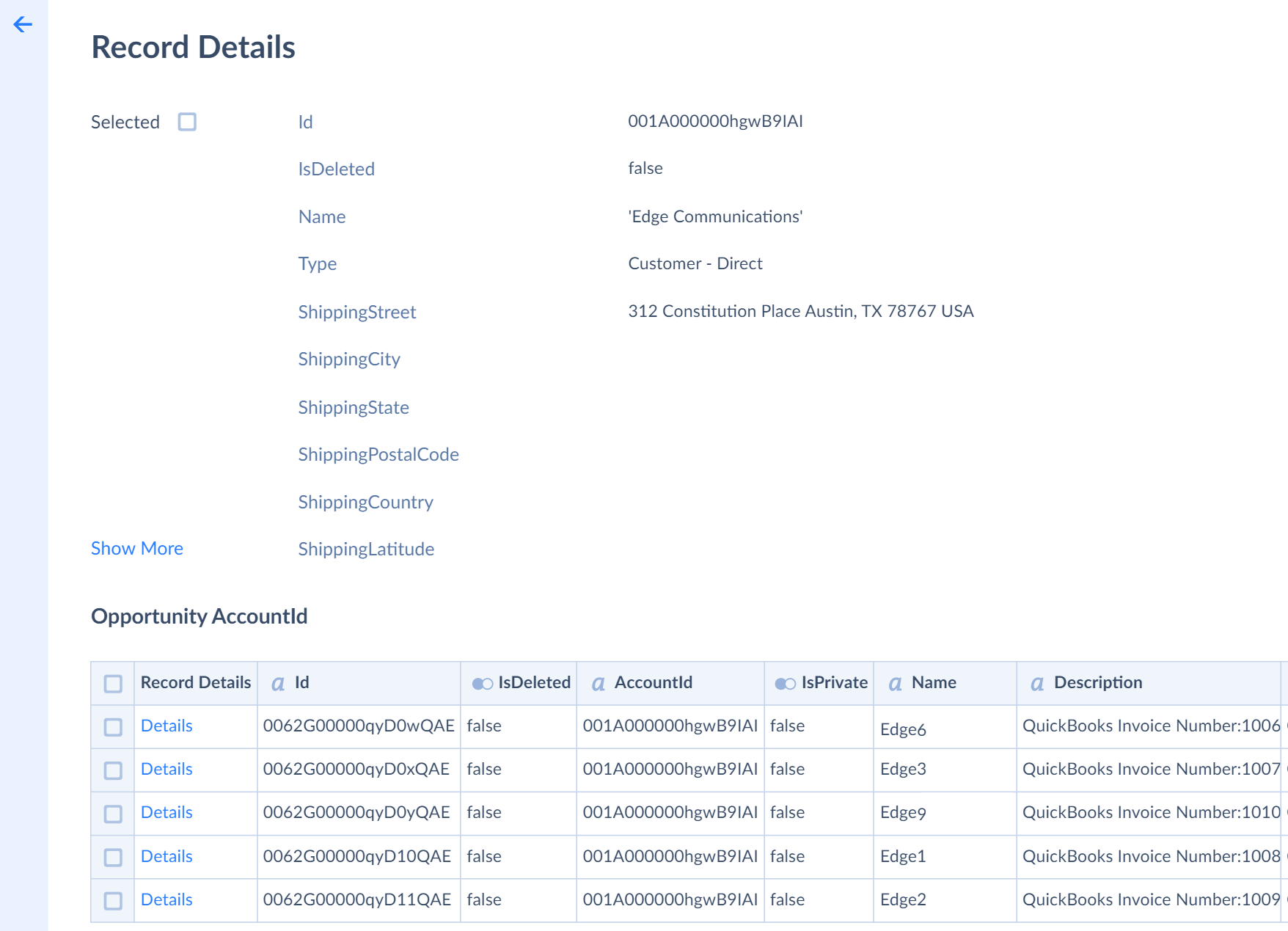
Record Details for the Salesforce account "Edge Communications" in a snapshot, with its child account and a related opportunity listed below.
An activity log and email alerts
Skyvia Backup's Activities tab is a timeline of every snapshot and restore, colored green for success, red for failure and orange while running, with record and error counts. Click one for details, or download the error log of a restore. Email notifications can tell you about errors and when storage is filling up.
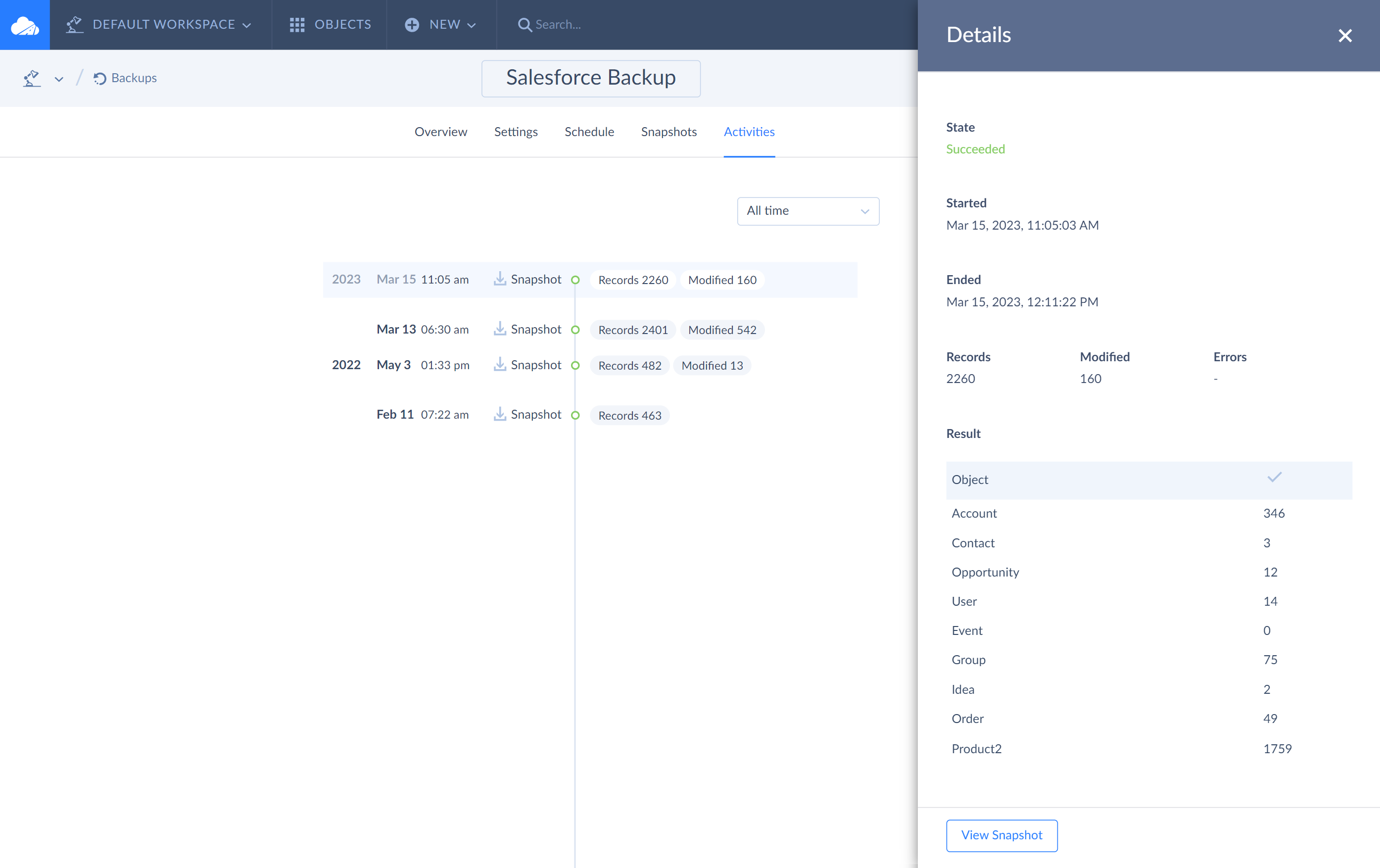
The Activities tab of a Salesforce backup: snapshots and restores on one day, one restore marked red with an error, and a snapshot's details (542 records, 2 modified) per object.
Benefits
- One place for every app's backup. CRM, help desk, accounting and e-commerce data sit in one account with one bill, and the price depends on storage, not on how many apps you connect.
- Fixes the mistakes recycle bins can't. Overwritten field values and records that were permanently deleted can come back from a snapshot.
- Nothing to maintain. No server, no scripts and no exported spreadsheets on someone's laptop. Small plans start at $9 a month.
Real-World Uses
- Before a big import. A sales ops admin presses Backup now before loading a vendor's lead list into HubSpot. The import matches on the wrong field and overwrites owners on 2,000 contacts, and the Changed view undoes exactly those updates.
- Recovering a deleted account tree. Someone deletes a Salesforce account with its contacts and opportunities. The admin finds it in yesterday's snapshot, selects the account and its related records together, and inserts them back in one restore.
- Keeping Jira safe. A team on Jira Cloud gets a scheduled off-site copy of its Jira data instead of remembering to run a manual export.
- Audit questions. A finance team needs to know what a QuickBooks Online record looked like last month. Searching older snapshots shows each version.
Who It's For, and Who Should Skip It
Skyvia Backup suits small and mid-sized businesses that rely on one or more SaaS apps and want an independent, scheduled copy without hiring anyone to build it. It fits especially well if you already use Skyvia for data integration, since backups can feed its Query and Data Integration products as read-only connections.
Skip it if you need backups more often than once a day, if your company requires backups stored in Europe or on your own servers (Skyvia stores them in West US Azure data centers), or if you only want to back up your own computer's files. That's a job for a desktop backup program, not a SaaS backup service. Large Salesforce orgs with complex, cyclical relationships should test restores carefully during the trial (see below).
Usage Guide
- Register. Sign up on skyvia.com. Your account starts with a 14-day Backup Professional trial.
- Start the wizard. Click + Create New in the top menu and choose Backup.
- Connect the app. Pick an existing connection or add a new one, usually by signing in to the app (OAuth). Click Continue.
- Select objects. Tick the objects to back up and click Edit next to any of them to exclude fields or add filters.
- Set a schedule. Choose Yes, then the recurrence, time and time zone. Scheduling needs a paid plan.
- Name and save. Enter a name, click Save and finish, then Backup now for the first snapshot.
- Restore. Open the backup's Snapshots tab, select records or objects (or switch to Changed to see differences), click Restore and choose Insert, Update or Delete.
Where it falls short
- It can only do what each app's API allows. Read-only objects (Salesforce's Feed and History objects) are backed up but can't be restored. Some objects, such as Salesforce ContentFolderItem and Vote, can't be backed up at all unless you list record IDs in a filter. If an object doesn't accept inserts, deleted records of that kind can't come back.
- Some relationships don't restore. Polymorphic links (a field that can point to different object types) aren't shown when browsing and may not be restored. When objects reference each other in a cycle, Skyvia drops one of the links to break it.
- Schema changes break backups. If you delete a field or object that a backup includes, snapshots start failing until you edit the backup by hand. Skyvia doesn't detect the change for you.
- "Succeeded" doesn't mean complete. A snapshot counts as successful if at least one object was backed up. Check the error count on each run, not just the green status.
- A full storage quota stops new backups. When you go over the plan's storage, Skyvia keeps the old snapshots but stops taking new ones until you free space, unless you've turned on Autoclean. Watch the storage alerts.
- Restoring is a deliberate, manual job. Related records have to be selected and restored together, or the links between them are lost.
What Users Say
Skyvia Backup has few reviews, but the ones there are almost all positive. SaaSworthy, which republishes G2 reviews, shows 5/5 based on 25 ratings. The free Skyvia Backup for Jira app has 4.4/5 from 18 reviews on the Atlassian Marketplace, and PeerSpot has a single review at 4.5/5.
G2 reviews (via SaaSworthy)
"I like that Skyvia Backup's setup was really easy and that it works silently in the background. The pricing is very fair, which is important for our budget. The product saves me 1-2 hours of my time every week, which I really appreciate, and I don't have to worry about handling backups myself anymore." On the downside: "So far we've had no major problems. It would be nice to be able to configure email notifications for different scenarios." Verified User in Non-Profit Organization Management, "Effortless Salesforce Backup with Responsive Support", March 20, 2026
"Very quick to set up for Pipedrive CRM backups Reliable automated backup processes Granular restore options (down to single records) Clean and intuitive interface Great value for the price." The dislike: "We initially encountered a minor issue when switching to the correct paid plan after the trial, but Skyvia's support resolved it quickly and professionally." Verified User in Human Resources, "Skyvia Backup – a simple & reliable way to protect Pipedrive CRM data", March 24, 2026
"I like that with Skyvia Backup, I can just set it and forget it. ... The tool has been effective for my use with Zoho CRM and has been error-free for the last six months." Kyle M, "Effortless Backup, Reliable Protection", February 26, 2026
"We have a number of SaaS apps, such as Asana, which have no good native backup and most SaaS companies don't actually promise to keep your data safe. Skyvia is a great solution for protecting our SaaS data." The review adds: "I suppose their billing system could be a little better integrated into the product, but it's no big deal." Masen Y, "Excellent backup service for SaaS apps", January 23, 2025
"We needed a reliable service that we could use to backup up our extensive HubSpot data "offsite". Skyvia checked off all the right boxes." Verified User in Medical Devices, "Skyvia Backup review after using them for almost 5 years", March 24, 2025
The criticism
"When we started setting up we had a small hurdle that backup gave errors for some fields." The same reviewer notes: "We immediately got a workaround from support so we could use it, and soon after issue was solved." Verified User in Machinery, "Effortless back up", G2, October 7, 2024
"It doesn't work for one of our use cases." Verified User in Online Media, "Salesforce Great solution for Salesforce Backups", G2, June 29, 2023
"Occasional errors, but promptly resolved." The same Jira Cloud user explains the appeal: "Skyvia saved us the effort of manual backups, made them secure in a Cloud, and also backs up the Jira configuration, something Jira itself cannot do." Verified User in Food Production, G2, October 13, 2021
"The build is complex, with many elements to consider. Adding and configuring each element can be time-consuming, sometimes taking up to ten minutes per element." Victor Crudu, Salesforce CPQ Consultant at Milo, "A stable and scalable solution with customization features", PeerSpot, June 12, 2024. He rated it nine out of ten overall and said much of the effort came from a large client's changing requirements rather than from Skyvia.
Atlassian Marketplace (Skyvia Backup for Jira)
"I set up a backup for Jira, this was important for me in my work, the setup took 5 minutes, everything is pretty clear. The application works correctly" Brian Roberto, December 19, 2023
"Skyvia has the ability to create scheduled backups, which can save your time" Claude Joshua, December 21, 2023
The visible Jira reviews are one-liners posted within a few days of each other in December 2023, so they say less than the G2 reviews above.
The pattern: people like how fast it is to set up, that it runs unattended, the record-level restore and the price, and several mention helpful support. The complaints are about setup errors on particular fields, billing friction when moving from the trial to a paid plan, limited notification settings, and configuration effort in complex Salesforce setups. Nobody we found reported a failed restore, but the sample is small.
Editions and Pricing
All plans include CSV export and one-click restore. Prices are from Skyvia's pricing page. Annual billing saves 20%.
| Plan | Monthly | Billed annually | Storage | What you get |
|---|
| Free | $0 | $0 | 1 GB | Manual backups, snapshots kept 3 months |
| Standard | $9/mo | $7/mo | 20 GB | Automatic backups, data search, snapshot comparison, automatic cleaning, unlimited snapshot storing time |
| Professional | $99/mo | $79/mo | 200 GB | Everything in Standard, ten times the storage |
| Enterprise | $499/mo | $399/mo | 1 TB | Everything in Standard, for large data volumes |
The features are the same on every paid plan, so the only question is how much storage your snapshots need. Each snapshot is a full copy, so Skyvia's own sizing rule is your data volume multiplied by the number of snapshots you want to keep. With the Autoclean switch on, Skyvia deletes the oldest snapshots (older than two weeks) once a day until you're back under the limit, always keeping at least one successful snapshot of each backup.
FAQs
Do I need to install anything to use Skyvia Backup?
No. Skyvia Backup is a web service, so you use it in a browser on Windows, macOS, Linux or any other system. You connect your apps by signing in to them from Skyvia.
Where does Skyvia Backup store my data, and can Skyvia staff read it?
Skyvia Backup stores snapshots in Microsoft Azure geo-redundant storage in West US data centers, encrypted with AES-256 and a unique key per user. Skyvia says its engineers don't have access to those keys and only see your backups' metadata. Traffic between the interface and the API is encrypted with SSL.
What happens to my backups if my Skyvia Backup subscription runs out?
When a Skyvia Backup trial or paid plan expires, your backups stay, but scheduling is turned off and you can't take new snapshots or restore until you pay or switch to the Free plan. After you renew, you have to turn each backup's schedule back on yourself.
Can Skyvia Backup restore data into a different Salesforce org or sandbox?
Yes, for inserts. When you restore records with the Insert operation, Skyvia Backup lets you pick another connection to restore them to. Update and Delete restores work on the original source.
Does Skyvia Backup cost more if I back up several apps?
No. Skyvia Backup prices plans by storage, not by the number of apps or users, so backing up Salesforce, HubSpot and QuickBooks Online on one plan costs the same as one app, as long as the snapshots fit.
Can I query my backed-up data without restoring it?
Yes. Skyvia Backup data can be opened as a read-only connection in Skyvia Query and Data Integration, pointing at a specific snapshot or always at the latest one. That lets you run SQL against old data or copy part of it somewhere else without touching the live app. Skyvia Connect can't use backup connections yet.
System Requirements
- A current web browser on any operating system
- An account in a supported cloud app, with enough permissions to read the objects you back up (and to write to them, for restores)
- A Skyvia account (free to register)
Conclusion
Skyvia Backup is worth it for small and mid-sized teams that live in SaaS apps and have no backup beyond the app's recycle bin. The one reason to buy it is the snapshot comparison: seeing exactly what a bad import or integration changed, and undoing only that, is what turns a disaster into a ten-minute fix. Most small accounts should start on Standard at $9 a month rather than the $99 Professional plan the Buy Now button orders, and move up only when the storage meter says so.
The main reason not to buy it is the once-a-day ceiling, along with restores that are limited by each app's API. If you need hourly recovery points or a guaranteed restore of complex Salesforce relationships, test that during the 14-day trial before committing.
Buy Now