ApowerMirror: Your Phone, on the Big Screen, Under Your Mouse
You're showing a colleague something on your phone. They lean in, squint, you turn it toward them, and then you lose your place. Or you're playing a mobile game with your thumb covering half the action. Or you're teaching a class, and thirty people are trying to follow along on a 6-inch screen.
ApowerMirror puts your iPhone, iPad or Android screen on your Windows PC or Mac, with sound, in real time. With an Android phone you can go further and control it with your mouse and keyboard: tap, type, scroll and even play games from your desk. It can also cast your phone to a smart TV, mirror up to four phones side by side, record everything, and let you draw on the screen during a presentation.
Quick facts
- Developer: Apowersoft
- Desktop: Windows 7, 8, 10 and 11, and macOS
- Mirrors from: iPhone and iPad, Android phones and tablets
- Casts to: PC, Mac, Android TV and smart TV boxes, and other phones or tablets
- Connection: WiFi or USB. Connect with autodetect, a PIN code or a QR code
- Price: $40.10 USD for a Personal lifetime license
- Free version: 1 device at a time, iOS at 720p, watermark, 10-minute sessions
Overview
ApowerMirror is a desktop program plus a phone app. Once both are running and connected, your phone's screen appears in a window on your computer. Everything you do on the phone shows up there instantly, audio included.
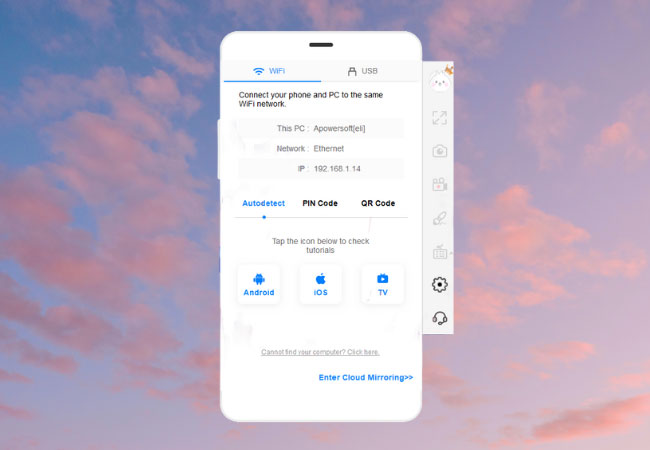
The desktop program's connection panel: choose WiFi or USB, then connect by autodetect, PIN code or QR code.
How you connect depends on the phone. iPhones and iPads use the built-in Screen Mirroring (AirPlay) option in Control Center, or a USB cable. Android phones connect through the ApowerMirror app over WiFi, or over USB with USB debugging switched on. Either way, it takes a minute or two the first time and a few seconds after that.
The side toolbar next to the mirrored screen holds the everyday tools: full screen, screenshot, screen recording, the whiteboard pen and settings. There's also a web version, ApowerMirror Online, if you can't install anything on the computer you're using.
Features
Real-time mirroring with sound
Your phone's screen and audio play on the computer as they happen, so videos, games and video calls all come through properly. Switch to full screen and a phone video fills your monitor. For iPhones, the premium version raises the mirroring resolution from 720p to 2K.
Control your Android phone from the PC
This is the feature people buy it for. Click to tap, scroll with the wheel, and type with a real keyboard. You can answer messages from your desk, and copy text on the computer with Ctrl+C and paste it on the phone with Ctrl+V. Phone notifications can also pop up on the PC, so you don't have to keep picking the phone up. iPhones can be controlled too, from Windows 10 (version 1803 or later) with iOS 12.5 or later.

An Android game running in the ApowerMirror window, played with the mouse.
Play mobile games with a keyboard, no emulator needed
The game keyboard maps on-screen controls to keys: WASD to move, other keys for jump, shoot or reload. It comes with preset layouts, and the premium version lets you customize them. Because the game is still running on your phone, there's no emulator to set up and no separate PC version of the game to buy.
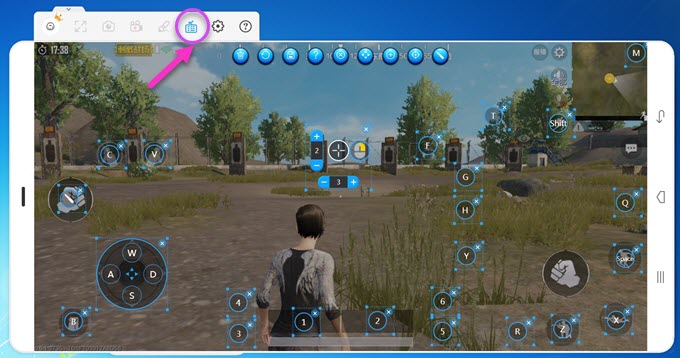
The game keyboard: keyboard keys mapped onto the game's touch controls.
Mirror four devices at once
With a premium license you can put up to four phones on one computer screen, iPhones and Androids mixed, and control up to four Android devices at the same time. That's handy for app testing, product demos and classrooms where several people need to share their screens.
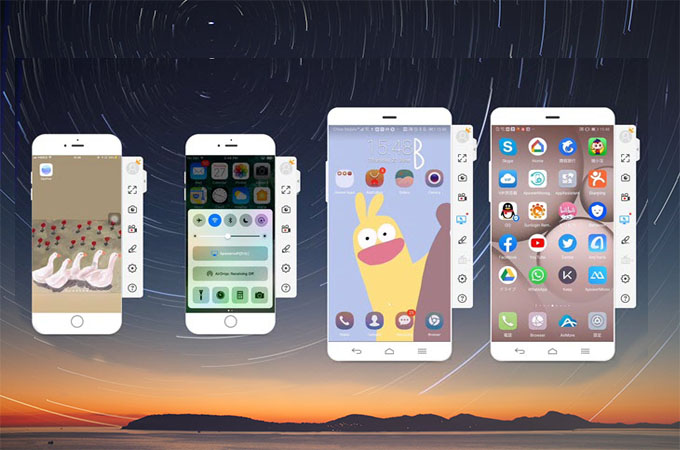
Four phones, two iPhones and two Androids, mirrored side by side.
Record, screenshot and stream
One click records the phone screen from your computer, and another takes a screenshot. Recording can capture the computer's microphone as well, so you can narrate a tutorial as you go. Livestreaming works too: in OBS, add a Window Capture source and pick the "ApowerMirror Livestream" window, and your phone is on stream.
A whiteboard for presentations
Turn on the whiteboard and draw straight on the mirrored screen: circle a button, draw an arrow, underline a number. Change the pen color, undo the last stroke, or clear everything with one click. It turns a phone demo into a proper walkthrough.
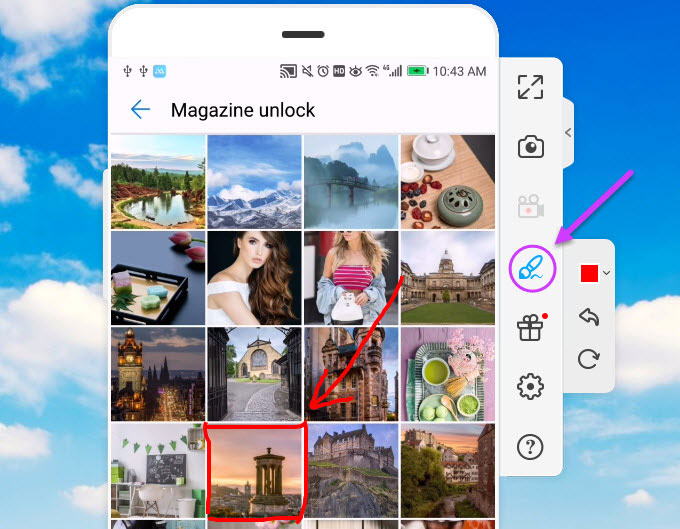
The whiteboard pen: annotating the mirrored screen with arrows and outlines during a demo.
Cast to a TV, or in the other direction
ApowerMirror isn't only phone-to-PC. You can cast your phone to a smart TV or Android TV box to watch videos on the big screen. You can also cast your PC screen to your phone and control the computer from it, or mirror a phone to a tablet and back. Even an Android phone can be controlled from an iPhone with the Reverse Cast and Control option.
Share screens across different networks
Normal mirroring needs the phone and computer on the same WiFi. The cloud mirroring option (called AirCast in the premium plans) removes that limit, so you can share a screen with someone in another building or another city.
Benefits
Stop passing your phone around
Everyone in the room sees the same thing at the same time, at a size they can actually read. No more leaning in and squinting.
Work from one keyboard
Reply to messages, fill in forms and move text between computer and phone without switching devices. Your phone stays on its stand and your hands stay on the keyboard.
Better gaming
A bigger screen, a mouse for aiming and keys for movement. Mobile games feel a lot more like PC games, and your fingers stop covering the action.
Easy tutorials and demos
Record the screen, talk over it with your microphone and mark it up with the whiteboard. That's everything you need to make a how-to video or train a colleague on an app.
One tool for every device
It works across iPhone, iPad, Android, Windows, Mac and TVs. It's useful in homes and offices where not everyone uses the same brand.
Real-World Uses
Meetings and presentations
You need to show the team how the new mobile app works. Connect your phone, put ApowerMirror on the projector and walk through it live. Use the whiteboard to circle the button everyone keeps missing, and record the session so absentees can watch it later.
Classrooms and remote learning
A teacher mirrors a tablet onto the classroom screen to show a worksheet or an educational app. Students can take turns putting their own screens up, four at a time with a premium license. At home, a student can mirror a lesson from one device to another to see it more clearly, which is exactly what one parent describes in the reviews below.
Mobile gaming and streaming
Play your favorite mobile game on the PC monitor with a keyboard and mouse, then add the ApowerMirror window to OBS and stream it. Your viewers see a clean, full-size picture of the game instead of a shaky phone camera shot.
App testing and support
Developers and testers can mirror several phones side by side and compare how an app looks on iPhone and Android at the same time. Support staff can record a phone screen to show a customer exactly where to tap.
Movie night
Found something good on your phone? Cast it to the TV and watch it together on the big screen, with sound.
Who it's for
- Presenters and trainers who demo mobile apps
- Teachers and students sharing tablet and phone screens
- Mobile gamers and streamers who want a keyboard, a mouse and a bigger screen
- App developers and testers comparing several devices at once
- Anyone who'd rather answer phone messages from their computer
Usage Guide
- Install and launch ApowerMirror on your computer. The download is a small online installer that fetches the rest of the program during setup.
- Put the phone and computer on the same WiFi network. For the smoothest picture, use a 5 GHz network rather than 2.4 GHz.
- To mirror an iPhone or iPad: open Control Center, tap Screen Mirroring and choose the device whose name starts with "Apowersoft". Your iPhone screen appears on the computer within seconds.
- To mirror an Android phone: install and open the ApowerMirror app, tap the LocalCast button, wait for it to find your computer and tap its name. When the notification appears, tap START NOW.
- Prefer a cable? For Android, turn on USB debugging, plug the phone in and allow debugging when asked. For an iPhone, plug it in and tap Trust on the phone. The desktop program installs any USB driver it needs.
- Can't find the computer? Use the PIN Code or QR Code option on the desktop program and enter or scan it on the phone.
- Take control. On Android, use your mouse and keyboard directly in the mirrored window. Some phones only allow control over USB.
- Use the toolbar to go full screen, take screenshots, record, or switch on the whiteboard or game keyboard.
Tip: blurry or laggy picture?
Over WiFi, picture quality depends heavily on your network. Apowersoft recommends a 5 GHz network. If the image still stutters during videos or games, switch to a USB cable. You can also adjust the quality: on Android, in the app's Settings, change the mirroring resolution and definition. For iPhones, go to the desktop program's Display settings and change the AirPlay resolution.
Tip: mouse control not working over WiFi?
Some Android phones block remote control over WiFi at the system level. Connect with a USB cable instead and control works normally.
What Users Say
"ApowerMirror made education easier during the COVID 19. My son studied at home and used this to mirror iPhone to iPad so that he could get the ideas clearly. Amazing app!"
Jonathan Walton (review on Apowersoft's site)
"I use ApowerMirror to do livestream and play mobile games on PC. It is easy to use and I can play games with no lag using my keyboard and mouse. Fantastic app!"
Louis Larry (review on Apowersoft's site)
"This is a great screen mirroring app! It allows me to mirror my iPhone to my TV and watch more online videos and movies on TV. I love it!"
Ann Perez (review on Apowersoft's site)
"Great Training Tool" (5 out of 5)
Pros: "Easy to download, easy to setup and easy to use."
Cons: "Nothing so far, it has really fit the bill for my needs."
Mark B., Facilities Manager, Facilities Services (review on Capterra)
"Mirror-mirror" (5 out of 5)
Pros: "Its very user friendly and a compact UI design with needed features."
Cons: "Wifi based mirroring connection is a bit laggy."
Leela P., Technician, Higher Education (review on Capterra)
"I mirror my ios device" (5 out of 5)
Pros: "I use it on my iphone 6s and Windows to mirror. It works."
Claudia Sayuri I., Motion Designer, Design (review on Capterra)
On Capterra, ApowerMirror has an average rating of 4.3 out of 5 from 23 reviews.
Comparisons
Free vs. premium
The free version is fine for a quick test: WiFi and USB, one device, mouse control of one Android phone, preset game keys and 720p for iPhones. It adds a watermark and limits you to 10 minutes at a time. A premium license (LocalCast) removes the watermark and the time limit, raises iPhone resolution to 2K, allows four devices mirrored and controlled at once, supports custom game keys, and can cast your PC's sound to a TV or phone. The AirCast option adds screen sharing across different networks.
vs. your phone's built-in casting
iPhones can AirPlay to some TVs and many Androids can cast to a Chromecast. But built-in casting only shows the screen. It doesn't let you control the phone from a computer, record it, draw on it, map game controls to a keyboard, or show four phones at once. It also doesn't bring an iPhone and an Android onto the same Windows PC.
vs. an Android emulator for games
An emulator runs a second copy of Android on your PC, which means installing games twice, logging in again and hoping your PC is fast enough. ApowerMirror just shows the game that's already on your phone, with your progress and purchases, and adds keyboard and mouse controls on top.
WiFi vs. USB
WiFi is the convenient choice: no cables, and you can walk around with the phone. USB is the reliable one: steadier picture, less lag, and remote control on phones that block it over WiFi. It's worth keeping a cable nearby for presentations that have to go smoothly.
Editions and Pricing
- Personal Lifetime: $40.10 USD. One payment, with free updates and technical support.
- Personal Annual and Monthly plans are also available on Apowersoft's store.
- Business lifetime, annual and team plans, with volume pricing per user.
Apowersoft offers a 30-day money-back guarantee (7 days for monthly plans). Your VIP account details arrive by email a few minutes after you buy.
FAQs
Does ApowerMirror work with both iPhone and Android?
Yes. It mirrors iPhones, iPads and Android phones and tablets to Windows and Mac computers.
Can I control my phone from the computer?
Yes for Android: use your mouse and keyboard directly. iPhones can be controlled from Windows 10 (version 1803 or later) when the phone runs iOS 12.5 or later.
Do I need a cable?
No. WiFi works for most things. A USB cable gives a steadier picture and is needed for mouse control on some Android phones.
Does it mirror sound too?
Yes, mirroring includes audio. The premium version can also cast your PC's sound to a TV or phone.
Can I play mobile games on my PC with it?
Yes. Mirror the game and use the game keyboard to map keys to on-screen controls. No emulator is needed.
How many phones can I mirror at once?
One with the free version, up to four with a premium license.
Can I cast my phone to a TV?
Yes. ApowerMirror works with Android TV and smart TV boxes. Install the TV app and connect with the mirroring code.
What does the free version leave out?
It's limited to one device, 720p for iPhones and 10 minutes per session, and it adds a watermark. Premium removes all of those limits.
How much does it cost?
A Personal lifetime license is $40.10 USD, with a 30-day money-back guarantee.
The picture is laggy. What can I do?
Use a 5 GHz WiFi network, lower the mirroring resolution, or switch to a USB cable.
System Requirements
- Computer: Windows 7, 8, 10 or 11, or macOS
- Phone or tablet: iPhone or iPad, or an Android device with the ApowerMirror app
- Controlling an iPhone: Windows 10 version 1803 or later, and iOS 12.5 or later
- Connection: the same WiFi network (5 GHz recommended), or a USB cable
- TV casting: Android TV or a smart TV box
- Download size: about 2 MB (online installer)
Conclusion
ApowerMirror takes the most useful screen in your life, your phone, and puts it on the biggest screen in the room. Mirroring iPhone and Android to a PC or Mac is simple, and the extras are what make it worth paying for: mouse and keyboard control, game keys, recording, the whiteboard, and four phones at once. Keep a USB cable handy for anything that has to be smooth, and try the free version first. If you find yourself hitting the 10-minute limit, the lifetime license is a one-time purchase.