Excel Add-in for NetSuite: Maintain NetSuite Lists and Master Data from a Spreadsheet
Excel Add-in for NetSuite is a Devart add-in for Excel on Windows that loads NetSuite records (accounts, customers, contacts, leads, items) into a worksheet, lets you change them there, and saves the changes back to NetSuite. It costs $179.95 for one license with a year of updates, and it is best at master data: transactions such as invoices and sales orders can be read but not written.
Anyone who has corrected a few hundred customer records in NetSuite one form at a time, or built a CSV for the Import Assistant just to change one field, knows the problem it solves. Here the records are rows, the fix is a formula or a paste, and one click sends the batch.
Quick facts
- Current version: 3.1.70 (September 7, 2026)
- Made by: Devart
- Host: Excel 2007 to 2024 on Windows; no Mac or web Excel
- Sign-in: email and password with an application id, token-based authentication, or OAuth 2.0
- NetSuite APIs: API v1 up to the 2024.2 release, and API v2 since June 2026
- Writable: lists and entities; transaction records are read-only
- Cost: $179.95 the first year, $89.95 per renewal year
- Trial: 30 days with a free Devart account
What we checked: Devart's NetSuite connection documentation, including its list of read-only transaction objects, the NetSuite changes in the revision history, version 3.1.70 at 76.60 MB on the download page, and a $179.95 order total for the default one-year license with an $89.95 renewal on the order page on November 14, 2026. We had no NetSuite account to test it against.
Before you buy
Check the records you need to edit. Devart's documentation names about thirty objects the add-in cannot write to, including Invoice, SalesOrder, PurchaseOrder, Estimate, CreditMemo, CashSale, JournalEntry, VendorBill, ExpenseReport and Opportunity. If editing transactions is the reason you're looking, this isn't the tool.
Admins and accountants will need tokens. NetSuite requires two-factor login for highly privileged roles, and those accounts can't use the add-in's simple email-and-password sign-in. They need token-based authentication or OAuth 2.0, set up in the Advanced dialog.
Download Free TrialBuy Now
Overview
The add-in lives on a Devart ribbon tab. You open Get Data, pick NetSuite, sign in, choose a record type such as Account or Customer, and the result becomes an Excel table. Edit Mode turns that table into a form for NetSuite: you change cells, add rows for new records or delete rows, and Commit sends the changes through NetSuite's web services.
NetSuite is the most demanding source in Devart's add-in range, and the documentation says so plainly: support is "somewhat limited". Fields that hold arrays (the item lines on a transaction, for example) are not loaded at all, which is why transactions are read-only. For lists, entities and setup records it works as a two-way editor.
Three ways to sign in
| Method | What you enter | Where | Good for |
|---|
| Basic | Account Id, Application Id, email, password | Main connection dialog | Users whose role has no two-factor requirement |
| Token-based | Consumer Key and Secret, Token Id and Secret | Advanced dialog | Privileged roles, shared service logins |
| OAuth 2.0 | Client Id and Secret, then a web login | Advanced dialog | Accounts that sign in through NetSuite's own login page |
Whichever you use, a Role Id option logs in with a limited role instead of the user's default one, and a Sandbox check box points the connection at a sandbox account, which is where your first edits should go.
Features
A connection wizard that asks only for NetSuite's own ids
Excel Add-in for NetSuite reads the Account Id from NetSuite's Web Services Preferences page and the Application Id from an integration record you create once. The wizard can save the connection in the workbook, with or without the password, so a colleague who opens the file can refresh without seeing your credentials.
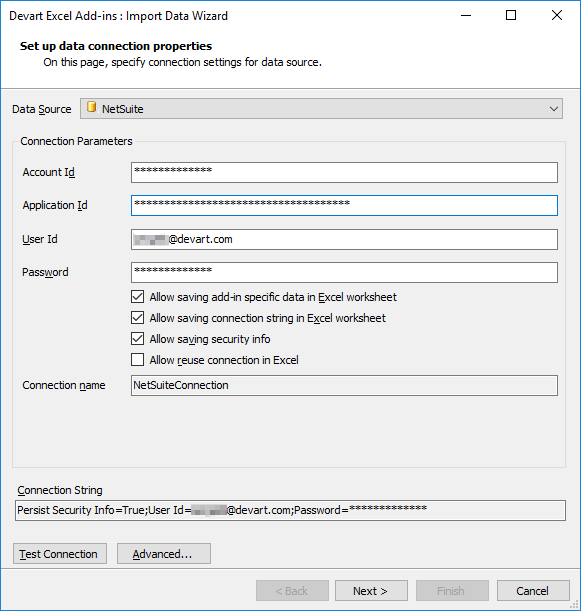
The NetSuite connection page of the Import Data Wizard: Account Id, Application Id, User Id and Password, with the options for saving the connection in the worksheet.
Filter NetSuite records before they load
Excel Add-in for NetSuite shows each record type's fields in a Query Builder, using NetSuite's internal names (acctName, acctNumber, cashFlowRate) or, with the Use Display Names option, the labels people see in NetSuite. Conditions and a row limit keep a big customer list down to the rows you need, and a SQL tab is there for joins and anything more involved.
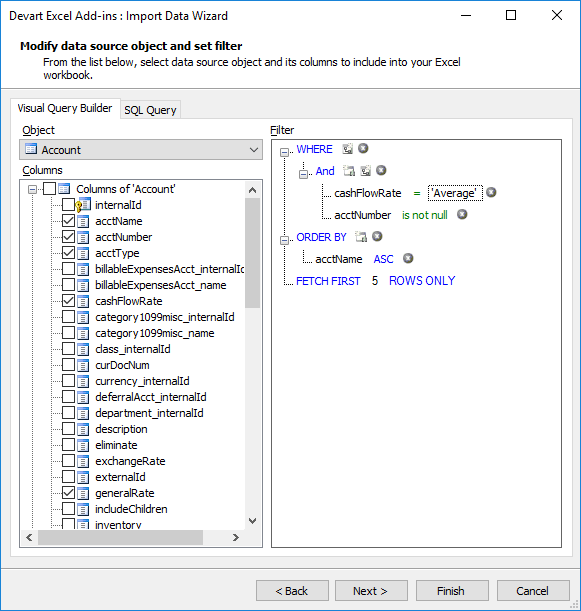
The Query Builder on NetSuite's Account object, filtering on cashFlowRate = 'Average' and a non-empty account number, sorted by account name.
Edit the chart of accounts like a ledger sheet
Excel Add-in for NetSuite colours every changed cell and new row in Edit Mode, so you can review a batch of account renames or a new account before it goes in. Commit writes them all to NetSuite; Rollback restores the values from the last load.
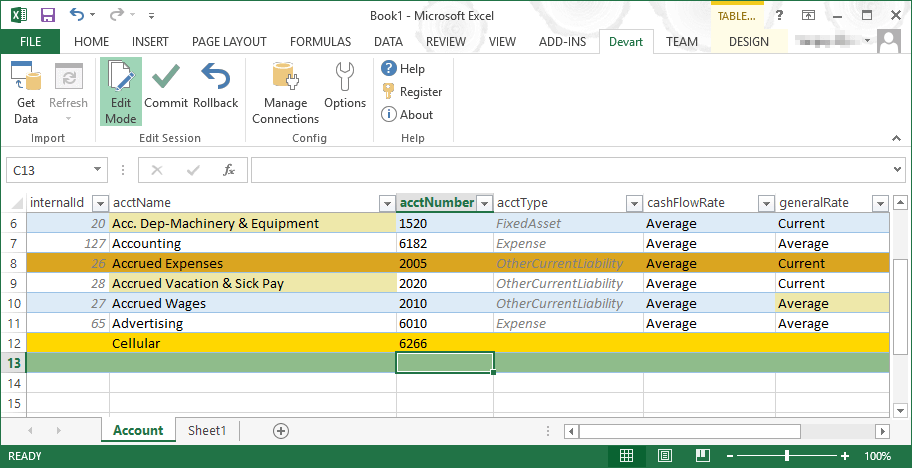
NetSuite accounts in Edit Mode: renamed entries are shaded, one changed row is highlighted, and a new "Cellular" account 6266 is being added.
NetSuite's allowed values enforced in the cell
Excel Add-in for NetSuite knows each field's rules. Type "A" into a cash flow rate and the cell turns red with the three values NetSuite accepts (Average, Current, Historical); leave a required account name blank and you're told before Commit.
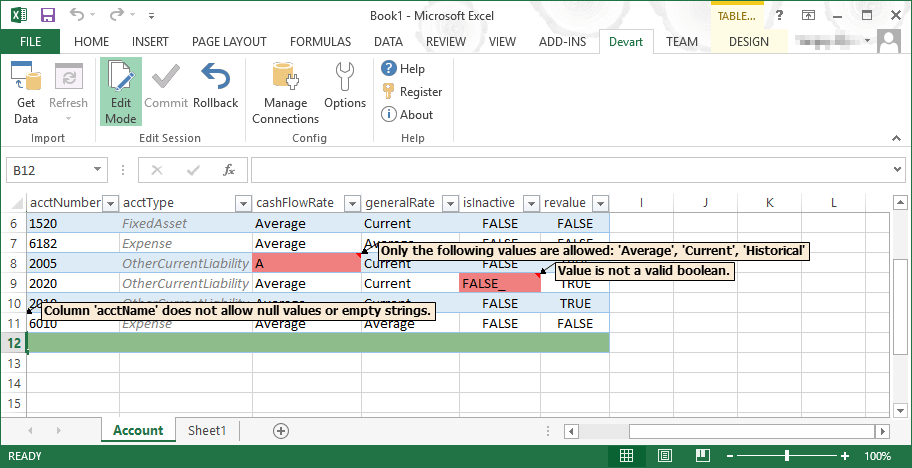
Validation on the Account sheet: an invalid cash flow rate lists the allowed values, a malformed boolean is flagged, and an empty acctName is refused.
Custom fields, custom records and custom lists on request
Excel Add-in for NetSuite can include your account's customisations through three switches: Use Custom Fields, Use Custom Tables and Use Custom Lists. They are off by default because reading NetSuite's custom metadata takes a long time, so turn on only the one you need. Account Date Format and Account Time Zone options make dates read and write the way your NetSuite account is set up.
Benefits
- Bulk fixes without a CSV import. The record ids stay attached to each row, so updates land on the right records with no field mapping.
- A safe way to give finance staff edit access. The Role Id option and a read-only connection let you hand out exactly the access each person should have.
- Sandbox first, production second. The same workbook can be pointed at the sandbox to rehearse a change.
Real-World Uses
- Chart of accounts clean-up after a merger: rename, renumber and add accounts in one sheet, then commit.
- Customer and contact hygiene: pull customers with missing email or phone, fill the gaps from a CRM export with VLOOKUP, and push the result back.
- Item master updates: adjust descriptions or classifications across hundreds of items at once.
- Read-only reporting on transactions: load sales orders or invoices headers into a pivot table, keeping in mind that line items are not included.
Who It's For, and Who Should Skip It
A good fit for NetSuite administrators and finance operations staff on Windows who maintain lists, entities and setup data, and who are comfortable setting up an integration record.
Not a fit if you need to create or edit transactions with their lines, if you're on a Mac, or if you want a scheduled sync: Devart's add-ins are built for someone at the keyboard and have no automation. For unattended jobs, Devart's ODBC driver for NetSuite or an integration platform is the better route.
Usage Guide
- Install the 76.60 MB package from Devart's download page (sign-in required) with an administrator account; .NET Framework 4.0 and the Office runtime it lists must be present.
- Find your Account Id in NetSuite under Setup, Integrations, Web Services Preferences.
- Create an integration record under Setup, Integrations, Manage Integrations, New. For basic sign-in, leave Token Based Authentication cleared and tick User Authentication, save, and copy the Application ID.
- For tokens instead, enable Token-based Authentication under Setup, Company, Enable Features, SuiteCloud; give a role the Web Services and User Access Tokens permissions; create the integration record with tokens enabled; then create an access token. NetSuite shows the consumer and token secrets only once, so copy them straight away.
- Connect from Excel: Devart tab, Get Data, NetSuite, fill in the ids (or open Advanced for tokens or OAuth), tick Sandbox for a test account, and Test Connection.
- Load, edit, commit: pick the record type and fields, load, switch on Edit Mode, make the changes, and Commit.
Where it falls short
- Array fields are invisible. Any field that stores a list of values is not shown, and if such a field is required to create a record, that record type is read-only.
- Customisations slow it down. With custom fields or custom records turned on, opening the object list can take a long time on a heavily customised account.
- Secrets you can't see again. Lose a token secret and you have to regenerate it, which breaks every connection using the old one.
- Hands-on only. Refresh and Commit can't be triggered from a macro or a scheduler.
What Users Say
Reviews of the NetSuite add-in
Capterra and GetApp both carry a listing for Devart Excel Add-in for NetSuite, and Capterra showed it with zero user reviews on November 14, 2026.
What people say about Devart's Excel add-ins generally
On TrustRadius the "Devart Excel Add-ins" profile scores about 9.3 out of 10 from roughly 33 ratings, a figure that also includes reviews of other Devart database tools. Software Advice shows 4.5 out of 5 from just two reviews of the add-ins. Taken together, users like editing live data in Excel and grumble about per-source pricing and first-time setup.
Comparisons
Devart's add-in vs NetSuite's Import Assistant and saved searches
NetSuite's built-in tools export saved searches to Excel and import CSV files, including transactions with their lines, at no extra cost. Devart's add-in is quicker for repeated edits to existing master records, because you never build or map a file, but it can't replace the Import Assistant for transaction imports.
Excel add-in vs Devart ODBC Driver for NetSuite
The ODBC driver lets Power BI, Tableau, SSIS or any ODBC tool query NetSuite and can run unattended. The Excel add-in is the hand-editing tool, with validation and Commit/Rollback inside Excel.
Editions and Pricing
There is one edition of Excel Add-in for NetSuite. The Buy Now button opens the order page with a single license and one year of updates, where you can lengthen the update period or add priority support before paying.
| Purchase | Price | Notes |
|---|
| NetSuite add-in, first year | $179.95 | License never expires; updates for 12 months |
| Each further year of updates | $89.95 | Up 20% if renewed 3+ months late, 60% if 12+ months late |
| Cloud Pack (20 cloud add-ins, NetSuite included) | $499.95 | Devart lists the separate total as $3,599 |
| Universal Pack (all 26 add-ins) | $599.95 | Adds the database add-ins |
Teams get 5% off from five licenses, 10% from ten and 15% from twenty. If you also run QuickBooks Online, Salesforce or HubSpot alongside NetSuite, three single add-ins already cost more than the Cloud Pack.
FAQs
Can Excel Add-in for NetSuite create invoices or sales orders?
No. Excel Add-in for NetSuite can't load data into transaction records such as invoices, sales orders, purchase orders or journal entries, because it doesn't handle their line-item fields. It can read their header data for reporting.
Does Excel Add-in for NetSuite work with two-factor authentication?
Excel Add-in for NetSuite works with accounts that need two-factor login through token-based authentication or OAuth 2.0. The plain email-and-password option can't be used by highly privileged roles, which NetSuite forces onto two-factor sign-in.
Can I test against a NetSuite sandbox?
Yes. Excel Add-in for NetSuite has a Sandbox check box in its connection editor, so you can try edits on a sandbox account before touching production.
Which NetSuite API does the add-in use?
Excel Add-in for NetSuite supports NetSuite API v1, up to the 2024.2 release, and API v2, added in version 3.0.0 in June 2026. An API Version option in the advanced settings chooses between them.
Can I get a refund if it doesn't suit my NetSuite setup?
Devart refunds Excel Add-in for NetSuite within 30 days only when a technical problem or bug stops it working and support can't fix it. A missing feature, such as transaction editing, is not a refund reason, so check your record types during the trial.
How many computers can one license be used on?
One license of Excel Add-in for NetSuite covers one person on one computer, plus a second copy on that same person's laptop or home PC. Devart also sells a site license for unlimited installs at one location.
System Requirements
- Windows with Microsoft Excel 2007, 2010, 2013, 2016, 2019, 2021 or 2024
- .NET Framework 4.0 or newer, plus Visual Studio 2010 Tools for Office Runtime
- Administrator rights during setup
- A NetSuite account with web services access and an integration record
Conclusion
Buy Excel Add-in for NetSuite if your pain is master data. For $179.95, editing accounts, customers, contacts and items in a validated Excel table, with sandbox testing and role-limited logins, is far quicker than NetSuite's forms or a CSV import for every small change.
Don't buy it to work on transactions: Devart's own documentation lists invoices, orders and journal entries as read-only. Set up the integration record, try your real record types in the 30-day trial, and decide from that.
Download Free TrialBuy Now