Excel Add-in for Marketo: Pull Leads into a Worksheet, Fix Them, Push Them Back
Excel Add-in for Marketo is a $179.95 Devart add-in for Microsoft Excel on Windows that reads Marketo Leads, Opportunities, Campaigns and other objects through the Marketo REST API, lets you edit the rows in a worksheet, and writes the changes back to your Marketo instance. It suits marketing operations people who already clean and check lead data in Excel and are tired of the export, fix, re-import loop.
Marketo's own list import handles new records well, but correcting a few hundred existing leads (a wrong country, a stale phone number, a duplicate pair) usually means a CSV round trip and a field-mapping screen. With this add-in the leads sit in a live table: you change a cell, press Commit, and the record in Marketo is updated.
Quick facts
- Version: 3.1.70, released September 7, 2026
- Developer: Devart
- Runs in: Microsoft Excel 2007 to 2024, Windows only
- Connects with: your Marketo domain plus a REST API Client Id and Client Secret
- Objects named by Devart: Leads, Opportunities, Channels, Campaigns, Activities, Emails, Files
- Price: $179.95 for one license with one year of updates; renewal $89.95 a year
- Trial: 30 days, free, download needs a Devart account
- Refunds: within 30 days, only when Devart support can't fix a technical problem that stops the product working
What we checked: version 3.1.70 and the 76.60 MB download on Devart's download page, the Marketo connection options in Devart's documentation, the Marketo entries in the revision history, and $179.95 for the default one-year order with an $89.95 renewal on the order page on November 14, 2026. We did not connect it to a live Marketo instance.
Before you buy
You need API credentials, not just a Marketo login. The add-in asks for a Client Id and Client Secret, which a Marketo admin creates for an API-only user and a custom service. If you aren't an admin, ask for them before you start the trial clock.
Commit really writes to Marketo. There is no staging copy. If you only want to analyse data, turn on the connection's Readonly option so the workbook can run SELECT queries and nothing else.
Download Free TrialBuy Now
Overview
Installing the add-in puts a Devart tab on Excel's ribbon. Get Data starts an import wizard: you choose Marketo as the source, fill in the three connection fields, pick an object, and the rows arrive as a normal Excel table with filter arrows. From then on the same tab holds Refresh, Edit Mode, Commit and Rollback for that table.
Underneath, the add-in translates your query into Marketo REST API calls. That is why the Marketo-specific settings matter more here than they do for a database add-in: how many calls it may make, whether it uses the Bulk Extract API for leads, and whether a query too complex for the API is finished locally on your PC.
Features
Connect with a domain, client id and client secret
Excel Add-in for Marketo signs in with three values: your Marketo subdomain (the 123-ABC-456 style Munchkin ID), the API Client Id (a GUID) and the Client Secret. You can let the workbook remember the connection string and password, or leave them out and type them again next time. An Advanced editor adds a proxy host, port and login for networks that need one.
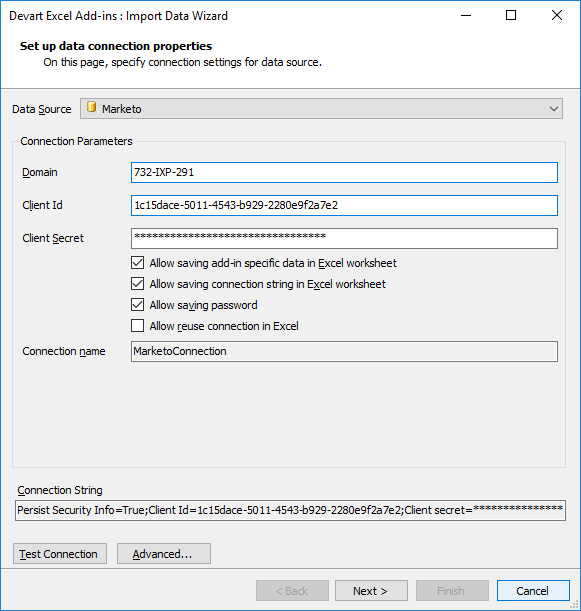
The Import Data Wizard set to Marketo, with the Domain, Client Id and Client Secret fields and the options to save the connection and password in the worksheet.
Pick lead fields and filters without writing SQL
Excel Add-in for Marketo lists every Marketo object with its fields in a Visual Query Builder. For Leads you tick the columns you want (company, billing address, phone, industry, annual revenue, person type and so on), add WHERE conditions such as Created At after a date, and set a sort order and a row limit. A SQL Query tab takes a hand-written SELECT for anything the builder can't express, and a preview shows the result before it lands in the sheet.
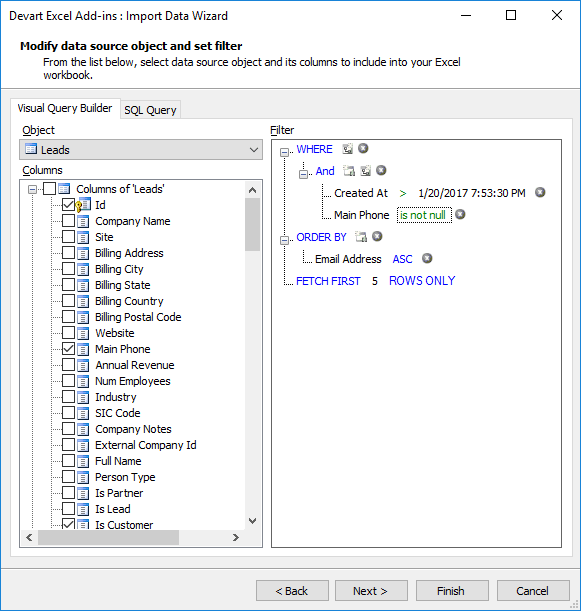
The Visual Query Builder with the Leads object, a few columns ticked, a Created At and Main Phone filter, ordering by Email Address and a five-row limit.
Edit leads in place and commit in one batch
Excel Add-in for Marketo switches a loaded table into Edit Mode with one button. Changed cells and new or deleted rows are coloured until you press Commit, which sends them to Marketo, or Rollback, which throws them away. Refresh re-reads the object, so charts and pivot tables built on the sheet follow the current Marketo data.
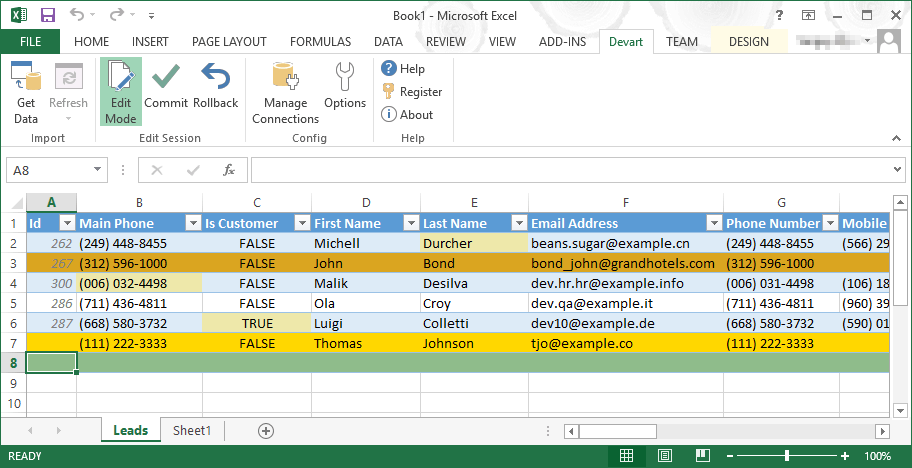
A Leads sheet in Edit Mode: edited cells are shaded, a changed row is highlighted, and a new lead is being added at the bottom.
Bad values are flagged before they reach Marketo
Excel Add-in for Marketo checks each entry against the Marketo field type as you type. A "YES" in a boolean field or an empty required Email Address gets a red cell and a comment explaining the problem, so you fix it in Excel instead of reading an API error after Commit.
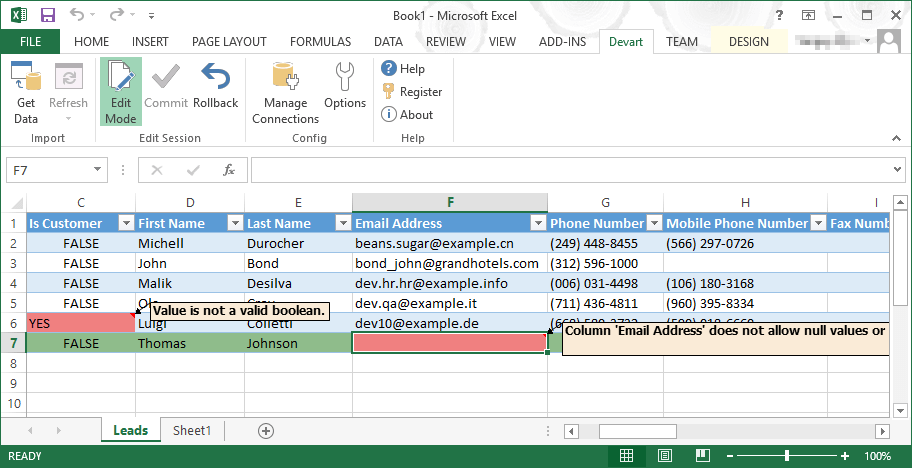
Two validation messages on a Leads sheet: "Value is not a valid boolean" on Is Customer, and an Email Address column that does not allow nulls.
Stays inside Marketo's API limits
Excel Add-in for Marketo throttles itself to Marketo's default limit of 100 API calls in a 20-second window, through the LimitCount and LimitWindow options, which you can change if your subscription allows more. For very large lead pulls, UseBulkExtract switches to Marketo's Bulk Extract API, which spends fewer calls but takes longer. Since version 3.0.0 (June 2026) a Created At filter is passed to Bulk Extract natively, so limiting a pull to a date range keeps it quick.
Benefits
- No re-import mapping. Edits go straight to the existing records, so there is no CSV to match back to lead IDs.
- Your own formulas do the cleanup. PROPER, TRIM, lookups against a country list: whatever you'd normally use in Excel works on Marketo data before you commit.
- Fewer surprises at write time. Type checks happen in the sheet, so a batch isn't half-rejected by the API.
- Reports that stay current. A pivot of leads by source or opportunities by stage updates with one Refresh instead of a fresh export.
Real-World Uses
- Duplicate cleanup before a campaign. Pull leads created in the last quarter, sort by email and company, and fix or delete the duplicates you find, which Devart lists among the add-in's intended jobs.
- Fixing a bad form import. A trade-show list came in with phone numbers in the wrong column; filter the affected leads by Created At, correct them with a formula, and commit.
- Checking activity history. Load Activities filtered by ActivityTypeId to see, for example, which leads opened a particular email, then chart it.
- Sales handoff reviews. Put Opportunities and their leads side by side in one workbook for a weekly pipeline meeting, refreshed just before it starts.
Who It's For, and Who Should Skip It
It's for Marketo admins and marketing operations analysts on Windows who regularly correct or audit records and think in spreadsheets. If you're already exporting leads to Excel every week, this replaces both the export and the re-import.
Skip it if you work on a Mac or in Excel on the web, since only Excel for Windows is supported. Skip it too if you need data to move on a schedule without anyone clicking: Devart describes its Excel add-ins as tools for interactive use with no automation features, so a scheduled sync calls for an integration tool or Devart's ODBC driver or SSIS components for Marketo instead.
Usage Guide
- Get credentials. In Marketo Admin, a Marketo admin creates an API-only user and a LaunchPoint custom service, which shows the Client Id and Client Secret. Note your Munchkin ID for the domain field.
- Install. Sign in to Devart, download the 76.60 MB installer, and run it from an account with administrator rights. .NET Framework 4.0 and the Visual Studio 2010 Tools for Office Runtime are required.
- Connect. Open Excel, go to the Devart tab, click Get Data, choose Marketo, enter the domain, id and secret, and press Test Connection.
- Choose the data. Pick an object in the Query Builder, tick the fields, add a Created At filter for big lead databases, and preview.
- Edit and commit. Click Edit Mode, make your changes, check for red cells, then Commit. Rollback undoes everything since the last commit.
Where it falls short
- Big pulls are slow by design. At 100 calls per 20 seconds, loading a large lead database through the normal API takes a while, and Bulk Extract trades calls for time. Filter by date where you can.
- No macros or scheduled refresh. Refresh and Commit are buttons, not something a VBA macro or a scheduler can run.
- Complex SQL runs on your PC. A query Marketo's API can't answer directly is finished by the add-in's local SQL engine, which means more rows come down first.
- Marketo object quirks get fixed over time. The August 2026 release fixed a 404 error when reading the Files table and a duplicate-key error on Emails, so keep to the latest version during your trial.
What Users Say
The Marketo add-in itself
Capterra, GetApp and G2 each list Devart Excel Add-in for Marketo, and none of them showed a user review as of November 14, 2026. There is no Marketo-specific feedback to weigh yet, so the 30-day trial is the real test.
The Devart Excel Add-ins line as a whole
TrustRadius rates the family, "Devart Excel Add-ins", about 9.3 out of 10 from roughly 33 ratings, though several reviews filed there describe Devart's database tools rather than the add-ins. Across the family, reviewers who use the add-ins praise getting live data into Excel and editing it there. The complaints are the price of buying one add-in per source, the first-time connection setup for people new to API credentials, and the lack of automation.
Comparisons
Excel Add-in vs Marketo's own CSV export and import
Marketo's export and list import cost nothing extra and are fine for one-off jobs. The add-in earns its price when you edit existing records often: it keeps the link to each lead's ID, validates as you type, and skips the field-mapping step on the way back.
Excel Add-in vs Devart's ODBC Driver for Marketo
The ODBC driver exposes Marketo to BI, ETL and reporting tools, which suits read-heavy or scheduled work. The Excel add-in is for a person editing data by hand in Excel, with Commit and Rollback built in.
Editions and Pricing
Excel Add-in for Marketo has a single edition. The order page lets you choose the length of the update period and add priority support; the Buy Now button opens it with one license and one year of updates selected.
| Option | Price | What you get |
|---|
| Excel Add-in for Marketo, 1 year of updates | $179.95 | Perpetual license, updates and support for 12 months |
| 2 or 3 years of updates | Chosen on the order page | Three years cost 1.8 times the one-year price |
| Yearly renewal | $89.95 | 20% more after 3 months lapsed, 60% more after 12 |
| Excel Add-in Cloud Pack | $499.95 | 20 cloud add-ins including Marketo ($3,599 bought singly) |
| Excel Add-in Universal Pack | $599.95 | All 26 cloud and database add-ins |
The license keeps working after the update year ends; only new versions and support stop. Buying five or more licenses takes 5% off, ten or more 10%, and twenty or more 15%. If you also need Salesforce, HubSpot or another cloud source, the Cloud Pack costs less than three single add-ins.
FAQs
Does Excel Add-in for Marketo count against my Marketo API quota?
Excel Add-in for Marketo uses the Marketo REST API, so every load, refresh and commit spends API calls. Bulk Extract mode for leads uses fewer calls, and the LimitCount and LimitWindow options keep the add-in within the per-window limit.
Can I connect without being a Marketo admin?
Excel Add-in for Marketo needs a Client Id and Client Secret, which only an admin can create in Marketo. Once an admin hands them over, anyone with the add-in can connect, so ask for an API user whose role limits what it may change.
Can I install the license on my laptop and my office PC?
Excel Add-in for Marketo is licensed to one person on one computer, and Devart's terms allow a second copy on a laptop or home computer used only by the same person. A site license for unlimited installs at one address is also offered.
What is Devart's refund policy for the Marketo add-in?
Devart refunds Excel Add-in for Marketo within 30 days of purchase only when a technical problem or bug stops the product working and its support team can't solve it. A change of mind isn't covered, so use the free trial first.
Does it work with Microsoft 365?
Excel Add-in for Marketo is listed for Excel 2007 through 2024 on Windows, and Devart's compatibility page does not name Microsoft 365 separately. Test it on your own Excel during the trial.
Is the password stored in the workbook?
Excel Add-in for Marketo saves the Client Secret in the file only if you tick "Allow saving password". Untick it, and anyone opening the workbook has to enter the secret before refreshing.
System Requirements
- Microsoft Excel 2007, 2010, 2013, 2016, 2019, 2021 or 2024 for Windows
- .NET Framework 4.0 or later and Visual Studio 2010 Tools for Office Runtime
- Administrator rights for installation
- A Marketo instance with REST API access (Client Id and Client Secret)
Conclusion
Excel Add-in for Marketo is worth $179.95 for anyone who corrects Marketo records in bulk every week. Editing leads in place, with validation and a single Commit, removes the export and re-import cycle that makes Marketo data cleanup tedious.
The reason to pass is automation: it is a hands-on tool, so if the goal is a scheduled sync, or if your team is on Mac, look at an integration tool instead. With no Marketo-specific reviews yet, run the free trial against your own instance before you pay.
Download Free TrialBuy Now