dbForge Schema Compare for SQL Server: See What Changed, Then Deploy It Safely
dbForge Schema Compare for SQL Server is Devart's Windows tool for comparing the structure of two SQL Server or Azure SQL databases and generating the script that makes one match the other. Professional costs $299.95 a year and adds backups, script folders, source control and the command line as sources; Standard is $239.95 a year and compares live databases and snapshots. It's for developers and DBAs who move schema changes from development to test to production and want to stop writing deployment scripts by hand.
If you've ever deployed a release and found out from an error log that a column added in development never made it to production, a schema diff before every deployment is the habit that prevents it.
Quick facts
- Version: 2026.2.96, released November 9, 2026
- Developer: Devart
- Runs as: a standalone Windows app, and as an add-in for SSMS 2016 to 22
- Databases: SQL Server 2000 to 2025, SQL Server on Linux, Amazon RDS, Azure SQL Database and Managed Instance, Azure Synapse, Microsoft Fabric
- Platform: Windows 7 to 11 and Windows Server 2008 to 2025, with .NET Framework 4.7.2
- Editions: Standard and Professional
- Download: installed from the 149.49 MB dbForge Compare Bundle installer, which also contains Data Compare
- Price: Professional $299.95 a year or $599.95 perpetual; Standard $239.95 a year or $479.95 perpetual
- Trial: free trial (the download asks you to sign in with a free Devart account)
- Refund: 30-day money-back guarantee on annual and perpetual licenses; Devart's ordering FAQ is stricter and refunds only when a technical problem its support can't fix stops the product working
- What we checked: version 2026.2.96 and its November 9, 2026 date on Devart's download page and revision history, the 149.49 MB installer size listed there, the edition feature matrix, and the order page prices for both editions, as a 1-year subscription and as a perpetual license, on November 13, 2026. We didn't compare databases of our own.
Before you buy
- Automation is Professional only. The command-line interface, scheduled comparisons and CI integration aren't in Standard. Neither are script folders, source control revisions, native backups or DACPAC files as comparison sources.
- The order page opens on Professional, 1-year subscription, at $299.95. Standard, the perpetual license and 2- or 3-year terms are options on the same page.
- It compares structure, not rows. Comparing table contents is a separate product, dbForge Data Compare.
- Windows only. If your build servers run Linux, the command line needs a Windows machine.
Download Free TrialBuy Now
Overview
You pick a source and a target, Schema Compare reads both, and you get a list of every object that's different, exists only in the source, or exists only in the target. Click one and the DDL of both sides appears next to each other with the differences colored. Tick what you want to deploy, and the Schema Synchronization Wizard writes an ALTER script in the right dependency order, which you can review, save or run directly, with a backup of the target taken first.
It's one of Devart's core SQL Server tools and is updated monthly with the rest of the line. The November 2026 build keeps SYSTEM_VERSIONING on when it adds columns to temporal tables and fixed an out-of-memory error in large Excel reports; September added a Last modified column to comparison results and reports; May added a Discard Changes option to the object filter and fixed "Ignore column order in indexes" for INCLUDE columns.
Features
A clear list of differences with a DDL diff for each
dbForge Schema Compare for SQL Server groups its results by status, such as Different and Only in Target, each object with a checkbox and an operation you can change per object (Update or None, for example). You can group by type or status, search and filter the list, and see each object's DDL side by side. Object mapping handles tables or schemas with different names on each side.
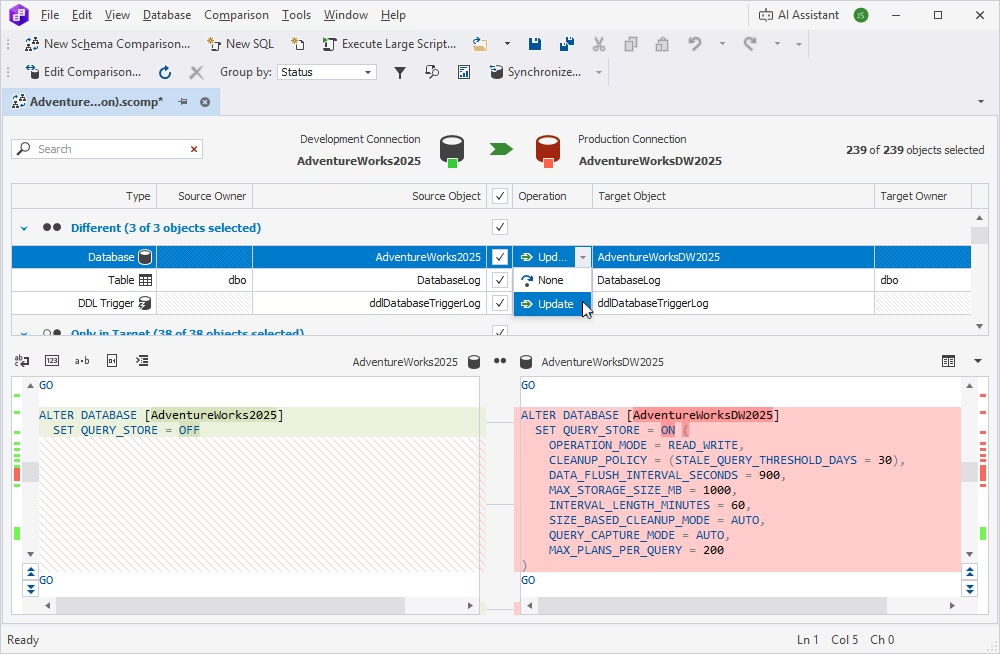
AdventureWorks2025 (development) compared with AdventureWorksDW2025 (production): three objects differ, and the diff below shows the database's Query Store setting on each side.
Synchronization scripts with a safety net
dbForge Schema Compare for SQL Server's Schema Synchronization Wizard generates the deployment script and lets you open it in the built-in editor, save it, or run it against the target. Its options include taking a full or differential backup of the target first, wrapping everything in a single transaction with SERIALIZABLE isolation, checking for object existence, and adding your own pre- and post-deployment scripts. The wizard also shows deployment warnings to review before anything runs.
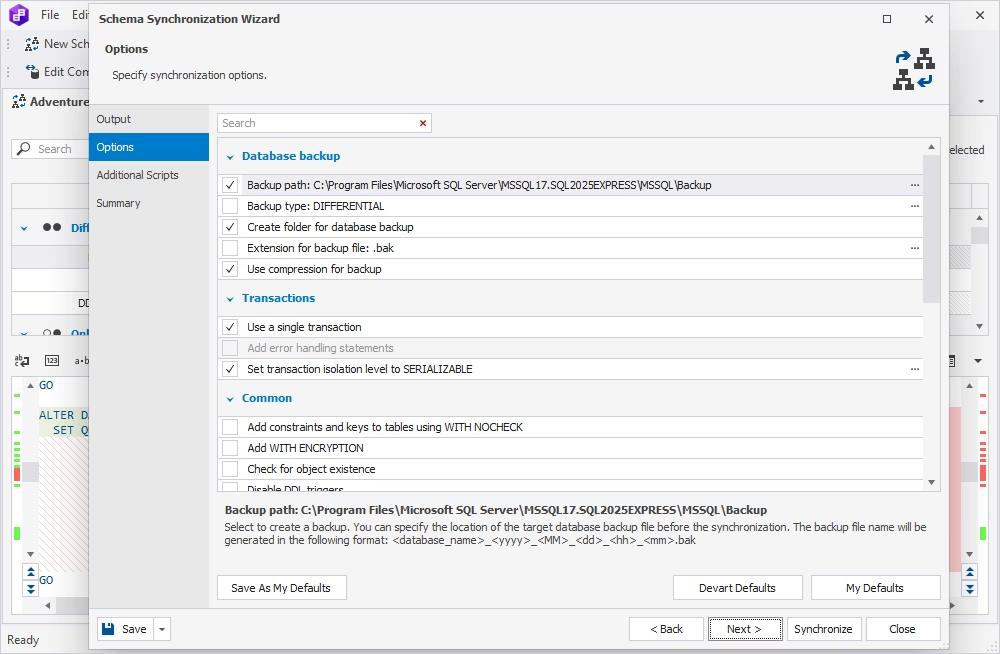
The Schema Synchronization Wizard's Options page: a differential backup to the SQL Server backup folder, compression, a single transaction at SERIALIZABLE isolation, and common scripting options.
Compare more than live databases (Professional)
dbForge Schema Compare for SQL Server Standard compares live databases and schema snapshots, which you can save as an audit trail. Professional also accepts script folders (one CREATE script per object), source control revisions in Git, Azure DevOps, SVN, TFS, Perforce, Vault, Mercurial or Plastic SCM, native SQL Server backup files, and DACPAC packages. Comparing a backup lets you restore a single procedure from last night's backup without restoring the whole database.
Reports for reviews and audits
dbForge Schema Compare for SQL Server exports comparison results to HTML, Excel or XML. You choose which objects to include (all, filtered, with differences, or selected for sync), whether to add warnings, the deployment script and the comparison options, and how script differences are shown. The interactive HTML report is easy to attach to a change request.
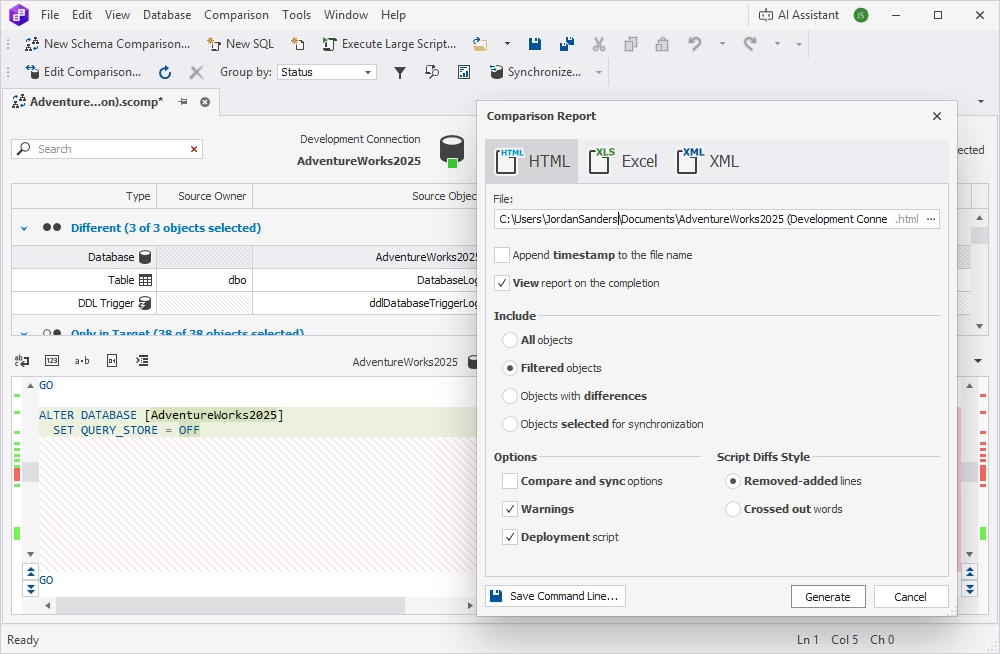
The Comparison Report dialog: HTML, Excel or XML output, which objects to include, and options to add warnings and the deployment script.
Command line and CI (Professional)
dbForge Schema Compare for SQL Server Professional turns a saved comparison into a command line through a wizard and saves it as a .bat file. Run it on a schedule to catch schema drift, have it email you, or call it from Azure DevOps or another build server to sync a test database as part of a build. It works with Devart's DevOps Automation for SQL Server for full CI pipelines.
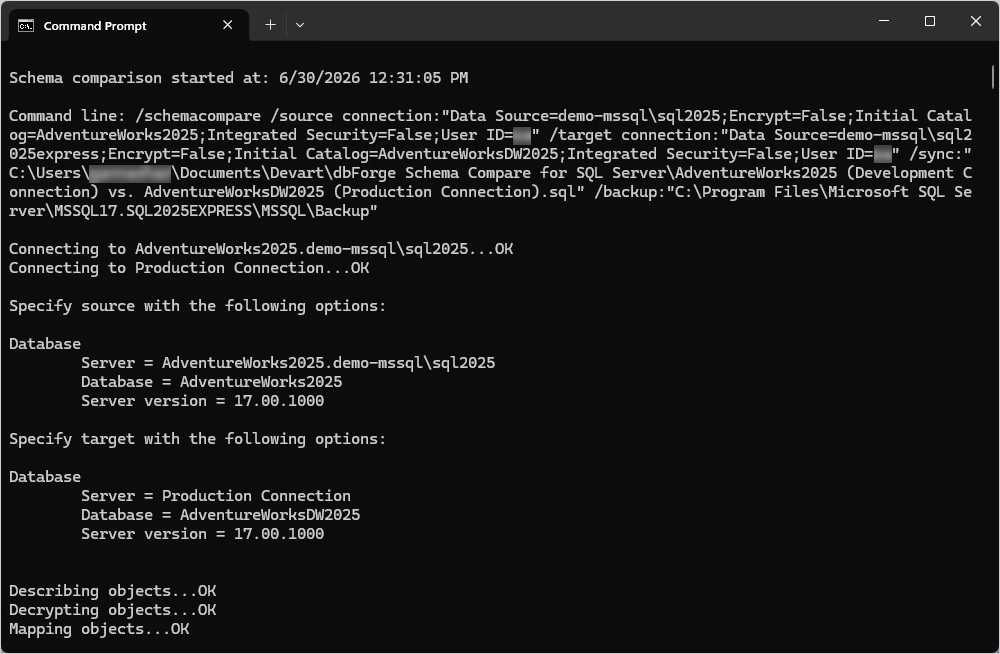
A /schemacompare run in the Command Prompt: source and target connections, a sync script path and a backup folder, followed by the connection and describing steps.
Benefits
- Deployments without surprises. You see every difference before you deploy, not after a failed release.
- No more hand-written ALTER scripts. The tool works out dependency order, so you don't drop a column a view still uses.
- An audit trail. Snapshots and reports show what each environment looked like and what was changed.
Real-World Uses
- Release day. Compare development with production, untick anything not in this release, review the warnings, and deploy with a backup taken first.
- Finding drift. Someone fixed something directly in production last month. A comparison against a snapshot or the repository shows exactly what.
- Restoring one object (Professional). Compare a database with last night's .bak file and bring back just the stored procedure that was overwritten.
- Keeping test in step (Professional). A nightly .bat job syncs the test database's schema from source control before the morning's tests.
Who It's For, and Who Should Skip It
It's for SQL Server developers and DBAs who deploy schema changes between environments regularly, consultants who need to see how two client databases differ, and teams building automated database deployments (Professional).
Skip it if your database lives in an SSDT project in Visual Studio, whose built-in schema compare may be enough; if you need to compare row data rather than structure (that's Data Compare); or if your databases are MySQL, Oracle or PostgreSQL (Devart sells separate Schema Compare tools for those). If you'd use Data Compare too, the dbForge Compare Bundle or the larger SQL Tools bundle is better value than buying them one at a time.
Usage Guide
- Install. Download the Compare Bundle installer (you'll sign in with a free Devart account) and install Schema Compare; it runs standalone and can also integrate with SSMS.
- Start a comparison. Click New Schema Comparison, pick the source and target (connection and database, or a snapshot, folder or backup in Professional).
- Set options. Choose which object types and properties to compare or ignore, and map any schemas or tables with different names.
- Review the results. Go through the groups of differences, read the DDL diff for each object, and untick what you don't want to deploy.
- Synchronize. Open the Synchronization Wizard, turn on the target backup, and choose to save or review the script, or run it.
- Save the project. Save the comparison so you can rerun it next release, and in Professional save its command line for automation.
Where it falls short
- Edge cases in generated scripts. Devart's revision history shows the hard cases still being fixed: temporal tables, INCLUDE columns in indexes, view dependencies and filters in the command line all needed fixes in 2026. Always read the script before running it on production.
- Bugs can take time. A long-time user on G2 noted that "there have been bugs in the past that have taken quite a while for the vendor to fix," though they were eventually fixed.
- No Linux version. Teams with Linux-only build servers need a Windows machine to run the command line.
- Standard is limited for team use. Without the command line and script folders, Standard is a manual tool for one person.
What Users Say
G2 reviews (shown on SaaSworthy, 5/5 from 4 ratings)
Jeff B. (September 2018), "A Critical Part of our CI Pipeline": "dbForge Schema Compare can be called from the command line. This means we can integrate it into our CI pipeline. … I have looked at many different products and tools that do this, and this is the only one that ticks all the boxes and is reasonably priced." His complaints: "We wish this ran under Linux, as our systems are pretty much all Linux. Because it doesn't run under linux, we have to have this script run on a Windows box. It turns out not to be such a big deal." He adds that "there have been bugs in the past that have taken quite a while for the vendor to fix. Eventually they were fixed, however."
Daniel G., software developer (September 2018), likes being able "to make the comparison of the scheme automatically after the synchronization process has finished to make sure everything went well." His wish: a setup where "I only choose the origin and destination of the already configured list of accesses."
Bhavana G. (November 2021): "dbForge Schema Compare allows me to compare and synchronize SQL databases through its object explorer pannel." She praises the result filters and adds: "It's has a brilliant backup feature where I can quickly take snapshot and evaluate the diversities with its schema synchronization capabilities for our SQL Servers." Her dislikes: "None actually."
Customer comments on Devart's page
Devart shows these on the product page, so read them as the vendor's picks.
James S., company owner: "It [dbForge Schema Compare for SQL Server] does the comparison with the click of a button... We have had NO bugs released to production as a result of an incorrect schema."
Denis Reznik, Microsoft MVP and data architect: "For me, these are not frequent operations, but when you need to compare, you need to do this quickly and with a good quality, and Devart products deal with this perfectly."
Eugene Polonichko, Microsoft MVP: "For those who regularly compare database schemas, like I do, it is an essential tool for identifying differences and synchronizing databases."
The recurring themes
Users value the command line for CI, the safety of automatic backups and post-sync verification, and the price compared with alternatives. The complaints are Windows-only automation and, in the past, slow bug fixes. The number of public reviews is small, and most are several years old.
Comparisons
dbForge Schema Compare vs. Redgate SQL Compare
Redgate SQL Compare is the best-known tool for this job and does the same core work: compare, review, generate a deployment script, with a command line for automation. Devart's tool is sold separately at a lower price, runs inside SSMS as well as standalone, and accepts backups, DACPACs and many version control systems as sources in Professional. Reviewers who chose Devart usually mention price; Redgate's advantage is its larger user base and ecosystem.
dbForge Schema Compare vs. Visual Studio Schema Compare
Visual Studio's SQL Server Data Tools include a free schema compare that works well inside SSDT projects. Devart's tool is the better choice if you don't use Visual Studio, want to compare backups or snapshots, or need detailed reports and a scriptable command line.
Standard vs. Professional
Standard compares live databases and snapshots and generates and runs sync scripts, with reports. Professional adds script folders, source control revisions, native backups and DACPACs as sources, and the command line for automation and CI. For one person comparing two servers by hand, Standard is enough; for a team or any automation, buy Professional.
Editions and Pricing
Both editions are sold on one order page. It opens on Professional with a 1-year subscription; you pick the edition, subscription or perpetual license, and 1, 2 or 3 years of updates there.
| Edition | 1-year subscription | Perpetual license | What it covers |
|---|
| Standard | $239.95 | $479.95 | Live databases and snapshots, sync scripts, reports, SSMS integration |
| Professional | $299.95 | $599.95 | Adds script folders, source control, backups, DACPAC, command line and CI |
Prices are per user. Devart takes 5% off for 5 to 9 licenses, 10% for 10 to 19 and 15% for 20 or more, and priority support is an extra option at checkout.
FAQs
Can dbForge Schema Compare compare an on-premises database with Azure SQL?
Yes. dbForge Schema Compare for SQL Server can use any supported source and target together, including on-premises SQL Server, Azure SQL Database and Managed Instance, Amazon RDS and Microsoft Fabric, with Microsoft Entra multi-factor sign-in.
Does dbForge Schema Compare compare table data?
No. dbForge Schema Compare for SQL Server compares structure: tables, views, procedures, functions, triggers, indexes, permissions and other objects. Row-by-row comparison is done by dbForge Data Compare, which comes in the same Compare Bundle installer.
Can dbForge Schema Compare compare encrypted stored procedures?
Yes. dbForge Schema Compare for SQL Server compares the content of routines created WITH ENCRYPTION, in both editions.
Can I use dbForge Schema Compare in Azure DevOps or another CI pipeline?
Yes, with the Professional edition. dbForge Schema Compare for SQL Server Professional has a command-line interface that build servers can call, and it works with Devart's DevOps Automation for SQL Server. The command line runs on Windows only.
Is a subscription or a perpetual license better for dbForge Schema Compare?
For dbForge Schema Compare for SQL Server, a perpetual license costs twice the 1-year subscription and keeps working after its included year of updates; a subscription stops working if you don't renew. If you'll use it for more than two years, perpetual usually works out cheaper.
Can I get a refund on dbForge Schema Compare?
Yes. Devart refunds dbForge Schema Compare for SQL Server within 30 days on an annual subscription or a perpetual license.
System Requirements
- Windows 7, 8, 8.1, 10 or 11, or Windows Server 2008, 2012, 2016, 2019, 2022 or 2025
- .NET Framework 4.7.2 or later
- Optional: SSMS 2016, 17, 18, 19, 20, 21 or 22 for the add-in
- SQL Server 2000 to 2025, SQL Server on Linux, Amazon RDS, Azure SQL, Azure Synapse, Microsoft Fabric
Conclusion
dbForge Schema Compare for SQL Server is worth it for anyone who deploys SQL Server schema changes more than a few times a year. The one reason to buy it is a reliable diff and a dependency-ordered deployment script with a backup in front of it, which turns a risky manual job into a reviewable one. The main reason not to is that you may already have one: SSDT users get a schema compare free with Visual Studio. If you work alone and compare by hand, Standard at $239.95 a year is enough; for teams, automation or comparing against backups and source control, Professional at $299.95 is the one to buy. Use the trial on a copy of production before you trust any tool with it.
Download Free TrialBuy Now