Wise Video Converter Pro: A Simple Windows Converter With No 30-Minute Cap
Wise Video Converter Pro is a $29.95-a-year Windows video converter from WiseCleaner (currently $19.95 for the first year with a $10 coupon at checkout) that converts videos between formats, pulls the audio out as MP3, merges clips and shrinks file sizes. The free edition does all of that too, but only for videos up to 30 minutes long; the Pro license removes that limit on up to 3 PCs.
If you have ever double-clicked a video and got "the player might not support the file type", or needed to squeeze a 2 GB screen recording under an email limit, this is the kind of job it handles: drop the file in, pick MP4 (or another format), click Convert.
Quick facts
- Version: 3.1.5, released March 6, 2026
- Developer: WiseCleaner
- Platform: Windows 11, 10, 8.1, 8 and 7, 64-bit only. No Mac or Linux version
- Price: $29.95 per year for 3 PCs, $19.95 for the first year with the $10 coupon; the subscription renews at $29.95
- Free edition: every feature, limited to videos up to 30 minutes long (any number of files)
- Guarantee: 60-day money-back guarantee
- Jobs: convert, convert to audio, merge, compress, watermark and filters, batch processing
- What we checked: the installer the vendor serves today is WVCSetup_3.1.5.270.exe (21.8 MB), checked on November 8, 2026, and the order page charged $29.95 for the 1-year, 3-PC license, or $19.95 with the coupon, on November 8, 2026. We didn't run conversions with it.
Before you buy
Try the free edition first: it is the same program. If your videos are all shorter than 30 minutes (phone clips, short recordings, music videos), you may never need Pro. The license is a yearly subscription and the order page ticks automatic renewal by default, so untick it at checkout if you only want one year.
Download Free TrialBuy Now
Overview
Wise Video Converter has been around since 2013, but version 3 (November 2023) is a different program from the one early reviews describe: a new interface with four tabs (Convert, Merge, Compress, Completed), video merging and compression, 16 filters and effects, and more input and output formats. Version 3.1.4 (March 2025) added transitions when merging and a volume control, and 3.1.5 (March 2026) widened M3U8 conversion and lets you apply one compression ratio to every file at once or set each file separately.
It is deliberately small. There's no timeline editor, no DVD ripping and no downloader: it converts files you already have. That's the appeal for people who want a converter that opens fast and does one job without a wall of settings.
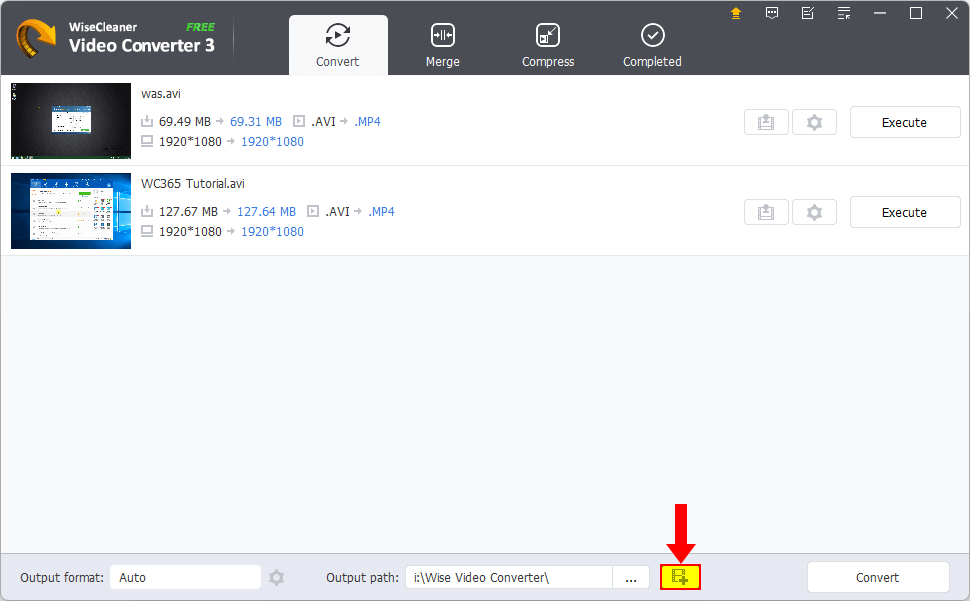
The Convert tab with two 1080p AVI files queued for MP4, each with its own Execute button, and the output format and folder at the bottom (free edition, from the vendor's help).
Features
Convert between the common video formats
Wise Video Converter converts to MP4, HEVC MP4, MKV, HEVC MKV, MOV, AVI, WMV, WebM, M4V and MPEG, with presets from "Same as source" up to 4K (3840x2160), 1080p, 720p and smaller sizes, plus a Device tab. Each preset has an edit icon for the codec and bitrate, and you can set the format per file or for the whole list at once.
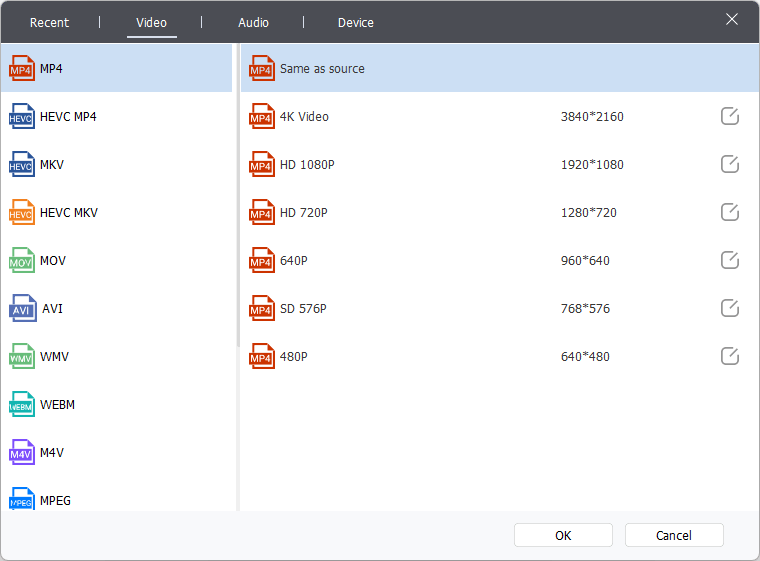
The output format dialog: Recent, Video, Audio and Device tabs, video formats on the left and MP4 resolution presets from 4K down to 480p on the right.
Save the soundtrack as MP3
Wise Video Converter turns MP4, MKV, AVI, WMV, M4V and MOV videos into MP3 and other audio formats from the Audio tab of the same dialog, with a quality setting. Useful when you only want to listen to a music video or a recorded talk, and the audio file is a fraction of the size.
Merge clips into one video
Wise Video Converter joins several clips into one file in the order they sit in the list, and since version 3.1.4 it can add transitions between them. The clips must share the same format: it can't merge an MP4 with an AVI, so convert the odd one first.

The Merge tab joining two WMV recordings into one MP4, with the progress and time remaining shown on the first file.
Shrink videos to a target size
Wise Video Converter's Compress tab lets you set the output file size, format, resolution and bitrate, so a long screen recording can fit an upload or email limit. Version 3.1.5 added one compression ratio for the whole batch, or a separate setting for each file.
Watermarks, filters and quick fixes
Wise Video Converter can stamp an image or text watermark on the output and offers brightness, contrast and saturation sliders, filters such as Sharpen, Blur, Sepia, Black White, Emboss and Retro, plus 90-degree rotation and flipping, previewed before you convert. Version 3.1.4 added a volume adjustment in the same window.
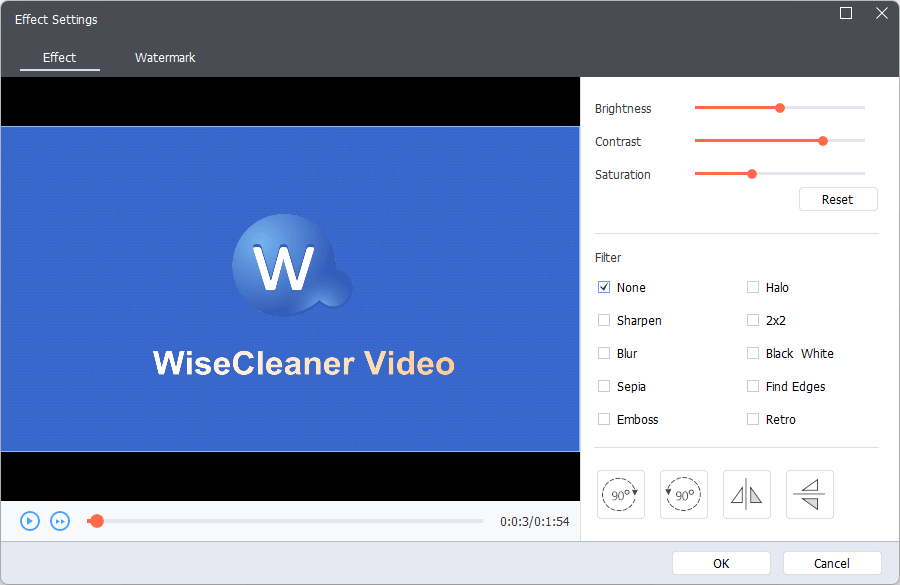
Effect Settings: a preview player, the three color sliders, ten filters and the rotate and flip buttons, with a Watermark tab next to Effect.
Batch work in the background
Wise Video Converter takes many files at once (drag and drop, or Add with Ctrl and Shift) and runs the whole list with one Convert button, so you can queue a folder and walk away. Finished files land on the Completed tab with their size, resolution and length, and a folder button opens each one.
Benefits
- Low learning curve. Four tabs, one Settings button per file and sensible defaults (MP4, same resolution as the source) mean you rarely open the advanced options.
- Cheap to test. The free edition is the full program, so you find out whether it handles your files before paying anything.
- One license, three PCs. The yearly license covers three computers, handy for a desktop and a laptop.
- Kept up. Three updates since late 2023, the latest in March 2026, so it isn't an abandoned tool.
Real-World Uses
- A webinar recording that won't play. A 90-minute MKV or M4V from a meeting app goes to MP4 so Windows' player and any phone open it. This is the case where the free 30-minute cap bites and Pro earns its price.
- A lecture as a podcast. Convert a recorded class to MP3 and listen on a commute.
- Holiday clips into one file. Merge a dozen short phone clips of the same format into one video, with transitions, to share with family.
- Getting under an upload limit. Compress a screen recording to a set size for an email, a support ticket or a course platform.
- Branding a tutorial. Add your logo as a watermark while converting a batch of how-to videos.
Who It's For, and Who Should Skip It
Wise Video Converter Pro suits Windows users who convert, join or shrink long videos now and then and want something simpler than a full editor. It's a good fit if you already like WiseCleaner's tools, or if the free edition worked and only the 30-minute limit stopped you.
Skip it if:
- You're on a Mac, Linux or 32-bit Windows. It runs only on 64-bit Windows 7 and later.
- Your videos are all under 30 minutes. The free edition already does everything for you.
- You want fine control. People who tune encoder settings, subtitles and audio tracks are better served by a free open-source tool such as HandBrake.
- You need to rip discs or edit on a timeline. It does neither; look at a DVD ripper or a video editor.
- You dislike subscriptions. Pro is sold by the year, with no lifetime option on the order page.
Usage Guide
- Install. Download the installer from WiseCleaner, run it and accept the Windows prompt. To activate Pro, open the Menu icon at the top right, choose Register and paste your license key.
- Add videos. Drag files into the Convert tab, or click the add button at the bottom. Hold Ctrl or Shift to pick several.
- Choose the output. Click Settings next to a file, or the one at the bottom for the whole list, and pick a format and resolution. Change the output folder at the bottom if you like.
- Optional touches. Click the Watermark & Effects icon next to a file to add a watermark, filter or rotation.
- Run it. Execute converts one file; Convert at the bottom runs the whole list. For merging and compressing, use the Merge and Compress tabs the same way.
- Collect the files. Open the Completed tab and click the folder icon. Removing an entry there doesn't delete the file.
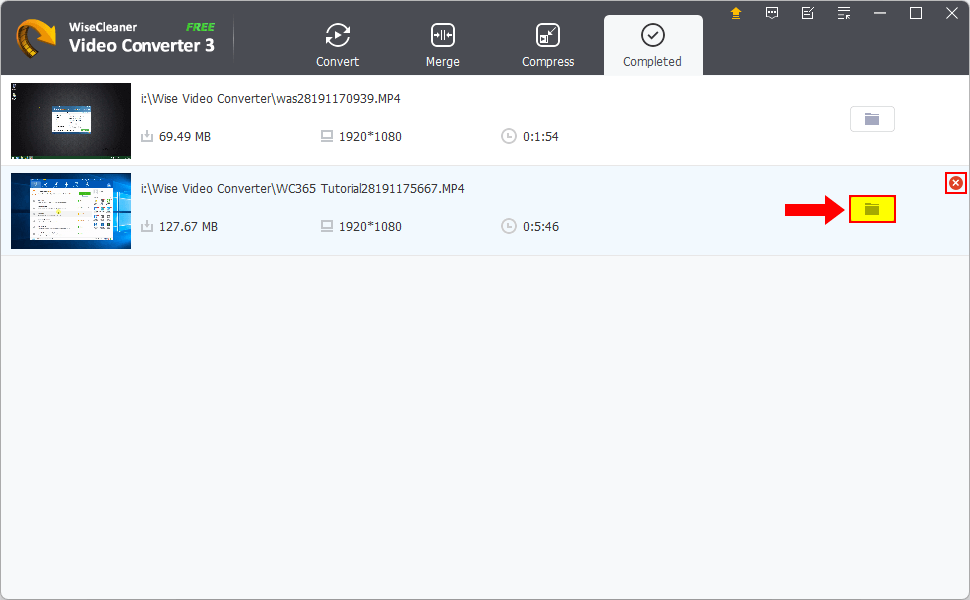
The Completed tab: two converted MP4 files with their size, 1920x1080 resolution and running time, and the button that opens the output folder.
Where it falls short
- Merging needs matching formats. Clips of different formats can't be joined until you convert them to one format.
- Few controls for experts. It has no deep encoder options, and earlier reviewers complained that custom output settings couldn't be saved for reuse.
- Thin independent coverage. Almost every independent review is of the 2013 version 1, so there's little outside testing of version 3.
- Major upgrades need a clean install. WiseCleaner's guide says moving from one major version to the next means uninstalling the old one first.
What Users Say
Recent, independent reviews of version 3 are scarce. Most of what's online is download-site listings and giveaway pages, and the detailed reviews date from 2013, when version 1 was given away free for a day. Read the older comments as history: the program has been rebuilt since.
On WiseCleaner's own pages
The product page shows a count of 122 user reviews, and the user guide quotes three short ones:
- "I like the ability to convert videos for different devices and platforms without needing multiple programs." (Weitao)
- "Good if you want a minimal, no-bloat tool." (Fayyam)
- "It can quickly converts videos without compromising quality. Nice!" (Eric)
dotTech, August 31, 2013 (version 1.31.37)
Ashraf's review liked the basics, listing as pros "Easy to use + nice interface" and "Good speed and output quality", but criticized the feature set: "Developer provides no information as to what input formats are supported", "Can't do audio -> audio conversions" and "Does not allow you to save customized output settings for easy reuse later". His verdict then: "My recommendation is to skip Wise Video Converter". Version 3 has since added merging, compression, filters and a documented format list, so some of these points no longer apply.
Giveaway of the Day, August 31, 2013 (version 1)
The one-day giveaway drew 38 comments, split between people who liked its simplicity and people who found it too basic:
- "I like the idea that it is simple, fast and gives the option of keeping the original resolution." (Neo)
- "The best use of this program is to prepare large batch with tune setting for each file" (Sgo)
- "Update: The conversion is perfect!" (Keya23)
- "the program is extremely rudimentary -- almost simplistic to a fault." (arturo fuentes)
- "In conclusion, this is a very unpolished video converter and to be honest I consider it just above a beta version." (XP-Man)
- "Has no output profiles for specific electronic devices" (Ashraf from dotTech, listed as a con; version 3 now has a Device tab)
WiseCleaner as a company on Trustpilot
WiseCleaner's unclaimed Trustpilot profile scores 4.6 from 97 reviews (86% five stars, 9% one star), read on November 8, 2026. None of those reviews is about Wise Video Converter: they mostly praise fast support for Wise Folder Hider and the cleanup tools, while the low ratings complain about other products, such as missing dark mode in Wise Care 365 and poor follow-up.
The pattern: people who like it praise the same things over the years, simplicity, speed and output quality. The criticism has always been depth: it's basic next to full-featured converters. Version 3 has addressed part of that, but no independent site has re-tested it.
Comparisons
Wise Video Converter Free vs Pro
Wise Video Converter Free and Pro are the same program with the same features; the only difference WiseCleaner documents is length. Free converts, merges and compresses videos up to 30 minutes long, and a merged video must also come out under 30 minutes. Pro has no length limit. Both handle any number of files.
Wise Video Converter Pro vs HandBrake
HandBrake is a free, open-source converter for Windows, Mac and Linux with deep encoder control and no length limits. It's the better choice if you want control and don't mind a busier interface. Wise Video Converter Pro is simpler, and it merges clips and adds watermarks and filters in the same window.
Editions and Pricing
| Edition | Price | Term | PCs | Video length |
|---|
| Free | $0 | No limit | Any | Up to 30 minutes |
| Pro | $29.95 ($19.95 first year with coupon) | 1 year, renews at $29.95 | 3 | No limit |
The Buy Now button on this page applies the $10 coupon automatically. WiseCleaner's 60-day money-back guarantee covers the purchase.
FAQs
Does Wise Video Converter Pro renew automatically?
Yes, by default. Wise Video Converter Pro is a 1-year subscription and the order page ticks automatic renewal at $29.95; you can untick it at checkout or turn it off later through WiseCleaner's subscription management page.
Can I use one Wise Video Converter Pro license on my laptop and desktop?
Yes. The Wise Video Converter Pro license sold here covers 3 PCs for one year.
Does Wise Video Converter run on 32-bit Windows or a Mac?
No. Wise Video Converter 3 needs 64-bit Windows 7, 8, 8.1, 10 or 11, and WiseCleaner says it doesn't support macOS or Linux.
Can Wise Video Converter download YouTube videos?
No. Despite the "convert YouTube videos" wording on WiseCleaner's page, Wise Video Converter converts video files you already have on your PC. It has no download feature.
Can Wise Video Converter merge an MP4 and an AVI?
Not directly. Wise Video Converter merges only clips of the same format, so convert the AVI to MP4 first, then merge.
How do I update Wise Video Converter?
Wise Video Converter checks for updates from Menu, Check for Updates. Minor updates install over the old version; for a major one (2.x to 3.x), uninstall the old version first.
What languages does Wise Video Converter support?
Wise Video Converter's interface comes in 36 languages, including English, Spanish, French, German, Japanese, Chinese, Russian and Arabic.
System Requirements
- Windows 11, 10, 8/8.1 or 7, 64-bit only
- 1 GHz processor or faster
- 4 GB of RAM or more
- 80 MB of disk space for the program, plus room for the converted files
Conclusion
Wise Video Converter Pro is worth $19.95 for the first year if you're a Windows user who regularly converts, merges or shrinks videos longer than half an hour and want a tool you can use without reading a manual. The one reason to buy it is that it removes the 30-minute cap from a simple, actively updated converter you can fully test for free. The main reason not to is that free tools like HandBrake have no length limit at all, and Pro's yearly renewal adds up if you only convert a long video once in a while. Install the free edition, run your own files through it, and pay only when the 30-minute limit actually gets in your way.
Download Free TrialBuy Now