Short answer
To recover a lost partition or a RAW drive, stop writing to the disk, look at it in Windows Disk Management, and never format or initialize it when Windows offers. If the partition is only missing a drive letter, Disk Management fixes that for free. Otherwise, run DMDE's free edition: choose the physical disk, and DMDE lists lost partitions as "found". Open the one you need and save a few test files to another disk.
From there you either put the partition back with DMDE's free partition manager, or copy the files off. The free edition saves up to 4,000 files from one folder at a time. DMDE Express ($20) saves the whole drive with its folder tree in one go, and DMDE Standard ($48) does the same with a license that never expires.
At a glance: what Disk Management shows, and what to do
| What you see | What it usually means | Free step first | Then, in DMDE |
|---|
| The partition is there, with no drive letter | Nothing is lost, Windows just didn't assign a letter | Right-click it, Change Drive Letter and Paths, Add | Nothing needed |
| Unallocated space where the partition used to be | The partition was deleted or the partition table was damaged | Don't create a new volume there | Find it under "found", then insert it back or copy the files off |
| A partition marked RAW, or "You need to format the disk" | The partition exists but its file system is damaged | Click Cancel. Don't format, don't run CHKDSK | Open the volume or run Full Scan, and copy the files to another disk |
| Disk "Not Initialized" or "Unknown" | The partition table is gone, or the drive is failing | Cancel the Initialize Disk prompt | Full Scan of the physical device. Image it first if it's throwing read errors |
| The disk doesn't appear, or it clicks | A connection or hardware problem | Try another cable, port and PC | None. A clicking drive needs a lab |
How we wrote this guide
- We followed DMDE's own How to Use guide, its manual pages on partition management, Full Scan and raw file search, and its FAQ, step by step.
- We checked which tools DMDE's free edition includes. Its feature list names a "simple partition manager (allowing partition undeleting)", disk imaging and the RAID constructor among the free features.
- We checked the license limits in DMDE's EULA and the prices on the order page.
- What we checked: the DMDE download page listing version 4.4.4.842 for Windows, the free edition's limit of 4,000 files from the selected folder per recovery, and DMDE Express at $20 and DMDE Standard at $48 on the order page, on November 12, 2026.
We didn't recover a real lost partition for this guide. The screenshots are DMDE's own, and the steps follow its documentation. A physically failing drive is outside what this guide covers.
Before you touch the drive: four rules
- Stop writing to it. Don't save, install or copy anything onto the disk with the lost partition. A new file can land right on top of the data you want back.
- Don't format, initialize or "repair" it. When Windows says "You need to format the disk", click Cancel. When Disk Management asks to initialize a disk, cancel that too. DMDE's FAQ is blunt about fixing in place: the main rule of data recovery is to not write anything to the damaged disk, and automatic fixes may cause irreversible data loss.
- Have a second disk ready. Recovered files must go to a different drive, with enough free space for everything you want back.
- A struggling drive gets imaged first. If the disk freezes, slows to a crawl or reports read errors, copy it sector by sector to an image before scanning. DMDE's Copy Sectors tool does that, and the free edition includes it.
If the lost partition is on an external drive that isn't detected at all, our guide on how to recover data from an external hard drive covers cables, enclosures and why CHKDSK comes last.
Step 1: check Disk Management (free, 2 minutes)
Windows Disk Management tells you which kind of problem you have, and one of them needs no recovery at all. Right-click the Start button and choose Disk Management. Find the disk by its size and look at the bar for it:
- A healthy partition with no letter (NTFS or exFAT, Healthy, but no letter in File Explorer): right-click it, choose Change Drive Letter and Paths, then Add. Your files reappear. Stop here.
- Unallocated (a black bar): the partition entry is gone, but the data usually isn't. Don't create a new volume in that space.
- RAW: the partition is there, but Windows can't read its file system. Don't format it.
- Not Initialized or Unknown: the partition table is missing, or the drive isn't reading properly. Don't initialize it.
For anything other than a missing letter, go on to DMDE.
Step 2: download and run DMDE's free edition
DMDE doesn't install, so nothing is written to your system drive or the damaged one. Download the version for your system (Windows 64-bit, 32-bit, macOS, Linux or DOS), extract the zip to a different disk from the one you're recovering, and run dmde.exe. Windows asks for administrator rights, and for a new version SmartScreen may show a warning where you click More info to run it. DMDE then opens its disk selection window.
The free edition and every paid edition are the same program. A license key only removes the saving limit, so there's nothing to buy yet.
Download DMDE Free Edition
Step 3: choose the physical disk, not the drive letter
For a lost or RAW partition, pick the whole physical disk, because the partition you need may not have a drive letter at all. In the Select Disk / Task window, tick Physical Devices on the left, select the disk on the right by its model and size, and click Open. Logical Disks is the choice only for files deleted from a healthy volume that still has its letter.
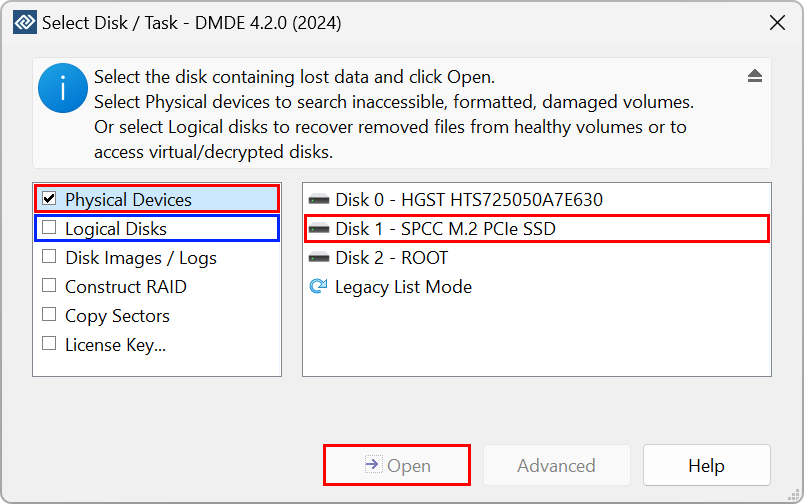
DMDE's Select Disk / Task window (version 4.2.0 shown): Physical Devices is ticked, Disk 1 is selected on the right, and Open is at the bottom. Logical Disks, Disk Images, Construct RAID and Copy Sectors are the other choices.
Step 4: find the lost partition in the Partitions list
DMDE runs a quick search for lost and deleted partitions as soon as the disk opens, and shows them in the list with "found" in the Partition column when the found checkbox (Show Found) is ticked. Existing partitions are listed with their file system and size. Lost ones appear grayed out, as RECOVERY does in the screenshot below.
The Indicators column tells you how intact each one is: T partition table, E table entry, B boot sector, C boot sector copy, F basic file system structures (for NTFS, the first MFT record). A found partition showing B, C and F is a good sign. DMDE colors errors red.
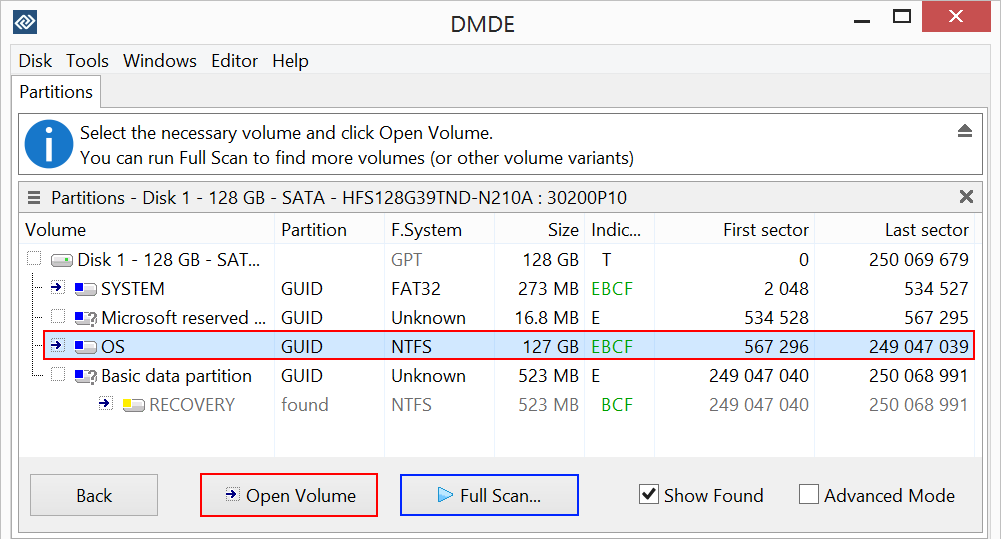
The Partitions window for a 128 GB disk. The NTFS OS partition is selected, with indicators EBCF, and a RECOVERY partition marked "found" is listed below it with BCF. Open Volume browses a partition, and Full Scan searches deeper.
If your partition isn't listed, click Full Scan. Full Scan searches the whole disk and rebuilds file systems from what it finds, which handles harder cases such as a disk that was repartitioned or formatted. DMDE recommends scanning the physical device over the whole area the partition may have occupied, rather than working with the damaged logical disk. When it finishes (you can open a volume before then if the file system isn't badly damaged), pick the result whose size matches your old partition. The % and Check columns estimate how well each candidate will recover, so start with the highest.
Step 5: open it and test-recover a few files
Select the partition and click Open Volume to browse it like File Explorer: folders on the left, files on the right. For a deleted partition the folders are often all there. If files are missing, run Quick Volume Scan, then Full Volume Scan for a deeper search.
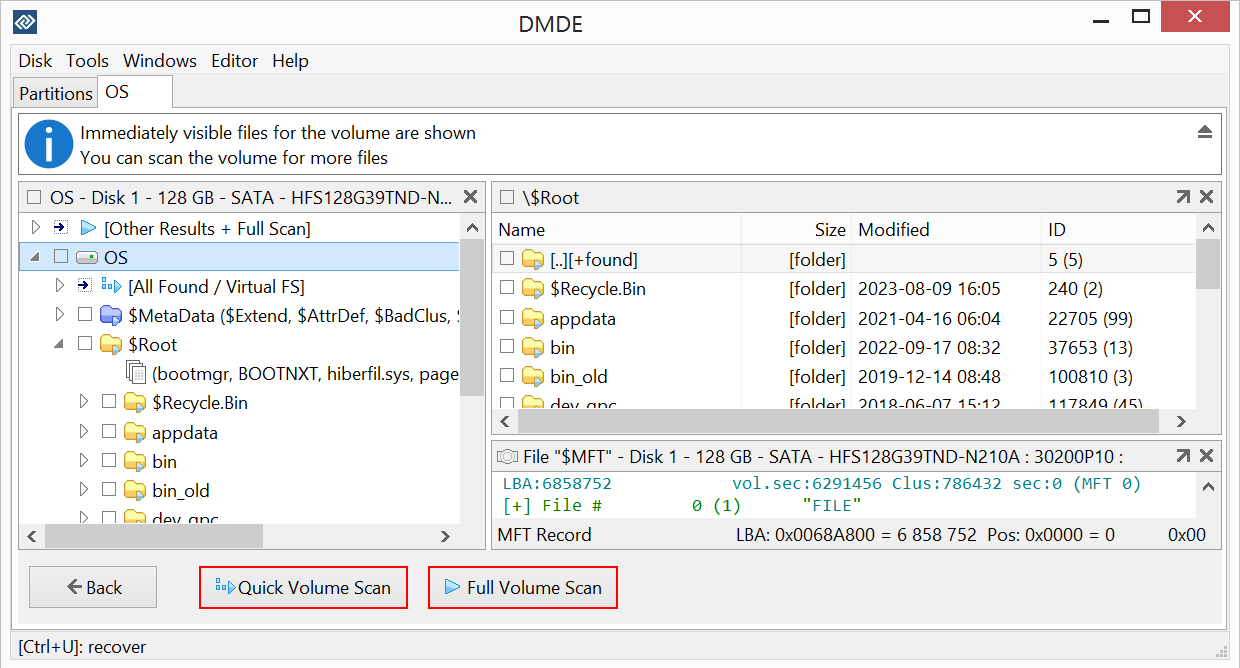
An opened volume: the folder tree on the left, the root folder's contents on the right, an MFT record below, and the Quick Volume Scan and Full Volume Scan buttons.
Now prove the recovery works before you decide anything else. Open a folder with important files, tick a few, click Recover and save them to your second disk. Open them. A photo should display, a document should open with its text. DMDE's FAQ is clear that a paid license recovers exactly the same files: if they come out damaged in the free edition, buying won't fix them.
Step 6, path A: put the partition back (free, but it writes to the disk)
DMDE's free partition manager can insert a lost partition back into the partition table, which makes it reappear in Windows with everything on it. It's the fastest fix when the partition entry was deleted but the contents are intact, and it's the one place this guide writes to the damaged disk, so read DMDE's warnings first:
- Copy your most important files off first (path B), so a mistake can't cost you everything.
- In the Partitions window, use the Menu button's Save Current Partitioning to File to keep a backup of the current layout.
- Tick Advanced Mode, select the found partition and choose Insert the Partition (Undelete). DMDE asks you to add partitions from the beginning of the disk to the end, and an invalid partition in the way may have to be removed first.
- Nothing is written yet: changes stay virtual until you click Apply, and DMDE asks you to confirm the write.
- Close DMDE and check Disk Management. The partition should have its file system back, and it may only need a drive letter.
Use path A for a deleted partition (unallocated space). For a RAW partition the entry still exists and its file system is damaged, so inserting does nothing. DMDE can restore a boot sector from its copy, but its FAQ says plainly that it's a data recovery tool, not a file system repair tool. Copy the files off with path B instead.
Step 6, path B: copy the files to another disk
Copying the files off never touches the damaged disk, which is why DMDE recommends it and why it's the right choice for RAW partitions, failing drives and anything you're unsure about.
- With the free edition: open one folder at a time, tick the files you see in the right-hand panel and click Recover. Each recovery saves up to 4,000 files from that folder, without subfolders, and you can repeat it as often as you like. It's free, but on a drive with hundreds of folders it means hundreds of rounds, and you rebuild the folder structure yourself.
- With a license: tick the whole volume or the top folders, click Recover, choose the destination, and DMDE saves everything with the original folder tree. That's what DMDE Express adds for $20, and it's the only difference from the free edition.
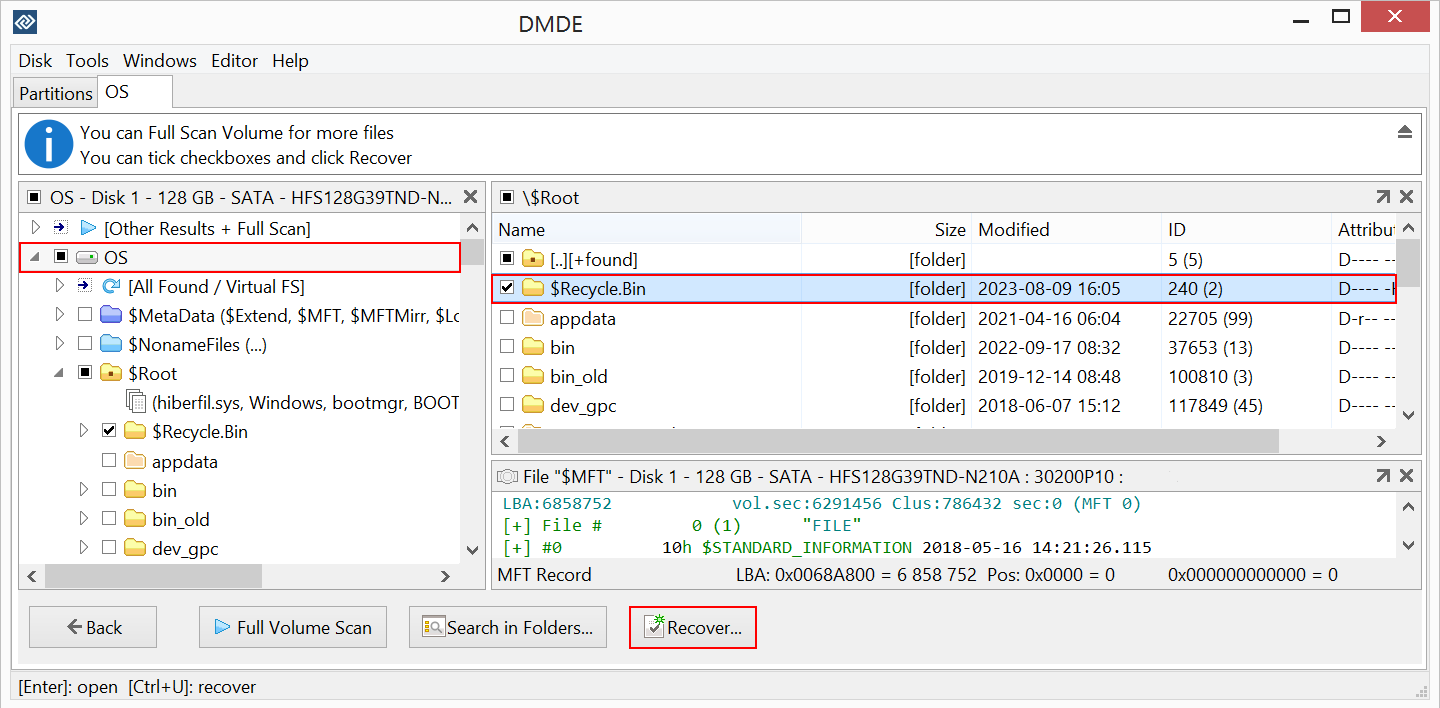
Selecting what to save: the $Recycle.Bin folder is ticked in the tree and the file list, and Recover is at the bottom. With a license, a ticked folder saves with everything under it.
If you buy, enter the key DMDE emails you, activate it (online, or manually with a code from another device if the PC is offline), and make sure the About box shows your license before you start a big recovery. A copy that still runs unactivated behaves exactly like the free edition.
If the folders are gone: raw recovery by file type
When no file system can be rebuilt, DMDE falls back to finding files by their signatures, listed under $Raw in the file panel when a volume is opened. It brings back photos, documents and videos of known types, but DMDE's manual lists the limits: no original names or folders, sizes not always right, and only the first piece of a fragmented file recovered correctly. Treat it as the last resort after Full Scan.
Which DMDE edition do you need for this?
| Your situation | Edition | Price at checkout |
|---|
| You can insert the partition back, or need only a few folders | Free | $0 |
| A whole personal drive to copy off with its folder tree | DMDE Express | $20, one year |
| A business drive, or you want DMDE kept for next time | DMDE Standard | $48, perpetual |
The free edition is for non-commercial use, and Express is for personal files only, so a company's own drive needs Standard even for a single recovery. Recovering a customer's drive for a fee needs DMDE Professional. Our best data recovery software roundup covers friendlier, pricier alternatives if DMDE's interface puts you off.
What people who recovered a partition with DMDE say
A buyer whose drive stopped booting and whose NTFS partition became RAW wrote on dmde.com (Ais, 5 stars, June 2025): "But I gave the demo a shot, and to my surprise, it actually found the lost partition where all my files were stored! Even the folder structure was still intact, like now way this is real!" After saving a few thousand files free, Ais bought the $20 one-year license and recovered "about 99% of my photos and videos—along with the original folder structure."
Leo (5 stars, July 2026, on dmde.com): "It detected the three partitions I accidentally deleted while trying to back up my data, preserved the folder structure when restoring the data to another hard drive, and thus recovered 99.9% of the data I thought was lost."
José Ramírez (5 stars, August 2026, on dmde.com): "DMDE saved years of irreplaceable family photos and videos from a 4 TB external drive that I accidentally formatted. The free edition reconstructed the original ExFAT folder structure and allowed me to recover nearly everything, including many original folder names."
The criticism is about the learning curve. TechRadar gave DMDE 4 out of 5 and listed "Old-looking interface" and "Steep learning curve" among its reasons to avoid it. Jo (5 stars, June 2025, on dmde.com): "It was a bit clunky to use, and took a bit of poking and prodding, but nothing a Youtube tutorial and trial and error couldn't fix."
What commonly goes wrong
- Clicking Format or Initialize. It's the most common way a recoverable partition becomes much harder to recover. Cancel every prompt Windows shows for the disk.
- Running CHKDSK on a RAW drive. It may "fix" the file system by deleting what it can't read. Copy the files off first.
- Inserting the wrong found partition. Full Scan can show several versions of the same volume. Open each one and check the files before you insert anything, and save your partitioning to a file first.
- Saving to the same disk. Recovered files written to the damaged disk can overwrite the rest.
- Scanning a dying drive for hours. If the disk is getting slower or reporting errors, image it first, then scan the image.
- SSDs. On an SSD with TRIM, a deleted partition's data is often erased by the drive itself. DMDE warns that recovery is often impossible on modern SSD and SMR disks.
FAQs
Can I recover a deleted partition for free?
Yes, often. DMDE's free edition finds deleted partitions and its partition manager can insert one back into the partition table, which is free. Copying files off is free too, up to 4,000 files from one folder per recovery. Only saving a whole drive with its folder tree in one go needs a license, starting with DMDE Express at $20.
How do I fix a RAW drive without losing data?
Copy the data off first, then fix the drive. Open the RAW partition in DMDE (or run Full Scan if it won't open), save the files to another disk, check they open, and only then format the RAW drive to use it again. Formatting or running CHKDSK first risks the data.
Why does DMDE show my partition as "found"?
DMDE marks a partition "found" when it isn't in the current partition table but DMDE located its boot sector or file system structures on the disk. That's exactly what a deleted or lost partition looks like, and it can usually be opened and browsed.
Will inserting the partition back with DMDE overwrite my files?
Inserting a partition in DMDE changes only the partition table and boot sectors, not the files inside, and nothing is written until you click Apply. It's still a write to the damaged disk, so DMDE warns it can cause further data loss if you insert the wrong partition. Copy your important files off first.
Does DMDE's free edition have a size limit?
No. DMDE's free edition has no gigabyte cap. Its limit is 4,000 files per recovery, taken only from the folder you have open, with no limit on how many times you repeat it.
Can DMDE recover a lost partition from a Mac or Linux disk on Windows?
Yes. DMDE on Windows reads APFS, HFS+, Ext2/3/4 and Btrfs as well as NTFS, FAT and exFAT, so a Mac or Linux disk connected to a Windows PC can be scanned and its files copied off.
How long does a DMDE Full Scan take?
DMDE's Full Scan reads the whole disk, so the time grows with the disk's size and speed: minutes for a memory card, many hours for a multi-terabyte hard drive. Its jumping scan option finds the main volumes first, and you can save the scan log and load it later to continue.
Should I buy DMDE Express or Standard for a one-time partition recovery?
DMDE Express ($20) is enough for one personal recovery: it saves everything with its folder tree for a year. Buy DMDE Standard ($48) if it's a business drive or you'd want DMDE again later, since by a third year Express would cost more.
Conclusion
A lost partition is one of the most recoverable kinds of data loss, as long as nothing has been written over it. Check Disk Management, cancel every format or initialize prompt, and let DMDE's free edition find the partition and prove your files open. Insert it back for free if it was simply deleted, or copy the files off when it's RAW or you're unsure. If the drive is big and full of folders, DMDE Express for $20 saves it all with its structure intact, and DMDE Standard is the license to keep. The one thing DMDE won't do is hold your hand: the interface is technical, so follow the steps above slowly.
Download DMDE Free EditionBuy DMDE Express ($20)Buy DMDE Standard ($48)