Short answer
To recover data from an external hard drive, stop writing to it, find out what Windows can still see in Disk Management, and match the fix to the symptom. Deleted a few files? Hasleo Data Recovery has a free edition that saves 2 GB. Drive shows RAW or asks to be formatted? Scan it with Hetman Partition Recovery or Stellar Data Recovery Professional, and choose Stellar when the drive is also throwing read errors, because you should image it first.
If the drive clicks, beeps or doesn't spin, turn it off and go to a data recovery lab. Software can't fix that, and every hour of running it can destroy what's left.
At a glance: what to do for each symptom
| Symptom |
What it usually means |
Free step first |
Then |
| Files deleted |
Data is there until something overwrites it |
Check the Recycle Bin and your backups |
Hasleo Data Recovery |
| Shows RAW, or "you need to format the disk" |
File system damaged, files usually intact |
Click Cancel. Don't format, don't run CHKDSK |
Hetman or Stellar, free scan first |
| Freezes, very slow, read errors |
Bad sectors, drive may be dying |
Copy the most important files right now |
Stellar: image the drive, then scan the image |
| Not detected at all |
Cable, port, power or enclosure, or a dead drive |
Other cable, other port, other PC, Disk Management |
Lab, if it's still missing everywhere |
| Clicking, beeping, not spinning |
Mechanical failure |
Unplug it and leave it off |
Lab only. No software |
At a glance: the three programs
| Fact |
Stellar Professional |
Hetman Partition Recovery |
Hasleo Professional |
| Price at checkout |
$79.99 for one year |
$67.95 once (Home) |
$49 once, lifetime upgrades |
| Runs on |
Windows, 64-bit only |
Windows, macOS, Linux |
Windows |
| Save for free |
Up to 1 GB in Stellar's separate free version |
✗ Scan and preview only |
2 GB in the separate Free edition. The Professional trial saves only several files |
| Disk image of a failing drive |
✓ |
✓ |
✗ |
| Mac and Linux formatted drives |
✗ NTFS, FAT, exFAT, ReFS |
✓ Adds APFS, HFS+, Ext2/3/4, XFS and more |
HFS+ only, no APFS or Ext |
| BitLocker drive |
✓ |
✗ on Home, needs Office or Business |
✗ on Professional, needs Ultimate |
How we picked and what we checked
- We started from the symptoms, not the products, and kept one program for each job a home user really has: a cheap fix for deleted files, a RAW drive, and a failing drive that needs imaging.
- We read each vendor's edition table and support pages for what the free version really saves, and what each paid edition leaves out.
- We read the price on each order page, in US dollars.
- We read real customer complaints, because they show where recovery software fails.
What we checked: Stellar version 14.0.0.0 with its 193.6 MB installer, Hetman Partition Recovery 5.5 and Hasleo Data Recovery 6.8 on the vendors' sites, and the prices on the order pages ($79.99, $67.95 and $49), all on November 10, 2026. We compared features, free limits and prices, and we didn't run a recovery on a failed drive. Lab work isn't reviewed here.
Do these free steps before any recovery software
Stop writing to the external drive. Don't copy anything onto it, don't let a backup job run, and don't install a recovery program on it. Deleted files stay on the disk only until new data lands on the same spot, so this one habit protects you more than any program can.
Check the connection before you blame the drive. A surprising number of "dead" external drives are bad cables or weak USB ports.
- Try a different USB cable, especially on a drive with a short or worn one.
- Plug straight into a USB port on the computer, not a hub. On a desktop, use a rear port.
- If the drive has its own power adapter, confirm it's on and the light comes up.
- Try another computer. If it works there, the first PC's port or driver is the problem and your data was never at risk.
Open Disk Management. Right-click the Start button and choose Disk Management. It shows drives that File Explorer can't, and what it says tells you which section below to read:
- Healthy, with a size, but no drive letter: right-click the partition, choose Change Drive Letter and Paths, and add a letter. That may be the whole fix.
- RAW: the file system is damaged. Read the RAW section below.
- Unallocated: the partition is lost. Don't create a new volume. Scan the whole physical disk with recovery software.
- Not Initialized: if Windows pops up asking to initialize the disk, click Cancel. Initializing writes to the disk.
- Not listed at all: skip to the not-detected section.
Why CHKDSK comes last, not first
CHKDSK changes the disk. Forum advice often says to run chkdsk /f straight away, but CHKDSK repairs the file system by rewriting its records, and it can discard the very entries a recovery tool would use to rebuild your folders. Hetman's own guidance is to analyze the drive or image it first, recover what you need, and only then run a repair. On a RAW drive CHKDSK usually just stops with a message that it isn't available for RAW drives. On a failing drive, chkdsk /r reads every sector and can finish it off. Run it once your files are safe, if you still want to keep using the drive.
You deleted files from the external drive
Deleted files are the easiest case, because the drive itself is fine and the files are only marked as free space. Start with the Recycle Bin: an external hard drive usually has one of its own, but anything removed with Shift+Delete skips it, and so do files deleted from a USB stick. If you have a backup or a synced copy, restore from that and you're finished.
If the files aren't there, Hasleo Data Recovery is the place to start, since its Free edition saves up to 2 GB at no cost. Install it on the computer's internal drive, scan the external drive, and save what you find to a different drive. Over 2 GB, the Professional license is a one-time $49.
External SSDs are different. An SSD can erase deleted blocks in the background (TRIM), and once that's happened no software can read them. If the drive is an SSD, scan it right away and keep your expectations modest.
The drive shows RAW or asks to be formatted
Click Cancel on "You need to format the disk before you can use it." That message means Windows can't read the file system, usually after the drive was pulled out without ejecting or lost power mid-write. The files are generally still there, and formatting is the one button that makes the job harder. A quick format replaces the file system's records. A full format in current Windows writes zeros over the whole volume, which ends any hope of software recovery.
Next, run a free scan and look at the preview before you pay anything. Both programs here read the drive without writing to it. In Stellar Data Recovery Professional, choose the Physical Disk option, which Stellar recommends when a partition is missing, appears as Unallocated or has turned RAW. In Hetman Partition Recovery, pick the drive under Physical Disks and run a full analysis.
Which one? If the drive was formatted on a Mac or a Linux machine, or came out of a media recorder or a single-disk NAS, choose Hetman: Stellar for Windows reads NTFS, FAT, exFAT and ReFS only. If it's an ordinary Windows or exFAT drive and you only need 1 GB back, Stellar's free version may be all you pay for, so start with Stellar. Don't reformat the drive and reuse it until you've saved your files and checked that they open.
The drive works, but freezes or throws read errors
A drive that hangs, slows to a crawl or reports read errors is on borrowed time. First copy the few files you can't live without, by hand, smallest and most important first. Then make a full disk image onto a healthy drive and run the recovery scan on the image, so the failing drive only has to get through one read.
That's why Stellar Data Recovery Professional is our pick for this symptom. Its Create Image tool sits in the sidebar, and Recover From Image scans the result. Hetman offers imaging too, but note that disk imaging is the main reason to pay for Stellar's Professional edition over its Standard edition. You'll need free space on another drive at least as large as the failing one. If the image stalls in the same place over and over, or the drive starts making new noises, stop and treat it as the clicking case below.
The drive isn't detected at all
Recovery software can't scan a drive Windows can't see, so don't buy anything yet. Work through the connection checks above, then listen and feel: a healthy drive spins up with a faint hum and vibration.
- It spins and sounds normal, but no computer sees it: the USB adapter inside the case may have failed while the disk is fine. Many desktop-style enclosures hold a standard SATA drive that a repair shop can move to a new enclosure or connect directly. Be careful with this on portable drives: some have the USB connector built into the drive's own board, and some encrypt data in the enclosure's controller, so removing the disk can make things worse.
- It shows up in Disk Management but not File Explorer: go back to the Disk Management list above. This is a software problem and it's usually recoverable.
- It doesn't spin, or no computer ever sees it: this is lab work. Hetman's own guidance says software recovery is not appropriate for a drive that isn't detected or doesn't spin.
The drive clicks, beeps or grinds: stop and go to a lab
Turn it off now and don't plug it back in. A repeating click usually means the read heads can't find their track, and a grinding sound can mean they're touching the platters. Recovery software makes this worse, because a scan asks the damaged parts to read every sector of the disk for hours. Stellar's own FAQ says the same thing: when a drive has physical damage, software isn't the answer.
- Don't run a scan, CHKDSK or a disk image.
- Don't keep power-cycling it to see if it comes back. Each spin-up is another chance for damage.
- Don't open the case, tap it or put it in the freezer. Dust on the platters and condensation both cost you data.
- Ask a data recovery lab for an evaluation and a written quote before you agree to any work, and ask whether you pay if nothing can be recovered. Stellar is one vendor that also runs lab services for physically damaged drives.
Lab recovery costs far more than software, so it's worth paying for only when the data justifies it. If you need help choosing a tool for an internal PC disk or a RAID array rather than an external drive, see our roundup of the best data recovery software for Windows PCs and RAID arrays.
Stellar Data Recovery Professional: for failing drives and easy RAW recovery
Stellar Data Recovery Professional for Windows is a guided recovery program for 64-bit Windows, at $79.99 for one year on one PC.
Best for: a drive that's RAW or starting to fail, when you want a disk image and phone or chat support.

The Create Image screen from Stellar's user manual, with connected drives and physical disks listed and a Create button at the bottom. The manual's picture carries the older Premium edition's title bar.
Stellar Data Recovery Professional handles the external-drive jobs in one place: Physical Disk scanning for RAW and Unallocated drives, disk imaging, SMART monitoring, BitLocker support and scans you can pause and resume. Stellar's separate free version, on its own site, saves up to 1 GB, so a small rescue may cost nothing. The button below downloads the Professional installer, which scans and previews. The price is the catch: the license renews each year, and you'll probably want it once. If your drive isn't failing, Stellar's Standard edition also handles lost partitions and sells for $59.99 on Stellar's own store, though it has no disk imaging.
What we like
- A separate free version saves up to 1 GB
- Create Image and Recover From Image built in
- Reads BitLocker drives
- Support by chat, email and phone, 24 hours a day on weekdays
Watch out for
- One-year license that renews automatically
- No APFS, HFS+ or Linux file systems in the Windows version
- Deep Scans on big drives are slow
- 64-bit Windows only
What users say about Stellar
TechRadar gave it 4 out of 5: "Stellar Data Recovery is a reliable data recovery tool that recovers most file types across various storage devices." On SourceForge, Jacques B. wrote: "Recovered all my data from my external drive, customer support were really helpful in guiding me through the entire process."
Trustpilot shows 4.8 out of 5 from 5,561 reviews across all of Stellar's products, with the one-star reviews mostly about unusable output. Dana wrote: "Being able to find missing or deleted files is not beneficial in any way if they can't be opened." Check that your files open in the preview before you buy.
Download Stellar Free TrialBuy Stellar Data Recovery
Hetman Partition Recovery: for Mac and Linux drives, and a one-time price
Hetman Partition Recovery runs on Windows, macOS and Linux and costs $67.95 once for the Home license on one computer.
Best for: a RAW or formatted external drive, especially one used with a Mac, Linux or a media device, when you don't want a subscription.
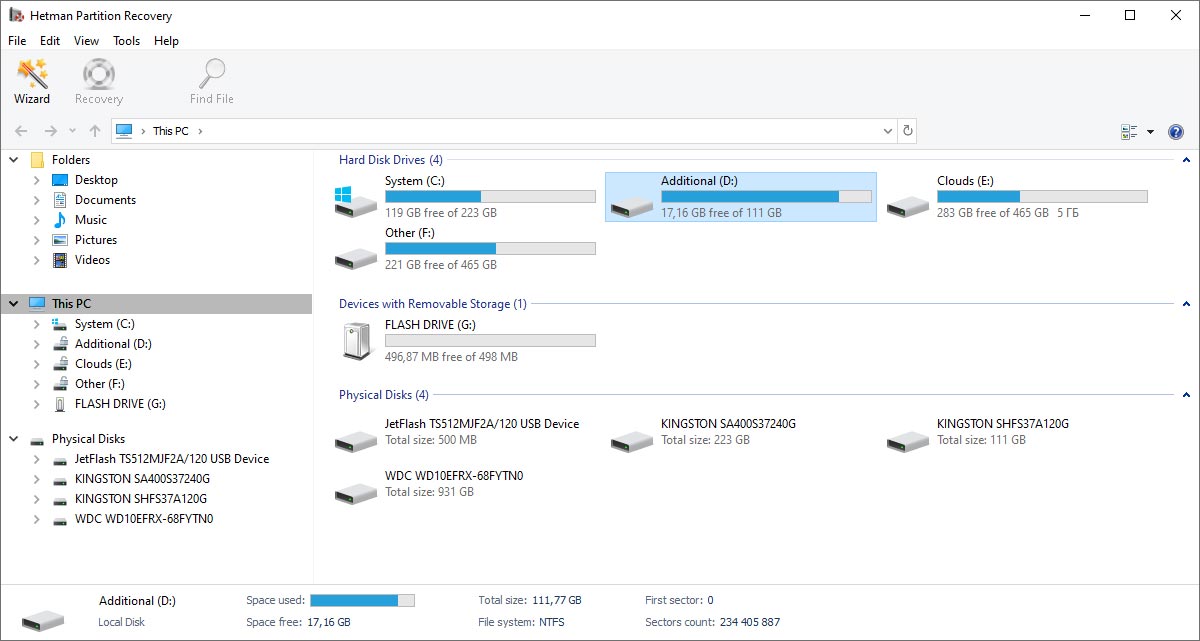
Hetman Partition Recovery's main window, with hard disk drives, removable storage and a Physical Disks group for scanning a whole device.
Hetman Partition Recovery reads the widest range of file systems of these three: NTFS, ReFS, FAT and exFAT, plus APFS, HFS+, Ext2/3/4, XFS, Btrfs and others. It works in read-only mode, can image a disk with bad sectors before the scan, and saves its scan results so a long analysis doesn't have to run again after you buy. The trial lets you see everything but saves nothing, so the preview is your only test. Take that seriously, because Hetman's refund policy is strict: it usually refuses a refund if you skipped the trial, if the trial already showed damaged files, or once your key has saved files.
What we like
- One-time lifetime license
- Reads Mac and Linux file systems on a Windows PC
- Built-in disk imaging and saved scans
- Also runs on macOS and Linux
Watch out for
- The trial can't save a single file
- Home excludes encrypted storage and Apple disk images
- Strict refund conditions
- Home is for personal, non-commercial use
What users say about Hetman
Trustpilot showed a split 3.8 out of 5 from 88 reviews on November 6, 2026, with 74% five-star and 24% one-star. Stefan Feeser wrote: "By my own mistake I lost data of an external USB disk and with Partition Recovery I was able to recover all data fully."
On the other side, AMINE NDF wrote: "all recovered files were corrupted and unusable." and Leo Blok said of a refund request: "They refused it, because there is a free try you can download."
Download Hetman Free TrialBuy Hetman Partition Recovery
Hasleo Data Recovery Professional: for deleted files on a small budget
Hasleo Data Recovery Professional is a Windows program at $49 once for one PC, with lifetime upgrades.
Best for: deleted or formatted files on a drive that's otherwise healthy, starting with the 2 GB Free edition.

Hasleo Data Recovery's device list, showing each partition's file system and capacity with a Scan button at the bottom.
Hasleo Data Recovery is the cheapest route here, and Hasleo's Deep Scan handles formatted, corrupted and RAW partitions as well as plain deletions. Keep the two downloads straight. The button below is the trial of the paid edition, which saves only several files. The Free edition is a separate download on Hasleo's site and saves 2 GB. On Windows Home Edition you can get unlimited free recovery, but only by sharing the product online and asking for a one-year Home key, with no technical support. There's no disk imaging, so don't use it on a drive that's failing.
What we like
- Free edition saves 2 GB
- $49 once, no renewal
- Scan results can be exported and reloaded
Watch out for
- No disk imaging
- BitLocker needs the $69 Ultimate edition
- Free edition leaves out Windows Ultimate, Enterprise and Server
- Little independent testing
What users say about Hasleo
Hasleo has little independent coverage, so run it on your own data before relying on it. On Hasleo's own forum, ricardogroto wrote: "Honestly, all your software is great." In September 2026 masmox reported a bad result: "I recovered the data (videos, documents, etc.—none of which were encrypted or otherwise blocked); however, I subsequently discovered that all the recovered files were 0 bytes in size and therefore unusable." Hasleo's reply: "we'll refund you as soon as possible."
Download Hasleo Free TrialBuy Hasleo Data Recovery
Price and free limits side by side
Price for one PC (USD)
Stellar Data Recovery Professional (one year)$79.99
Hetman Partition Recovery Home (one-time)$67.95
Hasleo Data Recovery Professional (one-time)$49.00
Prices at checkout, read on November 10, 2026.
Data you can save without paying (GB)
Hasleo Data Recovery Free2 GB
Stellar Data Recovery free version1 GB
Hetman Partition Recovery0 GB
Limits from the vendors' edition tables and FAQs, read on November 10, 2026.
Which should you choose?
| Your situation |
Pick |
Why |
| Under 2 GB of deleted files |
Hasleo Free |
It may cost you nothing |
| More than 2 GB deleted, healthy drive |
Hasleo Professional |
$49 once, and the lowest price here |
| Windows or exFAT drive shows RAW |
Stellar Professional |
Physical Disk scan, with a free preview of what it finds |
| Mac, Linux or media-device drive shows RAW |
Hetman Partition Recovery |
It reads those file systems on Windows |
| Read errors, drive may be dying |
Stellar Professional |
Image first, then scan the image |
| BitLocker-encrypted external drive |
Stellar Professional |
Included, where the other two need a higher edition |
| Clicking, or not detected anywhere |
A data recovery lab |
Software can't help and can do harm |
Who should skip each one: skip Stellar Data Recovery Professional if you want to pay once and never think about a renewal. Skip Hetman Partition Recovery if you'd like to save a file or two before paying, or need BitLocker on the Home license. Skip Hasleo Data Recovery if the drive is failing, because it can't make an image first.
What commonly goes wrong
- Saving recovered files back to the same external drive. That overwrites the data you're still trying to rescue. Save to the computer's internal drive or a second external drive.
- Buying before previewing. A complaint you'll see about all three programs is files that were listed but wouldn't open. A file that previews correctly is the one you can count on.
- Expecting the original names. When the file system is badly damaged, recovery falls back on searching for file types, and you may get "File 00001.jpg" with no folders.
- Stopping a long scan too early. A Deep Scan of a multi-terabyte USB drive can run for many hours. Use a port that won't get bumped, and save the scan so you can return to it.
- Treating a dying drive like a healthy one. Repeated scans on a drive with bad sectors can use up its remaining life. One image, then work from the image.
- No program recovers overwritten data. Stellar says outright that no software can guarantee full recovery, and that's true of all three.
FAQs
Can I recover data from an external hard drive for free?
Yes, if the amount is small. Hasleo Data Recovery's Free edition saves up to 2 GB and Stellar's free version saves up to 1 GB, while Hetman Partition Recovery only scans and previews for free.
Why is my external hard drive not showing up on Windows?
An external hard drive that's missing from File Explorer usually has a bad cable or port, no drive letter, or a damaged file system. Check Disk Management: if the drive is listed there, it's a software problem you can usually fix. If it isn't listed on any computer, it's a hardware problem.
Will CHKDSK fix a RAW external hard drive?
Usually not, and it isn't the first thing to try. CHKDSK typically refuses to run on a RAW drive, and on a damaged but readable one its repairs can change the records that recovery software needs. Recover first, repair afterward.
Can I recover a Mac-formatted external drive on a Windows PC?
Yes, with Hetman Partition Recovery, which reads APFS and HFS+ on Windows. Hasleo Data Recovery reads HFS+ but not APFS, and Stellar Data Recovery Professional for Windows doesn't list either.
How long does it take to recover an external hard drive?
Plan on hours for a Deep Scan of a large USB drive, and on longer if it has bad sectors. Stellar Data Recovery lets you pause and resume, while Hetman Partition Recovery and Hasleo Data Recovery can save scan results so you don't have to scan twice.
How much free space do I need for the recovered files?
You need free space on a different drive at least as large as the files you want back, and as large as the whole external drive if you make a disk image with Stellar Data Recovery Professional or Hetman Partition Recovery.
Conclusion
Most external drive problems are solved by what you don't do: don't write to it, don't format it and don't run CHKDSK until your files are safe. Check the cable and Disk Management first, because those are free. For small deletions, Hasleo Data Recovery's Free edition is the place to start, and Hetman Partition Recovery is the one for Mac or Linux drives. Our main pick for a drive that's RAW or starting to fail is Stellar Data Recovery Professional: the free preview shows what it can get back, and the disk imaging is what protects a dying drive. The one reason not to buy it is the yearly renewal. And if the drive clicks, none of these will help, so turn it off and call a lab.
Download Stellar Free TrialBuy Stellar Data Recovery