Short answer: open both files in ABBYY Compare Documents, the comparison tool in ABBYY FineReader PDF Corporate, set the document language, and click Compare. FineReader runs OCR on the scan, lists every added, deleted and edited piece of text, and saves the result as a Word file with Track Changes, a PDF with comments or a table of differences.
It takes a few minutes for a typical contract, works on Windows 10 and 11, and you can do it free for 7 days with the FineReader PDF trial. FineReader PDF Standard and the Mac version don't include this tool.
At a Glance
| What you need to know |
Answer |
| Tool | ABBYY Compare Documents, part of FineReader PDF Corporate |
| Price | $165 a year, $24 a month or $446 for 3 years |
| Free trial | ✓ 7 days with every Corporate feature |
| Word file vs scanned PDF | ✓ (OCR runs on the scan first) |
| What it reports | Added, deleted and edited text, grouped into body text, headers and footers, and numbering |
| What it ignores | Formatting, fonts, spaces and tabs |
| Ways to save the result | Word with Track Changes, PDF with comments, Word table of differences |
| Runs on | Windows 11 and 10, 64-bit (✗ Mac) |
How we put this guide together
- Followed ABBYY's FineReader PDF 16 user guide for Compare Documents: opening files, the comparison options, reading the results and saving them.
- Checked which editions include the tool in ABBYY's edition comparison table.
- Checked prices for the monthly, yearly and 3-year Corporate plans on the order page.
- Read independent reviews of the comparison tool, including a hands-on test.
What we checked: the Corporate plans at $24 a month, $165 a year and $446 for 3 years on the order page, and the current Windows build 16.26.6.6004, on October 28, 2026. The steps come from ABBYY's documentation and screenshots; we didn't run our own comparison of a real contract.
Why Compare a Word File With a Scan at All?
You send a contract as a Word file. It comes back printed, signed and scanned. The question every lawyer, buyer and HR manager has then is simple: is this the same text I sent? Word's own Compare feature can't help, because a scan is a picture of text, not text. Reading both side by side works, but it's slow and it's exactly how a changed payment term or notice period gets missed.
ABBYY FineReader PDF Corporate solves it by recognizing the text in the scan first and then comparing words, not pixels. That's why it can match a DOCX against a scanned PDF, an ODT against a photo of a page, or two scans of different versions.
What You Need Before You Start
- ABBYY FineReader PDF Corporate, or the free 7-day FineReader PDF trial, installed on 64-bit Windows 10 or 11. A Standard license shows a message that Compare Documents isn't available under that license.
- Both versions of the document in formats FineReader opens: Word, PDF (digital or scanned), image files and other office formats.
- A readable scan. Scans at a normal office resolution, straight and in focus, compare far better than a phone photo taken at an angle.
- The document's language. FineReader recognizes 198 languages and needs to know which ones the document uses.
What Compare Documents does well
- Compares different formats, scans included
- Ignores formatting noise, reports real text changes
- Exports to Track Changes for Word users
- Separates header, footer and numbering changes
Watch out for
- Corporate edition only, Windows only
- OCR errors on poor scans can show up as false differences
- Formatting changes aren't reported
- Slow on long documents, according to reviewers
Step by Step: Comparing the Two Documents
- Open ABBYY Compare Documents. Start FineReader PDF and click Compare on the left of the start screen, then Open ABBYY Compare Documents. You can also find it in the Windows Start menu, in the PDF Editor's File menu, or by right-clicking the files in File Explorer.
- Load the first version. Drag your Word draft onto the left display area, or click the area and browse to it.
- Load the second version. Drag the scanned PDF onto the right display area. Ctrl+Tab switches between the two.
- Choose the document language from the list on the Compare tab in the right-hand pane. For a bilingual contract, select both languages.
- Set the options (see the next section): whether to report punctuation and one-letter differences, and how PDFs are read.
- Click Compare. A progress window shows the comparison running, with tips and any warnings.
- Review the Differences tab. The count appears on the tab and above the documents, and every difference is highlighted in both versions.
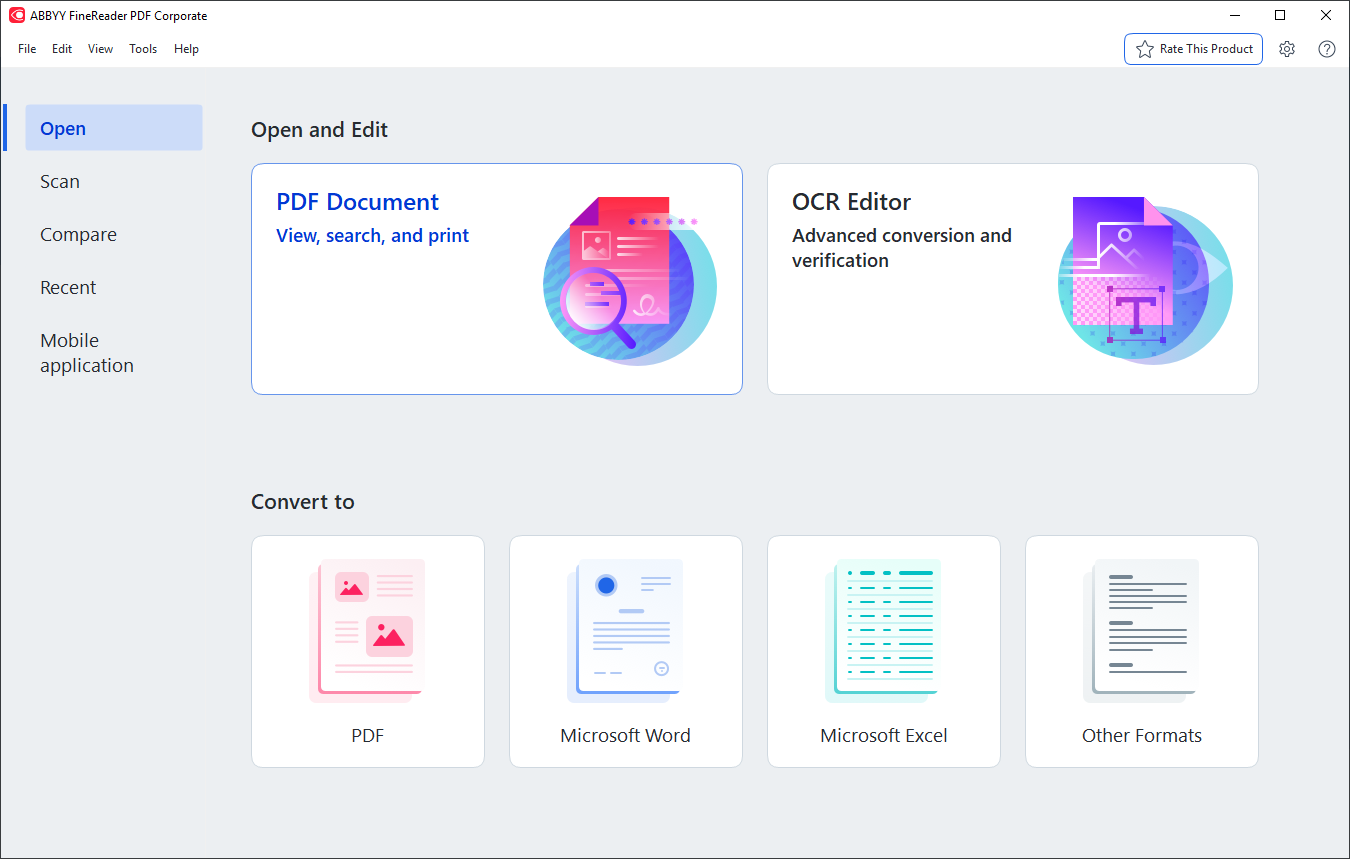
The ABBYY FineReader PDF Corporate start screen. Compare, on the left under Open and Scan, leads to ABBYY Compare Documents.
The Settings That Change Your Results
For a scan, the defaults are usually right; for a PDF with a doubtful text layer, change the recognition mode. ABBYY Compare Documents has a few options on the Compare tab and under Advanced options:
| Option |
What it does |
When to change it |
| Find differences in punctuation | Reports changed punctuation and hyphenation | Turn off if OCR of a scan fills the list with stray commas and periods |
| Find one-letter differences | Reports spelling changes as small as one letter | Keep on for contracts: "$1,000" changed to "$7,000" is a one-character difference |
| PDF recognition mode | Use only the PDF's text (default), choose automatically between OCR and the text, or always use OCR | Pick Use OCR for a PDF whose hidden text layer came from a poor scanner OCR. Slower, but ABBYY says more reliable |
| Find headers and footers automatically | Separates header and footer text from the body | Turn off for documents that have none |
Image-only scans are always recognized with OCR, so the recognition mode matters only for PDFs that already contain text.
Reading the Differences

A DOCX agreement (left) compared with its PDF version (right): 19 differences, listed as Text added (a company name, an address, a signatory), Text edited ("ninety (90)" became "one hundred twenty (120)") and Text deleted, with the Save menu open.
ABBYY Compare Documents lists every difference on the right and highlights it in both documents. Each item says whether text was added, deleted or edited, and on which page. An edited fragment shows both the old and the new wording, so "ninety (90)" next to "one hundred twenty (120)" is impossible to miss.
- Move through the list with the arrow buttons on the Differences tab, Ctrl+Right Arrow and Ctrl+Left Arrow, or by clicking a highlighted spot in either document. Both documents scroll together by default.
- Use the groups. Differences are grouped into body text, headers and footers (a changed page number, for example) and numbering (renumbered lists). The body text group is the one to read first.
- Remove noise. Select a difference and click the delete button, or right-click it and choose Ignore Difference. Hold Ctrl to remove several, or use Ignore Identical Differences for a repeated one. Removed items don't appear in the saved report.
- Copy a difference with right-click and Copy Difference, to paste it into an email to the other side.
Saving and Sharing the Result
For people who work in Word, save a Track Changes file; for everyone else, save a PDF with comments. Click Save on the Differences tab and pick the format from the list next to it (it remembers the last one you used):
- Microsoft Word file with Track Changes, for either document, which drops the differences into the review workflow lawyers and editors already use.
- PDF with comments, where each difference is a comment on the page, readable in any PDF viewer.
- Word table of differences, a comparison report that lists every change, good for a file note or an audit trail.
ABBYY points out that a saved Word file is a recognized copy of the original, so it can contain visual differences and OCR errors. Use it to see what changed, and keep the signed scan as the document of record.
What reviewers found
Raymond Pon of TheSweetBits first compared a document with itself: "We tried using the same document on both sides to compare, which it correctly recognized with 'No difference found'." Then he edited one copy: "This time too, the tool recognized all the changes made accurately." His one complaint was that "the processing time for documents was quite slow." (Read through a summarizer.)
TechRadar lists "Compares docs in different formats" among its reasons to buy FineReader PDF (Krishi Chowdhary, updated February 27, 2026).
Ray M., President, Government Relations, quoted by ABBYY: "What I like the most is the compare documents function."
Comparing Many Documents
ABBYY Compare Documents can also be run from the command line, which suits IT teams that need to check batches of document pairs. ABBYY's user guide documents a Comparator.exe /compare command with parameters for the two files, the language, the PDF recognition mode, and options to ignore punctuation or one-letter differences, skip header and footer detection, or leave differences ungrouped. Results can be saved from the command line too. For a whole team, ABBYY sells per-seat, concurrent and remote-user Corporate licenses through its sales team.
Which Tool Should You Use?
| Your situation |
Pick |
Why |
| One side of the comparison is a scan | FineReader PDF Corporate | OCR first, then a word-level comparison across formats |
| You have one comparison job this year | The 7-day trial, or one $24 month | No need for a yearly plan |
| Both versions are digital contracts and you want a PDF editor with a one-time price | Wondershare PDFelement | Its Agreement Compare shows two contract versions side by side |
| You're on a Mac | Not FineReader | FineReader PDF for Mac has no document comparison |
Wondershare PDFelement ($129.99 one-time at checkout) added Agreement Compare in version 13, which highlights additions, deletions and changes between two versions of a contract. We found no claim from Wondershare that it compares a Word file with a scanned copy, so for scans FineReader PDF Corporate is the tool built for the job.
Download PDFelement TrialBuy Wondershare PDFelement
For more on how the FineReader editions differ, see our FineReader PDF Standard vs Corporate vs Mac comparison.
What commonly goes wrong
- A bad scan creates fake differences. OCR misreads on a blurry or crooked scan show up as "edits" that nobody made. Rescan at a decent resolution, or turn off punctuation differences to cut the noise.
- Trusting a weak text layer. A PDF that already has text from a cheap scanner's OCR is compared on that text by default. Switch PDF recognition mode to Use OCR.
- Wrong language. A French clause recognized as English produces garbage. Select every language the document uses.
- Expecting formatting changes. Compare Documents ignores fonts, formatting, spaces and tabs by design. A changed bold or a new table border won't be reported.
- Buying Standard. FineReader PDF Standard has the Compare button on its start screen but no license for the tool.
FAQs
Can Microsoft Word compare a Word document with a scanned PDF?
No. Microsoft Word's Compare feature works on two Word documents. A scanned PDF has to be recognized with OCR first, which is what ABBYY FineReader PDF Corporate's Compare Documents does automatically.
Can ABBYY FineReader PDF compare two scanned PDFs?
Yes. ABBYY FineReader PDF Corporate compares documents in any format FineReader supports, and recognizes image-only scans with OCR before comparing, so two scans of different versions work too.
Does FineReader PDF Standard include Compare Documents?
No. ABBYY FineReader PDF Standard shows a message that Compare Documents isn't available under its license. The tool comes with FineReader PDF Corporate, and the free trial includes it.
Will FineReader Compare Documents catch formatting changes?
No. ABBYY Compare Documents reports added, deleted and edited text and ignores minor differences in formatting, fonts, spaces and tabs. Use Word's own comparison for formatting in two Word files.
Can I compare documents in languages other than English?
Yes. ABBYY FineReader PDF Corporate recognizes 198 languages, and you choose the document's languages on the Compare tab before starting, including more than one for a bilingual document.
Can I compare documents with FineReader on a Mac?
No. ABBYY FineReader PDF for Mac doesn't include Compare Documents. It's available only in FineReader PDF Corporate for Windows 10 and 11.
Is the comparison saved as Word Track Changes accurate enough to sign?
No. ABBYY says a saved Word file is a recognized copy that may contain recognition errors and visual differences, and should be used to view the differences only. Sign and file the original documents.
Conclusion
If one of your two versions is a scan, ABBYY FineReader PDF Corporate is the straightforward way to compare them. Load both files, pick the language, click Compare, and save a Track Changes file or a commented PDF. It catches the one-number change a tired reader misses, and the free 7-day trial is enough for a one-off job.
The catch is that the tool lives only in the $165-a-year Corporate edition on Windows. If you'd use it once a year, take the trial or a single month instead of a yearly plan.
Download FineReader PDF TrialBuy FineReader PDF Corporate