Short answer
To speed up a slow Windows 11 PC, find out what's slowing it first (Task Manager, Ctrl + Shift + Esc), then work through the free fixes built into Windows: install updates, scan for malware, free up disk space with Storage Sense, uninstall apps you don't use, disable startup apps, and restart. That's enough for many PCs.
If you'd rather not repeat those steps by hand every month, Advanced SystemCare 20 PRO ($19.99 a year for one PC) does most of them in one scan, finds duplicate and large files Windows doesn't, and keeps doing it in the background. It can't fix a PC that's simply short of memory or still running on an old hard drive.
At a glance
| What's slowing the PC |
Free fix in Windows 11 |
What Advanced SystemCare 20 PRO adds |
| Too many startup apps |
Task Manager > Startup apps > Disable |
Startup Optimizer shows each item's boot time, and also covers services, scheduled tasks and browser startups |
| A full C: drive |
Storage Sense, Temporary files, Disk Cleanup |
Custom Clean also finds duplicate and large files |
| Background apps using memory |
Background app permissions, one app at a time |
Turbo Boost (Work, Game, Economy) and automatic RAM release |
| Outdated software |
Each app's own updater |
Software Updater updates all outdated programs in one click |
| Malware |
Windows Security Quick scan |
Spyware Removal, and a check that your antivirus is on (not an antivirus itself) |
| Doing it all again next month |
Storage Sense can run on a schedule; the rest is manual |
AutoCare runs maintenance in the background |
| Old hard drive or too little RAM |
No software fix: upgrade the hardware |
No software fix either |
How we put this guide together
- The Windows steps and menu paths come from Microsoft's own support article on improving PC performance in Windows, including its warnings.
- The Advanced SystemCare steps come from IObit's Advanced SystemCare user manual, which IObit updated with version 20 screens in October 2026, and from the program's Free vs PRO table.
- What we checked: the Advanced SystemCare 20.0.1.256 installer (58.3 MB, signed by IObit Co., Ltd.) downloaded from IObit and the $19.99 one-PC price on the order page, on October 27, 2026. This is a how-to guide built from Microsoft's and IObit's documentation. We didn't benchmark a PC before and after each step.
Step 1: find out what's actually slow
Open Task Manager with Ctrl + Shift + Esc before you change anything. The Processes tab sorts programs by CPU, Memory and Disk use, so the culprit is often obvious: a browser with 40 tabs, a cloud sync app stuck uploading, an antivirus scan, or Windows Update installing in the background. Close the apps you aren't using. Then look at the Performance tab:
- Memory near 100% most of the time means the PC needs fewer apps open at once, or more RAM.
- Disk at 100% for minutes on end usually means an old spinning hard drive, or a drive that's nearly full.
- CPU high with nothing open points to a background task, an update, or malware.
Knowing which of the three it is tells you which of the steps below will help, and saves you from "optimizing" a PC whose real problem is hardware.
Step 2: install updates and scan for malware
Windows updates often include performance and driver fixes. In Windows 11, go to Start > Settings > Windows Update > Check for updates, and for drivers, Windows Update > Advanced options > Optional updates. Microsoft notes the PC may restart to finish.
Malware can use CPU and disk in the background. Run a scan at Start > Settings > Privacy & security > Windows Security > Virus & threat protection > Quick scan. Windows Security (Microsoft Defender) is built in and free, so there's no need to buy an antivirus just for this step.
Step 3: free up disk space
A nearly full system drive slows everything down, because Windows needs room for updates, temporary files and its page file. Windows 11 has three built-in cleaners:
- Storage Sense: Start > Settings > System > Storage > Storage Sense > Run Storage Sense now. You can also set it to run automatically.
- Temporary files: Start > Settings > System > Storage > Temporary files > Remove files.
- Disk Cleanup: type "Disk Cleanup" in Start, choose the drive, and tick what to remove.
What none of them does is find duplicate files or show you your largest files, which on a family PC are often where the gigabytes are: the same photos imported twice, old installers and ISO files in Downloads, videos you forgot about. That's one place where a PC care tool earns its keep (see Step 9).
Step 4: uninstall apps you don't use
Every installed app takes space, and many add a startup entry, a background service or an updater. Remove the ones you don't use at Start > Settings > Apps > Installed apps, then the ... menu next to the app > Uninstall. Pre-installed trial software on a new laptop is the usual first candidate.
Step 5: disable startup apps
Startup apps are the most common reason a PC takes ages to become usable after you log in. Press Ctrl + Shift + Esc, choose Startup apps, right-click anything you don't need the moment Windows starts, and select Disable. The app still works when you open it yourself. Keep your antivirus, touchpad, audio and graphics drivers enabled, and disable chat apps, game launchers, cloud apps you rarely use, and "helper" tools for printers or phones.
Task Manager only lists startup apps. Windows services and scheduled tasks that launch at boot aren't on that list.
Step 6: stop background apps
Some apps keep running when you aren't using them. In Windows 11, open Start > Settings > Apps > Installed apps, choose ... > Advanced options for an app, and under Background app permissions set "Let this app run in the background" to Never. You have to do this one app at a time, and not every app offers the setting.
Step 7: trade looks for speed
On older or low-powered PCs, two settings help:
- Visual effects: type "Adjust the appearance and performance of Windows" in Start, open it, and on the Visual Effects tab choose Adjust for best performance. Windows looks plainer, with fewer animations.
- Power mode: Start > Settings > System > Power & battery > Power mode > Best performance. Microsoft warns that on laptops this "will drain the battery more quickly and may cause the device to run warmer."
Step 8: optimize the drive, cut notifications, restart
Type "Defragment and Optimize Drives" in Start, select the drive and click Optimize. Windows defragments hard drives and trims SSDs, and normally does this on a schedule already. Turn off notifications from apps you don't need at Start > Settings > System > Notifications. Then close everything and restart: a PC that's been asleep for weeks rather than restarted often speeds up from that alone.
Step 9: let Advanced SystemCare 20 PRO do the repeat work
- Price: $19.99 for one PC for one year on the order page (list price $29.99). A Free edition covers the basic junk clean and startup speed-up
- Version: 20.0.1.256, released as version 20 on September 9, 2026
- Windows: 11, 10, 8.1, 8, 7, Vista and XP, with 300 MB of free disk space
- Best for: people who want Steps 2 to 8 done in one place and repeated automatically
Advanced SystemCare 20 PRO's main Care scan covers most of what you just did by hand in one pass: it has 16 modules, including Junk File Clean, Privacy Sweep, Registry Clean, System Optimization, Disk Optimization, Software Health (outdated programs), Hardware Health (outdated drivers), Spyware Removal and Vulnerability Fix, which downloads missing Windows patches from Microsoft. It also checks that your antivirus and firewall are on.
It goes further than Windows in three places:
- Custom Clean (new in version 20) scans a drive for junk files, duplicate files and large files, the part Storage Sense leaves to you.
- Startup Optimizer shows the boot time and "disable rate" of each startup item, and manages services, scheduled tasks and browser startups as well as the apps Task Manager lists.
- AutoCare and automatic RAM release (PRO only) keep doing the cleanup in the background, so you don't have to remember.
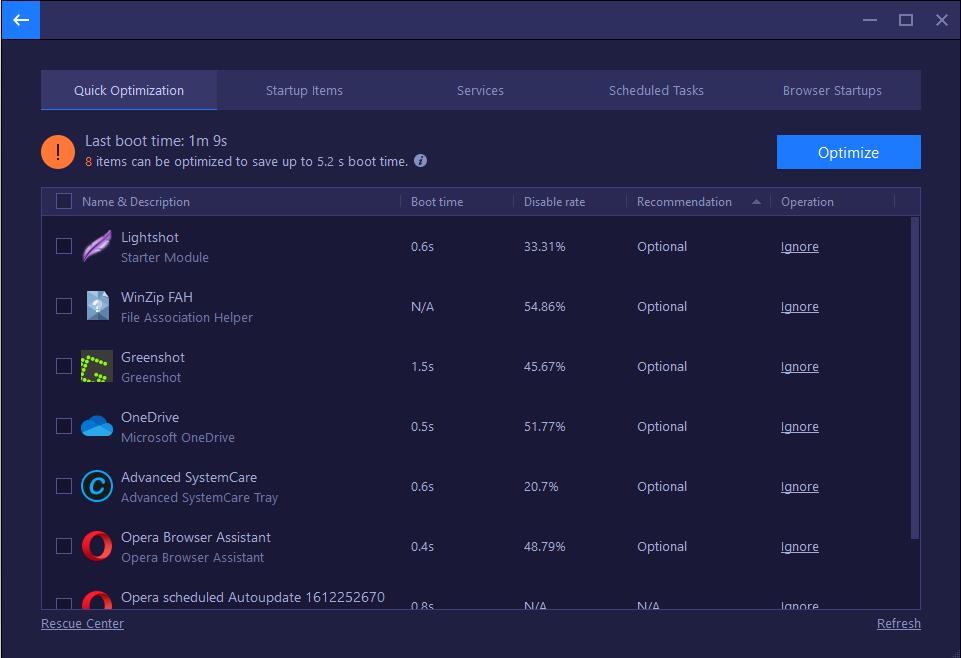
Advanced SystemCare's Startup Optimizer: last boot time 33 s, 13 items that could save up to 6.6 s, each with its boot time, disable rate and an Ignore link, plus tabs for Services, Scheduled Tasks and Browser Startups.
How to run it
- Install and check the settings. Run the 58 MB installer, decline offers you don't want, and before the first scan open Settings to check what Privacy Sweep may delete, so saved logins and cookies you rely on survive. IObit's manual recommends this.
- Run Care. Leave AI Mode on and click Scan, or choose Manual Mode to tick modules yourself. Click each module under Summary to see what it found, right-click anything you want to keep and choose Ignore, then click Fix.
- Run Custom Clean. Pick the drive, scan, and open Duplicate Files and Large Files before cleaning. They're marked "Review before cleaning" because a second copy of a photo or a big video isn't junk to everyone.
- Open Speed Up. Run the Startup Optimizer, and turn on Turbo Boost in Work, Game or Economy mode to stop unneeded services and background apps.
- Turn on AutoCare and Auto RAM Clean under Real-time TuneUp so maintenance keeps running.
- Undo if needed. Rescue Center lists each change by date with an Undo Changes button, and can create a Windows restore point.
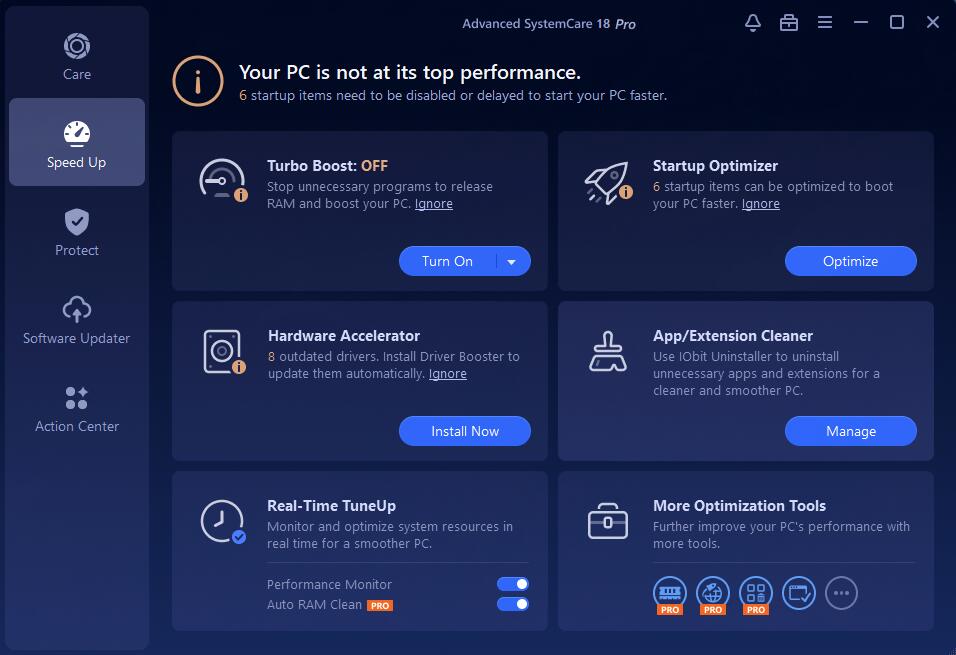
The Speed Up screen in Advanced SystemCare 20 Pro: Turbo Boost off, 32 startup items to optimize, Real-Time TuneUp switches for AutoCare and Auto RAM Clean, and two cards offering to install Driver Booster and IObit Uninstaller.
What Custom Clean found on the PC in IObit's manual (GB)
Large files (158 files)5.3 GB
Duplicate files (29,964 files)4.0 GB
Junk files (982 files)0.9 GB
From the Custom Clean results screen in IObit's Advanced SystemCare 20 manual: 10.1 GB found in total. Your numbers will differ. The point is the proportion: on that PC, ordinary junk was the smallest of the three.
What we like
- One scan replaces most of the manual steps
- Finds duplicates and large files Windows doesn't
- Startup Optimizer covers services and tasks, not just apps
- Rescue Center can undo its changes
- $19.99 a year, with a Free edition to try first
Watch out for
- A yearly subscription that renews
- Offers for Driver Booster, IObit Uninstaller and others inside the app
- Not an antivirus: keep Windows Security on
- IObit's refund policy excludes a change of mind
Download Advanced SystemCare FreeBuy Advanced SystemCare 20 PRO
Wondering whether you need PRO, the Free edition or Ultimate with its antivirus? Our Advanced SystemCare Free vs Pro vs Ultimate comparison covers the differences and prices.
Step 10: know when it's the hardware
Microsoft's own guide says it plainly: "Older PCs with outdated hardware may not see significant improvements from these steps." No cleaner, Windows' or IObit's, changes that. Three signs it's time for hardware rather than software:
- The system drive is a spinning hard disk. If Task Manager's Performance tab shows "HDD" and the disk sits at 100% after startup, moving Windows to an SSD is the single biggest speed-up an older PC can get.
- Memory is full with only a browser and one app open. More RAM, if the PC allows it, is the fix.
- It's still on Windows 10. Microsoft stopped free Windows 10 updates after October 14, 2025, and recommends moving to Windows 11 if the PC supports it.
Which approach should you take?
| Your situation |
Do this |
Why |
| Comfortable in Settings and Task Manager, PC slow once a year |
Steps 1 to 8, free |
Windows has the tools, and you don't need them often |
| A family PC you don't want to babysit |
Advanced SystemCare 20 PRO with AutoCare on |
Maintenance runs itself, and Rescue Center can undo mistakes |
| C: drive full and you can't see why |
Storage Sense, then Advanced SystemCare's Custom Clean |
Duplicates and large files are what Windows' cleaners miss |
| Slow boot with a long startup list |
Task Manager first; Startup Optimizer if services and tasks are the problem |
Task Manager only shows startup apps |
| Disk at 100% on an old hard drive |
Replace it with an SSD |
No software makes a hard disk faster |
Who should skip a paid PC care tool: anyone happy to do the steps above a couple of times a year, PCs where Task Manager shows the problem is hardware, and people who won't tolerate pop-up offers for other products.
What commonly goes wrong
- Disabling a driver's startup entry. Touchpad, audio and graphics helpers look like clutter but control hardware. If something stops working after a cleanup, re-enable it in Task Manager or undo it in Rescue Center.
- Deleting files that weren't junk. Downloads, duplicate photos and large videos may matter to someone else in the house. Review the lists before cleaning.
- Clearing every cookie. Privacy cleaners log you out of every website. Check what Privacy Sweep (or any cleaner) will delete before the first run.
- Running two antivirus programs. A second real-time scanner slows the PC it's meant to protect. Windows Security is enough for most people.
- Expecting miracles from a registry clean. Registry cleaning tidies leftovers from uninstalled programs. It won't make an overloaded or old PC fast.
- Never restarting. Sleep isn't a restart. Some updates and fixes only take effect after one.
FAQs
Why is my Windows 11 PC so slow all of a sudden?
A sudden slowdown on Windows 11 is usually a background task: Windows Update installing, an antivirus scan, a cloud app syncing, or a newly installed app that added itself to startup. Open Task Manager (Ctrl + Shift + Esc) and sort by CPU, Memory and Disk to see which one it is.
Do PC optimizer programs actually speed up a computer?
PC optimizers like Advanced SystemCare speed up a computer when the slowdown comes from clutter: too many startup items, a full drive, background apps and outdated software. They do the same jobs as Windows' own tools, faster and automatically. They can't help when the cause is an old hard drive or too little RAM, and IObit's "2× faster" figure is its own claim.
Is it safe to clean the registry?
Registry cleaning is generally safe when the tool backs up what it changes. Advanced SystemCare's Rescue Center keeps a dated backup of every registry fix with an Undo Changes button, and it can create a Windows restore point. Don't expect a big speed gain from it, though: the registry is rarely what makes a PC slow.
Is Advanced SystemCare Free enough to speed up my PC?
Advanced SystemCare Free is enough for an occasional cleanup: it does the junk clean, quicker startup and one-click RAM release. PRO adds the deep clean, registry clean, automatic RAM release, AutoCare and Safe Folder, so it's the one to buy if you want maintenance to run on its own.
Does Advanced SystemCare replace Windows Security?
No. Advanced SystemCare 20 PRO checks that Windows Security and the firewall are on and removes spyware, but it isn't an antivirus. Keep Windows Security running alongside it.
Will turning on Best performance power mode damage my laptop?
No, Best performance power mode won't damage a laptop, but Microsoft warns that it "will drain the battery more quickly and may cause the device to run warmer." Use it while plugged in for demanding work or games, and switch back on battery.
How often should I clean up my PC?
For most home PCs, a full cleanup every month or two is plenty, with Storage Sense or Advanced SystemCare's AutoCare handling the routine junk in between. Do a full pass sooner if the drive is nearly full or the PC suddenly slows down.
Conclusion
Start with Task Manager and Windows' own tools: updates, a malware scan, Storage Sense, removing unused apps, disabling startup apps and a restart fix many slow PCs for free. Advanced SystemCare 20 PRO is worth its $19.99 a year when you'd rather not repeat those steps by hand, when your drive is full of duplicates and large files Windows won't find, or when you're looking after a PC for someone else. If Task Manager shows an old hard drive or full memory, spend the money on hardware instead.
Download Advanced SystemCare FreeBuy Advanced SystemCare 20 PRO