GRBackPro Server Backup: Unattended File Backup That Runs as a Windows Server Service
GRBackPro Server Backup is the Windows Server edition of GRSoftware's GRBackPro: it installs as a Windows service, runs scheduled file backups with nobody logged on, and emails you only when something fails. It supports Windows Server 2003 through 2025 and costs $199 once per server, a license that also covers up to five connected workstations.
Server backup tends to fail quietly: the job that was set up years ago stops reaching the NAS, nobody reads the log, and the problem shows up on the day you need a restore. GRBackPro Server is built for that "install it and forget it" situation, with conditions, retries, error emails and a log you can check remotely.
Quick facts
- Edition: GRBackPro 11 Server (same program as the Workstation edition, Server license)
- Version: 11.3.0, updated October 22, 2026
- Windows Server: 2025, 2022, 2019, 2016, 2012 R2, 2012, 2008 and 2003, 32-bit and 64-bit
- Runs as: a Windows service under an account you specify, so it can reach network shares with no one logged on
- Price: $199 one-time per server; license covers the server plus up to 5 connected workstations
- Trial: 30-day evaluation; 30-day money-back guarantee
- What we checked: the 64-bit installer from GRSoftware (product version 11.3.0, 12.6 MB, dated October 22, 2026), the license terms on the vendor's site, and GRSoftware's buy page on November 4, 2026, which lists the Server license at USD 199.00, a one-time payment. We didn't install it on a server or run a restore.
Before you buy
- Count your workstations. One Server license covers 5 connected workstations. GRSoftware's own example: 30 workstations need 6 Server licenses, and past about 50 the $2,000 Site license is cheaper.
- Files and folders, not bare metal. GRBackPro doesn't make a bootable system image. To rebuild a dead server you install Windows Server and GRBackPro, then restore the data.
- Databases need a plan. Use pre-backup tasks to stop a service (or the database's own dump) so its files are consistent, then restart it afterwards.
- Major versions are paid upgrades. The license includes updates within its major version (all 11.x releases).
Download Free Trial
Overview
On a server, GRBackPro is meant to run in the background as a service. You define sessions (a backup set) made of jobs (a source and destination with their own filters), attach them to scheduler events, and add tasks that run before and after. The program writes every action to log files, and the Report panel shows progress, logs and statistics. When you sign in over Remote Desktop while a service backup is running, starting GRBackPro opens a small Backup Admin window with the current job instead of the full interface.
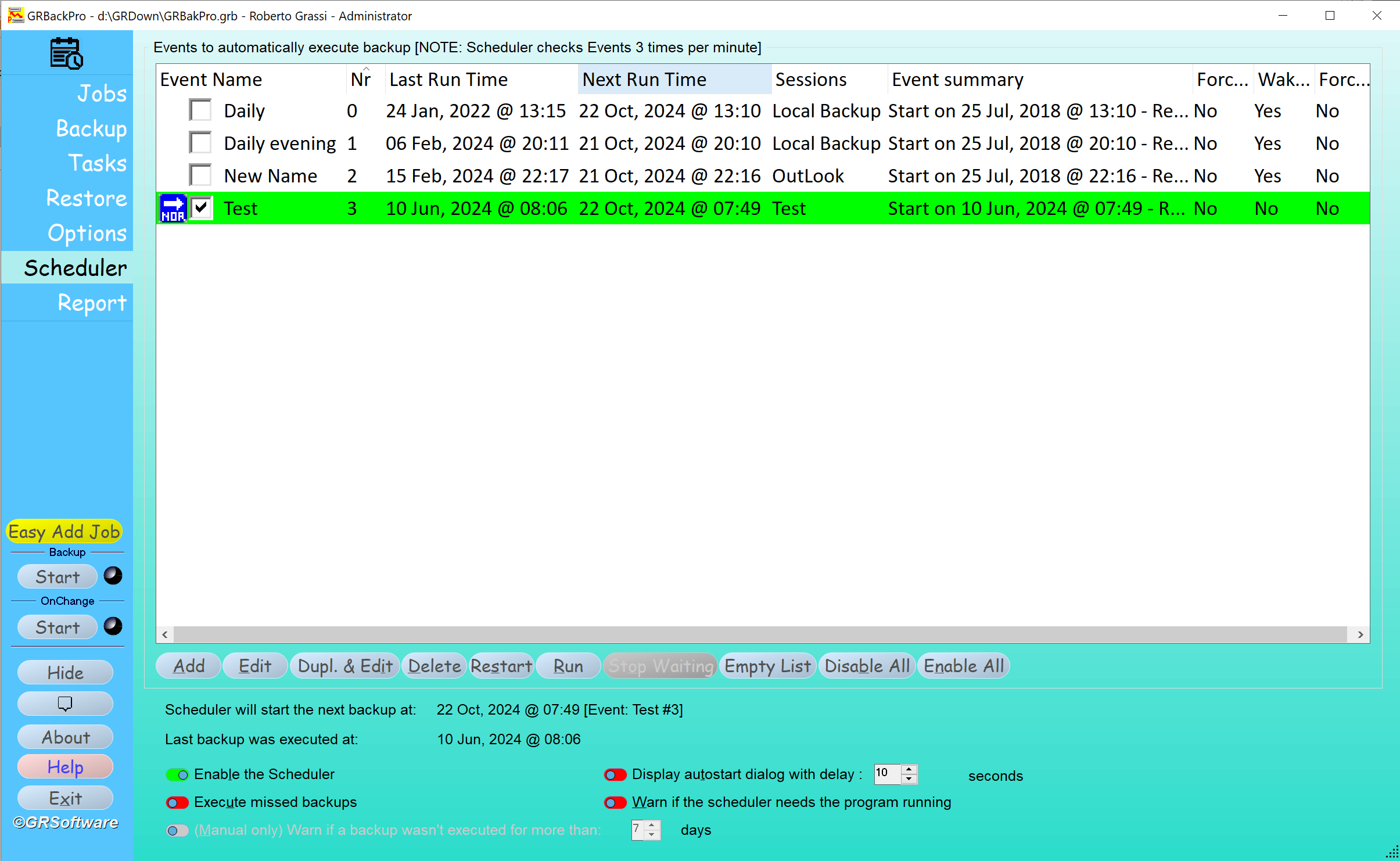
GRBackPro 11.1 running as a service: the Scheduler panel lists events with their last and next run times and sessions, and below them the switches for Enable the Scheduler, Execute missed backups and a 4-minute wake-up before the event.
Features
Service mode with its own credentials
GRBackPro Server installs as a Windows service and logs on with the account you give it in the service options, which is what lets a 2 a.m. backup reach a NAS or another server's share when no user session exists. Turning off "Attended backup" stops error dialogs from pausing an overnight run; errors go to the log instead. Version 11 can also be started with administrator rights from Windows Task Scheduler.
Tasks before and after each backup
GRBackPro Server's Tasks panel runs actions around a backup: close or start a program, stop or start a service, end a process, pause, show a message, or send an email over SSL/TLS. Each task can run always or only when the backup had errors, so the typical server setup stops the service that locks its data files, backs up, restarts it, and emails the log only on failure.
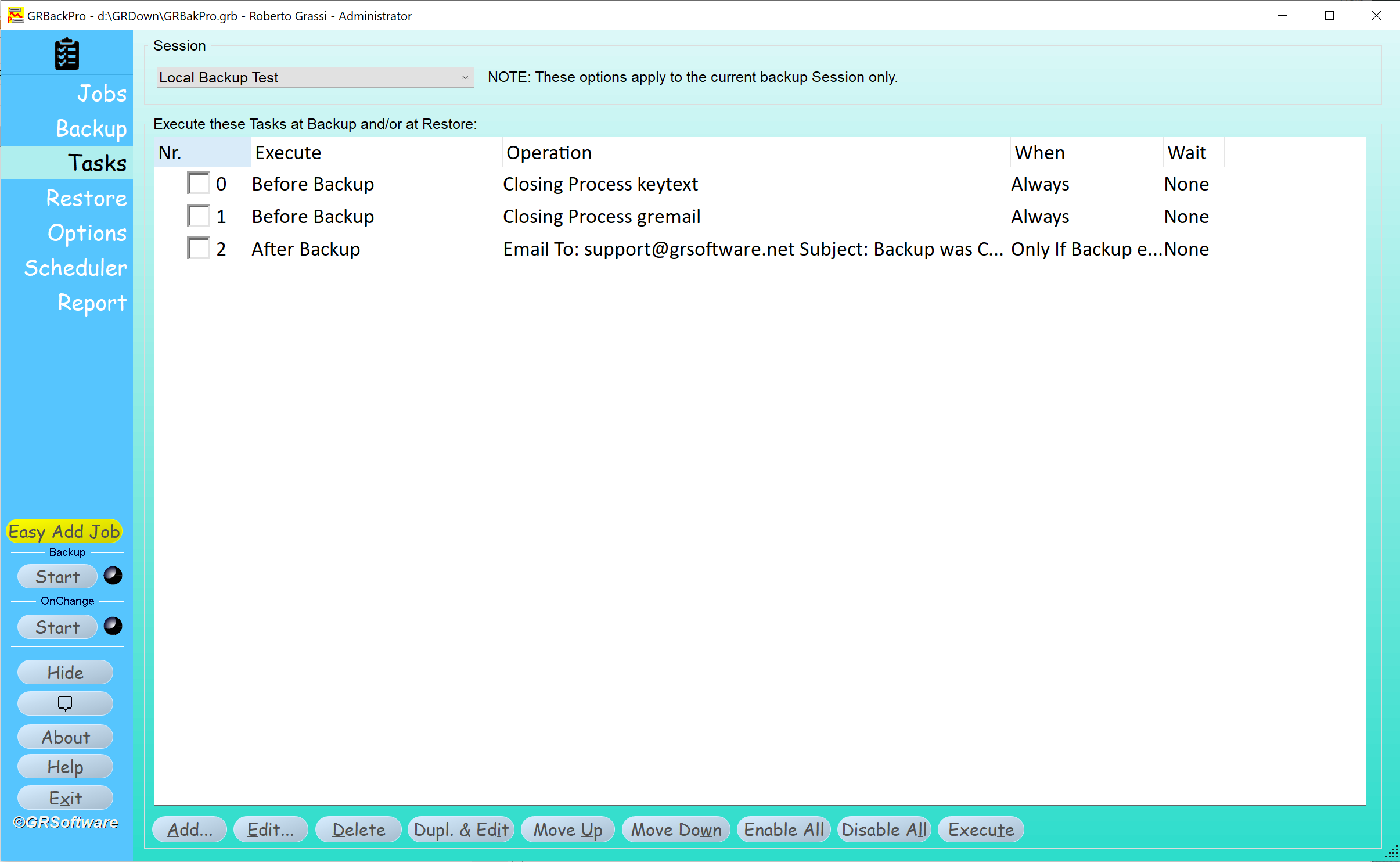
The Tasks panel: two Before Backup tasks that close running processes, and an After Backup email to support that's sent only if the backup had errors.
Conditional scheduling and missed-backup catch-up
GRBackPro Server's scheduler checks its events three times a minute, can require conditions before it starts (for example, that a network drive is available), runs backups that were missed while the server was off, and can warn when no backup has run for a set number of days. Version 11.3 added more control over the event queue.
Open files through Volume Shadow Copy
GRBackPro Server uses the Windows Volume Shadow Copy service to copy files that are open or locked, on both x86 and x64. Since version 11.2.108 it uses VSS in COPY mode rather than FULL mode. Files can go to plain copies or zip archives, with AES-256 encryption and NTFS security attributes kept.
Remote monitoring of a running service backup
GRBackPro Server shows a Service Administration summary when you log on to the server while a service backup is running: the current source and destination path, time elapsed, errors so far, and an Abort button. The full interface returns when the backup completes.
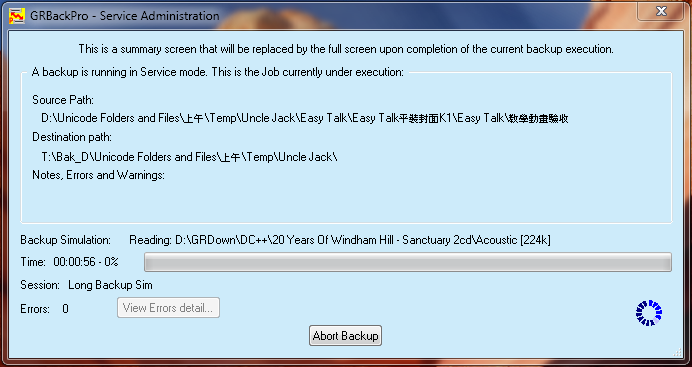
The Service Administration dialog (an older-style window from the vendor's version 11 gallery) during a simulated service backup of Unicode folder names, with Abort Backup.
Restore with verify, simulation and synchronization
GRBackPro Server restores a whole session, a folder or single files, to the original location or another folder, overwriting everything or replacing only newer files. You can verify archive integrity without restoring, simulate a restore, and synchronize, deleting destination files that no longer exist in the backup, with confirmation per folder.
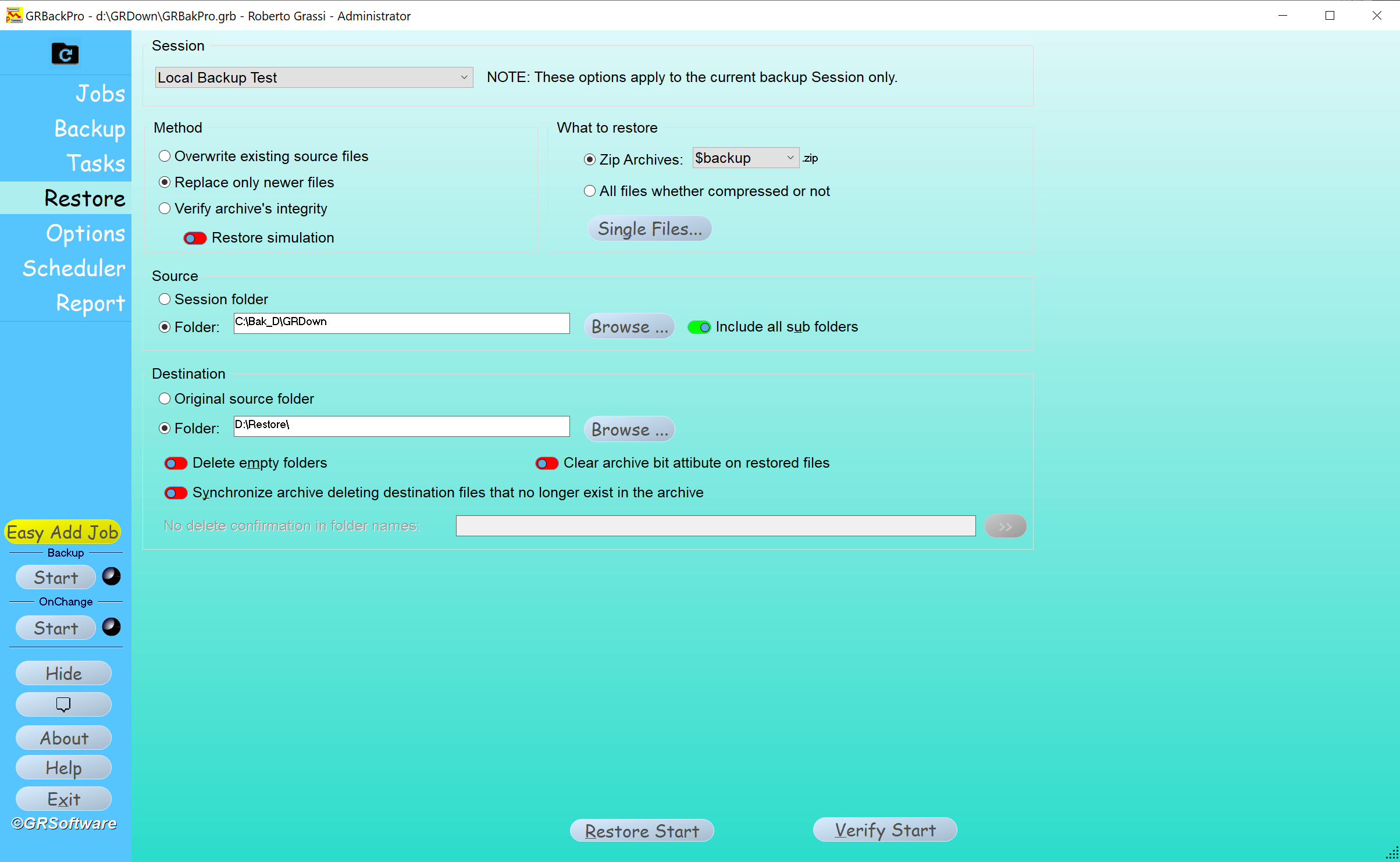
The Restore panel: overwrite, replace only newer files or verify, restore simulation, zip archives or all files, single files, and a source and destination folder.
Benefits
- Predictable cost. $199 per server, paid once, with no per-terabyte or per-month charge.
- Restores don't depend on GRBackPro. The backup mirrors the server's folder tree in plain files or zips, which helps when you rebuild on new hardware.
- Quiet when things work. Error-only emails and logs mean you hear about the backup only when it needs attention.
Real-World Uses
- A small business file server: back up the shared Data folder every night to a NAS, with incremental runs during the week and a full one at the weekend.
- An accounting or line-of-business app: stop its database service before the backup, copy the data folder through VSS, and restart the service afterwards.
- A server plus a few office PCs: one Server license covers the server and five workstations, each backing up its Documents to the server.
- Off-site rotation: write encrypted zip sets to USB drives that are swapped and taken home.
Who It's For, and Who Should Skip It
GRBackPro Server suits small companies and IT consultants running one or a few Windows Servers who want scheduled, unattended file-level backups to disks or shares they control, with a one-time price.
Skip it if you need image-level or bare-metal recovery, Hyper-V or VMware VM backup, application-aware Exchange or SQL Server backup, a central console for many servers, or cloud storage. Enterprise and MSP backup suites cover those.
Usage Guide
- Download the x64 installer from GRSoftware and choose to install GRBackPro as a service. If it's already installed as a normal program, reinstall it as a service.
- In the service options, enter the account the backup should run under so it can reach network shares.
- Create a session and add jobs: source folders, include and exclude filters, compression or plain copy, and destination.
- Add Tasks: stop services that lock files before the backup, start them again after, and an email task "Only if backup errors".
- In Scheduler, add an event (daily, weekly, monthly or every N minutes), and enable Execute missed backups.
- Turn off "Attended backup" in Options so an error never waits for someone to click OK, run a simulation once, then check the Report panel after the first real run.
Where it falls short
- Service setup can be fiddly. Reviewers mention that setting GRBackPro up as a service took some effort, and network shares need explicit credentials.
- "Verify" reads back, it doesn't compare. GRSoftware explains that Verify confirms the backup is readable and consistent, not that it matches the source bit for bit.
- Tape support is limited to drives Windows exposes as a drive letter.
- One server at a time. There's no central management console for several servers.
What Users Say
From GRSoftware's testimonials page
"Whether I'm using it on simple personal system or installing it for a major company with Windows Server and many workstations, it is just always reliable and easy to use." David Rich
"It does exactly as you promise and gives me complete peace of mind about my data. It is extremely easy to configure and the regular upgrades you send me free of charge not only make it great value for money but also give me confidence that I have bought from a company truly committed to providing a quality product." Steve Syder, CEO, Syder Management Outsourcing
Themes on business review sites
GRBackPro's handful of reviews on Capterra, Software Advice and GetApp are mostly positive. Long-time users describe years of backups without failures, value the open zip format and the low price, and praise fast email support. The criticism is about setup rather than reliability: a steep learning curve, an interface that looked dated before version 10, Windows fighting the service installation, and a mapped network drive that wasn't ready after a reboot, which held up a backup.
Editions and Pricing
| License | Price | Where it may run |
|---|
| Server (this listing) | $199 | One Windows Server plus up to 5 connected workstations |
| Upgrade Single User to Server | $140 | Same as Server |
| Site | $2,000 | Any computers and servers in one organization |
| Single User (Workstation) | $59 | Desktop Windows only, not Windows Server |
Prices are from GRSoftware's buy page, where you order directly from the vendor. All licenses activate the same program.
FAQs
How many GRBackPro Server licenses do I need for 30 workstations?
Six. Each GRBackPro Server license covers one server and up to five connected workstations, so GRSoftware's own example divides 30 by 5. Beyond about 50 workstations the Site license works out cheaper.
Does GRBackPro Server support Windows Server 2025?
Yes. GRSoftware lists Windows Server 2025 and 2022 compatibility for GRBackPro version 11, alongside older releases back to Server 2003.
Can GRBackPro Server run backups when no one is logged on?
Yes, once GRBackPro is installed as a service and a scheduler event is set. Give the service a user account in its options so it can reach network shares; without a logged-on user it has no other credentials.
Can I recover a server from bare metal with GRBackPro?
Not directly. GRBackPro backs up files and the registry, not a bootable disk image. GRSoftware's advice after a drive failure is to install Windows, install GRBackPro, and restore; a WinPE boot disc is an option when Windows is only damaged.
Is the GRBackPro Server download different from the Workstation one?
No. GRBackPro Server and Workstation share one installer (separate builds for 32-bit and 64-bit Windows); the license you enter decides the edition.
Can GRBackPro Server back up to a USB drive on a hub?
Yes, but GRSoftware warns that a hub with a weak power supply can cause read and write errors under sustained load. Plug the drive into a well-powered port or hub.
System Requirements
- Windows Server 2025, 2022, 2019, 2016, 2012 R2, 2012, 2008 or 2003
- x86 or x64 installer, about 12 to 13 MB
- Destination with a drive letter or UNC path: local or USB disk, NAS, network share or removable media
- Volume Shadow Copy service for open and locked files
Conclusion
GRBackPro Server is a good buy for a small Windows Server that needs reliable, unattended file backups at a one-time price, especially if you want backups that stay readable as plain folders and zips. Its service mode, pre- and post-backup tasks and error-only emails cover what a small office server needs, and version 11.3.0 shows it's maintained. Don't buy it as your only protection if you need full server images, VM-level or SQL-aware backups, or one console for many servers. Try the 30-day evaluation as a service, and do a test restore before you trust it.
Download Free Trial