Auto Print Order: Every New Order Email Printed by Itself
Auto Print Order from Namtuk is a Windows program that watches the email box your web shop or ordering system sends orders to, and prints each new order, invoice or packing slip the moment it arrives, on any printer you pick, receipt printers included. It's for small shops, restaurants and pharmacies that get orders by email. A license costs $84 for one year, $156 for two years or $299 for a perpetual license, per computer, and there's a 30-day free trial.
The routine it replaces is short but endless: check the inbox, open the order, print it, file the email, and do it again twenty minutes later. A takeaway kitchen that misses one email misses a meal. Auto Print Order runs in the background as a Windows service and does that loop for you, even when nobody is logged in to the PC.
Quick facts
- Developer: Namtuk, Rennes, France (in business since 2004; also makes Automatic Email Manager)
- Version: 1.20.1010, released October 10, 2023
- Platforms: Windows 11, 10 and 8, Windows Server 2012 to 2022, 32 and 64-bit. No Mac version
- Email boxes: Office 365, Exchange, Gmail, Outlook.com/Hotmail, Yahoo, any IMAP or POP3 box. Outlook isn't needed
- Shops: any platform that emails its orders, such as WooCommerce, Shopify, Magento, PrestaShop, OpenCart, Squarespace, Wix, Amazon and eBay seller accounts
- Price: $84 for 1 year, $156 for 2 years, $299 perpetual, one computer per license
- Trial: 30 days, no registration and no credit card
- What we checked: the installer on November 25, 2026: autoprintorder-install.exe, 27.7 MB, version 1.20.1010, dated October 10, 2023 and signed by NAMTUK; and the order page on November 25, 2026: Auto Print Order 1 year $84.00, 2 years $156.00, Perpetual $299.00. We didn't connect a live shop mailbox to it.
Before you buy
- No refunds, under any circumstances. Namtuk's order page says every sale is final, so set it up against your real mailbox and printer during the 30-day trial before you pay.
- A time license stops working when it runs out. The 1-year and 2-year licenses don't renew automatically. If you don't renew, Auto Print Order stops processing your emails at the end of the period. The perpetual license never expires and includes four years of new versions.
- One mailbox, two actions. Each license covers one email account, with one print action and one move-to-folder action. If you need to save attachments, auto-reply or handle several mailboxes, Namtuk's Automatic Email Manager is the tool for that.
- The last update was in October 2023. The program still installs and is still sold, but the version history shows no release since then.
Download Free TrialBuy 1 Year ($84)Buy Perpetual ($299)
Overview
Auto Print Order is built on the same engine as Namtuk's Automatic Email Manager, cut down to one job. You add the mailbox that receives your orders, tell it which emails are orders, pick a printer, and decide where processed emails go. From then on it checks the box on a timer, prints what matches and files the email away. The main window lists every order it has handled, with the pages printed, the printer used and whether it succeeded.
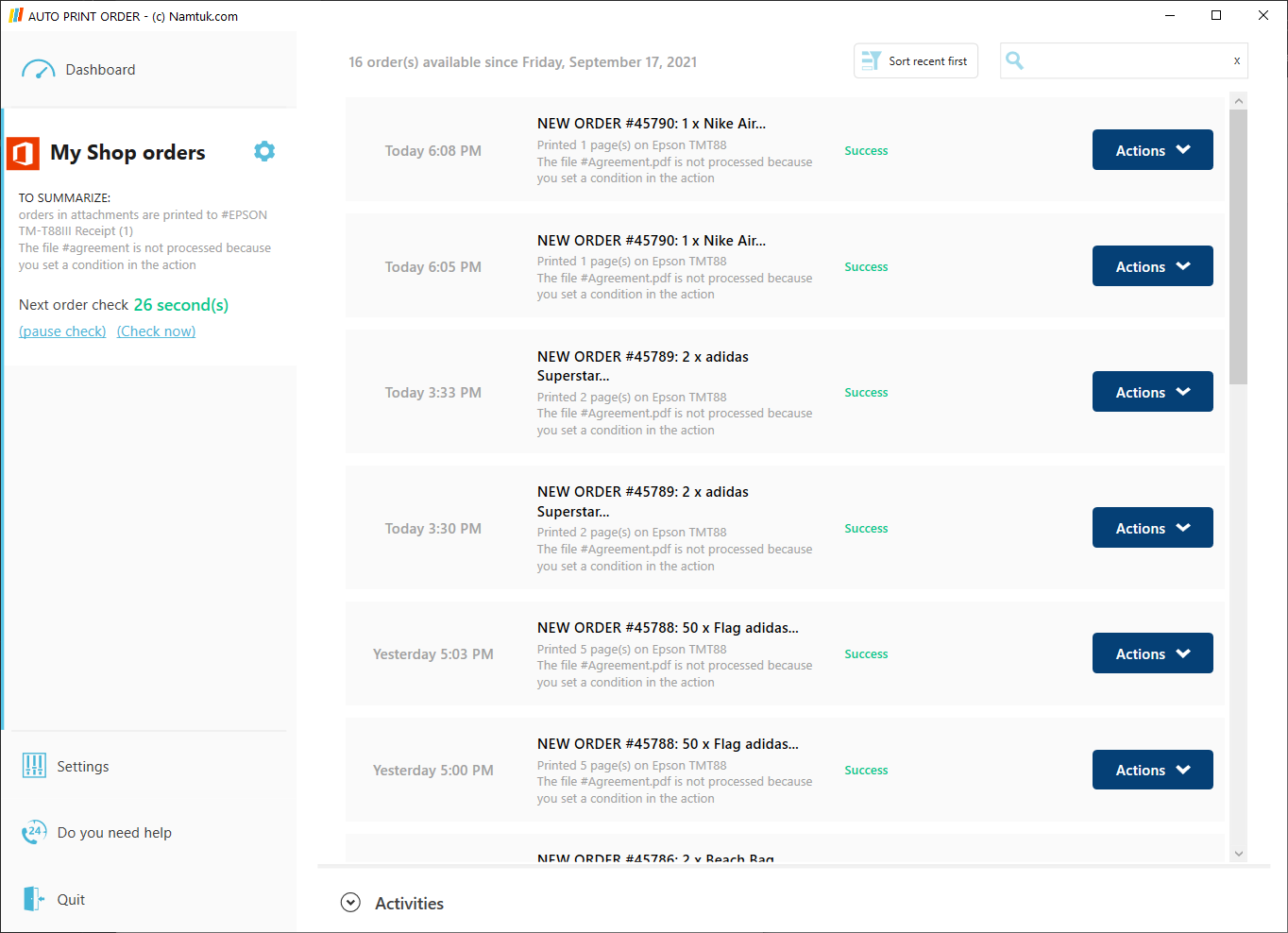
The orders list for a mailbox called "My Shop orders": each new order shows when it arrived, how many pages were printed on an Epson TM-T88 receipt printer, and "Success". The left panel shows the countdown to the next mailbox check, with pause and check-now links.
Features
Connects straight to your mailbox
Auto Print Order signs in to the mailbox itself: Gmail, Office 365, an Exchange server, Outlook.com/Hotmail/Live, or any IMAP or POP3 account. You don't need Outlook or any other email program on the PC. You choose the folder the orders land in and whether to process only unread emails or all emails from the last few days.
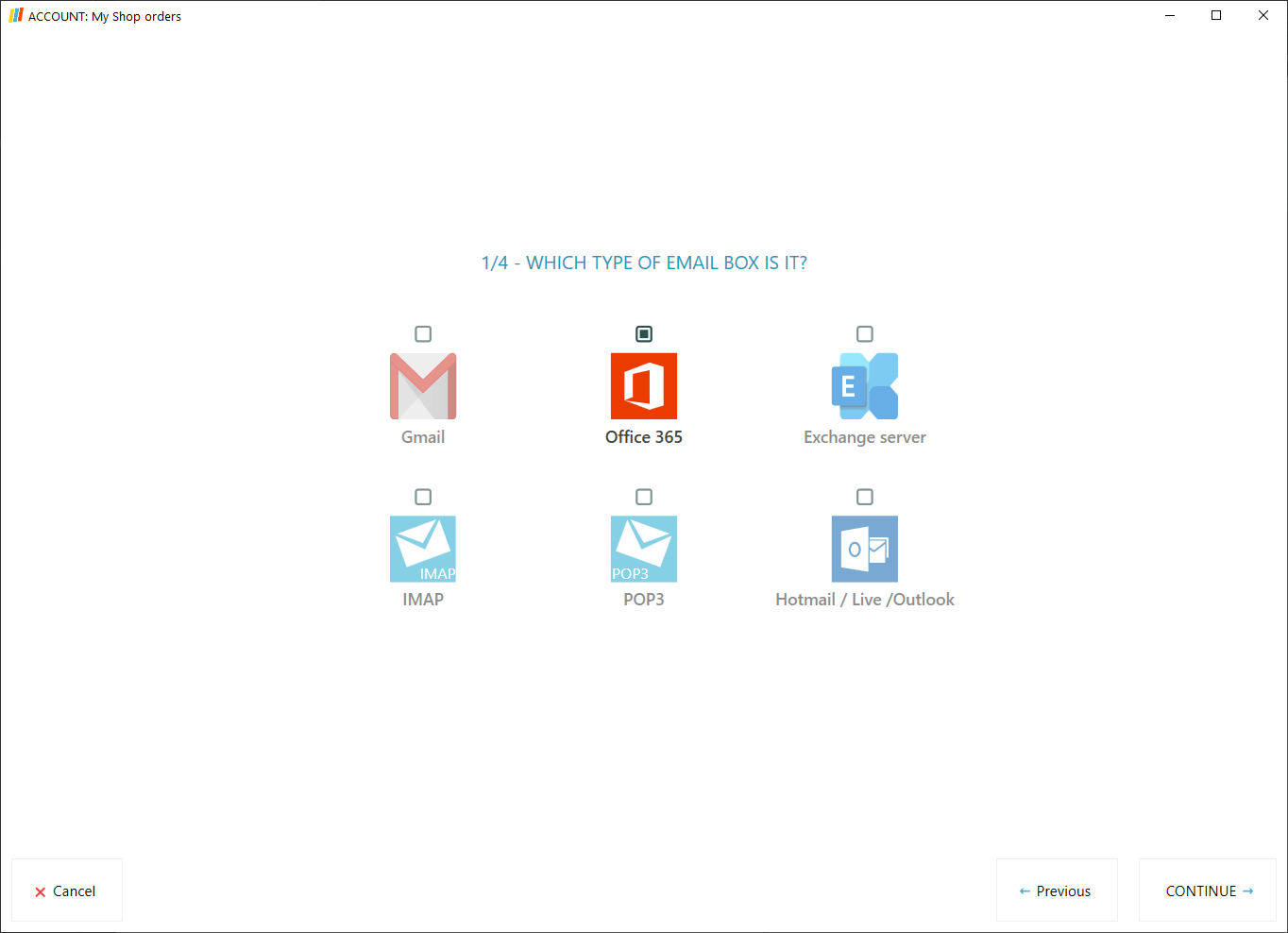
Step 1 of the four-step account setup: pick the type of email box.
Prints the email, the attachment, or both
Auto Print Order prints the order however your shop sends it: as text in the email body, or as a PDF attachment such as an invoice or packing slip. You pick the printer per account, and its print options let you skip files you don't want on paper, like the terms-and-conditions PDF some shops attach to every order.
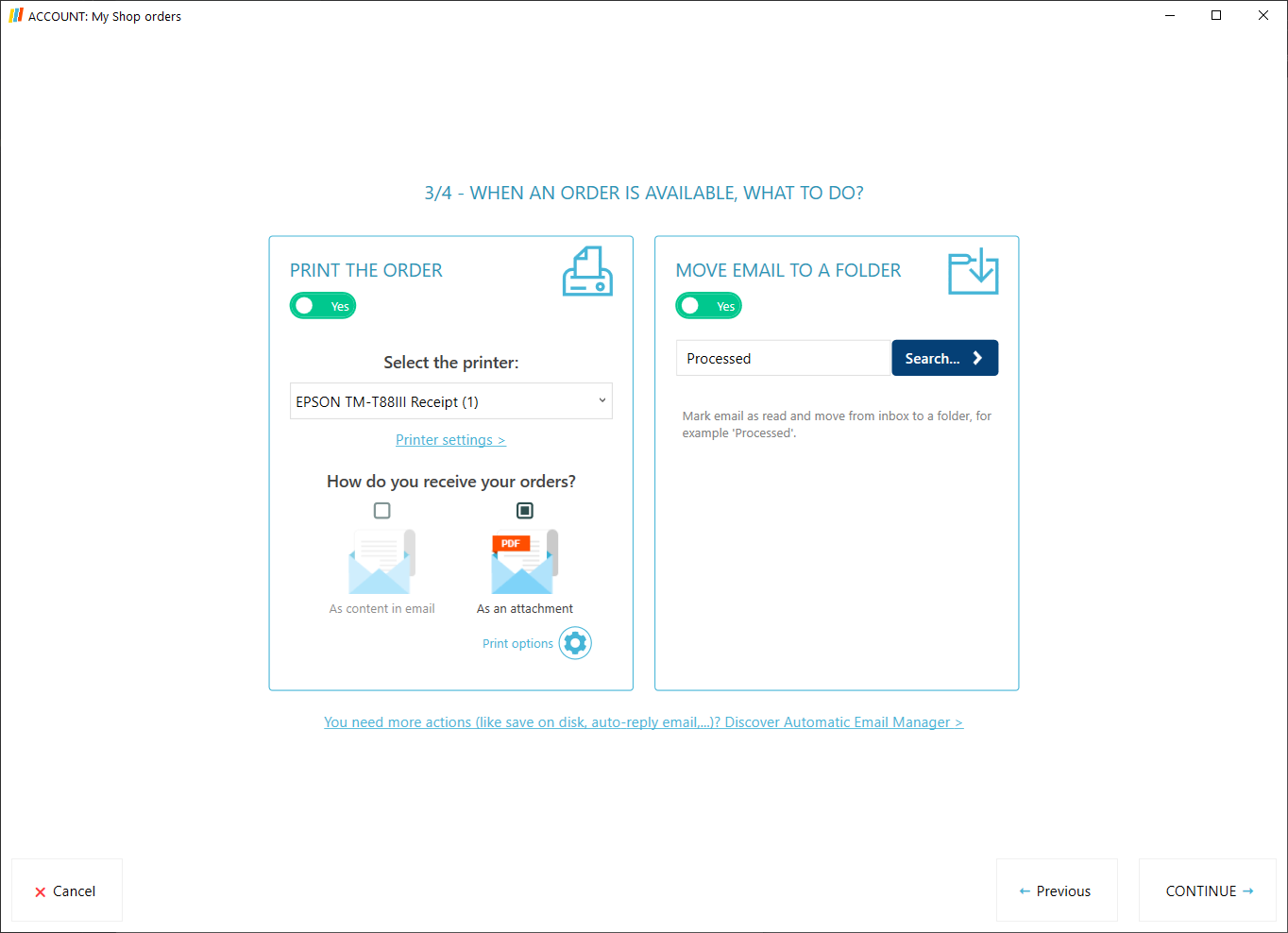
Step 3: print the order on the chosen printer, as email content or as an attachment, then mark the email as read and move it to a "Processed" folder.
Rules decide which emails are orders
Auto Print Order can treat every email in the folder as an order, or only the ones that match your rules: the sender's address or domain, words in the subject such as "order #", or text in the body. Several values per rule are allowed, one per line, so newsletters and customer questions in the same inbox don't come out of the printer.
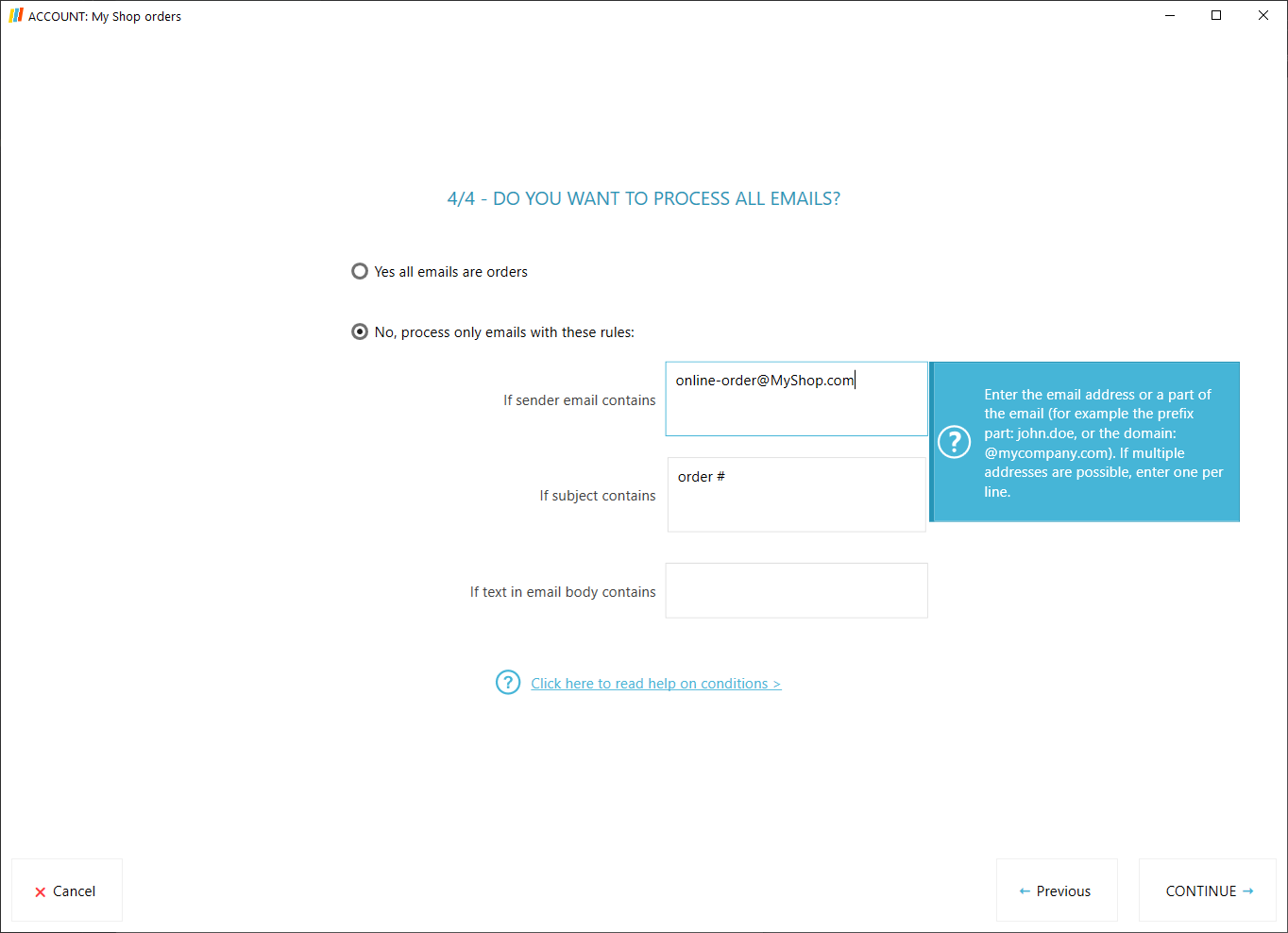
Step 4: process only emails whose sender contains online-order@MyShop.com and whose subject contains "order #".
Runs as a service, entirely on your PC
Auto Print Order runs as a Windows service, so it keeps checking and printing after a reboot or when nobody is signed in. Everything is processed on the computer where it's installed: no cloud service sees your orders or customer data. Moving it to another PC is a matter of copying its data folder (C:\ProgramData\Namtuk\APO) and installing the program there.
Benefits
- Orders get to the kitchen or packing table without anyone watching the inbox. Namtuk puts the time saved at up to an hour a day; the real gain is that no order sits unread.
- It works with whatever shop you already have. Because it reads email, there's no plugin to install on WooCommerce, Shopify or a restaurant ordering platform, and nothing to redo when you switch platforms.
- The inbox stays clean. Printed orders are marked read and moved, so the inbox only holds what still needs a person.
- Your data stays local. Order emails never pass through a third-party print service.
Real-World Uses
- Takeaway restaurant: online orders print on the kitchen's receipt printer as they come in, so the cooks start without someone reading them out from a screen.
- Online shop: each WooCommerce or Shopify order email prints its packing slip in the shipping room, ready to go in the box.
- Pharmacy: prescriptions sent to a dedicated mailbox come out on the counter printer.
- Accounts payable: supplier invoices sent to an invoices@ address are printed before staff arrive in the morning.
Who It's For, and Who Should Skip It
Auto Print Order suits a small business with one order mailbox and a Windows PC that stays on, where printed orders are still how work gets done: kitchens, small warehouses, pharmacies and shops.
Skip it if you need more than printing and filing. Saving attachments to a folder, PDF copies of emails, auto-replies, several mailboxes or forwarding order data to Teams or Slack are all in Automatic Email Manager, not here. Skip it too if you have no Windows machine (there's no Mac version), or if your shop platform already has a cloud print plugin for your printer that you're happy with.
Usage Guide
- Download the installer and run it. It installs .NET 6 and WebView2 if they're missing.
- Add an account: choose the type of email box (Gmail, Office 365, Exchange, IMAP, POP3 or Hotmail) and sign in.
- Pick the folder the orders arrive in and whether to process unread emails only or all recent ones.
- Choose the printer and whether the order is in the email body or an attachment, then the folder processed emails move to.
- Set the rules (sender, subject, body text) or let it process every email in the folder.
- Start it, send yourself a test order, and watch it appear in the orders list as printed.
Where it falls short
- It only prints what arrives by email. If your ordering platform only shows orders in a web dashboard or app, there's nothing for Auto Print Order to pick up.
- The PC has to stay on. It checks the mailbox on a timer from a local computer, so a sleeping or switched-off PC means no printing until it's back.
- Few options by design. One account and one print plus one move action per account. There's no way to print some orders on one printer and others on another within the same license.
- Slow development. Version 1.20.1010 from October 2023 is the latest, and the version history lists six releases since 2021.
What Users Say
On Namtuk's own site
"I have been using it for several years, and I am very satisfied with it, excellent value for money, ease of use to print my customer orders, very good support, always someone to help me. Thank you again, great products, I can't live without." (Karima, Restaurant L'enK, Bordeaux, France, quoted on Auto Print Order's restaurant page)
Trustpilot (Namtuk's products)
Auto Print Order has no independent reviews under its own name yet. Namtuk's reviews on Trustpilot are filed under automatic-email-manager.com, the parent product it's built on, which scores 4.8 out of 5 from 402 reviews. The ones about printing orders are the most relevant here, summarized in our own words:
- A restaurant owner (December 2025) uses it to print order emails automatically for the kitchen and calls it stable with WooCommerce.
- A shop (November 2025) prints its webshop orders automatically and calls it very stable.
- An Indian restaurant (May 2026) has used Namtuk's software for online ordering for over ten years and keeps renewing.
- An accounts team (January 2022) has invoices printed before staff arrive, so they can start work immediately.
- Several long-time users mention fast support replies, one of them within the hour.
- The one 1-star review on the first page (January 2026) was about a payment problem with the card processor and bank fees, not the software.
The pattern across these: people who need orders on paper set it up once and leave it running for years, and Namtuk's support gets consistent praise. The complaints are about billing, not about missed prints. Bear in mind that most of the volume is from Automatic Email Manager users.
Comparisons
Auto Print Order vs Automatic Email Manager
Both come from Namtuk and share an engine. Auto Print Order does three things: print the email body or attachments, mark the email read, and move it to a folder, for one account. Automatic Email Manager adds saving emails and attachments, PDF copies, merging an email and its attachments into one PDF, deleting, copying, renaming subjects, running scripts, replying and forwarding, sending data to Teams, Telegram or Slack, HTTP calls, unzipping attachments and unlimited accounts and actions. At $99 a year against $84 a year, Automatic Email Manager is the better buy as soon as you want anything beyond printing.
Editions and Pricing
| License | Price | Updates and support | When it ends |
|---|
| 1 year | $84 | All new versions and support for the year | Manual renewal, or it stops processing |
| 2 years | $156 | All new versions and support for two years | Manual renewal, or it stops processing |
| Perpetual | $299 | New versions for four years, unlimited support | Never expires |
Every license is for one computer and one email account, and can be moved to another PC. Namtuk discounts orders of two or more licenses. Prices are before any local sales tax, which the order form adds by country. Each button below orders that license:
Buy 1 Year ($84)Buy 2 Years ($156)Buy Perpetual ($299)
FAQs
Does Auto Print Order work with Shopify or WooCommerce?
Yes. Auto Print Order works with any shop that emails its orders, because it reads the order emails rather than connecting to the shop. Namtuk lists WooCommerce, Shopify, Magento, PrestaShop, OpenCart, BigCommerce, Squarespace, Wix, Amazon and eBay seller accounts.
Does Auto Print Order need Outlook?
No. Auto Print Order connects directly to the mailbox (Office 365, Exchange, Gmail, Outlook.com, IMAP or POP3), so no email program has to be installed or open.
Do I have to stay logged in to Windows?
No. Auto Print Order runs as a Windows service, so it keeps printing when no user is signed in. The computer itself does need to be on.
Does the 1-year license renew automatically?
No. Auto Print Order's 1-year and 2-year licenses are renewed by hand; Namtuk emails you and the program shows a reminder. If you don't renew, it stops processing emails. You can switch to the perpetual license at any time.
Can I get a refund on Auto Print Order?
No. Namtuk doesn't refund Auto Print Order purchases for any reason, which is why the 30-day trial matters: test it on your own mailbox and printer first.
Do I lose my trial settings when I buy?
No. You enter the license key into the trial you already installed, and your accounts and rules stay as they are.
Can I move Auto Print Order to a new computer?
Yes. A license covers one computer at a time but can be transferred. Copy the C:\ProgramData\Namtuk\APO folder to the new PC and install Auto Print Order there.
Can I pay by bank transfer or get a quote?
Yes. The order form has a "Request quote" option, and Namtuk accepts bank wire transfers, which take up to two weeks to clear before the license is sent. Card and PayPal orders get the license by email within minutes.
System Requirements
- Windows 11, 10 or 8, or Windows Server 2022, 2019, 2016 or 2012, 32 or 64-bit
- 150 MB of free disk space
- .NET 6 and WebView2 (the installer adds them if missing)
- An email account that receives the orders, and a printer installed in Windows
Conclusion
Auto Print Order is worth it for a small business that just needs every order email on paper without anyone watching the inbox: set it up in four steps, leave it running, and it does one job reliably. The reason to buy is that it works with any shop or ordering system that sends emails, with no plugin and no cloud service. The reasons to hesitate are the no-refund policy, a time license that stops printing if you forget to renew, and an update history that ended in 2023. If you want more than printing, spend the extra $15 a year on Automatic Email Manager instead. Either way, run the free 30-day trial first.
Download Free TrialBuy 1 Year ($84)Buy Perpetual ($299)