AceThinker Screen Grabber Pro: A Simple Windows Screen Recorder With Sound, Webcam and a Task Scheduler
AceThinker Screen Grabber Pro is a Windows screen recorder that captures your whole display, a region, one window or just the webcam, together with system sound and your microphone. A lifetime license for one PC costs $39.95 on the order page, and there's a free version to try first. It suits people who record tutorials, meetings and webinars and want one small window with a big red REC button rather than a full video studio.
Most screen recording jobs are the same three decisions: what part of the screen, which audio, and where the file goes. Screen Grabber Pro puts all three on its main window, so you pick the area on the left, the webcam, microphone and system sound on the right, and press REC. A preview window then lets you trim the ends and save the clip.
Quick facts
- Developer: AceThinker Limited, a multimedia software company founded in 2015 (the installer is digitally signed by Apowersoft Ltd, Hong Kong)
- Current version: 1.8.1.1 for Windows; the installer on the vendor's server was last updated on August 1, 2025
- Platform: Windows 11, 10, 8 and 7. A Mac edition is sold separately
- Price: $39.95 one-time for a lifetime Personal license on 1 PC, at checkout. The vendor's own store also sells a 1-year license ($29.95), a 1-month license ($9.95) and a 5-PC Family license ($79.90)
- Recording modes: full display, custom region, window, webcam only, audio only
- Output: MP4, WMV or MOV video
- Free version: the same download; a license (AceThinker calls it VIP) adds annotation while recording, custom watermarks and the other paid features
- Refunds: 30-day money-back guarantee for technical problems the vendor can't fix, not for change of mind
- What we checked: the installer screen-grabber-pro.exe (51.6 MB, file version 1.8.1.1, digitally signed) downloaded from the vendor's site, and the order-page price of $39.95 for the lifetime Personal license with no renewal, both on November 8, 2026. We didn't run a recording session ourselves, so the free version's exact limits aren't confirmed here.
Before you buy
Run the free version first with the exact setup you'll use: your headset, your webcam and the app you want to record. AceThinker's refund policy says it doesn't refund buyers who are simply disappointed with a product, and it expects you to test the free trial before paying. The license is activated through an AceThinker account inside the program, so keep the account details and the activation code from your order email somewhere safe for when you reinstall Windows.
Download Free TrialBuy Now
Overview
Screen Grabber Pro has been around since 2016, and the current release has a compact dark interface. The main window has three tiles on the left (Display, Custom and More, which holds Window, Record only audio and Only camera), three drop-downs on the right for the webcam, microphone and system sound, and the REC button with an Auto stop option. Along the bottom sit the Video list, a Tools menu and the Task Scheduler.
It's a recorder first. Editing stops at trimming in the preview, which keeps the program light and quick to learn but means anything more (cuts in the middle, titles, transitions) needs a separate editor.
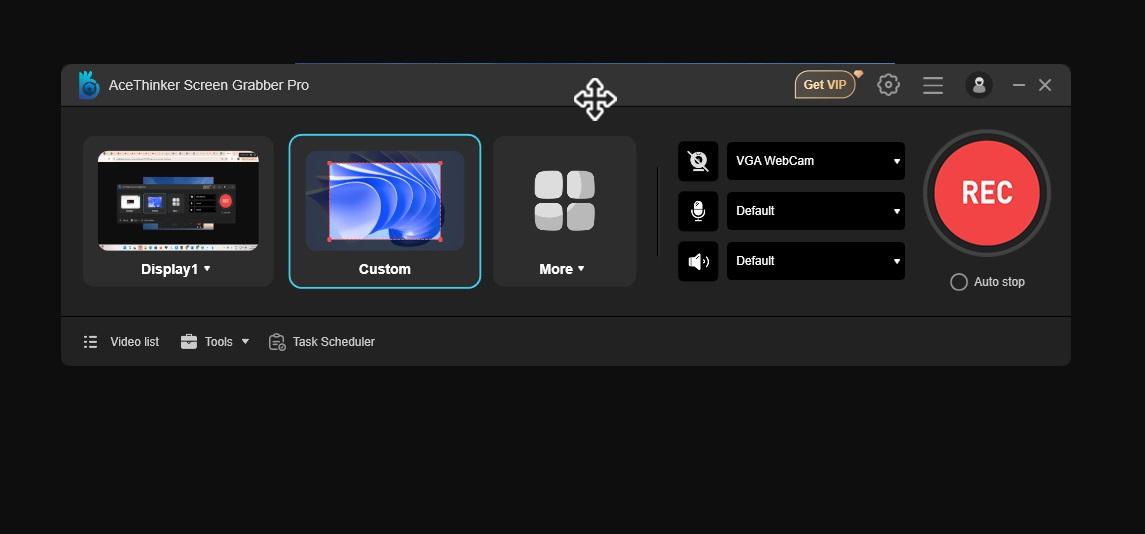
The Screen Grabber Pro main window: recording modes on the left, webcam, microphone and system sound selectors on the right, and the Video list, Tools and Task Scheduler along the bottom.
Features
Five ways to choose what gets recorded
Screen Grabber Pro records the full display (with a monitor picker on multi-screen setups), a custom region you drag and resize with its pixel size shown in the corner, a single window, the webcam only, or audio only. Region mode is the one to use for a single app or a video player, since it leaves taskbar pop-ups and other windows out of the shot and keeps the file smaller.
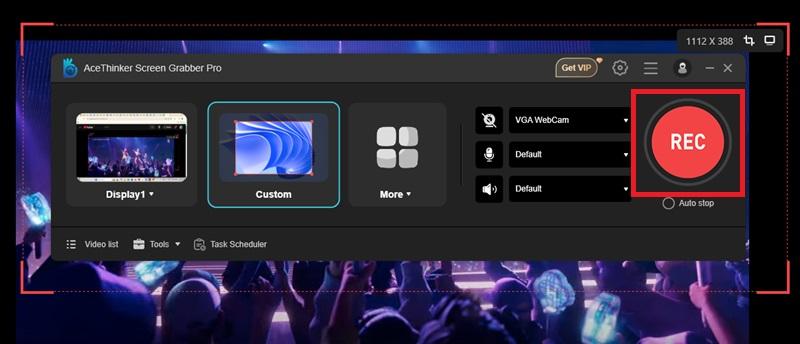
A custom region marked with red corner handles and its size (1112 x 388) shown top right, ready to record with the REC button.
System sound and microphone, with noise cancellation
Screen Grabber Pro captures what your PC plays and what you say, together or separately. The audio settings have a volume slider and a Test audio meter for each source, noise cancellation and audio boost for the microphone, and an audio collection boost (multi-channel collecting) for system sound. Testing here before a long recording is the cheapest insurance against a silent video.
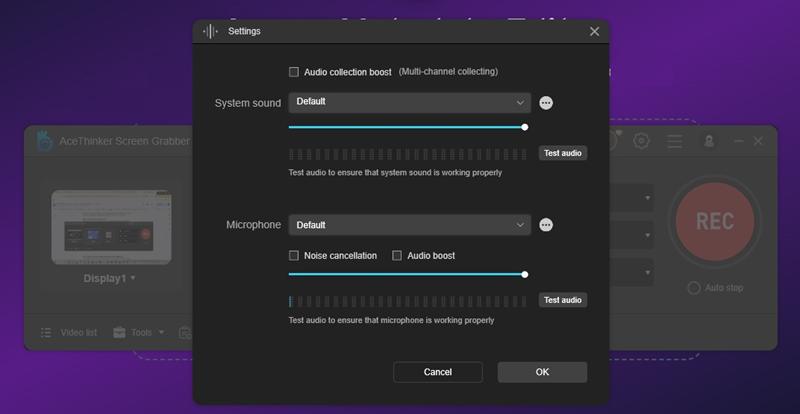
The audio settings dialog: separate system sound and microphone sources, each with a level slider and a Test audio meter, plus noise cancellation and audio boost.
Webcam overlay or webcam only
Screen Grabber Pro can add your webcam to a screen recording as a picture-in-picture, or record the camera on its own with Only camera under the More tile. That covers a talking-head intro, a reaction video or a short personal message without opening another app.
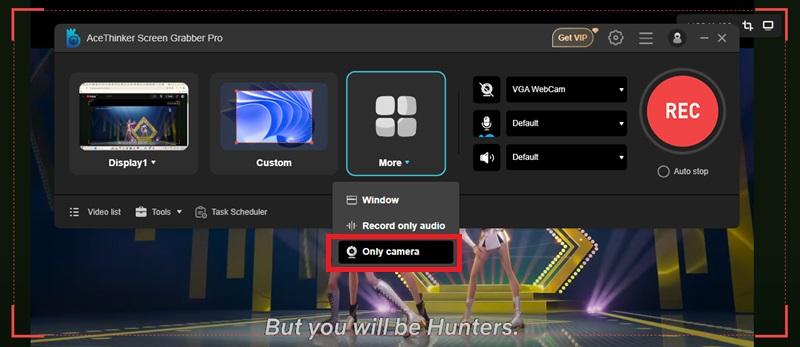
The More tile opens the Window, Record only audio and Only camera modes.
Drawing on the screen while you record
Screen Grabber Pro has a pencil icon on its recording toolbar that opens annotation tools: highlights, arrows, text and shapes drawn live over whatever you're recording. This is one of the features that needs a license. You can also hide the recording toolbar in Settings so it doesn't appear in the video.
Scheduled recordings
Screen Grabber Pro's Task Scheduler starts a recording on its own at a set time, for a set duration or until a stop time, once or daily, and can repeat it. Each task records the full screen, a custom area, the webcam or audio only, and can shut the computer down when it's done. That's how you catch a live stream, a webinar or a radio show while you're away from the PC.
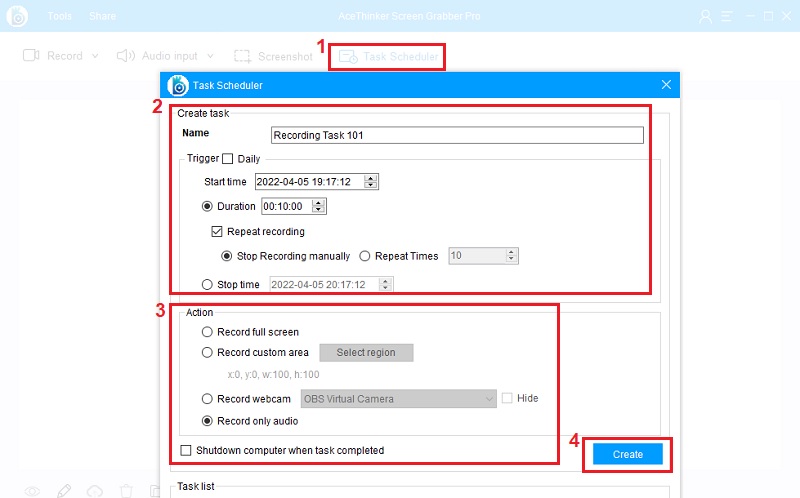
The Task Scheduler dialog (shown in the older light interface from 2022): name, start time, duration or stop time, repeat options, what to record and an option to shut down the computer when the task finishes.
Trim, save and upload from the video list
Screen Grabber Pro opens a preview when you stop, where you can trim the start and end and export as MP4, WMV or MOV. Every recording lands in the Video list, from which you can rename, copy or delete a clip, open its folder, or right-click it and choose Upload to send it to a video site.
Benefits
- Little to learn. Everything you need for a normal recording is on one window, so you can be recording within a minute of installing it.
- Fewer ruined takes. The audio test meters and noise cancellation catch the two classic problems, no sound and a hissing microphone, before you start.
- Recording while you're away. The scheduler is unusual at this price and handles live events you can't sit through.
- One payment. The lifetime license includes upgrades and support, with no subscription to remember.
Real-World Uses
- Software tutorials: record a region around one app with your microphone and draw arrows on the buttons you click.
- Meetings and webinars: capture system sound plus your own voice from a call, or schedule the recording of a webinar that starts while you're out.
- Bug reports: record the steps that trigger a problem and send the trimmed clip to a developer or a help desk.
- Short webcam messages: use Only camera for a quick video update without installing a separate camera app.
Who It's For, and Who Should Skip It
It's for home users, teachers and office workers who record their screen now and then and want a simple, inexpensive tool with webcam and scheduling built in.
Skip it if you need to edit seriously (multiple tracks, cuts in the middle, zoom effects, captions): a recorder with a full editor such as Camtasia fits better. Gamers who want to stream or record at high frame rates with scenes and overlays are better served by OBS Studio, which is free. And if you only need a recording once in a while with no webcam or scheduling, the recorder built into Windows (Snipping Tool on Windows 11, Xbox Game Bar on Windows 10) may be enough.
Usage Guide
- Install and launch. Download the installer, run it, accept the terms and click Install, then start Screen Grabber Pro from the desktop icon.
- Activate your license. Click the account icon in the top-right corner, choose Activate VIP, paste the activation code from your order email and click OK. The account window then shows your license type and how long it's valid.
- Choose the area. Click Display for the full screen, Custom to drag a region, or More for a window, the webcam only or audio only.
- Set the audio. Pick the webcam, microphone and system sound sources, and use Test audio in Settings for each.
- Record. Press REC, wait for the short countdown, and use the pencil icon to annotate as you go. Pause and resume whenever you need to.
- Stop, trim and save. Click Stop, trim the ends in the preview, and export as MP4, WMV or MOV, or upload it from the Video list.
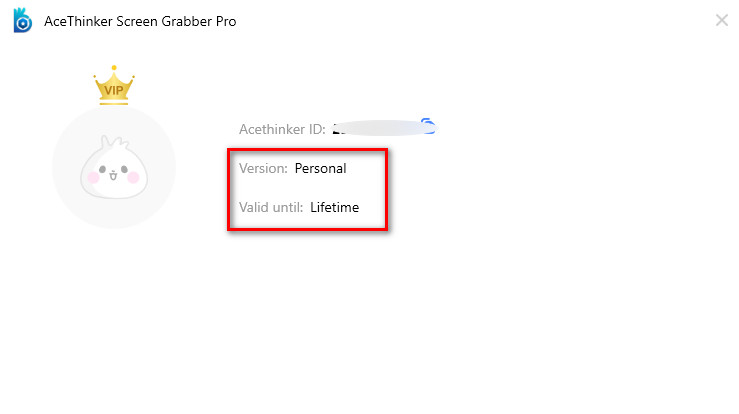
After activation, the account window shows the license version (Personal) and "Valid until: Lifetime".
Where it falls short
- Headset audio can go missing. One buyer found the recording had no sound while a headset was plugged in. Check the system sound source in Settings, and do a short test whenever you change audio devices.
- Activation is tied to an account. Buyers have reported "activations overrun" messages, needing a new code after reinstalling Windows, and the program working with only one account at a time. AceThinker support resolves these by email, but expect to contact them if you move to a new PC.
- Light editing only. Trimming the ends is all you get; anything more needs another program.
- Few independent reviews. Screen Grabber Pro has only a handful of user reviews on review sites, so there's little outside evidence about long-term reliability. The free version is the best way to judge it.
What Users Say
Screen Grabber Pro has few reviews on the big review sites. The most useful set comes from buyers of a lifetime-license deal on StackSocial, where it averages 3.8 out of 5 from 6 reviews. AceThinker as a company rates 4.8 out of 5 from 305 reviews on Trustpilot, but those reviews are mostly about its support team and its PDF editor rather than this recorder.
Praise from buyers (StackSocial)
"Easy to use. The program was stable and the performance is good, it was more than what I have expected. The video quality and sound quality are good." John L, April 2022
"Nice desktop recorder well priced for any one who wants to record screen activity or make screenshots with features like annotation, multiple video format support and webcam overlay" Ikbal Rabah, October 2022
"I got this to try out recording simple webinar/streaming like a cooking recipe. It works as advertised with the system defaults." He also called it "Definitely worth the price." Sridharan Srinivasan, May 2022
Complaints (StackSocial)
"When I had a headset while event was going on, the playback did not have audio, which was disappointing." Sridharan Srinivasan, May 2022
"Useful product. However it only works on one account at a time on computer. You log into one account and it disconnects from the other account." Maunish Chokshi, June 2023
"i used this product a little bit and then i got a message activations overrun" Victor Revilla, August 2023
"its cool product. overall good but fitur minimize must be improve because i want fitur minimize." Ade Novit, July 2026
AceThinker support (Trustpilot, all products)
"Emailed Customer Service, and issue was resolved in 15 minutes." Allen Rosenston, September 2026
"I wrote the company and almost immediately got a response and a new activation code." Kirk Gulledge, August 2026
"Had an issue with the license code after I reinstalled windows on my laptop" Todd, October 2026, who still rated the company 5 stars after support sorted it out.
The pattern: people who use Screen Grabber Pro for ordinary recordings find it easy, stable and good value, with decent video and sound. The complaints are about the edges: audio with a headset, and license activation when the account or the PC changes. AceThinker's support gets consistent praise for fixing activation problems quickly.
Comparisons
Screen Grabber Pro vs. OBS Studio
OBS Studio is free and far more powerful, with scenes, multiple sources and live streaming, but it takes real setup time. Screen Grabber Pro is the quicker option for someone who just wants to record a region with sound and a webcam, and it adds a scheduler that OBS doesn't have built in.
Screen Grabber Pro vs. the Windows built-in recorder
The recorder in Windows' Snipping Tool and Xbox Game Bar costs nothing and handles a quick clip. Screen Grabber Pro adds a custom region, webcam overlay, live annotation, scheduled recordings and a choice of output formats, which matter once you record regularly.
Editions and Pricing
| License | Price | Term | PCs |
|---|
| Personal - Lifetime | $39.95 | One-time, lifetime upgrades and support | 1 |
| Personal - 1 Year | $29.95 | 12 months, renews yearly | 1 |
| Personal - 1 Month (vendor store) | $9.95 | 1 month, 7-day refund window | 1 |
| Family License (vendor store) | $79.90 | Lifetime | 5 |
The lifetime license costs only $10 more than one year, so it's the better buy for anyone who expects to keep recording past next year.
FAQs
Does AceThinker Screen Grabber Pro work on Windows 11?
Yes. AceThinker Screen Grabber Pro supports Windows 11, 10, 8 and 7, and the current 1.8.1.1 installer is digitally signed.
Is there a Mac version of Screen Grabber Pro?
Yes, AceThinker sells a Mac edition of Screen Grabber Pro with the same license plans; it needs macOS 10.15 or later according to the user guide. The download on this page is the Windows version.
Can I move my Screen Grabber Pro license to a new computer?
A Personal license of Screen Grabber Pro covers one PC at a time. If activation fails after a reinstall or a new PC, AceThinker's support issues a new activation code by email, which several buyers report getting quickly.
Can I get a refund if Screen Grabber Pro isn't for me?
Not usually. AceThinker's 30-day guarantee covers cases like a duplicate purchase, a missing registration code or a technical problem support can't fix within 30 days, not a change of mind. Try the free version before you buy.
Does Screen Grabber Pro record the sound from a Zoom or Teams call?
Yes. Screen Grabber Pro records system sound and the microphone at the same time, so both sides of a call end up in the recording. Check that the system sound source matches the device you hear the call on, especially with a headset.
Can Screen Grabber Pro record without me at the computer?
Yes. The Screen Grabber Pro Task Scheduler starts and stops recordings at set times, repeats them daily, and can shut down the PC afterwards.
Is Screen Grabber Pro the same as AceThinker Aqua Demo?
No. Aqua Demo (formerly Screen Grabber Premium) is a separate, more advanced AceThinker recorder with its own store page and prices. Screen Grabber Pro is the simpler of the two.
System Requirements
- Windows 11, 10, 8 or 7
- 1 GHz processor or faster
- 512 MB RAM (1 GB recommended)
- 200 MB free disk space, plus room for your recordings
- A webcam and microphone if you want to record them
Conclusion
AceThinker Screen Grabber Pro is worth $39.95 if you want a simple, one-window recorder for tutorials, calls and webinars and you'll use the scheduler or the webcam overlay. The one reason to buy it is how little setup it needs: pick an area, pick your audio, press REC. The main reason not to is that it does little beyond recording and trimming, and its independent reviews are thin, so test the free version with your own headset and webcam before paying, since a refund for a change of mind isn't on offer.
Download Free TrialBuy Now