PC Game Booster Pro (formerly Game Fire): Game Mode for Windows That Cleans Up Behind Itself
PC Game Booster Pro is an $18.95-a-year Windows 11, 10 and 8.1 utility from Smart PC Utilities that switches your PC into a lean "Game Mode" while you play: it pauses unneeded Windows features, services, scheduled tasks and background apps, then puts everything back when you're done. It's the program long-time PC gamers knew as Game Fire, renamed in version 8, and it's aimed at people whose games stutter because the PC is busy doing other things.
You know the moment: a big fight starts, Windows Update decides to download something, Defender kicks off a scan, and your frame rate falls off a cliff. PC Game Booster's whole job is to make those interruptions wait until you've stopped playing.
Quick facts
- Version: 8.0.5002, released April 20, 2026
- Developer: Smart PC Utilities
- Platforms: Windows 11, 10 and 8.1, 32-bit and 64-bit (needs .NET Framework 4.8)
- Price: $18.95 for a one-year Pro license on one PC. A lifetime license is $31.58 on the vendor's store
- Free edition: yes, with basic game optimizations, game library and monitoring
- Trial: 30 days of the Pro features, from the same installer as the Free edition
- Guarantee: 30-day money-back guarantee
- Languages: English, Chinese (Simplified), French, German, Italian, Japanese, Portuguese, Russian, Spanish
- What we checked: installer version 8.0.5002.1 (26.7 MB) downloaded from the vendor on November 3, 2026, with an MD5 hash matching the one the vendor publishes, and the one-year Pro price of $18.95 on the order page on November 3, 2026. We didn't run our own FPS benchmarks.
Download Free TrialBuy Now
Overview
PC Game Booster is built around one button: Game Mode. Turn it on and the program applies a profile of changes you control: it can suspend Windows Update and Windows Security scans, pause scheduled tasks, stop services and third-party background processes, free up RAM, close Copilot and Windows widgets, disable CPU core parking and switch to its own high-performance power plan. Turn Game Mode off and it reverses all of it. If you forget, it restores your normal setup at the next startup.
Around that core sit a game library (My Games) that pulls in your Steam, Epic Games, Ubisoft Connect, Battle.net and Microsoft Store titles, a System Optimizer with system, network, app and visual-effect tweaks, and a System Diagnostics view with hardware details and temperature alerts. It never overclocks anything, which keeps the risk low.
Version 8 (April 2026) rebuilt the Game Mode engine from scratch, added Battle.net and Microsoft Store game import, and introduced options such as clearing the clipboard and stopping the Windows key from opening the Start menu during full-screen games.
Features
Game Mode you configure item by item
PC Game Booster's Game Mode Configuration window has four tabs: Tweaks, Apps, Services and Scheduled Tasks. Each tweak is a labeled on/off switch with a one-line explanation, such as "Optimize system memory" or "Use the high-performance Game Mode power plan". The Apps tab lists each background app with its memory, CPU and disk use, so you can see what you'd gain before you tick it.
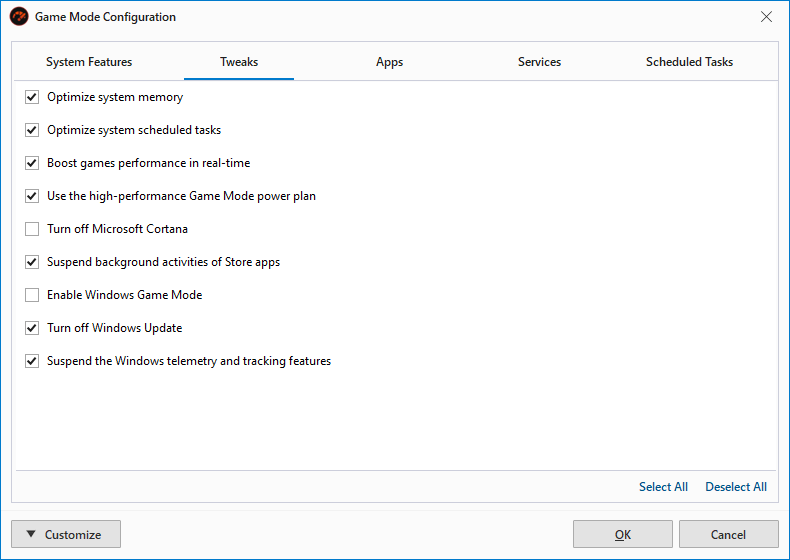
The Tweaks tab: real-time boosting, memory and scheduled-task optimization, the Game Mode power plan and CPU core parking, each switched on individually.
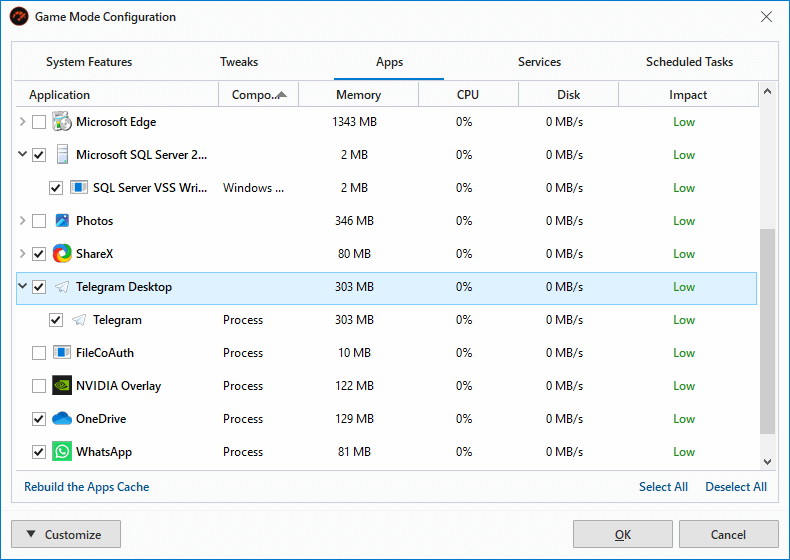
The Apps tab: background apps such as Microsoft Edge, Photos and WhatsApp, with their memory, CPU and disk use, ticked to be paused during Game Mode.
Live Optimization keeps working while you play (Pro)
PC Game Booster Pro doesn't only clean up once at launch. Its Live Optimization runs as a light background agent that gives your active game a higher priority, holds back background processes that try to grab CPU time, and reclaims memory from idle apps when RAM runs low. The same applies to heavy apps such as video editors and 3D renderers, not just games.
One library for games from every launcher
PC Game Booster's My Games tab imports installed games from Steam, Epic Games, Ubisoft Connect, Battle.net and the Microsoft Store, and you can add any other game by hand. Launching from here turns Game Mode on automatically, though by default it also kicks in when you start a game from its usual launcher. A desktop widget (Ctrl+Shift+M) opens the library from anywhere, and you can filter, sort, favorite and recolor the tiles.
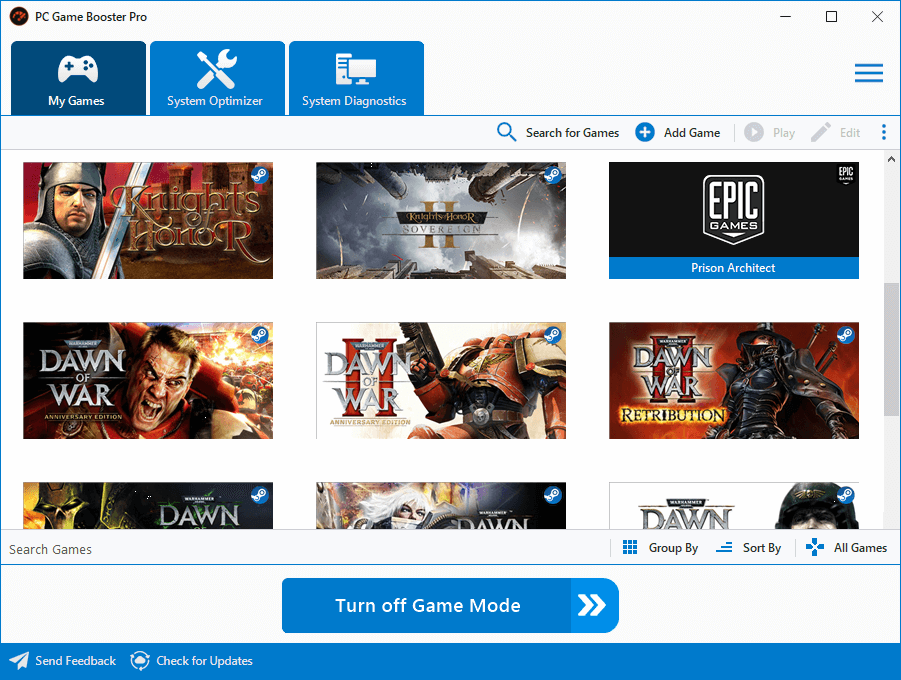
The My Games library with Steam and Epic Games titles, and the "Turn off Game Mode" button at the bottom.
System Optimizer for Windows and network settings (Pro)
PC Game Booster Pro's System Optimizer groups its tweaks into System, Internet, Applications and Visual Effects. Each entry explains what the setting does and what the vendor recommends. One example is Windows' Memory Integrity feature, which the tool suggests turning off while gaming and back on afterwards, a real trade between security and speed that it leaves to you.
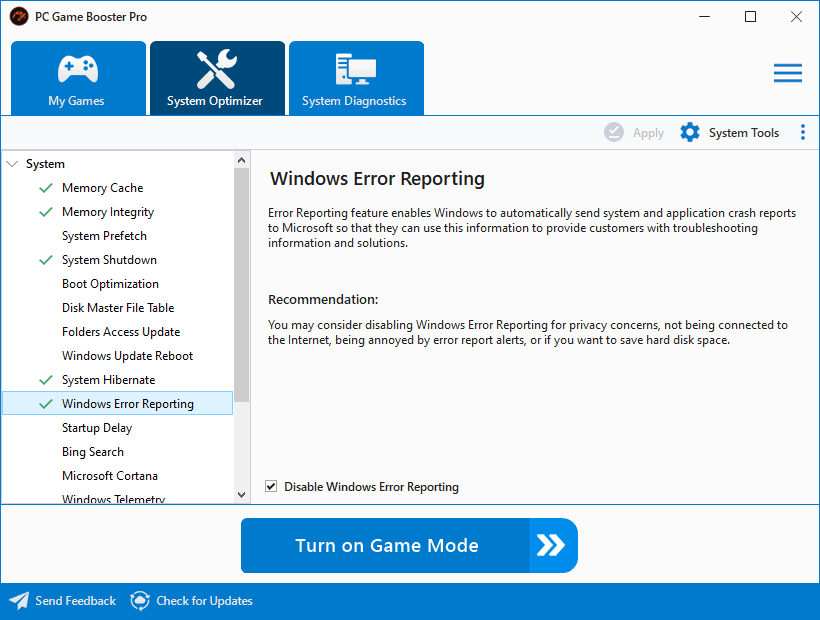
The System Optimizer's System list (memory cache, prefetch, telemetry and more) with the Memory Integrity explanation and recommendation.
Hardware details and temperature alerts
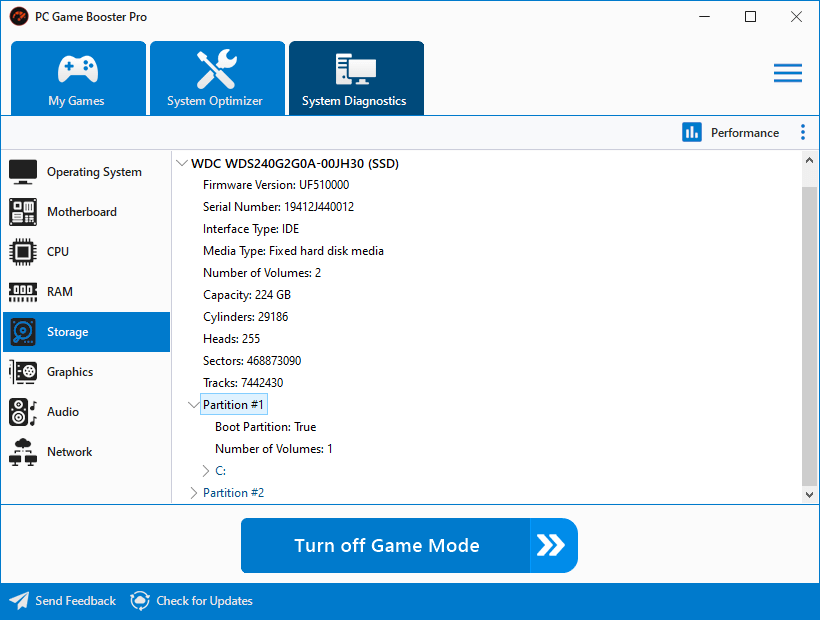
PC Game Booster's System Diagnostics tab lists your operating system, motherboard, CPU, RAM modules, storage, graphics, audio and network hardware. The Pro edition also watches CPU, GPU and disk temperatures and warns you when one runs too hot, which is handy on a laptop that throttles under load.
System Diagnostics showing two 8 GB RAM modules with their speed, clock and voltage.
Benefits
- Fewer mid-game interruptions. Updates and scheduled scans wait until you've finished, which is where the most noticeable stutters usually come from.
- More free memory on a tight PC. On an 8 GB laptop with a browser, chat app and launcher open, pausing them can be the difference between smooth play and swapping to disk.
- Nothing permanent. Every change is undone when you leave Game Mode, so you aren't left hunting for a setting a "tweaker" switched off months ago.
- One place for your games. Handy if your library is split across four launchers.
Real-World Uses
- The budget laptop. A student plays on a laptop with integrated graphics and 8 GB of RAM. Game Mode pauses the browser, OneDrive and chat apps and switches to the performance power plan before each session.
- The streamer's second job. Live Optimization keeps the game ahead of everything else in CPU priority while OBS and Discord stay open.
- The Patch Tuesday stutter. Someone whose games hitch every time Windows Update runs in the background lets PC Game Booster hold updates until Game Mode is off.
- The scattered library. A player with games on Steam, Epic, Ubisoft Connect and Battle.net launches all of them from one grid.
Who It's For, and Who Should Skip It
It's for gamers on older or modest PCs, laptops with limited RAM, and anyone who keeps a lot running in the background and doesn't want to close it all by hand before each session. It's also a fit if you like the idea of a tidy, reversible Game Mode instead of permanently "optimizing" Windows.
Skip it if you have a recent gaming PC that's GPU-limited: closing background apps won't make your graphics card faster, and independent tests show gains close to zero on capable hardware (see What Users Say). Skip it too if you're happy closing apps yourself and using Windows' own Game Mode, or if you'd rather not let any tool pause Windows Security scans. On a Mac or Linux there's nothing to install.
Usage Guide
- Install. Download the installer (the same file runs the Free edition and the 30-day Pro trial) and run it. If .NET Framework 4.8 is missing, install it first.
- Let it find your games. Open My Games. It imports titles from Steam, Epic, Ubisoft Connect, Battle.net and the Microsoft Store. Use Add Game for anything else.
- Review the Game Mode profile. Open Game Mode Configuration and go through the Tweaks, Apps, Services and Scheduled Tasks tabs. Untick anything you need while you play, such as your voice chat or a backup you want to keep running.
- Play. Launch a game from My Games or from its own launcher. Game Mode turns on automatically by default.
- Turn Game Mode off when you're done, or let PC Game Booster restore everything at the next startup.
- Register Pro (after buying) with the Register button in the lower-right corner of the main window.
Before you buy
- Measure first. Run the 30-day trial and compare your frame rate with Game Mode on and off in a game you know well. If you see no difference, the Free edition or nothing at all may be enough.
- The Pro license is yearly and for one PC. It's tied to a hardware ID, so after a hardware upgrade you'll need the vendor's reset form to activate it again.
- Security software can interfere. The vendor recommends adding PC Game Booster to your antivirus exclusions if it can't apply its changes.
- Windows 7, Vista and XP are no longer supported. Version 7 moved to .NET Framework 4.8.
Where it falls short
- The FPS gains are small on capable hardware. In gHacks' 2015 benchmark, Game Fire 4 scored within a few points of plain Windows in every test. It doesn't make a weak graphics card stronger.
- Some speed comes from switching off protection. Pausing Windows Security scans and suggesting you disable Memory Integrity trades safety for speed while you play. It's reversible, but it's your call.
- Little independent testing of version 8. Most user reviews are short and older, from the Game Fire years.
- Yearly subscription for a small utility. The lifetime license costs less than two years of renewals.
- A known small bug from early versions. A 2012 SnapFiles reviewer found it sometimes reported Game Mode as on after a reboot when it wasn't.
What Users Say
Reviews of PC Game Booster are a mix of warm user comments from its Game Fire days and one blunt independent benchmark. Here's what we found, by source.
Download sites and media reviews
On MajorGeeks, which lists the current version 8.0.5002, users rate PC Game Booster 5 out of 5 from 95 votes. Malavida's editor Elies Guzmán gave version 7 a 7/10 in May 2023, calling it "a toolkit capable of optimizing different operating system parameters to establish customized game modes".
Softpedia's review, as quoted by the vendor:
"The bottom line is that Game Fire (now PC Game Booster) is a great tool that can come in handy especially if you spend a lot of time playing video games. Less experienced users should not have any troubles while installing and customizing this program, thanks to its intuitive layout." — Softpedia.com
Software Informer, also quoted by the vendor:
"Game Fire is the kind of acceleration tool I especially need when playing games that seem to ignore my recent attempts at hardware updating and freeze, slow down and drag like hell. Games are rarely the avatars of speed, so accelerators are in high regard, and Game Fire can easily be listed among the best." — SoftwareInformer.com
Users
From the reviews shown on the vendor's page:
"Best Product: this really helped me a lot using this more that 1 year it acn boost any game, really usefull for potato pc/laptop users, and this come from someone who is not a bot." — Peter, Microsoft Store
"This program is very good, before starting any game activate it and the PC performance would be very good. Worth downloading !!" — IMORTAL
And an early SnapFiles review (January 2012, version 2.1.111, 5 stars), which also names a bug:
"As for Game Fire, it revs up your system in just 4-5 seconds. Disables visual themes and resets your color depth on the fly too if you wanna go all out. The only thing I dislike is when you reboot it says gaming mode is on - when it is clearly not just yet so you have to click it twice." — xavierdhjane633, SnapFiles
The independent benchmark
Martin Brinkmann at gHacks tested Game Fire 4 and four other boosters in May 2015 on a Core i5-2500K with 8 GB of RAM and a GeForce GTX 560 Ti. Game Fire scored 3,056 in 3DMark Fire Strike against 3,074 for plain Windows, and 23.13 average FPS in Star Swarm against 22.65. His conclusion:
"Default results and boosted results are in close range of each other in all tests and it is unlikely that users notice improvements when they run these tools to improve gaming performance."
He added that the difference "may be noticeable on older hardware". That test is old and used a much earlier version, but its point still holds: a booster helps most when something in the background is actually competing with the game.
The pattern: people on low-end PCs and laptops like it and find it easy to use, and download-site ratings are high. The one measured test found no meaningful gain on a well-specified desktop. Expect PC Game Booster to smooth out interruptions and memory shortages rather than raise your average frame rate.
Comparisons
PC Game Booster Free vs Pro
The Free edition handles basic game optimizations, suspends unneeded system features, imports and launches your games, turns Game Mode on when a game starts, defragments the hard drive and shows system health. Pro adds Live Optimization, third-party app optimization, all Windows services and tasks, automatic RAM optimization, the System Optimizer's system and network tweaks, visual-effect tweaks, hardware temperature monitoring, automatic updates and priority support. If you only want updates and scans held off during games, start with Free.
PC Game Booster vs Windows' built-in Game Mode
Windows 10 and 11 include their own Game Mode, which is free and needs no setup but gives you no say in what it pauses. PC Game Booster shows you each process, service and scheduled task it will stop, adds a performance power plan, RAM clean-up and a game library, and undoes everything in one click. You pay for the control and visibility, not for a different kind of speed-up.
Editions and Pricing
| Edition | Price | License term | PCs | What it includes |
|---|
| Free | $0 | No time limit | Any | Basic Game Mode, game library, monitoring |
| Pro, 1 year | $18.95 | 1 year, renewable at a discount | 1 | All optimizations, Live Optimization, hardware alerts, updates, priority support |
| Pro, lifetime | $31.58 (vendor store) | Lifetime, with lifetime updates and support | 1 | Same as Pro, 1 year |
Both Pro licenses come with a 30-day money-back guarantee. Extra licenses for more PCs are sold at a discount.
FAQs
Is PC Game Booster the same program as Game Fire?
Yes. PC Game Booster is Game Fire under a new name. Smart PC Utilities says only the name changed, and the version history continues from Game Fire 7 to PC Game Booster 8.
Will PC Game Booster damage my hardware?
No. PC Game Booster doesn't overclock your CPU or GPU. Its changes are temporary Windows settings, and they're reversed when you turn Game Mode off or at the next startup.
Does PC Game Booster work on Windows 7?
No. PC Game Booster needs Windows 8.1, 10 or 11 and .NET Framework 4.8. Windows XP support ended with version 5, and Vista and Windows 8 with version 7.
Do I have to launch my games through PC Game Booster?
No. By default, PC Game Booster turns Game Mode on when you start a game from your desktop or from its own launcher, such as Steam. You can change that in the settings.
What happens when my PC Game Booster Pro year runs out?
A PC Game Booster Pro license runs for one year from purchase, and you renew it, at a discount for existing customers, to keep the Pro features. Renewing keeps your current license code. If you don't want a subscription, the lifetime license avoids renewals.
Can I move my PC Game Booster Pro license to a new PC?
Each PC Game Booster Pro license works on one PC and is tied to that PC's hardware ID. After replacing hardware or moving to another computer, use the vendor's license reset form and register again.
Does PC Game Booster conflict with antivirus software?
PC Game Booster works with most antivirus products, including Windows Security. Occasionally a security product blocks its changes, and the vendor's fix is to add PC Game Booster to the antivirus exclusions list.
Do I need to uninstall the Free edition before installing Pro?
No. Since version 6.5, PC Game Booster uses one installer for every edition. You activate Pro with your license code through the Register button, and your settings are kept.
System Requirements
- Windows 11, Windows 10 or Windows 8.1, 32-bit or 64-bit
- Microsoft .NET Framework 4.8 or later
- About 26 MB for the installer
Conclusion
PC Game Booster Pro is worth $18.95 if your PC is the bottleneck in a specific way: limited RAM, lots of background software, or games that stutter whenever Windows decides to update or scan. Its best trait is that it's careful: you see every change, nothing is permanent, and it never overclocks. The main reason not to buy it is a capable gaming PC. There, the measured gains are close to zero, and Windows' free Game Mode does most of the job. Try the free trial, measure your own frame rates, and buy only if the difference shows up in the games you play.
Download Free TrialBuy Now