PC Services Optimizer 5 PRO: Turn Off the Windows Services You Don't Use
PC Services Optimizer is a Windows utility from Smart PC Utilities that switches off background services you don't need, based on plain questions like "Do I use a printer?". The Pro edition costs $14.21 for the first year at checkout, down from $18.95, and a free edition covers the automatic tune-up.
Windows starts a long list of services "just in case": print spooling with no printer, Bluetooth on a desktop without any, Xbox networking on a PC that never sees a controller. Each one takes a little memory and CPU. Picking them off by hand in services.msc is slow and risky, and this program is the guided way to do it.
Quick facts
- Developer: Smart PC Utilities
- Version: 5.0.1682, released February 6, 2026
- Runs on: Windows 11, 10 and 8.1. No Mac version
- Needs: Microsoft .NET Framework 4.8
- Price: $14.21 for the first year with the discount at checkout, $18.95 before it
- Free edition: Automatic Tune-Up, diagnostics, Services Manager and Rescue Center, with no time limit
- Guarantee: 30-day money-back guarantee
What we checked: installer file version 5.0.1682.0 (16.1 MB) read from the vendor's download, and an order page price of $14.21 after a $4.74 discount with a 12-month renewal, both on November 5, 2026. We didn't measure any speed gain on a test PC.
Before you buy
Be realistic about the gain. Disabling services trims background overhead, but it won't turn an old PC into a new one, and on a fast machine you may not notice it at all. The free edition's Automatic Tune-Up shows you whether it helps your PC.
Answer the questions honestly. If you say you don't use a printer and you later plug one in, printing will need its service back. Rescue Center can undo the change, but you have to remember what you did. Antivirus software can also interfere with the changes, and the vendor recommends adding the program to your antivirus exclusions.
Download Free TrialBuy Now
Overview
PC Services Optimizer opens on a dashboard that shows your Windows version, CPU and memory, live disk, memory and CPU usage, and the state of your service setup. Down the left side are the four main tools: Automatic Tune-Up, Manual Tune-Up, Service Profiles and Services Manager. An Undo Changes button stays in the title bar.
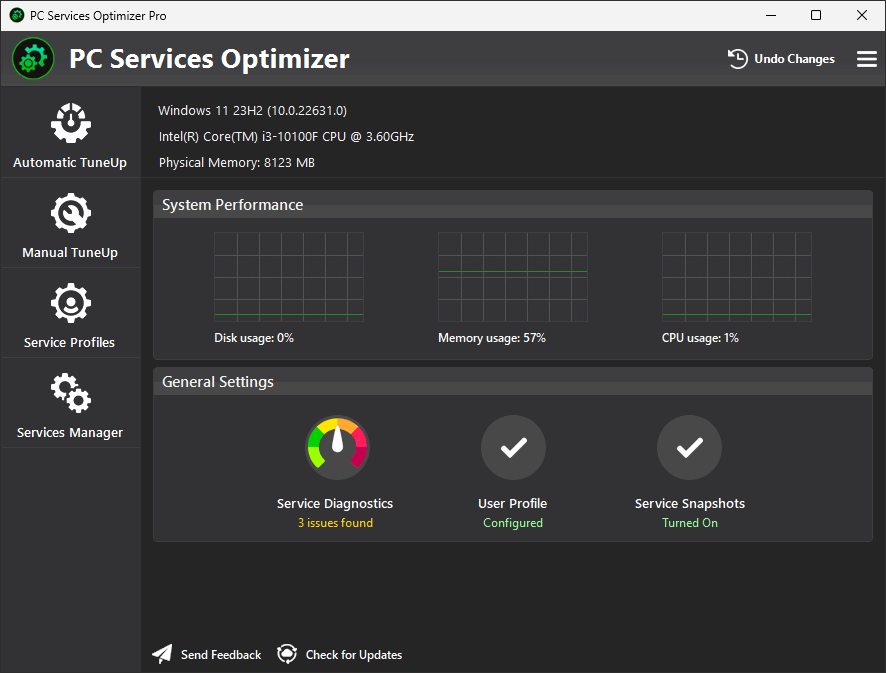
The main dashboard, with usage graphs and the status of Service Diagnostics, User Profile and Service Snapshots.
Features
Automatic Tune-Up by plain questions
PC Services Optimizer asks a short set of questions about how you use your PC, such as whether you print, share files on a network or want Windows to check for updates. It then picks the services to disable, so you never have to read a cryptic service name. This is included in the free edition.
Manual Tune-Up for finer control (Pro)
PC Services Optimizer Pro lists many more usage statements, grouped into System Features, Security & Privacy, Internet & Network and Applications tabs, each with a Yes or No. Version 5 added the Applications tab, which covers services installed by third-party programs.
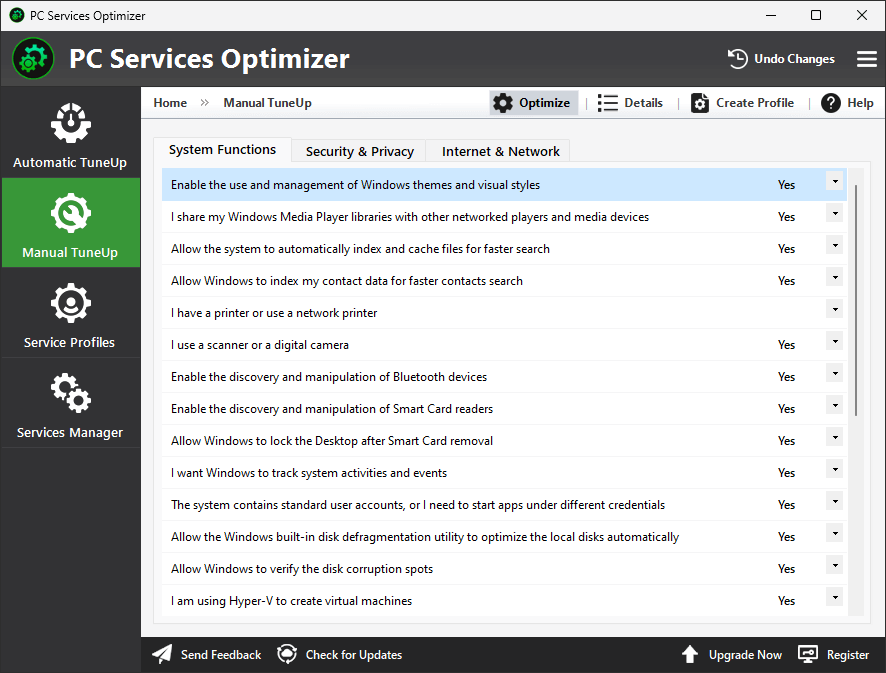
Manual Tune-Up in the Pro edition, with Yes or No choices for features such as Bluetooth, BitLocker and Hyper-V.
Services Manager for hands-on users
PC Services Optimizer replaces the Windows services console with a tool that can start, stop and delete services in batches. You can search by name, developer or file path, sort services into system, Microsoft and third-party groups, and see unsigned services flagged by its digital signature check.
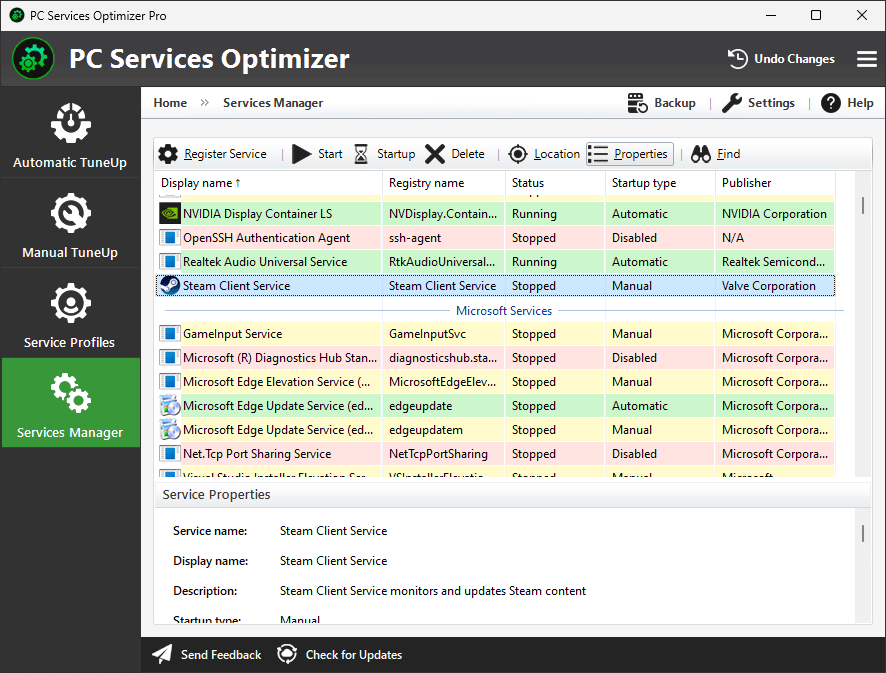
The Services Manager, color-coding each service with its status, startup type and publisher.
Service Profiles (Pro)
PC Services Optimizer Pro saves a service setup as a named profile that you apply with one click. You could keep a gaming profile with background services off and a work profile with networking and printing on, and switch between them without redoing anything.
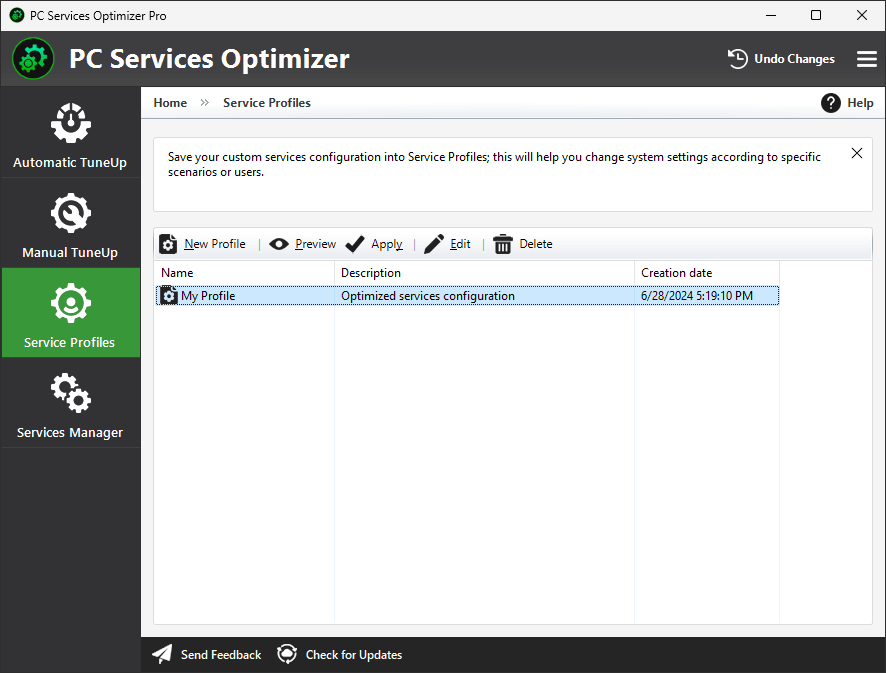
Service Profiles, where saved setups can be previewed, applied, edited or deleted.
Rescue Center and Service Diagnostics
PC Services Optimizer can create a system restore point before it makes changes, and its Rescue Center reverts changes to your service setup, including those made by other software. Service Diagnostics looks for service configuration problems and fixes them in one click.
Benefits
- Fewer things running in the background: services you never use stop taking memory and CPU time.
- Lower risk than doing it by hand: the program only changes services the vendor considers safe to disable, and it keeps a way back.
- No reading required: you answer questions about your habits instead of researching service names.
Real-World Uses
- An older laptop feels sluggish after boot. You run Automatic Tune-Up to switch off what you don't use.
- You game on a PC you also work on, so you keep two Service Profiles and swap before a session.
- You installed a program that left a service running at startup and want to find it by publisher and stop it.
- Something is misbehaving after another "tweaker" changed your services, so you use Rescue Center to put things back.
Who It's For, and Who Should Skip It
It fits Windows users on modest hardware who want to reduce background work without learning what each service does, and tinkerers who want a better services console than the one in Windows.
Skip it if your PC is already fast, because the gain may be too small to feel. Skip the Pro upgrade if a one-time tune-up is all you want, since the free edition does that. On a company PC, leave services to your IT department.
Usage Guide
- Download and install PC Services Optimizer. Make sure .NET Framework 4.8 is present.
- Open it and start Automatic Tune-Up.
- Answer the questions about how you use your PC.
- Apply the changes, letting it create a restore point when it offers.
- Restart if asked, then use the PC normally for a few days.
- If something stops working, click Undo Changes in the title bar.
Where It Falls Short
- Results are hard to prove. The vendor promises faster boot and lower latency but publishes no measurements, and neither do the listings we read.
- Over-optimizing is a real risk. FileHorse's review lists "Potential Over-Optimization Risks" among the cons. A wrong answer can quietly disable a feature you later need.
- It isn't a live monitor. FileHorse also notes "No Real-Time Monitoring", meaning it won't watch for new services you add later.
- Antivirus can get in the way. The vendor's FAQ says some security software interferes with the service changes.
- Deleting services is permanent enough to be dangerous. The batch delete in Services Manager deserves care, and it's best left to people who know what a service does.
What Users Say
Reviews of PC Services Optimizer are few, and most are short notes from download sites. The older ones refer to earlier versions of the program, which was first called Vista Services Optimizer.
Download sites quoted by the vendor
"All in all, PC Services Optimizer is a must-try, especially considering the fact that it could boost computer performance significantly." Softpedia
"PC Services Optimizer can tweak Windows services with a single click. It stops/disables unwanted services that slow down your computer." SoftwareInformer.com
"PC Services Optimizer includes several wizard-like configuration tools that help you decide which services you need and which you don't." Softonic.com. These excerpts are the ones the vendor chose to show.
SnapFiles users: 5 stars from 2 reviews
"VSO is great for freeing up resources in Vista to help it run faster and smoother, decreased boot times, less lockups. I noticed greatly improved performance when I installed this on my old Vista machine." SeSorrow, April 30, 2011. Note the age: this user was running Windows Vista.
FileHorse review by Michael Reynolds
The review lists these pros: "Improves System Performance", "User-Friendly Interface", "Customizable Optimization Options", "Automatic Service Tuning" and "Safe Optimization with Rollback".
Its cons: "Limited Free Features", "Potential Over-Optimization Risks", "No Real-Time Monitoring" and "Compatibility Issues with Older PCs".
The recurring themes: people like the question-based tune-up and the undo option. The doubts are about how much speed you really get and how little the free edition leaves you for manual work. Current-version reviews from ordinary users are scarce, so test the free edition yourself.
Comparisons
PC Services Optimizer vs the Windows services console
The built-in services.msc is free and already on your PC. It gives you no advice, though, and no profiles, no batch actions and no undo. If you know exactly which service you want to stop, it's enough.
PC Services Optimizer vs PC Game Booster
Both come from Smart PC Utilities at the same list price. PC Services Optimizer makes lasting changes to which services run, while PC Game Booster is aimed at preparing your PC for gaming sessions. Pick the one that matches your goal.
Editions and Pricing
| Feature | Free | Pro |
|---|
| Automatic Tune-Up | Yes | Yes |
| Service Diagnostics and Services Manager | Yes | Yes |
| Rescue Center | Yes | Yes |
| Manual Tune-Up, including third-party app services | No | Yes |
| Service Profiles | No | Yes |
| Automatic updates and premium support | No | Yes |
| Price | Free | $14.21 first year at checkout, $18.95 before the discount |
Our Buy Now button goes to the yearly Pro license with the discount already applied. It renews every 12 months. The vendor's own store also sells a Pro lifetime license and multi-device options.
FAQs
Is PC Services Optimizer safe for Windows 11?
PC Services Optimizer supports Windows 11, and version 5 improved support for newer Windows 11 releases. The vendor says it leaves critical services alone, and it can make a restore point first, but no tool that changes services is free of risk.
Will PC Services Optimizer conflict with my antivirus?
PC Services Optimizer works with major security software, including Windows Security, according to the vendor, though an antivirus can sometimes block its changes. Adding it to your exclusions list is the suggested fix.
Does PC Services Optimizer work on Windows 7?
PC Services Optimizer's product page lists Windows 11, 10 and 8.1. FileHorse also lists Windows 7 with Service Pack 1, so try the free edition first if you're on that system.
Do I need to keep PC Services Optimizer running?
PC Services Optimizer changes Windows settings, so those changes stay in place once applied, and it doesn't need to sit in the background for them to last.
What happens when the PC Services Optimizer Pro year ends?
PC Services Optimizer Pro is sold as a yearly license through the order page, which renews every 12 months. If you stop paying, expect to lose the Pro features. Your service changes are Windows settings, so they don't vanish on their own.
Can I use one PC Services Optimizer license on two PCs?
PC Services Optimizer's store sets a device count per license, so buy for the number of PCs you need. You can raise the quantity on the order page.
System Requirements
- Windows 11, 10 or 8.1
- Microsoft .NET Framework 4.8
- 16 MB download
Conclusion
PC Services Optimizer is worth trying for free on an older or crowded Windows PC, and worth $14.21 only if you want Manual Tune-Up or Service Profiles. The one reason to buy Pro is control: you can tune third-party services and switch whole setups with a click.
The main reason not to is that the speed gain is unproven on a modern PC. Run the free Automatic Tune-Up first and see if you feel any difference before paying.
Download Free TrialBuy Now