Short answer: Windows can already save speech to an audio file for free: three lines of PowerShell turn any text into a WAV file with the built-in Microsoft voices. For MP3 files, documents and batches, Vovsoft Text to MP3 Converter ($19 once) does the job with the same Windows voices plus optional OpenAI voices. For a full voice-over editor with 1,000+ offline voices, a different voice per line and voice cloning, use EaseText Text to Speech Converter ($47.40 for a year).
At a glance
| Fact |
PowerShell (built in) |
Vovsoft Text to MP3 Converter |
EaseText Text to Speech Converter |
| Price | Free | $19 once, lifetime license | $47.40 for 1 year, 1 PC, no auto-renewal |
| Output | WAV | MP3, WAV | MP3, WAV, AAC (plus the script as TXT, PDF, HTML or DOC) |
| Voices | Classic Windows "Desktop" voices (David and Zira on English Windows) | Windows voices offline; OpenAI and Replicate voices with your own paid API key | 1,000+ voices on the price page, offline |
| Opens PDF and Word files | ✗ (plain text only) | ✓ TXT, PDF, DOC, DOCX | ✓ TXT, DOC, CSV, HTML and more |
| Batch conversion | With a script loop | ✓ | ✓ |
| Different voice per line | ✗ | ✗ (one voice per tab) | ✓ |
| Voice cloning | ✗ | Through Replicate (online, paid separately) | ✓ Trained on your own PC |
| Trial | Not needed | Free, limited conversion and a nag screen | Free download with all features, per EaseText |
| Mac version | macOS has its own "say" command | ✗ | ✓ Sold separately, same price |
What we checked
- We ran the PowerShell commands below on Windows 11 and saved a WAV file with the built-in Microsoft David voice.
- We checked both programs' prices on their order pages, their installers and their current versions.
- We read each vendor's feature pages, tutorials, license and refund terms, and the reviews that exist.
What we checked: on November 21, 2026, PowerShell 5.1 on Windows 11 saved a 153 KB WAV file of one spoken sentence, with Microsoft David Desktop and Microsoft Zira Desktop as the installed voices. The same day, the order pages charged $19.00 for Vovsoft Text to MP3 Converter (version 4.7, 19.4 MB installer) and $47.40 for EaseText Text to Speech Converter Personal Edition for Windows (version 3.1.2, 70.8 MB installer). We didn't install either paid program or compare their voices by ear.
The free way: save speech with PowerShell
Windows has a speech synthesizer built in, and PowerShell can write its output to a WAV file, with no download. It uses the same Microsoft voices as Narrator: on an English Windows 11 PC that's Microsoft David and Microsoft Zira.
- Press Start, type PowerShell and open Windows PowerShell.
- Load the speech engine and create a synthesizer:
Add-Type -AssemblyName System.Speech
$s = New-Object System.Speech.Synthesis.SpeechSynthesizer
- See which voices you have, and pick one:
$s.GetInstalledVoices() | ForEach-Object { $_.VoiceInfo.Name }
$s.SelectVoice('Microsoft Zira Desktop')
- Point the output at a file, then speak your text into it:
$s.SetOutputToWaveFile("$env:USERPROFILE\Desktop\speech.wav")
$s.Speak('Paste your text here.')
- To read a whole text file instead, use
$s.Speak((Get-Content -Raw "$env:USERPROFILE\Desktop\notes.txt")), then run $s.Dispose() so the WAV file is closed and ready to play.
$s.Rate (from -10 to 10) changes the speed. PowerShell sees only the classic "Desktop" voices: on our Windows 11 PC that was David and Zira, while a third voice installed for Windows' newer speech system (Microsoft Mark) didn't appear, so voices you add in Windows Settings may not show up here.
Where the free way stops
- WAV only. The file is uncompressed: our one sentence took 153 KB, so an hour of speech runs to hundreds of megabytes. You need another tool to make an MP3.
- Plain text only. PDFs and Word files have to be copied into a text file first.
- Robotic voices. David and Zira are clear but obviously synthetic, fine for proofreading by ear or study notes, not for a polished voice-over.
- Reading aloud isn't saving. Narrator and the Read Aloud button in Microsoft Edge read text to you, but neither saves an audio file.
On a Mac, the equivalent is the Terminal's say command: say -f notes.txt -o speech.aiff saves a text file as an AIFF audio file with the Mac's built-in voice.
Vovsoft Text to MP3 Converter: MP3 files and documents for $19
Vovsoft Text to MP3 Converter · $19 once, lifetime license with free updates · Windows 7 to 11 · free trial with limits
Best for: turning documents and notes into MP3s with the free Windows voices, and reaching for an AI voice only when a project needs it.
Vovsoft Text to MP3 Converter is the next step up from PowerShell: the same offline Windows voices, but in a window with a text editor, pitch, volume and speed sliders, and a Save button that writes MP3 or WAV. It opens TXT, PDF, DOC and DOCX files, takes up to 500,000 characters at a time (Vovsoft puts that at about 8 hours of speech), converts several files in one batch, and highlights each word as it reads. Version 4.7 came out on October 4, 2026.
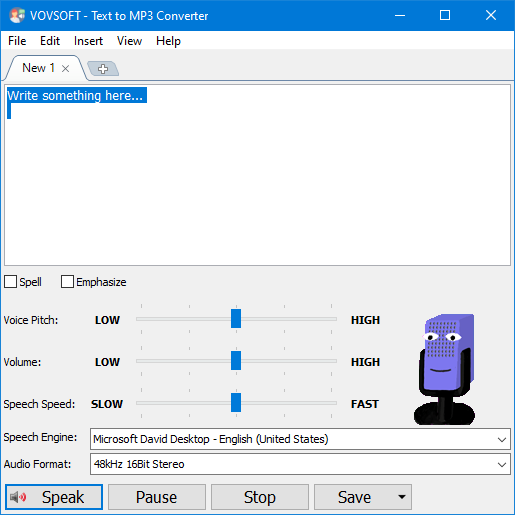
Vovsoft Text to MP3 Converter: the text box, Spell and Emphasize, Voice Pitch, Volume and Speech Speed sliders, Microsoft David Desktop as the speech engine, 48 kHz 16-bit stereo output, and the Speak, Pause, Stop and Save buttons.
When the Windows voices sound too mechanical, the OpenAI tab sends your text to OpenAI and saves one of its six voices (Alloy, Echo, Fable, Onyx, Nova, Shimmer), and the Replicate tab adds voice cloning from a sample. Both need your own account and are billed by those companies per character, on top of the $19.
What we like
- $19 once, with free updates
- Opens PDF and Word files, batch conversion
- Works offline with the Windows voices
- Optional pay-per-use AI voices, no monthly plan
Watch out for
- The built-in voices are the same robotic Windows ones
- AI voices need an API key and separate billing
- No refund if you change your mind
- Windows only
What users say
Vovsoft's product page shows 4.6 out of 5 from 11 votes, and the company has 4.6 out of 5 on Trustpilot from 410 reviews across all its programs.
"This software does what it says it can do. Been using it for several years wherein I purchased a lifetime license." Mardel, on vovsoft.com
MajorGeeks: it "will be a great choice if you need a straightforward tool for performing text-to-audio conversions."
Buy Text to MP3 ConverterDownload Text to MP3 Converter Free Trial
EaseText Text to Speech Converter: a voice-over editor with 1,000+ offline voices
EaseText Text to Speech Converter for Windows · $47.40 for one year on 1 PC (Family $83.40 for 3 PCs, Business $155.40 for 10) · Windows 7 to 11, 64-bit · free trial
Best for: video and course narration with several speakers, and anyone who wants better voices than Windows' own without uploading text to a web service.
EaseText Text to Speech Converter brings its own voice library (1,000+ voices on the price page) that runs offline on your PC, so nothing is uploaded and there's no character meter. Its editor splits a script into segments shown as speech bubbles, and each segment can have its own voice: a two-person dialogue or a narrator plus a quoted speaker is one project. Export writes MP3, WAV or AAC, combined into one file or one file per segment, and can save the script as TXT, PDF, HTML or DOC alongside.

An EaseText project in which each speech bubble has its own voice (Julio, Meredith, Jamir, Mohammad and others), with the player at the bottom. The arrows are from EaseText's tutorial.
A File Converter turns a pile of documents into audio in one batch, and Voice Cloning trains a voice of your own from about a minute of recorded sentences, on your own computer. The price covers one year of use with no automatic renewal: after that you buy again if you still need it. The app needs 4 GB of RAM and 6 GB of disk space, because the voices run locally.

EaseText's Export Settings: the save path, the audio format (WAV shown) with "Combine into one audio", an optional PDF copy of the text, and Show Speaker. The numbered arrows are from EaseText's tutorial.
What we like
- A different voice for every line of a script
- Large offline voice library, no character limit
- Voice cloning that stays on your PC
- Commercial use listed on every plan
Watch out for
- One year of use, then you buy again
- No independent reviews of the voices
- The current installer dates from January 2024
- "Registration Backup Service" ticked by default at checkout
What users say
There's very little independent feedback. SourceForge, Slashdot and TrustRadius list EaseText Text to Speech Converter with no user reviews, and FixThePhoto's 4.5 out of 5 for EaseText's lineup is based on its transcription tools, not the voices. EaseText's own page shows short testimonials, which are favorable by nature. The trial is the only reliable test, so run your own script through it.
Buy EaseText for WindowsDownload EaseText for Windows Free Trial
On a Mac, EaseText Text to Speech Converter for Mac has the same tools and the same $47.40 price, for macOS 10.15 Catalina to macOS 14 Sonoma. The Windows and Mac licenses are separate, so buy the one for your computer.
Buy EaseText for MacDownload EaseText for Mac Free Trial
What it costs over three years
Vovsoft is the cheapest paid option by far; EaseText costs more but brings its own voices. Vovsoft's $19 is paid once. EaseText's $47.40 covers one year, so three years of use means buying it three times, if the price stays the same.
Cost for one PC over three years (USD)
PowerShell (built into Windows)$0
Vovsoft Text to MP3 Converter (Windows voices)$19.00
EaseText Text to Speech Converter Personal ($47.40 a year)$142.20
Order page prices checked on November 21, 2026. Vovsoft's optional OpenAI voices are billed by OpenAI per character and aren't included.
Which way should you use?
| Your situation |
Use |
Why |
| One short audio file, WAV is fine | PowerShell | Free and already installed |
| PDFs, Word files or study notes to MP3 | Vovsoft Text to MP3 Converter | Opens documents, saves MP3, $19 once |
| Occasional natural-sounding narration | Vovsoft with an OpenAI key | Pay only for the characters you use |
| Regular voice-overs with several speakers | EaseText Text to Speech Converter | A voice per segment, big offline library |
| Confidential scripts, no uploads | EaseText (or Vovsoft with Windows voices) | Both convert offline |
| Mac | say command, or EaseText for Mac | Vovsoft has no Mac version |
Our pick for most people who need MP3 files is Vovsoft Text to MP3 Converter. It costs $19 once, handles the documents you actually have, and lets you switch to an AI voice only when a project calls for it. Choose EaseText if you produce narration regularly and want many offline voices and per-line speakers in one editor. Skip both if you just want text read to you: Narrator and Edge's Read Aloud do that for free.
What commonly goes wrong
- Your language isn't available. The free PowerShell way is limited to the classic Desktop voices. Vovsoft says its program picks up voices you add through Windows' language settings, and EaseText has its own voice list, so check your language and accent in each trial before buying.
- Pasting a messy PDF. Headers, page numbers and hyphenated line breaks get read aloud. Clean the text before converting.
- Punctuation in other languages. Vovsoft users report the Windows voices don't handle question and exclamation marks naturally in some non-English languages.
- Buying before trying. Neither Vovsoft nor EaseText refunds a purchase just because the voices don't suit you, so listen to your own text in the trial first.
- Very long books. Vovsoft converts up to 500,000 characters at a time, so split a long book into chapters.
FAQs
Can Windows save text to speech as an audio file without extra software?
Yes. Windows' built-in speech synthesizer can write a WAV file through PowerShell's System.Speech commands, using the installed Microsoft voices. It can't save MP3 directly, and Narrator and Edge's Read Aloud only read aloud without saving.
What's the cheapest way to convert text to MP3 on Windows?
Vovsoft Text to MP3 Converter is the cheapest paid way at $19 once, saving MP3 or WAV with the free Windows voices. The trial converts with limits and shows a nag screen until you buy.
Can I convert a PDF to MP3?
Yes. Vovsoft Text to MP3 Converter opens PDF, DOC and DOCX files directly and saves them as MP3, and EaseText Text to Speech Converter's File Converter batch-converts documents to audio. The free PowerShell way needs the text copied into a plain text file first.
Do these tools work offline?
Yes. The PowerShell method, Vovsoft Text to MP3 Converter with Windows voices and EaseText Text to Speech Converter all convert offline. Vovsoft's OpenAI and Replicate voices are the exception: they send your text online.
Can I use the audio in YouTube videos?
EaseText Text to Speech Converter lists commercial use on all its plans, so its exported audio can go into videos and courses. For Vovsoft's OpenAI voices, OpenAI's own usage terms apply.
Is EaseText Text to Speech Converter a subscription?
No automatic subscription. EaseText Text to Speech Converter's $47.40 Personal Edition is a single charge for one year of use with no auto-renewal; after the year you buy again if you still need it.
Can I clone my own voice?
EaseText Text to Speech Converter clones your voice on your own PC from about a minute of recorded sentences, after a training run that takes a while on an ordinary computer. Vovsoft Text to MP3 Converter offers cloning through Replicate, an online service you pay separately.