Short answer: first decide what "one" means. If you want one long table and your files share the same column names, Excel's free Data > Get Data > From File > From Folder does it on Windows and can be refreshed when new files arrive. If you want one workbook with every sheet as its own tab, Excel's free Move or Copy command does it for a handful of files. For anything messier (different layouts, header and total rows, password-protected files, dozens of workbooks every month), Kutools for Excel ($59 once) does both jobs from one wizard inside Excel. Excel Merger PRO ($29.95 a year) and Spreadsheet Combiner ($19 once) are cheaper stand-alone tools that don't need Excel at all.
At a glance
| Excel, free (From Folder / Move or Copy) | Kutools for Excel | Excel Merger PRO | Spreadsheet Combiner |
|---|
| Price at checkout | Included with Excel | $59 one-time, 2 years of updates | $29.95, renews every 12 months unless you untick it | $19 one-time, lifetime updates |
| All files into one sheet | ✓ From Folder (Windows) | ✓ | ✓ Files & Sheets mode | ✓ Single Sheet mode |
| All sheets into one workbook, as tabs | ✓ Move or Copy, one sheet at a time | ✓ | ✓ Files mode | ✓ Multiple Sheets mode |
| Add a whole folder | ✓ From Folder | ✓ | Files only, by drag and drop or Add | ✓ Add Folder |
| Drops repeated header rows | ✓ From Folder | ✓ Header and total rows setting | Not documented | ✗ |
| Password-protected workbooks | Open them by hand first | ✓ Password Manager | Not documented | Not documented |
| Needs Excel installed | ✓ | ✓ Excel 2007 to 2024 or Microsoft 365 | ✗ | ✗ |
| Input formats | Excel, CSV, text, XML, JSON | Excel workbooks and CSV | XLSX, XLS, ODS, CSV, XML | XLSX, XLS, CSV |
| Mac | Move or Copy only | ✗ | ✗ | ✗ |
| Trial | Not needed | 30 days, every feature; then 3 uses per feature | Free version adds random text to merged files, no commercial use | Works with a nag screen, no commercial use |
How we picked
- We started with what Excel already does for free, because many people searching for this never need to buy anything.
- We copied sheets between workbooks with Move or Copy and ran a Power Query folder query on three small test workbooks, one of them with its columns in a different order.
- We then looked only at products that merge whole files or sheets, read each one's order page for today's price and renewal terms, and read each vendor's tutorial for the exact options.
- We read each trial's limits, since the trial is where you find out whether your own files merge cleanly.
What we checked: on November 11, 2026, a From Folder query and a Move or Copy run in Excel 2021 (build 16.0.20326) combined three test workbooks correctly, and the order pages showed Kutools for Excel at $59.00 (lifetime), Excel Merger PRO at $29.95 (12-month renewal) and Spreadsheet Combiner at $19.00 (one-time). We didn't install the three paid tools or merge files with them, so there's no speed or accuracy ranking here.
First: one table, or one workbook?
"Merge Excel files into one" means two different jobs, and the right tool depends on which one you have.
- One table (append). Twelve monthly sales files with the same columns should become one long list you can filter, sort and pivot. This is the common case, and Excel's From Folder is built for it.
- One workbook (collect). Five reports from five people should sit in one file, each on its own tab, unchanged. Here you're moving sheets, not stacking rows, and Move or Copy is the free route.
Every tool in this guide does both, under different names. Keep your answer in mind as you read.
Free way 1: one table with Get Data From Folder
Excel's From Folder import is Power Query, and Microsoft lists it for Excel 2016, 2019, 2021, 2024 and Microsoft 365 on Windows. It stacks every file in a folder into one table, matching columns by their names, and it remembers the steps, so next month you drop the new file into the folder and click Refresh.
- Put the files you want to merge in their own folder, with nothing else in it. Every file in the folder, and in any subfolder, is included.
- In a new workbook, select Data > Get Data > From File > From Folder and choose the folder.
- Check that the list shows the files you expect, then choose Combine > Combine & Load.
- In the Combine Files dialog, pick the sheet or table to take from each file in the Sample File box. Tick Skip files with errors if a stray file might break the run, then select OK.
- The merged table lands on a new sheet. Its first column, Source.Name, holds the name of the file each row came from.
- When new files arrive, put them in the folder and select Data > Refresh All.
In our test, a folder query over three workbooks with a "Sales" sheet each returned one six-row table, and the file whose Region and Product columns were swapped still lined up correctly, because Power Query matches by column name rather than position. If the header row isn't the first row in your files, choose Combine & Transform Data instead and fix the sample file's steps (remove the top rows, then use the first row as headers). Power Query applies the same fix to every file.
Where From Folder falls short
- The files need the same structure. Microsoft asks for the same column headers, data types and number of columns. The merged table takes its columns from the sample file, so a column spelled differently in another file comes through empty for that file, and a column that exists only in other files is dropped.
- The result is data, not a copy. Formatting, formulas, comments and charts from the source sheets don't come across.
- It isn't on a Mac. Microsoft's list of data sources for Excel for Mac allows refreshing a Local Folder query but not creating one, so a Mac can update a query someone built on Windows, but can't start one.
- Stray files get included. An old copy in a subfolder or an unrelated file joins the merge unless you filter it out with Transform Data.
Free way 2: one workbook with Move or Copy
Excel's Move or Copy command copies whole sheets, with their formatting and formulas, into another workbook. It's the right free tool when you have a few files and want each sheet kept as its own tab. It also works on a Mac.
- Open the destination workbook and every workbook you're copying from.
- In a source workbook, right-click the sheet tab and choose Move or Copy. Ctrl-click to select several tabs first if you want more than one.
- In To book, choose the destination workbook, or (new book) to start a fresh one.
- Pick a position under Before sheet (or move to end), tick Create a copy so the original stays where it is, and select OK.
- Repeat for each source workbook, then rename the tabs so you can tell them apart.
On a Mac, the same command is under Edit > Sheet > Move or Copy Sheet. Microsoft warns you to check any formulas or charts that refer to a sheet after moving it between workbooks, and that 3-D references across sheets may include or leave out data afterward. The real limit is patience: ten files a month means ten rounds of the dialog, and if you then need one table, you're back to copying and pasting rows.
What about a macro? If you already write VBA, a short loop that opens each file and copies its sheets does the same job as Move or Copy and is worth it for a monthly routine. We haven't given one here because we didn't test a macro, and a copied macro you don't understand is a poor thing to run on the only copy of your files.
Kutools for Excel
Kutools for Excel is an Excel add-in with more than 300 tools, and its Combine wizard is the most complete merge tool in this guide. Price: $59 one-time at checkout, with 2 years of updates, for up to two computers. Platforms: Windows 7 to 11, with Excel 2007 to 2024 or Microsoft 365. Best for: people who merge files regularly and whose files don't line up neatly.
Kutools for Excel puts the whole job in one three-step wizard, under Kutools Plus > Combine. The first step asks which of four jobs you want: combine sheets from many workbooks into one sheet, combine all same-named sheets into one sheet, combine sheets from many workbooks into one workbook, or consolidate and calculate values across workbooks into one sheet. So the "one table or one workbook" question is literally the first choice you make.

Step 1 of the Combine Worksheets wizard, with the four combine operations and a preview of two small tables stacked into one. The data is the vendor's example.
Step 2 is where it pulls ahead of the free routes. You add files one by one, a whole folder, CSV files or OneDrive files, then tick the sheets you want in each workbook and set a range for each one. Same sheet selects every sheet with the same name across all the workbooks in one click, and Same range applies one range to every sheet. A Password button stores the passwords of protected workbooks so they open during the merge. You can save the whole selection as a Scenario and reopen it next month instead of picking the files again.

Step 2: three workbooks ticked on the left, and Sheet1 to Sheet3 with the range $A$1:$C$5 on the right, above the Same range and Same sheet buttons. The Password and Scenario buttons are at the bottom left.
Step 3 handles the details that make a merged sheet usable. Set the number of header rows and total rows, and Kutools keeps the first header and drops the repeated headers and totals from every other sheet. You can paste everything, values only, or links to the source data, keep formatting and row heights, skip filtered-out rows, skip or keep blank ranges, and insert each source sheet's name as a new row or a comment, so you know where each block came from.

Step 3: Combine by row or by column, header and total rows set to 1, paste options with Preserve formatting ticked, a Skip setting for blank ranges, and the Insert worksheet information choices. The numbered circles are the vendor's.
The difference from From Folder is that Kutools for Excel doesn't need matching column names. It stacks the ranges you pick, by row or by column, which suits sheets that share a layout but not exact headings, and it keeps the formatting. The flip side is that there's no option to match columns by name, so line up the column order in your files before you merge. Kutools also doesn't build a refreshable query. A saved Scenario repeats the selection, and Paste link to source data keeps the cells tied to the originals, but a growing folder of new files still means running the wizard again.
The rest of the add-in is why the price is higher than a single-purpose tool: the same $59 buys duplicate finders, text cleaning, merging cells without losing data, and splitting a merged sheet back out by column. Whether that matters depends on how much of your day you spend in Excel.
What we like
- One wizard covers one sheet, one workbook, same-named sheets and totals
- Drops repeated header and total rows
- Opens password-protected workbooks during the merge
- Saved scenarios for monthly merges
- One payment, and a 30-day trial with every feature
Watch out for
- Windows only, and Excel must be installed
- No option to match columns by name
- No refreshable query like From Folder
- 300+ tools can feel like a lot if you only need this one
On Microsoft's Tech Community forum, qfoutch (July 25, 2023) calls Kutools "the best investment I have ever made in an application or plugin" and says it "saves me ~1 hour a day on analysis". HansVogelaar (April 12, 2021): "Kutools is a utility with a good reputation from a company with a good reputation."
Not everyone agrees. SFegter2315 (July 14, 2023) wrote that "the software continuously conflicts with links and other formula entries" and that "it is very confusing to use".
ExtendOffice's Trustpilot page showed 4.3 out of 5 from 8 reviews when we looked on November 6, 2026. The one 1-star review there, from Terry Bradley (July 16, 2022), is about recovering a license after a machine failure: "It is a long and drawn out and impossible process to try and retrieve your very long serial code." Keep your license email somewhere safe.
Download Kutools for Excel Free Trial Buy Kutools for Excel
Excel Merger PRO
Excel Merger PRO is a small Windows program that merges spreadsheet files without Office or Excel installed. Price: $29.95 at checkout, renewing every 12 months unless you turn that off. Platforms: Windows XP SP3 to 11 and Windows Server, 32-bit or 64-bit. Best for: a PC without Excel, or mixed XLSX, XLS, ODS, CSV and XML files.
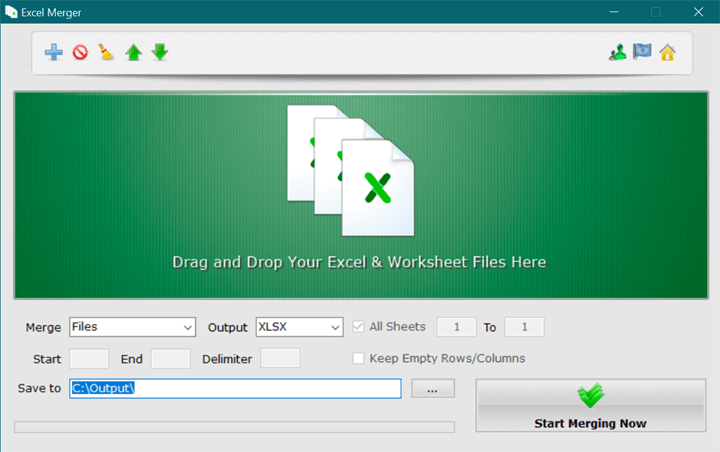
The Excel Merger window: a drop area for files, the Merge list set to Files, the Output list set to XLSX, the sheet range, row and delimiter boxes, and the Start Merging Now button. Image from NirmalTV's write-up.
Excel Merger PRO is a drop-and-go tool. Drag files onto the window, pick a mode in the Merge list, choose an output format and folder, and click Start Merging Now. Files puts every file's sheets into one file as separate tabs. Files & Sheets pours all the sheets of all the files into one sheet in one file. Sheets merges the sheets inside each file, and Rows and Columns join chosen rows or columns into one with a delimiter. A sheet range limits the merge to some sheets in each file.
Its strengths are format range and independence. It reads and writes XLSX, XLS, ODS, CSV and XML, so a LibreOffice file and a CSV export can end up in one XLSX, and it runs on a PC with no Office license at all. The weak points are a lack of control and of recent work: there's no preview, the tutorial says nothing about formatting, formulas or matching columns, and the installer on the vendor's site dates from December 2022. The free version uses the same modes but adds random text to merged files and isn't licensed for commercial use, so it's good for testing a layout and nothing more.
What we like
- No Excel or Office needed
- Five input and output formats, including ODS
- Learnable in a couple of minutes
- Free version to test the merge modes
Watch out for
- Renews yearly unless you untick it at checkout
- No preview, thin documentation
- Free version's output is unusable at work
- No new installer since December 2022
MajorGeeks: "Excel Merger is a straightforward Excel file and workbook merging utility." Its users rate it 5 from 14 votes.
NirmalTV (May 15, 2020, about the free version): "The app has a dead simple interface where you can drag and drop your Excel and worksheets." Neither write-up tests large files or formatting, so run the free version on your own files before paying.
Download Excel Merger Free Version Buy Excel Merger PRO
Spreadsheet Combiner
Spreadsheet Combiner is a tiny Vovsoft program that merges CSV, XLS and XLSX files into one sheet or one multi-tab workbook. Price: $19 one-time at checkout, lifetime license with free updates. Platforms: Windows XP to 11, installer or portable. Best for: occasional merges on a budget, offline, without learning Power Query.

Spreadsheet Combiner with a CSV, an XLSX and an XLS file queued, Merge into Single Sheet selected, the Plain Text option and the Combine button.
Spreadsheet Combiner has exactly the two choices this guide started with. Merge into Single Sheet appends everything into one sheet (CSV, XLS or XLSX output), and Merge into Multiple Sheets keeps each source sheet as its own tab (XLS or XLSX). Add files or a whole folder, tick Plain Text if you don't want the fonts and colors carried over, and click Combine. Nothing is uploaded, which matters for payroll or client data that you wouldn't put through a free merge website.
It's simple to a fault. Single Sheet mode appends rows as they are, so repeated header rows from each file stay in the result, and there's no column naming the source file, which is exactly what its one user review asks for. It doesn't match columns by name either. Version 1.3 dates from July 2024. For $19 it does the basic job offline, but if your files share the same columns and you have Excel on Windows, From Folder does that job better for free.
What we like
- Cheapest paid option, paid once
- One sheet or one multi-tab workbook
- Whole-folder input, mixed CSV and Excel files
- Portable edition, works fully offline
Watch out for
- Keeps every file's header row in Single Sheet mode
- No source-file column
- No column matching or cleanup
- Vovsoft's general policy is no refunds, since the trial comes first
Vovsoft's product page shows 4.3 out of 5 from 3 reviews, including this one from ODON: "Merge is perfect with one exception. I can choose merge to one sheet but i cant avoid merge with headers, also last column with the name from orgin file will be nice."
Download Spreadsheet Combiner Free Trial Buy Spreadsheet Combiner
Price at checkout for one license (USD)
Kutools for Excel, one-time$59.00
Excel Merger PRO, per year$29.95
Spreadsheet Combiner, one-time$19.00
Checkout prices read on November 11, 2026, before any tax. Excel's own methods cost nothing extra.
Installer size (MB)
Kutools for Excel 36.00127.8 MB
Excel Merger 1.8.255.9 MB
Spreadsheet Combiner 1.33.35 MB
Sizes of the installers on the vendors' download servers on November 11, 2026. Kutools is large because it's 300+ tools, not one.
Which should you choose?
| Your situation | Pick | Why |
|---|
| Same columns in every file, Excel on Windows | Get Data From Folder | Free, matches columns by name, refreshes next month |
| A few files, keep each sheet as a tab | Move or Copy | Free, keeps formatting and formulas, works on a Mac |
| Regular merges with header or total rows, chosen ranges, or protected files | Kutools for Excel | The most control, saved scenarios, one payment |
| No Excel on the PC, or ODS and XML files in the mix | Excel Merger PRO | Needs no Office, widest format list |
| Occasional merge, smallest budget, no Power Query | Spreadsheet Combiner | $19 once, offline, both merge types |
| On a Mac | Move or Copy | None of the paid tools here run on macOS |
Who should skip each one: skip Kutools for Excel if you merge files once a year, since the free methods cover you, or if you're on a Mac. Skip Excel Merger PRO if you want control over headers and formatting, or dislike yearly renewals. Skip Spreadsheet Combiner if you need clean single-sheet output without repeated headers, or already have Excel on Windows and files with matching columns.
What commonly goes wrong
- Mismatched headings. "Qty" in one file and "Quantity" in another become two columns in From Folder and two half-empty columns after any merge. Fix the headings in the source files first.
- Repeated header rows in the middle of the data. Stacking tools that don't know about headers leave one header row per file. Filter them out, or use a tool with a header setting.
- Lost track of the source. Once the rows are stacked, you can't tell which file a bad row came from. From Folder's Source.Name column and Kutools' worksheet-information option solve this; the stand-alone tools don't.
- Merging into the only copy. Work on copies of your files, especially the first time you try a new tool.
- Forgetting the renewal. Excel Merger PRO's order is set to renew every 12 months. Untick it at checkout if you want it once.
- Uploading private files. Free merge websites mean sending your data to someone else's server. Everything in this guide runs on your own PC.
FAQs
Can I merge multiple Excel files into one for free?
Yes. Excel's Data > Get Data > From File > From Folder stacks every file in a folder into one table on Windows, and Move or Copy copies whole sheets into one workbook on Windows or Mac. Both are already part of Excel.
How do I combine multiple Excel files into one sheet?
Get Data From Folder combines files into one sheet for free when they share column names. Kutools for Excel's Combine wizard does it for files that don't line up, and drops repeated header rows. Spreadsheet Combiner's Single Sheet mode and Excel Merger PRO's Files & Sheets mode also do it without Excel.
How do I merge Excel files into one workbook with separate tabs?
Excel's Move or Copy command copies each sheet into one workbook for free, one dialog per source file. Kutools for Excel, Excel Merger PRO (Files mode) and Spreadsheet Combiner (Multiple Sheets mode) do all the files in one run.
Does Get Data From Folder work in Excel 2016 or 2019?
Yes. Microsoft lists the From Folder import for Excel 2016, 2019, 2021, 2024 and Microsoft 365 on Windows, and we ran it in Excel 2021. Excel for Mac can refresh a folder query but can't create one.
Can I merge Excel files on a Mac?
Excel for Mac's Edit > Sheet > Move or Copy Sheet copies sheets between open workbooks, and that's the practical route on a Mac. Kutools for Excel, Excel Merger PRO and Spreadsheet Combiner are all Windows only.
Can I merge Excel files without Excel installed?
Excel Merger PRO and Spreadsheet Combiner both merge spreadsheet files without Excel or Office on the PC. Kutools for Excel is an Excel add-in, so it needs Excel 2007 or later.
Can I merge password-protected Excel files?
Kutools for Excel's Combine wizard has a Password button where you store each workbook's password so it opens during the merge. With the free methods, open each protected file yourself first.
Will the merged sheet update when the source files change?
A From Folder query updates when you select Refresh All, including new files added to the folder. Kutools for Excel can paste links to the source data, so changed values flow through, but new files need another run. The stand-alone tools make a one-time copy.
Can I merge CSV files and Excel files together?
Spreadsheet Combiner, Excel Merger PRO and Kutools for Excel all accept CSV files alongside Excel workbooks in one merge. From Folder works best with one file type per folder, so filter by extension in Transform Data if the folder is mixed.
Conclusion
Try Excel first. If your files have the same columns, Get Data From Folder is free, matches columns by name, tells you which file each row came from, and refreshes next month. If you just want the sheets in one file, Move or Copy is enough for a few files. Pay when the files are messy or the job repeats: Kutools for Excel is our pick for that, because its Combine wizard handles header and total rows, chosen ranges, protected workbooks and saved scenarios, and the same $59 covers 300 other tools. If you don't have Excel on the PC, Excel Merger PRO is the one that works without it, and if you only merge now and then, Spreadsheet Combiner does the basic job for $19.
Download Kutools for Excel Free Trial Buy Kutools for Excel