You emptied the Trash, reformatted the wrong drive, or a Mac disk suddenly shows up as empty, and the files on it matter. R-Studio for Mac is built for that situation: it scans the disk, finds what is still recoverable, and lets you check files before you pay for anything.
Quick facts
- Version: 7.5 (build 191805)
- Platform: macOS, on Apple M1-M4 chips or Intel Macs; a separate build covers older Mac OS X releases
- Price: from $79.99
- Trial: demo mode works fully for scanning and previewing, but you can't recover files larger than 1024KB until you register
- Download size: about 161.5 MB
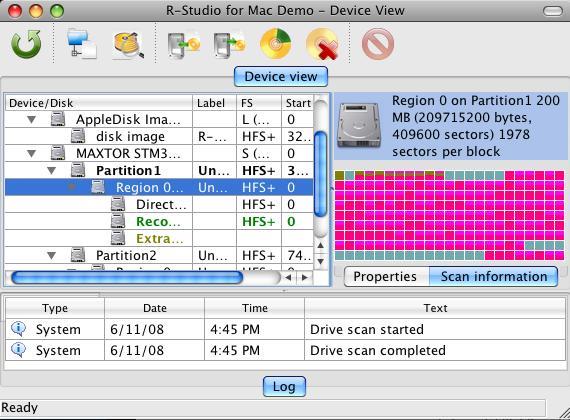
Key features
Recovery from Mac, Windows and Linux file systems
R-Studio reads APFS (including encryption), HFS+, HFS, FAT, exFAT, NTFS, ReFS, UFS1/UFS2, Ext2/3/4 and XFS. A drive pulled from a Windows PC or a Linux server can be scanned from your Mac.
Raw file recovery when the file system is badly damaged
The program searches for file signatures typical of known file types, such as Office documents and JPEGs. That helps on formatted, damaged or unknown file systems, and on media like USB drives, memory cards and CDs. You can also add your own file signatures to the list.
RAID reconstruction with automatic parameter detection
Standard levels (volume set, 0, 1, 4, 5, 6) and nested or non-standard ones (10, 1E, 5E, 5EE, 6E) are supported. For RAID 5 and 6 the software can recognize the RAID parameters automatically, which is often the hardest part of a RAID recovery. It also handles Apple software RAIDs, CoreStorage, File Vault and Fusion Drive.
Disk images so a failing drive isn't stressed further
You can create an image of a whole drive, a partition or part of one, then run the recovery on the image. This helps when a disk keeps developing bad sectors. Images can be compressed, split and password-protected. Read-only support covers DMG, VMDK, VHD, VHDX and VDI files.
File preview to judge recovery chances
The file previewer shows picture tiles and first frames of video files. You can see whether a file is intact before you recover it, and mark files for recovery right from the preview panel.
Network recovery, hex editor and S.M.A.R.T. status
You can recover files from other computers on your network (Windows, Mac, Linux and UNIX). A built-in hex editor supports HFS/HFS+ data and resource forks and has parsing templates. S.M.A.R.T. attributes show a drive's health, so you know when to stop using a failing disk.
Who it's for
It suits Mac owners with a serious loss: a reformatted external drive, a damaged partition table, an encrypted APFS volume, or a RAID array that stopped mounting. IT staff and small repair shops can use it too. If you need a quick undelete of one file, the depth here may be more than you need. Data recovery services have a separate edition, R-Studio Technician.
Pros and cons
Pros
- Wide file system coverage, including APFS, HFS+, NTFS, ReFS, Ext4 and XFS
- RAID support with automatic parameter detection for RAID 5 and 6
- Preview files in demo mode before buying
- Disk imaging lets you work from a copy of a failing drive
- Works on Apple silicon and on older Intel and PowerPC Macs
Cons
- Demo mode won't recover files over 1024KB
- Many options and a hex editor make it more technical than simple undelete tools
- Some advanced features, such as E01 and AFF image support and tape drives, are only in the Technician edition
- Images made in the compressed format are not readable by older R-Studio versions
What users say
"I was able to recover nearly a terabyte of data after a raid 6 array failed." (Michael Lohse, Deelen Computers, on the R-Studio for Mac feedback page)
FAQs
Can I try it before paying?
Yes. The demo mode lets you scan and preview found files. The only limit is that you can't recover files larger than 1024KB. Registration happens on the fly, so you don't need to reinstall.
Does it work on Apple silicon Macs?
Yes. The current version supports Apple M1-M4 chips as well as Intel-compatible 64-bit processors.
Can it recover files if the partition was formatted or deleted?
Yes. It can scan a disk for previously existing partitions and recover files from the ones it finds, and raw file recovery covers heavily damaged or unknown file systems.
Do I need administrator rights?
Yes, you need administrative privileges to install and run it.
Where should I save recovered files?
On a different disk from the one you're recovering from. Recovered files can be saved to any disk your Mac can see, including network disks.
System requirements
- Processor: Intel-compatible 64-bit CPU or Apple M1-M4 chip
- Operating system: macOS 10.14 Mojave through macOS 15 Sequoia, and macOS 26 Tahoe
- Memory and disk: at least 256 MB of RAM, a mouse, and enough disk space for recovered files, image files and so on
- Permissions: administrative privileges to install and run
- Older Macs: a separate build covers Mac OS X 10.4 Tiger through macOS 10.14 Mojave on Intel, PowerPC G5 or PowerPC G4 processors