Boilsoft Video Splitter for Mac: Cut Long Videos at Keyframes
Boilsoft Video Splitter for Mac is a $34.95 one-time Mac program that cuts a long video into shorter clips or removes parts of it, keeping the original quality. It's a good fit for anyone who wants a simple cutter rather than a video editor, but check it on your own Mac first, because its official system list stops at macOS 10.13.
Maybe a three-hour recording needs chopping into chapters, or a clip has to fit an upload limit. A full editor would re-export the whole file. A splitter only marks the points and writes out the pieces, which is much faster.
Quick facts
- Version: 2.0.2
- Developer: Boilsoft Systems International
- Runs on: Mac OS X 10.6 to macOS High Sierra 10.13 on the vendor's list. A Windows version is sold separately
- Formats: MP4, MOV, MKV, AVI, FLV, MPEG, WMV, VOB, 3GP, ASF, RM and RMVB
- Price: $34.95 once, lifetime license with free updates
- Trial: 15-day evaluation with some limitations
- Guarantee: 30-day money-back guarantee, handled case by case
- What we checked: the installer on Boilsoft's server (161.6 MB, dated November 9, 2023), which we opened without running: it holds a 64-bit Intel app with no native Apple silicon code. Also the $34.95 lifetime price on the order page, which labels this product "Video Cutter(Mac)", on November 5, 2026. We didn't run the program or test it on a current macOS release.
Before you buy: try it on your Mac
Boilsoft's product page still lists macOS High Sierra as the newest supported system, which is several releases old. The 2023 installer is 64-bit, which suits newer macOS versions better than the page suggests, but on an M-series Mac it would have to run through Apple's Rosetta translation. Neither is confirmed by the vendor, so download the trial and split a real file from your camera or screen recorder before paying.
Don't be thrown by the checkout, where the product appears as "Video Cutter(Mac)". It's the same product.
Download Free TrialBuy Now
Overview
You drop a video on the window, and it opens in a player with a timeline underneath. You mark where each piece starts and ends, and the pieces line up on the right. One click on Export writes them out as separate files. It's a one-job program with no effects, titles or tracks.
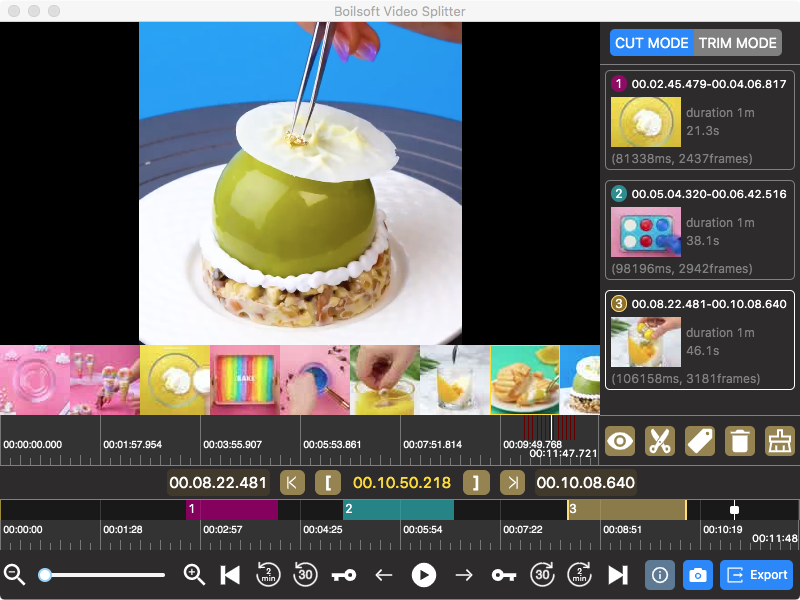
Three segments marked in color on the timeline and listed on the right with their start, end and length. Export is at the bottom right.
Features
Cut Mode: keep the parts you mark
Boilsoft Video Splitter for Mac saves each marked segment as its own file, and there's no limit on the number of segments. You can step by frame or keyframe, or jump 30 seconds or 2 minutes, to get the points right. Each segment can be previewed, tagged with a label or deleted before export.
Trim Mode: remove the part you mark
Boilsoft Video Splitter for Mac's Trim Mode does the opposite of Cut Mode. Select the section you don't want, such as an ad break or a long pause, and you get the video back without it.
Equal parts or equal minutes
Boilsoft Video Splitter for Mac can split a whole file automatically into a set number of parts or into pieces of a set length. A one-hour lecture becomes twelve 5-minute clips with no marking at all.
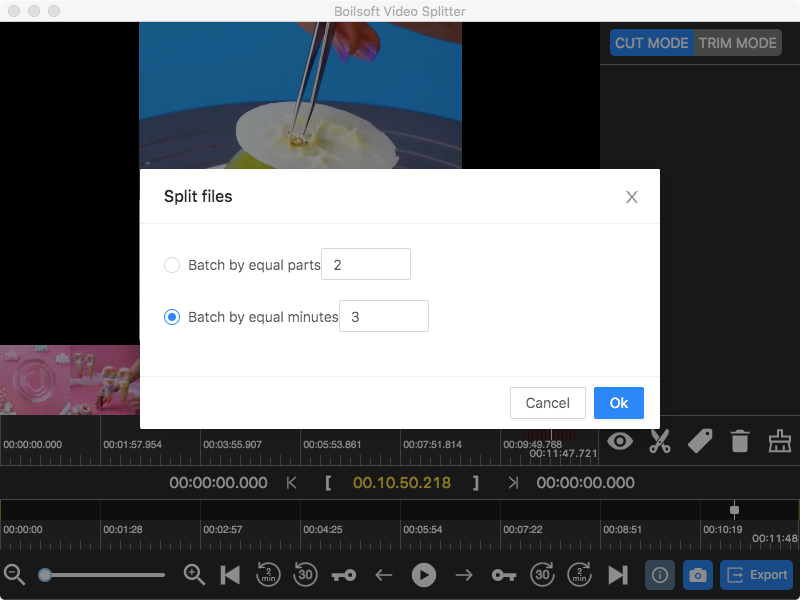
The Split files dialog, set to batch by equal minutes with a value of 3.
Snapshots of single frames
Boilsoft Video Splitter for Mac captures the current frame as an image, handy for a thumbnail.
Real-World Uses
- Short clips for social media. Split a long recording into equal 3-minute pieces for posting.
- Taking out the dull bits. Use Trim Mode to drop the start of a screen recording or a break in a webinar.
- Fitting a size limit. Divide a big file into parts small enough to email or upload.
- Chapters from a long talk. Mark each topic, tag it, and export them as separate files.
Who It's For, and Who Should Skip It
This suits you if you cut long files often, want to keep the original quality, and prefer paying once. An Intel Mac is the safest match.
Skip it if you only trim the odd clip, since QuickTime Player can already trim and split on any Mac for free. Skip it too if you need frame-exact cuts everywhere, titles or effects: a video editor is the right tool for that. And if you're on the latest macOS and the trial misbehaves, move on, because the vendor doesn't promise support there.
Usage Guide
- Download the DMG and install the app, then open it.
- Drag a video onto the window or click Click to Upload.
- Play the video and set each start and end point. Fine-tune with the frame and keyframe buttons.
- Repeat for more segments, or use the split button for equal parts or minutes. Switch to Trim Mode if you want to remove the section instead.
- Click Export to save the segments as separate videos.
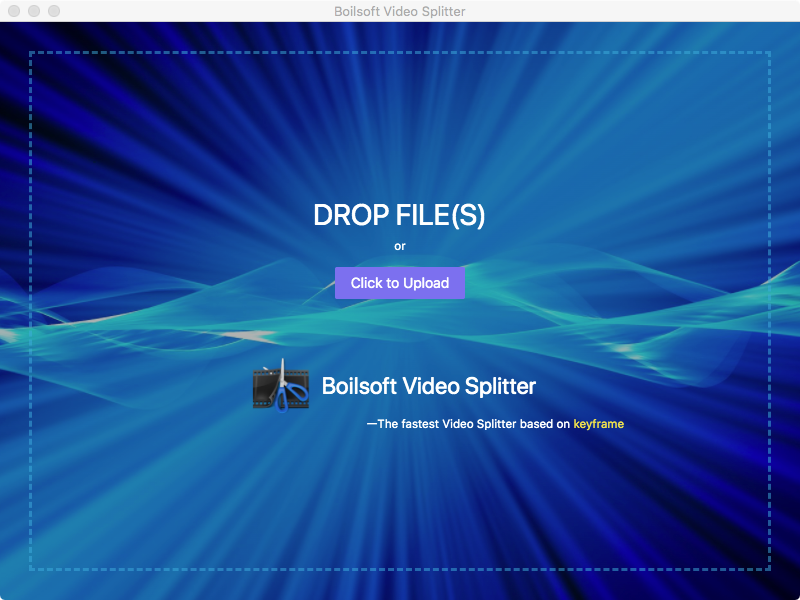
The start screen: drop a file or click Click to Upload.
Where it falls short
- Keyframe cuts aren't always exact. The app bills itself as keyframe-based, so a cut can land slightly away from the frame you picked.
- It looks unmaintained. The installer dates from 2023, and the system list hasn't moved past 10.13.
- The product page is out of step. It still lists conversion, subtitles and watermarks, which the current tutorial doesn't show. Check in the trial if you need them.
- The trial's limits aren't itemized. Boilsoft says only "some limitations" over 15 days.
- A large download for a small job. The app is built on Electron, so the installer is about 170 MB.
What Users Say
We couldn't find an independent hands-on review of the Mac version, or user ratings we could trust, so we're not quoting any. Most of what turns up is Boilsoft's own text repeated on download sites, or articles from competing video editors. The trial is your best guide here.
FAQs
Does Boilsoft Video Splitter for Mac work on Apple silicon Macs?
Boilsoft Video Splitter for Mac has no native Apple silicon code in its current installer, and Boilsoft doesn't list Apple silicon support. An Intel app would need Rosetta on an M-series Mac, so test the trial first.
Does Boilsoft Video Splitter for Mac lose quality?
Boilsoft Video Splitter for Mac keeps the original video quality, according to Boilsoft, because it splits at keyframes rather than rebuilding the whole video.
Is Boilsoft Video Splitter a subscription?
Boilsoft Video Splitter for Mac is a one-time purchase: $34.95 for a lifetime license, with free updates.
What's Boilsoft's refund policy?
Boilsoft offers a 30-day money-back guarantee, but its refund policy asks you to get in touch within 14 days of purchase and says refunds are handled case by case. Contact them early if the app doesn't suit your Mac.
Is the Windows version included?
Boilsoft Video Splitter for Mac doesn't include the Windows version, which is sold separately.
System Requirements
- Mac OS X Snow Leopard 10.6 to macOS High Sierra 10.13, on Boilsoft's list
- About 170 MB for the download
Conclusion
Boilsoft Video Splitter for Mac is a fair buy at $34.95 once if the trial runs properly on your Mac and you cut long videos often. Its unlimited segments and automatic equal splits are the reason to buy it, since QuickTime can't do those as easily. The reason not to is its age: with no stated support after macOS 10.13, we'd only pay after a successful trial, and an occasional user should stick with QuickTime.
Download Free TrialBuy Now