Red Button: A Tiny Windows Cleaner and Tweaker You Configure Once and Run with One Click
Red Button is a 1.7 MB Windows maintenance tool from Pothos that cleans junk files and the registry, applies hundreds of Windows tweaks, removes built-in Windows apps and wipes free space, all from one big red button; Red Button Pro is a one-time $14.95 purchase. It suits people who know which Windows settings they want changed and want a light, portable tool to do it repeatedly.
Most PC cleaners try to decide for you, run a scan, and show an alarming number. Red Button works the other way round. Nothing is selected when you install it; you tick exactly the cleanup items and tweaks you want, and the red button applies them. Next time you just press the button again. Pothos has been making it since well before Windows 10, and version 7.0 shipped on October 12, 2026.
Quick facts
- Version: 7.0, released October 12, 2026 (6.9 in August 2026, 6.8 in March 2026)
- Developer: Pothos
- Platform: Windows 11, 10, 8, 7, Vista and XP, 32-bit and 64-bit; no other components needed
- Modules: Disk Cleaner, Registry Cleaner, Tweaks, OS Components, Data Eraser
- Extras: portable copy for a USB stick, command-line mode for scripts and Task Scheduler
- Price: Red Button Pro $14.95, one-time payment
- What we checked: the download from pothos.info (redbutton.zip, 1.7 MB, containing an unsigned setup file), Pothos' version history and user manual, and the order page price of $14.95 with no renewal on November 20, 2026. We didn't run it on a test PC; the screenshots are Pothos' own from May 2024, before version 7.0 redesigned the interface.
Before you buy
- What Pro adds. Pothos' buy page says the Pro version lets you receive updates faster and automatically. Download sites don't agree on what the free copy can do (MajorGeeks lists it as freeware, Snapfiles as a time- and feature-limited evaluation), so try the download first and see whether it covers what you need.
- The installer isn't digitally signed. Windows SmartScreen may warn about an unknown publisher when you run it. Download it only from pothos.info.
- OS Components can't be undone. Pothos says so plainly: removed Windows components can only be brought back from the image Windows was installed from. Disk Cleaner deletions generally can't be restored either.
- Follow Pothos' own rule. The manual's "golden rule" is "If you do not know, do not touch." Make a restore point before the first run.
Download Free TrialBuy Red Button Pro ($14.95)
Overview
Red Button's main window is little more than its logo: a small square with Settings, Features and Help menus and the red button in the middle. Everything you choose lives under Features, in five tabs that work independently of each other. Your choices are saved, so after the first setup a cleanup is one click. Red Button doesn't need to stay running in the background; you close it when it's done.
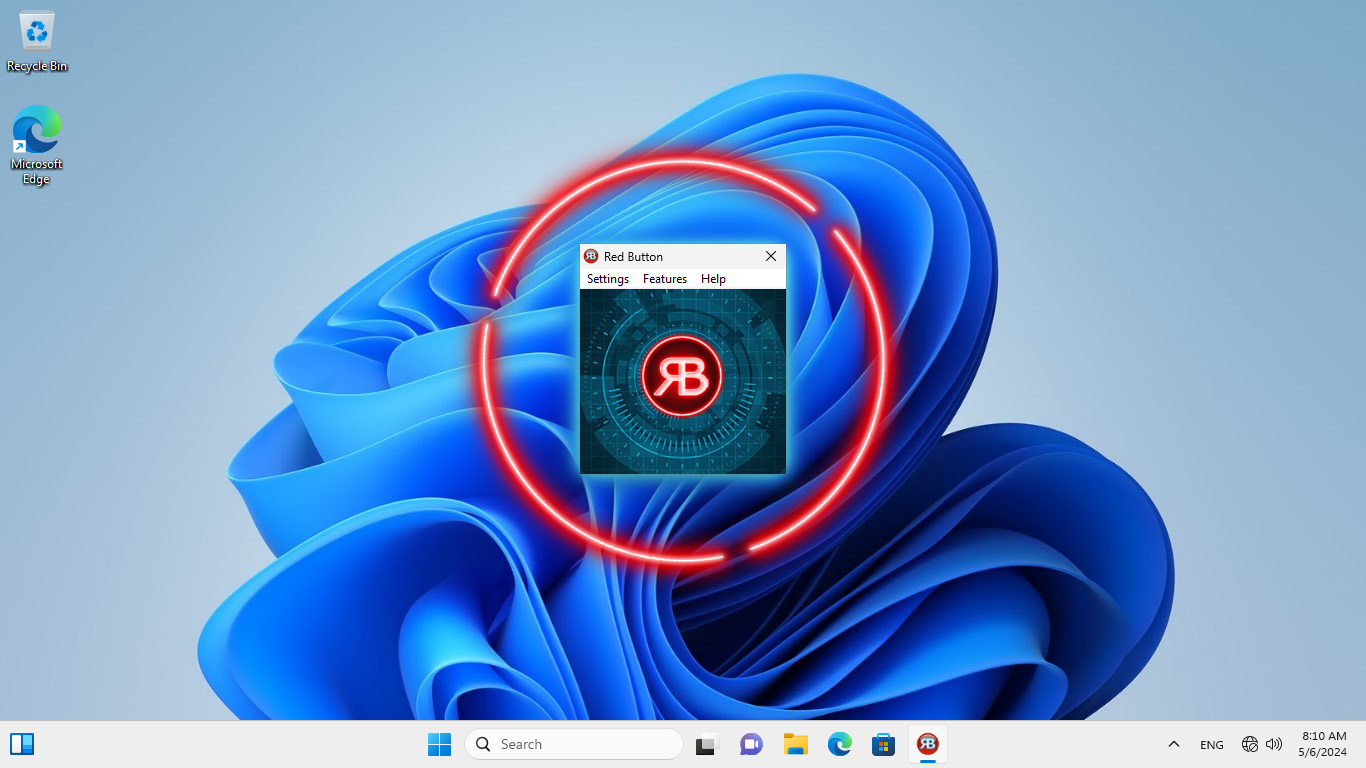
Red Button's main window on Windows 11: Settings, Features and Help menus above the single red button (May 2024 image).
Features
Disk Cleaner shows the files before it deletes them
Red Button's Disk Cleaner removes temporary files, caches, logs, memory dumps, the prefetch folder, thumbnail and font caches, Windows Update delivery files, error reports and similar leftovers, plus browsing data and application traces, in four groups (System, Applications, Templates, Other). Analyze lists every file with its path and size first, and you can add folders to an exclusions list so they're never touched. Version 6.5 added removal of Windows Installer rollback files.
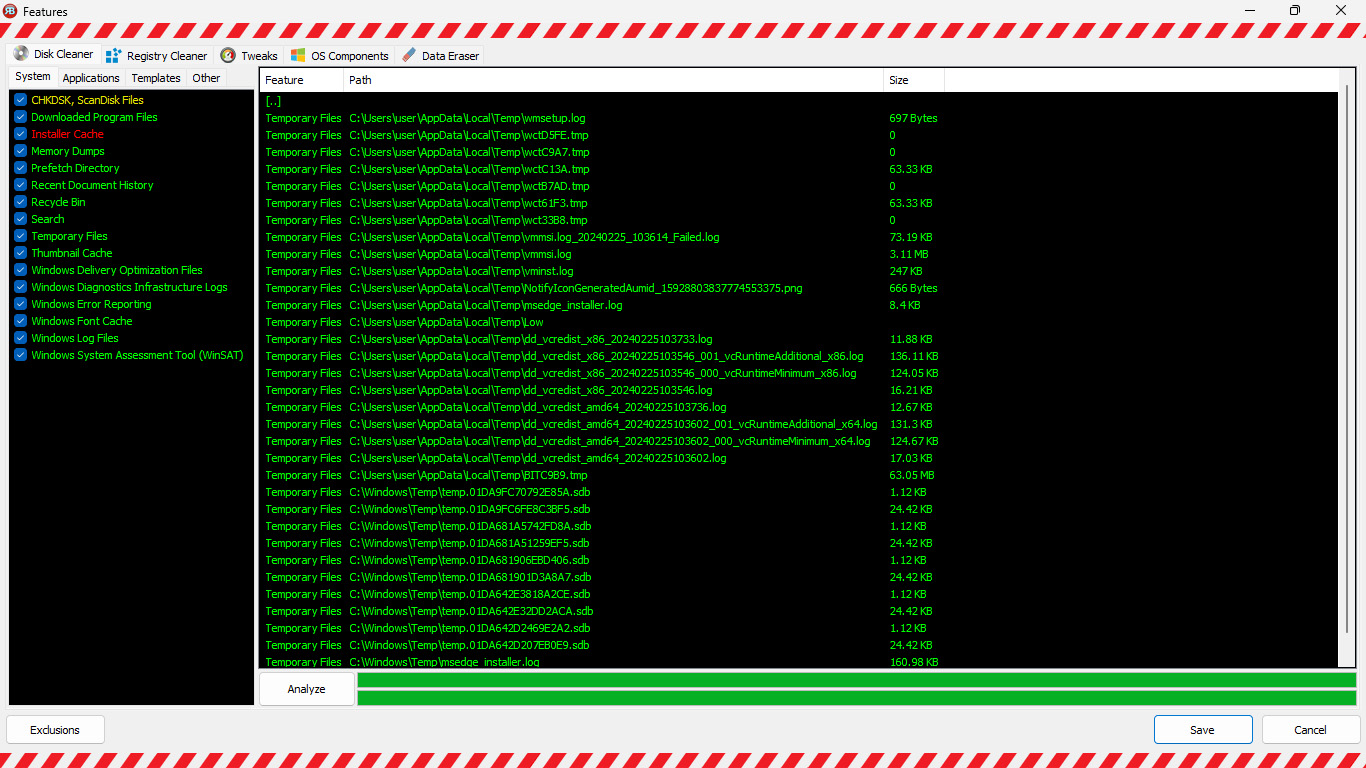
Disk Cleaner, System group: items such as Installer Cache (in red), Memory Dumps and Windows Delivery Optimization Files on the left, and the analysis listing each temporary file with its path and size on the right.
Tweaks change Windows settings, and can be reversed
Red Button's Tweaks tab lists Windows settings it can switch: disabling telemetry, the advertising ID, Bing search in the Start menu, OneDrive, animations, menu delays, activity history, AutoRun and many more, with the Windows versions each applies to and whether a restart is needed. Version 6.5 added a tweak to turn off Windows 11 widgets. Unlike the other modules, every tweak can be undone from Red Button itself by unticking it and pressing the button again.
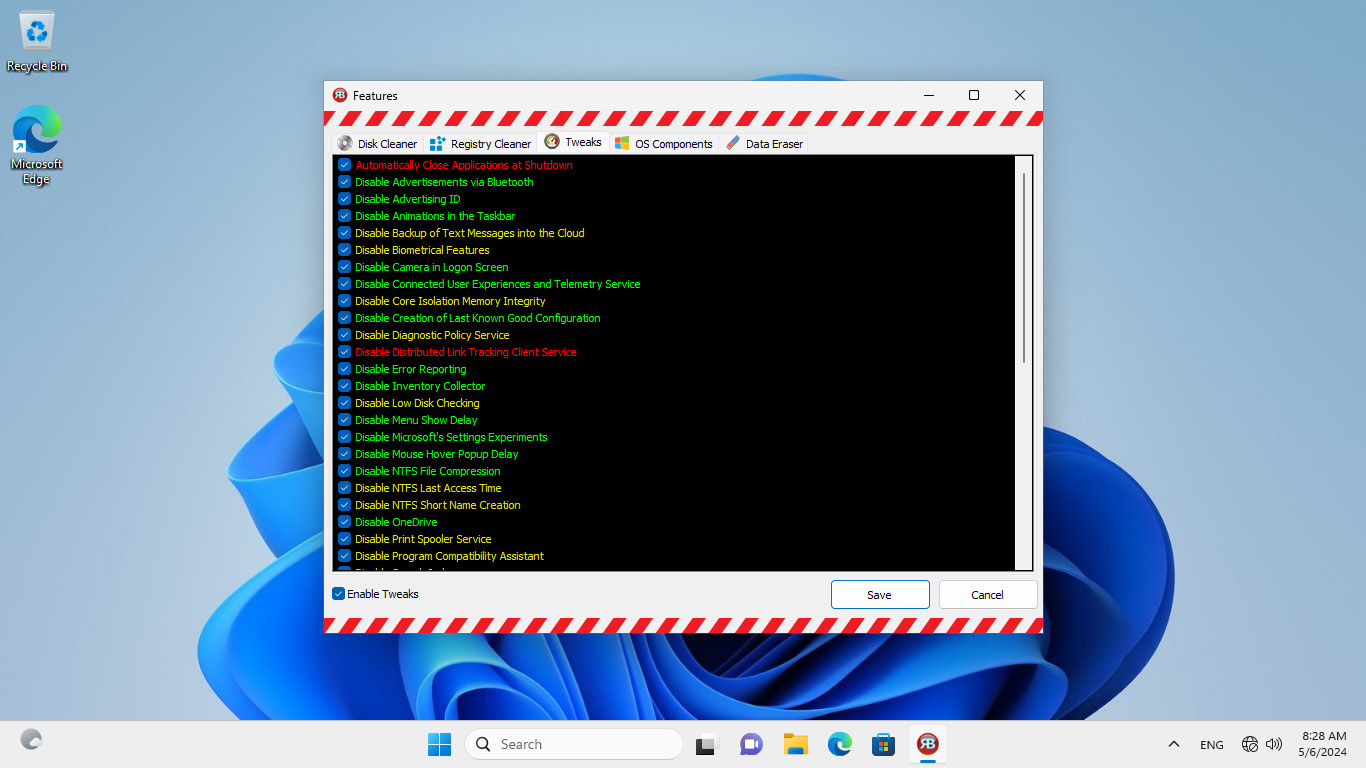
The Tweaks tab: each setting is colored green, yellow or red by risk, from "Disable Advertising ID" (green) to "Disable Distributed Link Tracking Client Service" (red).
Color-coded risk on every option
Red Button marks every feature green (low risk, safe to apply), yellow (depends on your case, know what it does) or red (not recommended unless you know exactly what you're doing). It's the most useful part of the design: you can tick the green items with little thought and read up before touching the rest.
OS Components removes built-in Windows apps
Red Button's OS Components tab can delete built-in Windows apps and components, from 3D Viewer and Alarms & Clock to Calculator, Camera and system tools, for the Windows version you're running. Every item there is red: Pothos calls the section an exception meant for very experienced users, and nothing removed this way can be restored from Red Button.
Registry Cleaner and Data Eraser
Red Button's Registry Cleaner removes leftover keys from Windows and applications and invalid entries, shows what it will remove first, and supports key exclusions; its changes can be rolled back with System Restore. Data Eraser overwrites free disk space, free RAM or an entire disk with a choice of erasure algorithms, so deleted files can't be recovered.
Portable copy and command line
Red Button can write a portable copy to a USB stick from Settings, Portable Version, and run on any Windows PC from there. Launched with the -F switch, it runs your saved selection without the window, so it can be scheduled with Task Scheduler or a batch file.
Benefits
- You stay in charge. Nothing runs that you didn't tick, and every option is labeled by risk.
- Light and fast. A 1.7 MB download with no background service.
- Privacy and debloat in one place. Telemetry, ads and Bing tweaks next to the cleanup.
- Cheap and paid once. $14.95 with no subscription.
Real-World Uses
- Setting up a new Windows 11 PC. Apply the green privacy and convenience tweaks you always change by hand, once.
- A monthly cleanup. Pick the Disk Cleaner items once, then schedule Red Button -F in Task Scheduler.
- A technician's USB stick. Carry the portable version from PC to PC.
- Before selling a PC. Use Data Eraser to overwrite free space after deleting your files.
Who It's For, and Who Should Skip It
Good fit: confident Windows users who know which settings they want, like a small tool with no background process, and want privacy tweaks and cleanup they can repeat with one click.
Skip it if: you want a program to decide for you, since Red Button's whole design assumes you choose; you're likely to tick red items without reading about them; or you need signed software for a company PC. If you only want temporary files gone, Windows' Storage Sense does that for free.
Usage Guide
- Make a restore point. Search for "Create a restore point" in the Start menu.
- Install. Uninstall any older Red Button first, as Pothos recommends, then unzip redbutton.zip and run the setup with administrator rights.
- Open Features. Go through the five tabs and tick only what you understand, starting with green items.
- Analyze first. In Disk Cleaner and Registry Cleaner, click Analyze to see exactly what will go, and add exclusions.
- Save and press the red button. Restart if a tweak asks for it.
- Repeat later with one click, or schedule it with the -F switch.
Where it falls short
- Easy to overdo. Hundreds of options and an "apply" button mean you can break things like printing (Disable Print Spooler Service) or Windows security features (Disable Core Isolation Memory Integrity) if you tick too much.
- Not everything is reversible. Tweaks can be undone in Red Button; registry changes only with System Restore; deleted files and removed OS components not at all.
- Thin documentation of the free/Pro split and no money-back terms published on pothos.info.
- Old-style support. Help comes from the online manual and e-mail to mail@pothos.info.
What Users Say
Download sites and reviewers
MajorGeeks lists version 7.0 (October 12, 2026) with a reader rating of 5 from 38 votes, and calls it "a one-click system optimization tool that, once configured, can clean your hard drive and registry", concluding: "Overall, Red Button features enough options to clean and speed up any computer at any skill level."
Snapfiles gives it 4 stars and lists version 7.0, updated October 13, 2026.
On AlternativeTo, user Sunny_Wantsome wrote back in June 2011: "I Like It.. Simple And Sweet this is what i call a software which helps for beginners" and "just one click for advanced you have the options".
The pattern
Red Button has been around for well over a decade and download sites rate it well for its simplicity, but recent written reviews are few. Its reputation rests on the design: small, transparent and in your hands. That also means the results depend on what you choose.
Comparisons
Red Button vs one-click suites
Suites such as Advanced PC Cleanup or Advanced SystemCare scan, show a score and fix what they consider problems, usually on a yearly subscription. Red Button scans nothing on its own and fixes only what you selected, for a one-time $14.95. If you want guidance, a suite is easier; if you want control and a tiny footprint, Red Button.
Editions and Pricing
| Edition |
Price |
License |
What Pothos says it adds |
| Red Button (download) |
$0 |
Free download |
The program to try |
| Red Button Pro |
$14.95 |
One-time payment |
Updates faster and automatically |
FAQs
Does Red Button work on Windows 11?
Yes. Pothos lists Windows 11, 10, 8, 7, Vista and XP, 32-bit and 64-bit, and Red Button's tweak list marks which options apply to Windows 11.
Can I undo what Red Button changed?
Partly. Red Button can reverse any tweak itself. Registry Cleaner changes can be rolled back with System Restore. Files deleted by Disk Cleaner and Windows components removed under OS Components generally can't be recovered.
Is Red Button a subscription?
No. Red Button Pro is a one-time $14.95 payment on the order page, with no automatic renewal.
Do I need to uninstall the old version first?
Yes. Pothos' FAQ says to uninstall the current Red Button before installing a newer or licensed version.
Does Red Button run in the background?
No. Red Button does its work when you press the button and can then be closed; it has no resident service.
Can Red Button run automatically on a schedule?
Yes. Start Red Button with the -F switch from Task Scheduler or a batch file, and it runs your saved selection as if you had pressed the red button.
System Requirements
- Windows 11, 10, 8, 7, Vista or XP, 32-bit or 64-bit
- Administrator rights
- No other components and no specific hardware needed
Conclusion
Red Button is a good buy at $14.95 for someone who knows Windows and wants a light, transparent tool that applies the same cleanup and privacy tweaks every time, with no subscription and no background process. Its best quality is honesty: nothing is pre-selected and every option carries a risk color. The reason not to buy it is the same freedom: it will remove Windows components and switch off services you may need, and some of that can't be undone. Download it, start with the green items, and buy Pro if you'll keep using it.
Download Free TrialBuy Red Button Pro ($14.95)