Turn a scanned drawing into something you can actually edit
You scanned an old drawing, a map or a logo, and dropped it into your CAD program. Now all you can do is look at it or trace over it by hand. CAD software works with vectors, not pixels, so a raster file stays stuck until it is converted. Vextractor is a raster-to-vector converter (a vectorizer) that does that conversion for you, so you can skip manual tracing and digitizing.
Quick facts
- Version: 7.20
- Platforms: Windows XP, 2003, Vista, 7, 8, 8.1 and 10, in 32-bit and 64-bit builds
- Interface languages: English, German, Italian, Russian
- Trial: a demo version reads your raster files and converts them, so you can test your own images first
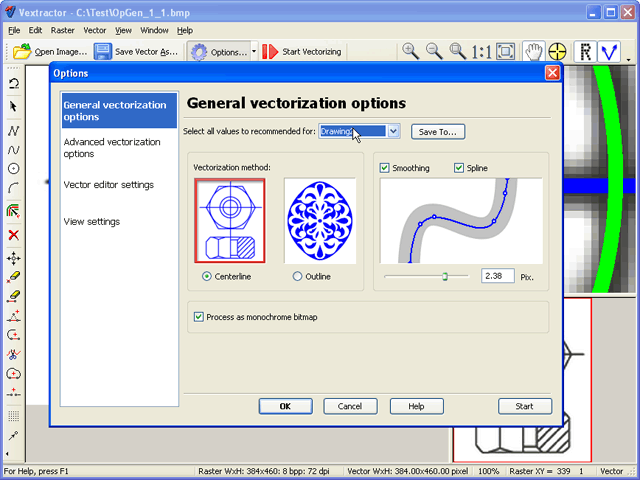
Key features
Convert scans and photos into CAD, GIS and design formats
The program reads BMP, GIF, TIFF/GeoTIFF, JPEG, PNG, PCX, TGA, WBMP, PPM, PBM and PGM. It saves to DXF, DXB, WMF, EMF, EPS, AI and SVG. Those files open in AutoCAD, Corel Draw, Adobe Illustrator and similar applications.
Recognize circles, arcs and straight lines in technical drawings
For design drawings, Vextractor recognizes circles, arcs and orthogonal lines. It can also create a uniform grid to place on the vectorized elements. For artwork it builds curves from Bezier splines, which can come out smoother than the original raster.
Clean up poor scans before vectorizing
If the source is rough, built-in raster filters such as median, despeckle, remove isolated spots and gaussian smoothing improve it before conversion. The program can also turn halftone and color images into black-and-white for recognition, and rotate images.
Digitize maps with real coordinates
For GIS work it saves ArcView Shapefiles and MapInfo MID/MIF. You can reference a raster using points with known coordinates, and use GeoTIFF and ESRI world-files. You can set your own coordinate system, specify an image's width and height, and assign Z-values (elevation) to polylines.
Edit results in a built-in vector editor
A built-in vector graphic editor lets you correct the vectors without leaving the program. TWAIN support means you can bring images in straight from a scanner. There is also an ASCII XYZ text format for digitizing function graphs for use in Excel and other math applications, and an ILDA format for laser shows.
Vectorize photos and photorealistic images
The vendor lists an advanced algorithm for photo and photorealistic image vectorization. You can also prepare vectors for CNC cutting or router systems, usually as DXF.
Who it's for
- CAD users who need to bring scanned machine-building, electrical or architectural drawings into an editable form.
- GIS users digitizing paper maps.
- Designers converting logos and line art into vector files.
- People who engrave or cut logos and images and need a DXF file for the machine.
Pros and cons
Pros
- Wide range of CAD, GIS and graphics output formats.
- Georeferencing and elevation values for map work.
- Filters to improve weak scans.
- A demo you can try on your own files.
Cons
- Automatic vectorizing is not perfect. The vendor says no solution guarantees a 100% result, and very poor scans can make conversion and editing impractical.
- Windows only.
FAQs
Can I try it before buying?
Yes. The demo version reads your raster files and converts them, so you can judge the results on your own images.
Does it work with 64-bit Windows?
Yes. There are separate 32-bit and 64-bit builds.
Which formats can I open in AutoCAD?
Save to DXF or DXB. For graphics applications, WMF, EMF, EPS, AI and SVG are available.
Can it handle photos?
The vendor says it has an advanced algorithm for photo and photorealistic image vectorization.
Does it support scanners?
Yes, any TWAIN32-compatible scanner.
System requirements
Runs on 32-bit and 64-bit Windows XP, 2003, Vista, 7, 8, 8.1 and 10.