Streamlabs Desktop: Free Streaming Software With Everything Built In, and an Ultra Upsell
Streamlabs Desktop (formerly Streamlabs OBS) is a free live streaming and recording app for Windows and Mac that puts scenes, overlays, alerts, a chatbot and a tip page in one window, so a new streamer can go live on Twitch, YouTube, Kick or TikTok without stitching plugins together. The optional Streamlabs Ultra subscription, $189 a year or $27 a month, adds multistreaming, thousands of premium overlays and higher limits.
If you've opened OBS Studio, stared at an empty scene and wondered how people get those alert boxes and chat overlays on screen, Streamlabs Desktop is the shortcut. The catch is that it asks more of your PC than OBS Studio does, and it keeps reminding you that Ultra exists.
Quick facts
- Developer: Streamlabs, a Logitech company
- Version: 1.22.5 (Windows installer dated November 17, 2026)
- Platforms: Windows 10 or later; macOS 12 or later with separate Intel and Apple silicon downloads
- Price: the app is free; Ultra is $27/month or $189/year
- Streams to: Twitch, YouTube, Kick, TikTok, Facebook, X and any custom RTMP server
- Refunds: Ultra refunds only if you ask within 7 days of purchase
- What we checked: the Windows installer is version 1.22.5 at 323 MB (Last-Modified November 17, 2026), and Ultra's $27 monthly and $189 yearly prices on streamlabs.com on November 22, 2026. We didn't run a live stream with it.
Download Free for WindowsGet Streamlabs Ultra
Overview
Streamlabs Desktop is built on the same open-source OBS engine as OBS Studio, so the basics are familiar: you build scenes from sources (game capture, webcam, desktop, microphone, music, browser sources) and mix the audio. What Streamlabs adds is everything around the video. Alerts, chat box, donation goals, polls and overlay themes come from Streamlabs' own cloud widgets, you sign in with your Twitch, YouTube or Kick account, and the app sets the stream up for you.
It's free with no time limit. Streamlabs makes its money from Ultra, and the app shows that: Ultra features appear in menus with an upgrade prompt.
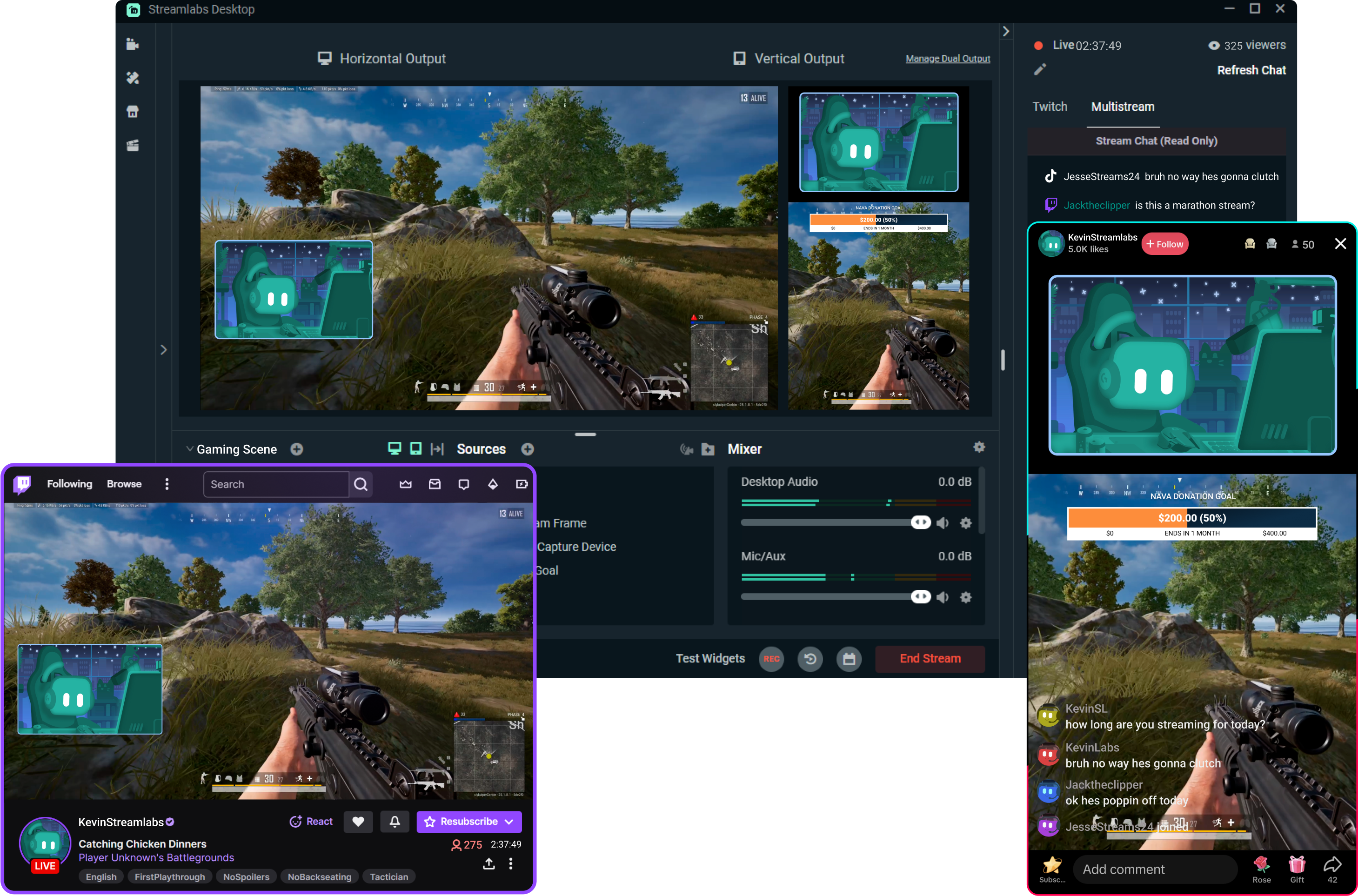
Streamlabs Desktop with Dual Output: the horizontal and vertical previews of the same game scene, the Sources list, the audio mixer and the multistream chat panel, shown with how the stream looks on Twitch and TikTok.
Features
Scenes, sources and recording
Streamlabs Desktop captures your webcam, games, desktop, music and microphone, and lets you build separate scenes for starting soon, gameplay, be right back and stream ending. You can rearrange the editor layout so video, audio, chat and recent events sit where you want them, and record locally as well as stream.
Dual Output for horizontal and vertical at once
Streamlabs Desktop can stream a horizontal layout and a vertical layout at the same time, each with its own resolution, scenes and sources, so you can be live on Twitch and TikTok together. The free plan allows one horizontal and one vertical destination; more need Ultra.
Overlays, alerts and widgets
Streamlabs Desktop comes with hundreds of free overlay and widget themes, and alerts for new followers, subscribers, tips, cheers, hosts and charity donations. Widgets include a chat box, tip trackers, polls, follower and subscriber goals and simple viewer games. Ultra opens the full library of thousands of themes, including reactive overlays that animate on game events.
Automations and Sidekick
Streamlabs Desktop's Automations read your gameplay in real time and fire actions on events, such as saving a replay, switching to your facecam scene or showing a source when you get a victory or an elimination. Templates exist for games like Fortnite and Call of Duty. The free plan allows 5 automations and 100 Sidekick (AI co-host) interactions; Ultra raises that to 10 automations and 1,000 interactions a month.
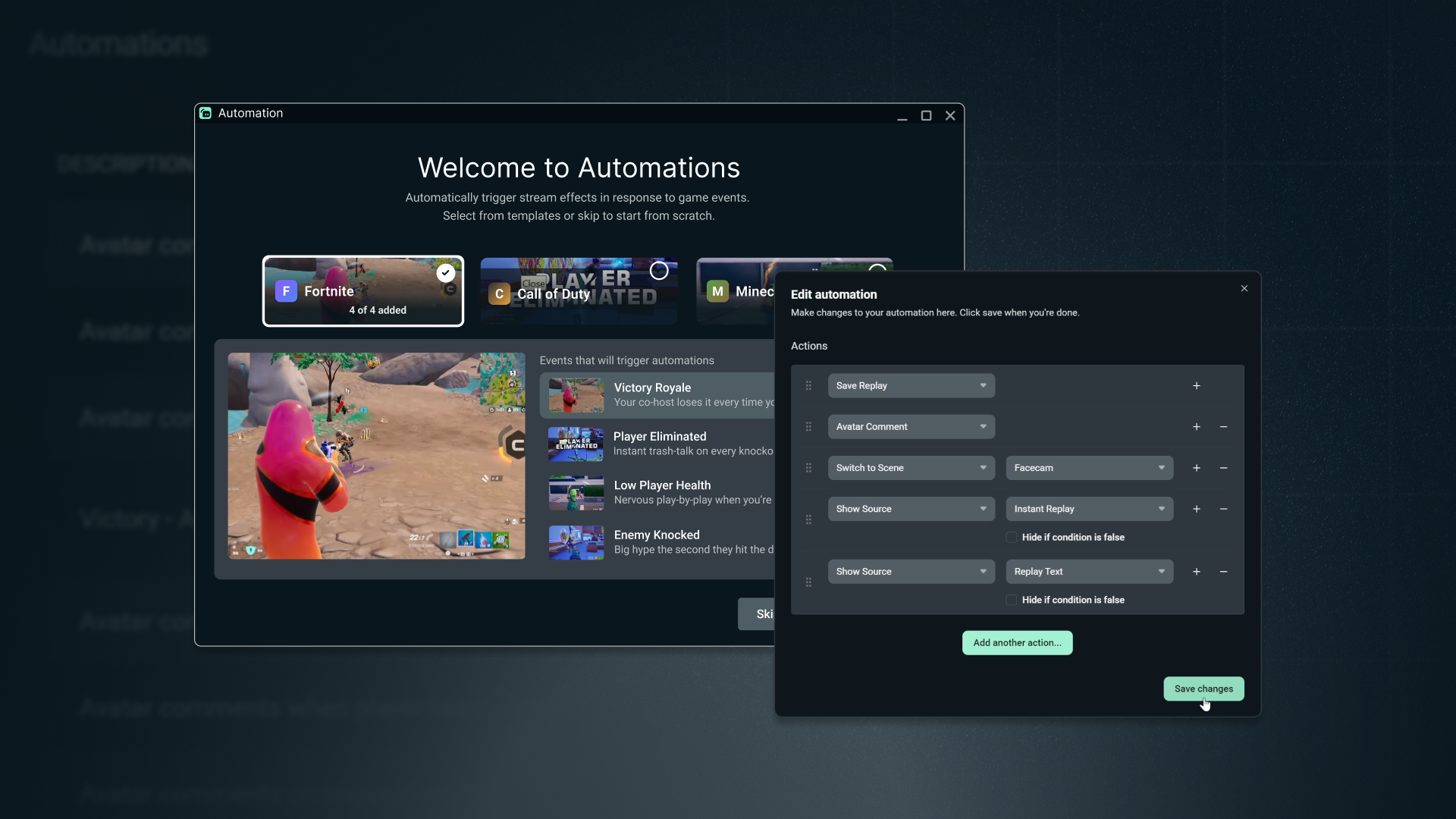
Streamlabs Automations: game templates (Fortnite, Call of Duty) with their trigger events, and the Edit automation dialog chaining Save Replay, Switch to Scene and Show Source actions.
Cloudbot, Collab Cam and tipping
Streamlabs' free Cloudbot moderates chat and runs commands, games and giveaways. Collab Cam adds a guest or a second camera from a shared link (one free, up to 11 with Ultra). The personal tip page takes no Streamlabs fee, and Replay turns stream highlights into clips for YouTube Shorts, TikTok and Reels.
What Ultra adds
Streamlabs Ultra adds multistreaming to several platforms through Streamlabs' servers (so your upload only carries one stream), the full overlay and widget library, the whole desktop App Store, a custom-named Cloudbot, Stream Shift to move a stream between phone and PC, Streamlabs Console for Xbox, 10 GB of cloud storage and pro tiers of Talk Studio, Cross Clip, Podcast Editor and Video Editor. One subscription covers the desktop app, the mobile app and the web tools.
Benefits
- A finished-looking stream on day one. Themes, alerts and a chat overlay are a few clicks, not an evening of browser-source setup.
- One place for everything. Chat, recent events, alerts and the stream itself sit in one window.
- Free to start. Streaming to one platform with overlays and alerts costs nothing.
- Room to grow. When you want to reach several platforms at once, Ultra adds it without new software.
Real-World Uses
- A first-time Twitch streamer picks a free theme, connects Twitch and goes live with alerts and a chat box the same evening.
- A gamer growing on short-form video uses Dual Output to stream horizontal to YouTube and vertical to TikTok at once.
- A just-chatting streamer brings a friend on screen with Collab Cam and lets Cloudbot handle commands and timeouts.
- A creator on several platforms pays for Ultra to multistream to Twitch, YouTube and Kick without the upload bandwidth for three streams.
Who It's For, and Who Should Skip It
Good fit: new and hobby streamers who want alerts, overlays and a chatbot without learning plugins, and creators who value Streamlabs' widgets and are happy to pay for Ultra's multistreaming.
Skip it if you stream on an older or modest PC, where every bit of CPU matters: OBS Studio is lighter and also free. Experienced streamers who rely on OBS plugins should stay on OBS Studio too, since Streamlabs Desktop has its own App Store instead of OBS's plugin ecosystem. If you only want to record your screen, a plain recorder is simpler.
Usage Guide
- Download Streamlabs Desktop (Windows, or the Intel or Apple silicon build for Mac), run the installer and launch it.
- Sign in with your Twitch, YouTube, Kick or other account; Streamlabs fills in the stream settings.
- Add sources to your scene: game capture, webcam and microphone first.
- Pick a theme from the theme library to add overlays, alerts and a chat box.
- Click Go Live, set the title and category, and start streaming. Use Test Widgets to check alerts before you go live.
Before you buy Ultra
Ultra renews automatically, and Streamlabs only refunds Ultra if you ask within 7 days of purchase; after that, cancelling just stops the next charge. If you subscribed in the iPhone or Android app, refunds and cancellation go through Apple or Google, not Streamlabs. Cancel on the web from your Streamlabs account's Memberships or Global Accounts page.
Where it falls short
- Heavier than OBS Studio. Comparisons consistently report higher CPU and memory use than OBS Studio with the same scenes, which shows up as dropped frames on weaker PCs.
- Upsell pressure. Ultra prompts appear throughout the app, and reviewers dislike the "pay to play" feel.
- Billing disputes. Some Trustpilot reviewers say they were charged after a trial or refused a refund outside the 7-day window.
- Fewer plugins. OBS Studio plugins don't simply drop in; Streamlabs has its own App Store, much of it behind Ultra.
- Platform connection problems after platform changes come up in reviews, for example YouTube connections that stop working until an update.
What Users Say
Streamlabs gets good marks from beginners and harsh ones from people who ran into billing or connection problems.
Trustpilot: 4.3 out of 5 from 1,557 reviews (praise)
- "Streamlabs is incredibly user-friendly and makes it easy to get started with streaming, even for beginners." (Esa Reborn, "User Friendly! Streaming made Easy!", June 12, 2026)
- "loving it / easy to use with lots of helpful tips and guides that ease beginner confusion." (Olivia liv, June 12, 2026)
- "I really like the UI and ability to link other social media accounts" (Michael Lacey, June 11, 2026)
- "Not in love with the pay to play aspect, but a great product." (Michael Oatley, June 11, 2026)
Trustpilot: the criticism
- "Avoid paying a subscription until they fix everything!" (Manos Gryparis, "Connecting on YouTube is not working!", July 26, 2026)
- "If you email them asking for a refund, they won't give it to you!" (Hollis Taylor, "Awful Customer Service/Tech Support and it just doesn't work", July 21, 2026)
- "I personally could never get steam labs to work and ended up just learning to make my own stuff" (Baily Carroll, July 5, 2026)
- "If I am paying for a service, it should work. And it didn't." (Keven Taylor, "Scam Artists", August 6, 2026)
AlternativeTo: 2.6 out of 5 from 10 ratings
- "Simple to use and very reliable." (LysanderArta, March 17, 2022)
- "Use OBS Studio Instead." (Sebastian, April 19, 2023)
- "lack of plugin support" (Shoji VR, July 20, 2025)
- "Once upon a time this was definitely a great tool" (Aaron-Libra, April 17, 2026)
The pattern: beginners praise how quickly they can look professional, and the free tier is genuinely usable. The complaints are about the subscription (upsells, refunds, paying for features that broke) and, among experienced users, performance and plugins compared with OBS Studio. Notice the gap between Trustpilot's 4.3 and AlternativeTo's 2.6: the second audience is mostly people who already know OBS.
Comparisons
Streamlabs Desktop vs OBS Studio
Both are free and share the OBS engine. OBS Studio is lighter, fully open source, has a large plugin ecosystem and never asks you to pay, but alerts, overlays and chat need third-party browser sources. Streamlabs Desktop builds those in and is faster to set up, at the cost of more CPU and memory and a steady push toward Ultra. Pick OBS Studio for control and low overhead, Streamlabs Desktop for convenience.
Free vs Ultra
The free plan already streams to one platform (plus one vertical output) with overlays, alerts and Cloudbot. Ultra is worth paying for mainly if you want to multistream, want the premium theme library, or use Streamlabs' mobile, Console or video tools as well.
Editions and Pricing
| Plan |
Price |
Automations / Sidekick |
What it adds |
| Free | $0 | 5 / 100 interactions | Streaming and recording, Dual Output (1+1), free themes, widgets, Cloudbot, tip page, 1 GB storage, 1 Collab Cam guest |
| Ultra | $27/month or $189/year | 10 / 1,000 a month | Multistream, full theme library and reactive overlays, full App Store, Console for Xbox, 10 GB storage, 11 Collab Cam guests |
| Ultra+ | Shown when you join | 30 / 5,000 a month | Everything in Ultra, one-on-one success call, dedicated contact and support, 30 GB storage |
The yearly Ultra plan works out to $15.75 a month. The Get Streamlabs Ultra button opens the Ultra page, where you choose monthly or yearly billing.
FAQs
Is Streamlabs Desktop really free?
Yes. Streamlabs Desktop is free to download and stream with, with no time limit. Only Ultra features such as multistreaming and the premium theme library cost money.
Is Streamlabs Desktop the same as Streamlabs OBS?
Yes. Streamlabs Desktop is the current name of the app that used to be called Streamlabs OBS. It's a separate product from OBS Studio, though it's built on the same open-source engine.
Does Streamlabs Desktop run on a Mac?
Yes. Streamlabs Desktop runs on macOS 12 or later, with separate downloads for Intel Macs and Apple silicon (M-series) Macs. Choose the right one on the download menu.
Can I multistream for free with Streamlabs?
Partly. Streamlabs Desktop's free Dual Output streams one horizontal and one vertical layout at the same time, such as Twitch plus TikTok. Streaming to more destinations at once needs Ultra.
Can I get a refund on Streamlabs Ultra?
Only within 7 days of purchase, and Streamlabs can deny requests it considers abusive. Purchases made through Apple or Google are refunded by those stores.
Does one Ultra subscription cover the mobile app too?
Yes. Streamlabs Ultra applies across Streamlabs Desktop, Streamlabs Mobile, Streamlabs Console and the web apps such as Talk Studio and Cross Clip.
Will Streamlabs Desktop slow down my games?
Streamlabs Desktop uses more CPU and memory than OBS Studio, so on a modest PC it can cost frames. Using your graphics card's hardware encoder (NVENC, AMF or Quick Sync) instead of x264 reduces the load a lot.
System Requirements
- Windows 10 or Windows 11
- macOS 12 or later (Intel or Apple silicon build)
- About 500 MB of disk space; the Windows installer is 323 MB
- A Streamlabs account and an account on the platform you stream to
Conclusion
Download it: Streamlabs Desktop is the easiest free way to get a stream that looks finished, with alerts, overlays and a chatbot ready in minutes, and that's the reason to choose it over OBS Studio. The reason not to is performance: on an older PC, or if you depend on OBS plugins, OBS Studio is the better free tool. Ultra at $189 a year is worth it only if you multistream or use Streamlabs' mobile and video tools as well; decide within the first week, because that's the whole refund window.
Download Free for WindowsGet Streamlabs Ultra