Guidy: An AI Assistant That Looks at Your Screen and Shows You Where to Click
Guidy is an AI desktop assistant for Windows and Mac, plus a Chrome and Edge extension, that reads whatever program or website you have open and walks you through a task step by step, pointing at the exact button or menu you need. It's for people who regularly get stuck in Excel, Outlook, Photoshop, ad dashboards or government forms and don't want to describe the problem to a chatbot. The Free plan gives 250 credits a day (about 4 to 8 guided tasks), and Unlimited costs $9.99 a month.
The idea is simple: instead of pasting screenshots into ChatGPT and getting generic steps for some other version of the software, you ask Guidy "where do I add a secondary axis?" and it circles the setting on your own screen.
Quick facts
- Developer: Guidy AI EOOD, Sofia, Bulgaria (launched by the team behind 365 Data Science in July 2026)
- Platforms: Windows and macOS desktop apps (Intel and Apple silicon builds), browser extension for Chrome and Edge. No Firefox and no mobile app
- Current version: 1.2.8 for Windows and 1.2.9 for Mac, both released November 12, 2026; Chrome extension 1.0.2
- Price: Free (250 credits a day) or Unlimited at $9.99 a month. There's no annual plan
- Input: typed or spoken questions, in any language, with three thinking modes
- Refunds: 14 days, but only if you used no more than 250 credits' worth in that billing period
- Age: accounts are for users 18 and older
- What we checked: the Windows installer (Guidy-Setup-1.2.8.exe, 166 MB) and the Mac 1.2.9 builds on Guidy's download server, the $9.99 monthly price on the pricing page, the refund conditions in the Terms of Use and the Chrome Web Store listing (124 users, 5.0 from 31 ratings), all on November 16, 2026. We didn't run guided tasks in the app ourselves.
Start FreeBuy Unlimited
Overview
Most AI assistants answer in text. You still have to translate "go to Chart options, then Series" into clicks in a window that may look nothing like the one the AI was trained on. Guidy skips the translation. When you open its small panel and ask a question, it takes a screenshot of your screen, works out which program and which state you're in, and gives you one step at a time with the target highlighted. You click, tell it the step is done, and it moves on.
It doesn't connect to each application through plug-ins, which is why it claims to work "on any software, any website": Excel, Word, Outlook, Google Sheets, Google Analytics, Meta Ads Manager, Photoshop, SQL tools, code editors, online shops and airline sites. The trade-off is that everything depends on the AI reading the screen correctly, and on your screenshots going to Guidy's AI providers (more on that below).
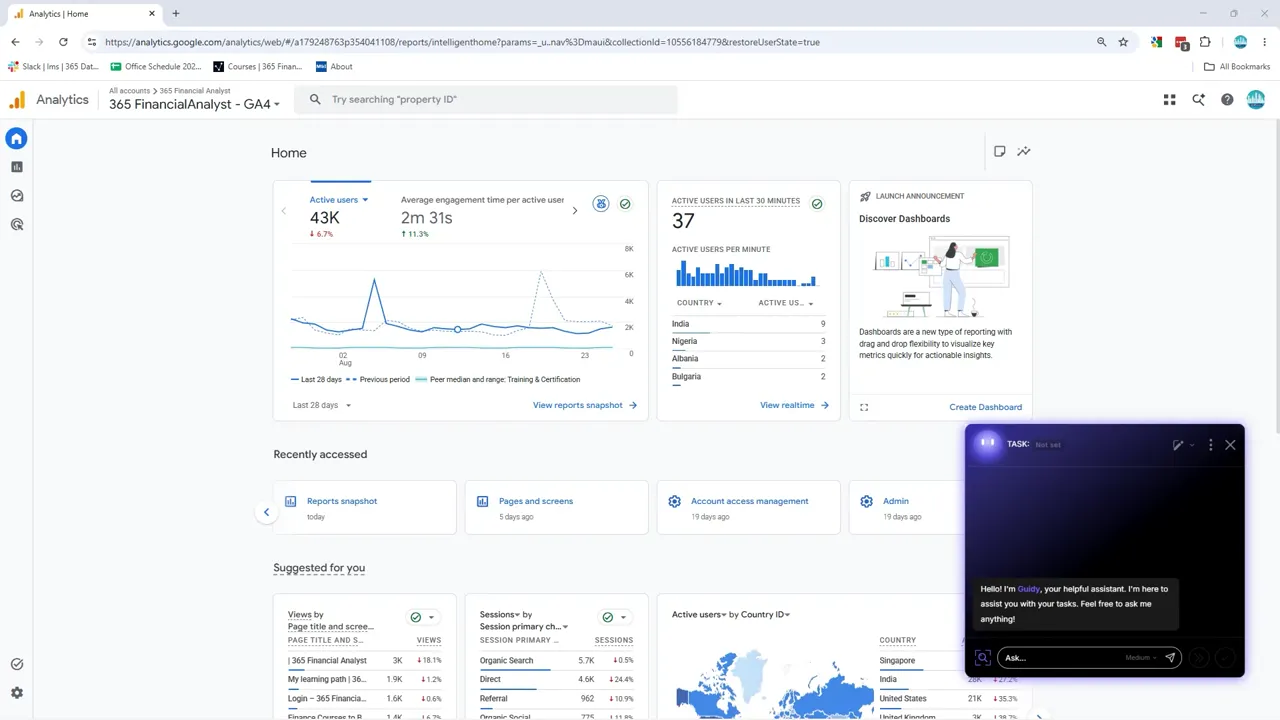
Guidy's panel in the bottom-right corner of a Google Analytics 4 dashboard, with the Ask box, the thinking-mode selector (Medium) and the screen-capture button.
Features
Step-by-step guidance on your real screen
Guidy breaks a task into numbered steps and points to the button, menu or field for each one, circling the area you need. A "Next step" and "Task done" pair lets you move through the list at your own pace. This is the core of the product: you learn where things are in your own copy of the program, so you know how to do it next time.
Error explanations and fixes
Guidy reads an error message on screen (a failed formula, a Python syntax error, a form that won't submit, "Payment failed" at a checkout) and tells you in plain words what went wrong and how to fix it inside the program you're using. You don't copy the error text anywhere.
"Where is it?" navigation
Guidy finds a feature you know exists but can't locate: the export button in a dashboard, the cancel link buried in subscription settings, the AI features in Outlook or Google Sheets. One Chrome Web Store reviewer found Illustrator's "Type on a Path" by describing the effect, without knowing the tool's name.
A second opinion on your work
Guidy can look at a spreadsheet, document or report you have open and give you feedback before you hand it in, or explain a screen full of numbers you don't understand.
Voice or text, any language, three thinking modes
Guidy takes typed or spoken questions in any language. A mode selector (Low, Medium and a deeper setting) trades speed for reasoning: light modes for "where's the button", deeper ones for multi-step work. Deeper modes use more credits on the Free plan.
Desktop app and browser extension on one account
The Guidy desktop app helps in every program on your computer; the Chrome extension (which Edge, Brave and other Chromium browsers can install) helps only in the browser but needs no download. Both share the same account, the same 250 free daily credits and the same Unlimited plan, so you never pay twice.
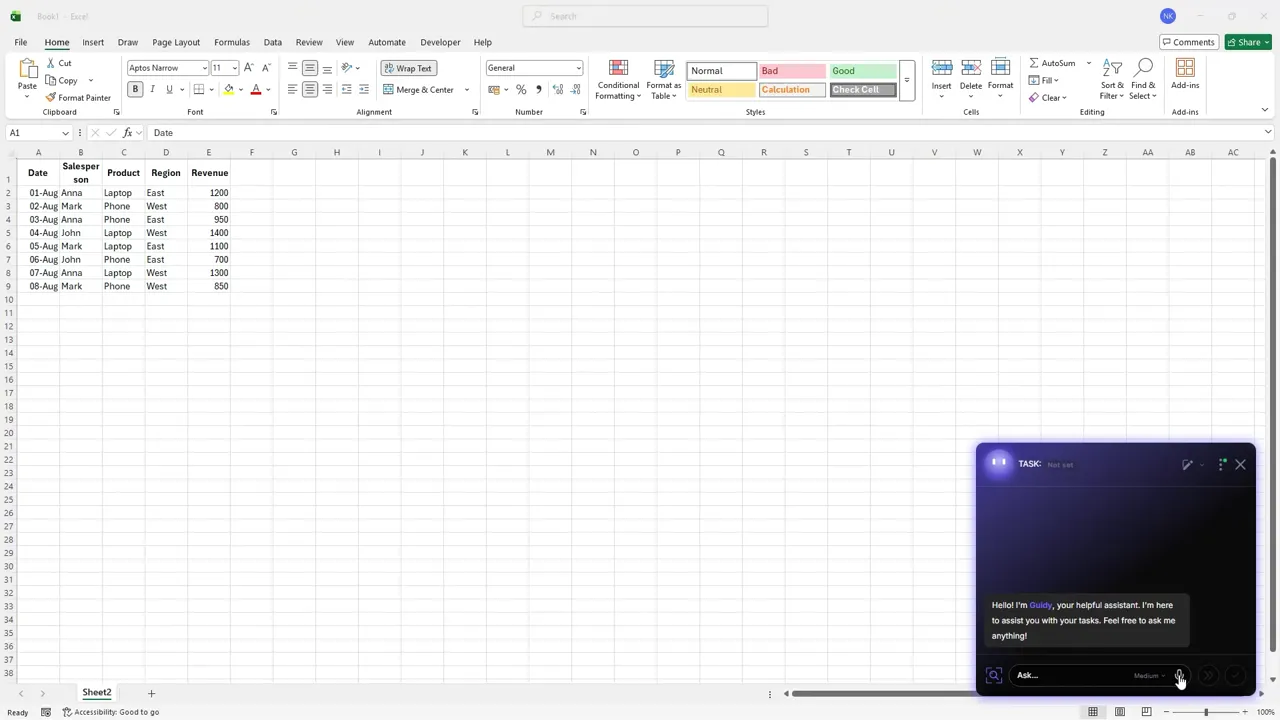
Guidy on Windows next to an Excel sales table, greeting the user before the first question.
Benefits
- Less tab-switching. No describing your screen to a chatbot, no pasting screenshots, no matching generic instructions to your version of the software.
- You learn the program. Because you make every click yourself, the steps stick, unlike an agent that does the job for you.
- Nothing happens without you. Guidy can't click, buy, book, submit or send anything on its own.
- Cheap compared with other AI subscriptions. $9.99 a month, against $20 for ChatGPT Plus or Microsoft Copilot, and the free tier covers light use.
Real-World Uses
- A new job with new tools. Your first week in Salesforce, HubSpot or an internal admin panel, without asking a colleague every ten minutes.
- Spreadsheet work. Pivot tables, charts with a secondary axis, a formula that returns an error.
- Marketing dashboards. Finding a report in Google Analytics 4 or a setting in Meta Ads Manager.
- Creative apps. Locating a tool in Photoshop or Illustrator when you only know what you want it to do.
- Helping a parent. Guidy's site pitches it at seniors and non-technical users: changing a flight date, filling in an online form or a government portal.

When you're not asking anything, Guidy shrinks to a small floating bubble (here on the right, over Photoshop).
Who It's For, and Who Should Skip It
Guidy fits people who use many programs a little, rather than one program a lot: office workers switching between tools, freelancers, career changers, students and less confident computer users. If your usual fix is googling "how do I ... in Excel" and watching a YouTube tutorial, Guidy is faster.
Skip it if you work with confidential client data on screen and your employer doesn't allow screenshots to go to outside AI services; if you want an agent that does the work for you (Guidy deliberately won't click); if you work on Linux, Firefox or a phone; or if you already pay for Microsoft Copilot and spend your day only in Office, where Copilot works inside the documents themselves.
Usage Guide
- Create a free account on Guidy's sign-up page and download the app for Windows or Mac, or add the extension to Chrome or Edge.
- Install it (under a minute) and sign in once.
- Open the program or website you need help with, then open Guidy's panel from its floating bubble.
- Type or say what you want to do, in your own words. Pick a deeper thinking mode for a long task.
- Follow the highlighted steps, clicking yourself, and press "Next step" or "Task done" as you go. Ask follow-up questions in the same panel.
Before you buy
Use the free plan for a few days before paying. The refund rule is stricter than the pricing page makes it sound: the FAQ promises a full refund within 14 days "no questions and no conditions", but the Terms of Use only refund a charge if you ask within 14 days and used no more than the equivalent of 250 credits (roughly one free day) in that billing period. In practice, once you've used Unlimited properly, the month isn't refundable. The Terms are what apply.
Guidy launched in July 2026 as a $69 one-time "lifetime" purchase. That plan was withdrawn: lifetime owners were moved to the Free plan with their leftover credits, and Unlimited is now monthly only.
Where it falls short
- Your screen goes to third-party AI. The homepage says Guidy "never stores, logs, or retains anything", but its security page is more precise: when you ask a question, screenshots are sent to "trusted AI providers" and kept for up to 30 minutes. Sensitive information is detected and blurred where the filter catches it, and Guidy itself recommends not showing highly sensitive data.
- Certifications are in progress. SOC 2 Type II and ISO 27001 are listed as "in progress", not completed, which matters for company IT approval.
- Young product. Guidy is a few months old, the Mac version arrived after launch, and the pricing model has already changed once.
- Accuracy depends on the AI's reading of your screen. Guidy gives guidance, not guarantees; on an unusual or cluttered interface, expect to ask follow-up questions.
- No Firefox, Linux or mobile. Browser settings pages are off-limits to the extension, as for every extension.
What Users Say
Guidy has no independent reviews yet: its Capterra page shows no ratings, and its Product Hunt launch drew 10 upvotes. What feedback exists comes from the Chrome Web Store and from testimonials on Guidy's own site.
Chrome Web Store (5.0 out of 5, 31 ratings, 124 users)
All the reviews shown were posted on November 2 and 3, 2026, and many are one-line praise ("Really helpful extension. Makes things much easier!"). The few that describe a real task:
Wendy Levan: "I needed a secondary axis in a Google Sheets chart but had no idea where the setting was. Working through the chart editor with my sheet open got me to it. I was pleased to make the change myself.."
Click Dynamo: "I asked how to make text follow a curve in Illustrator balance because I didn't know the tool was called Type on a Path. Describing the effect was enough to get me to it.."
Padre James: "First time in Make, and I couldn't find what my module test had returned. Looking at the execution details made the visual workflow a bit easier to understand."
Video testimonials on Guidy's site
Andrew Jones, data scientist: "I like to use Guidy, which with a simple prompt gives you on-screen contextualized annotation navigating you to the setting or the function that you need. It lets you avoid endless hours of scrolling through documentation, watching YouTube videos, or aimlessly clicking around."
Katya Mitsanska, founder: "what makes it different actually is that it doesn't just tells you what to do, it actually shows you what to do, step-by-step in real time, which is amazing. I use it, mainly for Excel, website development and optimization."
The pattern so far: people like being shown the setting instead of told about it, especially for features they couldn't name. There isn't yet enough independent or critical feedback to judge reliability over months of use, so the free plan is the real test.
Comparisons
Guidy vs ChatGPT or Gemini
A chatbot can explain almost anything, but it can't see your window unless you paste a screenshot, and it answers in text. Guidy sees the screen when you ask and points at the target. For general questions and writing, a chatbot is broader; for "where is this setting in the program I have open", Guidy is quicker.
Guidy vs Microsoft Copilot
Copilot works inside Word, Excel and Outlook and can change the document for you. Guidy works across any program, including non-Microsoft ones, but only guides; you do the clicking. Guidy is $9.99 a month against Copilot's $20.
Guidy vs HeyClicky
HeyClicky is another on-screen assistant. Guidy's own comparison lists it as Mac only at $20 a month; Guidy runs on both Windows and Mac for $9.99.
Plans and Pricing
| Plan | Price | Usage | Billing |
|---|
| Free | $0 | 250 credits a day, about 4-8 guided tasks, no carry-over | No card required |
| Unlimited | $9.99 a month | No daily cap, unlimited voice and text | Monthly only, cancel anytime |
Both plans include the full app, both platforms, the extension, voice and text. Payments are handled by Paddle.
FAQs
Does Guidy record my screen all the time?
No. Guidy only captures the screen when you open it and ask a question; the rest of the time it sits in a sleep mode. It can't open your files or log in to your accounts.
Is my data used to train AI models?
Guidy says your screenshots and questions are never used to train public AI models, and screenshots are deleted within 30 minutes.
Can Guidy do the task for me?
No. Guidy shows where to click and explains each step, but it can't click, buy, book, submit or send anything itself. That's by design.
Do I need to buy the extension and the desktop app separately?
No. Guidy's desktop app and browser extension share one account, one credit balance and one Unlimited subscription.
Does Guidy work in Safari or Firefox?
Guidy's extension installs from the Chrome Web Store and Microsoft Edge Add-ons, and Chromium browsers such as Brave can use the Chrome version. Firefox isn't supported. On a Mac, the desktop app covers Safari and every other program.
What happens when I cancel Guidy Unlimited?
Guidy Unlimited stays active until the end of the month you paid for, with no cancellation fee, and then the account returns to the Free plan's 250 daily credits.
System Requirements
- Windows PC (installer 166 MB) or Mac with Intel or Apple silicon (separate builds of about 130 MB)
- Or Google Chrome, Microsoft Edge or another Chromium browser for the extension
- Internet connection and a Guidy account; users must be 18 or older
Conclusion
Guidy is worth trying if you lose time hunting for settings in programs you don't use every day: being shown the button on your own screen is genuinely quicker than reading a chatbot's instructions, and the free 250 daily credits let you find out at no cost. Pay the $9.99 a month only once you hit the daily cap regularly. The main reason to hold back is privacy and maturity: screenshots go to third-party AI providers, the security certifications aren't finished, and the product is only a few months old with almost no independent reviews. Keep it away from confidential screens, and use the free plan to judge it before you subscribe, since the refund rule is tight.
Start FreeBuy Unlimited