BatchPhoto Enterprise: Drop Photos in a Folder, Get Them Back Edited
Resizing one photo takes seconds. Resizing, watermarking, date-stamping, renaming and converting three thousand of them takes an afternoon you'll never get back, and next week you'll do it all again. BatchPhoto Enterprise is built for exactly that kind of repetitive work. You set up the edits once, and it applies them to as many images as you throw at it.
The Enterprise edition goes one step further than the others: hot folders. You tell BatchPhoto which folders to watch, on your PC, on the network or on an FTP/SFTP server, and give each folder its own set of edits. From then on, any new or changed image that lands there is processed automatically in the background. No clicks, no babysitting.
Quick facts
- Version: 5.1.1
- Developer: Bits&Coffee
- Platforms: Windows 11 and 10 (64-bit), macOS 12 to 15 (Intel and Apple silicon), plus Windows Server and macOS Server. Older builds are available for earlier systems
- Formats: reads 170+ image formats, including camera RAW files
- Price: $129.95 USD for Enterprise, with 12 months of free updates
- Trial: fully featured, but adds a visible watermark to processed photos
- Guarantee: 60-day money-back guarantee
Overview
BatchPhoto works like a three-step wizard, and the toolbar says it all: Add Photos, Edit Photos, Setup, then Process. You add the images, stack up the edits you want, decide where the results should go and in what format, and hit Process. It spreads the work across all your CPU cores, so big batches finish quickly.
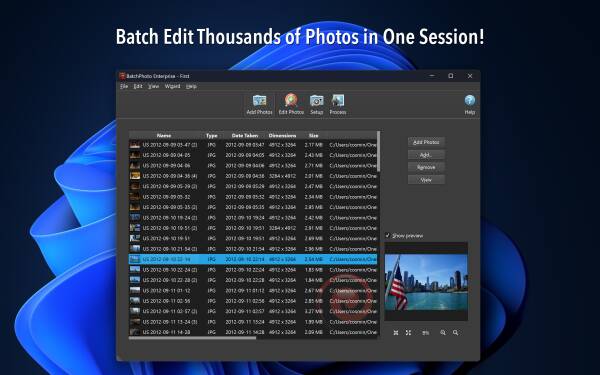
The Add Photos step: your images in a sortable list, with a preview on the right.
It isn't trying to be Photoshop. As the MakeUseOf review below puts it, BatchPhoto excels at actions that are "repeatable and predictable": resizing, color and tone changes, watermarks, date stamps, renaming and format conversion. If you do the same things to lots of photos, it saves serious time. The more often you repeat a task, the more time it saves.
Bits&Coffee has been developing BatchPhoto for two decades. The latest major update brought a new light theme that can follow your system setting, a fresh set of minimalist toolbar icons, and new lossless options for WEBP, HEIF and AVIF. According to Fstoppers, its customers include NASA, Apple, Oracle, Tesla Motors, 20th Century Fox and GE.
Features
Hot folders that edit photos on their own (Enterprise only)
This is the headline feature. You can monitor an unlimited number of folders, on your computer, on your network, or on a remote server over FTP or SFTP. Each folder is matched with a script, which is a saved set of edits. BatchPhoto keeps scanning those folders, and whenever a new or updated image appears, it applies that folder's script. It works silently in the background and can start automatically with your computer.
Picture this: you copy a few hundred RAW files from your camera into a hot folder, and a few minutes later they've been resized, rotated, watermarked with your logo, renamed, converted to TIFF and uploaded to your FTP server. You didn't click anything.
Server deployment (Enterprise only)
Enterprise also runs on Windows Server and macOS Server. That makes it a good fit for a central machine that processes everyone's uploads, for example a newsroom, a studio or an e-commerce team that needs every product photo in the same size and format.
Dozens of filters and effects
Filters stack, so one run can do many things to each photo. The Enterprise edition includes every filter:
- Annotate: text comments, and the original date and time the photo was taken, read from its EXIF data
- Watermark: text, logo or mask watermarks
- Transform: auto-rotate, auto-crop, crop, flip, resize, roll, rotate, thumbnail, color replace, and advanced resize by DPI and document size
- Touch-up: auto contrast, auto gamma, auto levels, brightness, contrast, equalize, sharpen, color balance, hue/saturation, levels and advanced sharpen
- Effects: sepia, black and white, blur, charcoal sketch, edge, emboss, implode, negate, swirl, wave, noise, oil paint, solarize and shade
- Decorate: shape, grunge, picture and vintage frames, raise, simple borders and shadows
Resizing is smart about orientation, so portrait and landscape photos are each resized the right way. Auto-rotate uses the orientation data most modern cameras record.

The Edit Photos step: filters such as Auto Rotate, Resize, Date and Watermark-Logo stacked up, with a preview of the result.
170+ image formats, including RAW
BatchPhoto reads and converts JPEG, TIFF, PNG, GIF, WEBP, HEIF, AVIF, BMP, PCX, EPS, PICT, JP2, JPT, PDF, PSD, SGI, TGA and more than 120 additional formats. It also develops camera RAW files from Canon (CR2, CRW), Nikon (NEF, NRW), Sony (ARW, SR2, SRF), Olympus (ORF), Fuji (RAF) and other makers. You can create PDF documents from a batch of images, split PDFs back into images, and make multi-page PDF, TIFF or GIF files. For each output format you can pick the file extension, for example JPG or JPEG.
Rename with meaningful names
Camera file names like IMG_4821.JPG tell you nothing. BatchPhoto's renaming tool builds new names from keywords and supports search and replace inside file names, so a whole shoot can end up with consistent, descriptive names.
Send results where they need to go
Save the output to a folder on your computer, or upload it directly to an FTP or SFTP server, optionally recreating the original folder structure and keeping a local copy as well. You can keep each photo's original date and attributes, open the output folder when processing finishes, or move the originals out of the way by deleting them after processing.

The Setup step: uploading the results over SFTP and choosing the output format.
Built for repeat work
- Projects and profiles save your settings so a routine job is two clicks next time.
- Scripts automate processing and power the hot folders.
- A detailed log file records what happened to every processed image.
- Multi-core processing uses every CPU core for speed.
- Windows Explorer integration lets you start from the files you've already selected.
- Available in English, French, German, Italian and Japanese.
Benefits
Hours back every week
If your job involves preparing the same kind of images again and again, such as product photos, event shots, real-estate listings or school portraits, the time savings add up fast. Set up a script once and every future batch takes seconds of your time.
Every image comes out the same
People get tired and make mistakes on photo 800. BatchPhoto doesn't. The same size, the same watermark in the same spot, the same naming pattern, every time. For brands and catalogs, that consistency is worth as much as the time saved.
A workflow that runs without you
With hot folders, the editing happens as images arrive. A photographer drops files into a shared folder, and web-ready versions appear on your server a few minutes later. Nobody has to remember to "run the batch".
One tool instead of several
Converting, resizing, watermarking, renaming, RAW development, PDF creation and FTP upload normally means juggling several utilities. Here it's one pass, in one program.
Usage Guide
Here's how a typical job looks, from a manual batch to a fully automatic hot folder.
- Install and launch BatchPhoto. The installer includes all three editions. When the program starts, choose Enterprise to evaluate.
- Add photos. Drag and drop files onto the window, or add individual files or whole folders. Switch between the detail list and thumbnail views, and use the preview pane, which supports zooming, to check what you've added.
- Add your edits. Go to Edit Photos and click Add Filter. Add a resize, then a watermark, then a date stamp. Each one appears in the list, and the preview shows the result on a sample photo.
- Set up the output. In Setup, choose where the results go (a local folder or an FTP/SFTP server) and pick the output format and its settings.
- Save it for next time. Save the settings as a profile or script so you can reuse the whole recipe with one click.
- Process. Click Process and let it run. Check the log file afterwards to see what was done to each image.
- Automate it with a hot folder. Open the Monitor tool, add a folder to watch (local, on the network or on an FTP/SFTP server) and assign your saved script. From now on, new images in that folder are processed automatically in the background.
Tip: group similar photos
Size, format, watermark and rename steps work the same on any photo. Automatic touch-ups such as auto contrast, auto gamma and color balance are different: they work best when the photos in a batch are similar. Photo Review made this point in its test. Put photos from the same shoot or lighting conditions in the same batch or hot folder, and keep a separate script for each kind of job.
Tip: test on copies first
Before you point a hot folder at real work, or turn on "delete source photo after processing", run the script on a folder of copies and check the output. Automation repeats mistakes just as reliably as it repeats good settings.
What Users Say
"We don't think we've encountered many programs that are more versatile and intuitive than BatchPhoto."
CNET (rated Outstanding)
"BatchPhoto Enterprise takes [batch editing] one step further by completely automating the process. All you need to do is create a 'hot folder' for the program to monitor. When added to one of these folders, either on your computer, network or an FTP site, BatchPhoto will automatically apply your specified edits."
Steve's Digicams
"The "Folder Monitor" functionality in the Enterprise edition is particularly effective, running as a Windows service that polls a specified (or multiple) folder's contents at set intervals. If any images are added, then the new ones are processed using a specified BatchPhoto script."
Fstoppers
"BatchPhoto is an excellent batch photo processing solution. It provides powerful editing features, superb configuration options, as well as great output formats and destinations."
The Gadgeteer
"BatchPhoto isn’t a precise tool, like the infinitely challenging Photoshop is. But, it doesn’t try to be. Rather, it excels at being a tool for performing actions that are both repeatable and predictable. Actions like resizing images and changing tones and hues, or watermarking photos."
MakeUseOf
"Processing @GoPro #timelapse photos today. I am using @BatchPhoto and highly recommend it. Processing 1000s of images at a time, works great"
Bret M Webb, US - Spanish Fort, Alabama
Real-World Uses
E-commerce product photos
An online shop needs every product photo at the same size, with the same watermark and a sensible file name. Set up a hot folder with that script. Whoever shoots the products drops the files in, and store-ready images come out, ready to upload over SFTP. A new product line means a new batch of photos, not another afternoon of editing.
Newsrooms and agencies
Fstoppers describes a media organization collecting all its photographers' images in one place and processing them to a standard format automatically. Run Enterprise on a server, give each incoming folder its own script (web size, archive TIFF, watermarked preview), and the photo desk always gets consistent files without anyone running a batch.
Event and portrait photographers
After a wedding, a school photo day or a conference, you might have thousands of RAW files to turn into proofs. BatchPhoto can develop the RAW files, resize them, stamp each one with the date it was taken and add a proof watermark in one pass, then rename them into order. Your full-size originals stay untouched for the final edits.
Photo booths
BatchPhoto's own site suggests the Monitor for photo booth setups, because it can run in the background without notifications. Point it at the folder where the booth camera saves its shots, apply a frame and a logo, and every guest photo comes out branded within moments.
Timelapses and action cameras
A timelapse can be thousands of frames that all need the same crop, resize and color treatment. That is exactly the job the customer quote above describes: "Processing 1000s of images at a time". Batch processing handles the whole sequence in one go.
Who it's for
- Businesses that process the same kind of images every day and want it to happen automatically
- Photographers who deliver large sets of proofs or web images
- Teams with a server that want one central machine handling everyone's uploads
- Anyone who can't face resizing photos one by one again. If you'll start every batch yourself, the cheaper Pro edition may be all you need
Comparisons
Enterprise vs. Pro vs. Home
All three editions share the core: multi-core processing, renaming, Windows Explorer integration, projects and profiles, and the basic filters and common formats. Pro ($49.95) adds FTP/SFTP upload, scripts, the log file, watermarks, RAW and the 120 extra formats, and the advanced color and effect filters. Enterprise ($129.95) adds the two things the others can't do: hot folders (local or remote over SFTP) and running on Windows Server and macOS Server. Home ($29.95) is for non-commercial use at home.
If you'll always start batches yourself, Pro is the better value. If you want images processed as they arrive, or you're setting it up on a server, Enterprise is the one.
vs. a full photo editor or catalog app
Photo editors and catalog apps can batch-process too, but you still have to start each export yourself. Fstoppers tested this against Lightroom by importing 132 photos from a memory card. Once the time Lightroom spent adding the images to its catalog was counted, BatchPhoto finished the job about 20% faster. BatchPhoto isn't built for careful, one-at-a-time retouching. It's built for the hundreds of photos that all need the same treatment, and with hot folders it doesn't need you there at all.
vs. doing it by hand
Manual editing is fine for ten photos. At a hundred it's tedious, and at a thousand the results start to drift. BatchPhoto does the thousandth photo exactly like the first.
FAQs
What does the Enterprise edition add?
Hot folders, which automatically process new or changed images in monitored local, network or FTP/SFTP folders, and support for running on Windows Server and macOS Server. It also includes everything in Pro.
How many folders can it watch?
An unlimited number, each with its own script.
Does it need to stay open to process hot folders?
The Monitor runs separately from the main program, works silently in the background and can start automatically with your computer.
Can it handle RAW files?
Yes. It supports RAW formats from Canon, Nikon, Sony, Olympus, Fuji and more.
Does it work on a Mac?
Yes. The same editions are available for macOS 12 to 15 on Intel and Apple silicon, with an older build for earlier macOS versions.
What's the catch with the trial?
The trial is fully featured, but it adds a visible watermark to every processed photo. Activating a license removes it.
How much does it cost?
$129.95 USD for Enterprise. Every purchase includes 12 months of free updates, and a 60-day money-back guarantee.
What happens after the 12 months of updates?
The version you have keeps working. To move to a newer release later, you can buy an Update at a fraction of the full price, which also comes with another 6 months of free updates.
Can it create PDFs?
Yes. It can turn a batch of images into a PDF document, convert PDF pages to images, and create multi-page PDF, TIFF or GIF files.
System Requirements
- Windows: Windows 11 or 10, 64-bit (an older 32-bit build supports Windows 8 back to XP)
- macOS: macOS 12 to 15, Intel and Apple silicon (an older build supports macOS 10.12 to 11)
- Server (Enterprise only): Windows Server and macOS Server
- Download size: about 31 MB for Windows
- Display (Windows): any desktop scale factor from 100% to 300%
Conclusion
BatchPhoto Enterprise is for people who are tired of doing the same photo edits over and over. The three-step wizard makes batches easy to set up, the filter list covers nearly every routine edit, and RAW and 170+ formats mean it takes whatever your cameras produce. What sets Enterprise apart is that it can work without you: set up a hot folder once and images get edited as they arrive, even on a server. Try the full-featured trial on a folder of your own photos. The watermark tells you it's a trial, and the time you save shows whether it's worth it.