CloudMounter for Windows: Map Cloud Storage as Drive Letters
CloudMounter for Windows is a $29.99 one-time app from Electronic Team (formerly Eltima) that maps Google Drive, Dropbox, OneDrive, Amazon S3, Box, MEGA, FTP, SFTP and WebDAV as drive letters in File Explorer, for PC users who want several cloud accounts in one place without syncing them to disk.
Windows has no built-in way to see an S3 bucket or a second Google account as a drive. CloudMounter gives each one a letter, such as U: for the work Dropbox and W: for the S3 bucket, and files stay in the cloud until you open them.
Quick facts
- Version: 3.9.2207, released November 2, 2026
- Developer: Electronic Team, Inc. (the company formerly known as Eltima)
- Platform: Windows 10 (20H2) and Windows 11, 64-bit, plus Windows 11 on ARM
- Connections: Google Drive, Dropbox, OneDrive, Amazon S3, Box, MEGA, FTP, SFTP, WebDAV
- Price: $29.99 for a Personal License on 1 PC
- Trial: 14-day PRO trial starts on first launch, then a limited free mode
- Installer: 55.5 MB
- What we checked: installer file version 3.9.2207, 58,196,816 bytes, signed by Electronic Team, Inc., and checkout price $29.99, plan name "Personal License for 1 PC", and the $14.99 add-on the order page puts in the cart, on November 6, 2026. We didn't buy a license or mount an account.
Before you buy
- The order page adds a $14.99 line. A "Lifetime upgrades guarantee" goes into the cart on its own, making the total $44.98. It has a Remove box. On Windows this add-on does mean something: the vendor describes the Lifetime option as a one-time payment with all future updates free. Keep it if you want that, and remove it if you don't.
- It's a one-time purchase. The Windows edition has no subscription.
- Use the trial first. All sales are final under Electronic Team's terms, apart from a 14-day grace period for a malfunction its support can't fix.
Download Free TrialBuy Now
Overview
CloudMounter is a mounting tool, not a sync client. You add a connection from the system tray icon, and the account appears under This PC with a drive letter and its free space, next to your local disks. You work with the files in Explorer. They stay online, so a large Drive takes up none of your SSD.

File Explorer showing Google Drive, Dropbox, S3, WebDAV and FTP accounts as drives, with the CloudMounter tray menu on the right.
Features
Drive letters for every account
CloudMounter for Windows maps each connection to its own letter, shown in This PC with used and free space. Windows apps see a normal drive path.
Nine kinds of connection
CloudMounter for Windows connects to Google Drive, Dropbox, OneDrive, Amazon S3, Box, MEGA, FTP, SFTP and WebDAV. It doesn't have the Mac edition's Backblaze, pCloud or OpenStack connections.
Several accounts per service
CloudMounter lets you connect a work and a personal account of the same service at the same time, each under its own name and letter.
Client-side encryption
CloudMounter can encrypt your cloud files on the PC with AES-256 before they upload, so the provider stores only scrambled data.
Passwords kept in Windows
CloudMounter saves your logins in Windows Credential Manager and sends them over encrypted channels to the services you connect, not to third parties.
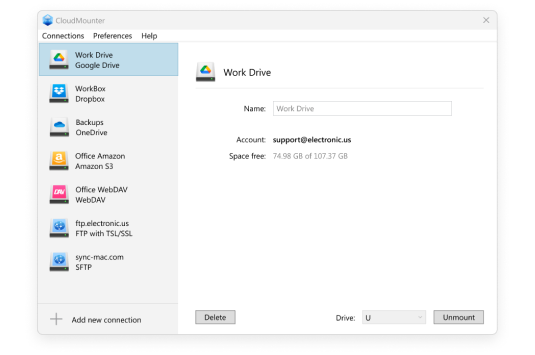
The connections window: saved accounts on the left, with the drive letter and Unmount button for the selected one.
Benefits
- Less disk use. Remote files don't need a local copy.
- One tool instead of several. One tray icon replaces a separate client per service.
- Server access without an FTP client. An SFTP site is just another drive.
- A low entry price. $29.99 once, with no monthly fee.
Real-World Uses
- Small office: map the shared Dropbox and the S3 bucket so staff reach both from Explorer. Five PCs need the Team license.
- Web developer: keep a client's SFTP server on a drive letter and open its files in your editor.
- Two Google accounts: see work and personal Drives side by side and drag files between them.
- Laptop with a small SSD: leave big folders in OneDrive and open them only when needed.
Who It's For, and Who Should Skip It
It suits Windows users with several cloud accounts, and anyone who wants S3, WebDAV or SFTP in Explorer at a low one-time price.
Skip it if you need files offline, because offline work is still "coming soon" on Windows. A sync client such as the official OneDrive or Dropbox app fits that better. Skip it too if you're on Windows 7, 8 or 32-bit Windows, which the current version doesn't support, or if you only have one account of one service, since the free mode may be all you need.
Usage Guide
- Download the installer and run it. The 14-day PRO trial starts on first launch.
- Click the CloudMounter icon in the system tray and choose New Drive.
- Pick a service, then sign in or enter the server details.
- Choose a drive letter and mount it.
- Open This PC and use the new drive like any other.
- Unmount a drive from the connections window when you're done with it.
Where it falls short
- No offline mode. Without a connection your mapped files aren't reachable.
- Fewer services than on Mac. Backblaze B2, pCloud and OpenStack Swift are Mac only.
- Speed depends on your line. Every file comes over the network, and big files take as long as your connection needs.
- Provider limits still apply. The vendor lists Dropbox at 375 GB per file, OneDrive at 250 GB, Google Drive and S3 at 5 TB, and WebDAV usually at 50 MB.
- Few reviews, one stability complaint. A G2 user called the Windows version unstable, and independent reviews of this edition are scarce.
What Users Say
Most published reviews of CloudMounter are about the Mac edition, so treat them as a guide to the product line, not to this version. The vendor shows 4.8 from 436 reviews on its Windows pricing page. Capterra shows 4.5 from 22 reviews and G2 3.8 from 6, across both platforms.
Review sites
Mark B, G2 (June 28, 2025): "A handy tool to integrate various cloud products."
Nhan T., G2 (April 21, 2025): "I like the ability to access multiple of cloud storage services as Dropbox, OneDrive and Google drive within one app."
David M., Capterra (September 5, 2025): "It is simple to use and does exactly what its name implies. I can access my files from anywhere in the world from a central location without having to log into any browser just to access my files."
Richard P., SourceForge (January 25, 2025): "Was able to mount my Google Drive effectively. It did as it claimed without any downsides to it. I found the product very user friendly and straight forward to use."
Reviewers
Jon Jacobi, PCWorld: "I loved CloudMounter's super-clean interface. I could get picky about a couple of things as with the competition, but I'll let them go because of the overall excellence."
Laura-ann Burgess, SFTP To Go: "CloudMounter lets you mount cloud and SFTP servers as local drives on macOS and Windows, simplifying your workflow." Her testing was on macOS, and SFTP To Go's own service pairs with the app, so read it as a friendly source.
Nolen Jonker, XDA Developers: "If you're tired of switching between cloud accounts, struggling with local storage limits, having data privacy concerns, or just want an all-in-one solution, CloudMounter may be perfect for you."
The praise is about simplicity and having every account in one app. The criticism is that this edition trails the Mac one on connections and offline work.
Comparisons
CloudMounter vs the OneDrive, Dropbox and Google Drive apps
The official apps are free and suit one account of one service, and they can keep files offline. CloudMounter costs $29.99 but puts every account in one place and adds S3, FTP, SFTP and WebDAV.
CloudMounter for Windows vs CloudMounter for Mac
The Mac edition has three more connections and offline work, and it costs $74.99 for a lifetime license. The Windows edition is the cheaper of the two. The licenses are separate.
Editions and Pricing
| License | Price | PCs | Where sold |
|---|
| Personal | $29.99 once | 1 | This order page and vendor store |
| Team | $99.99 once | 5 | Vendor store |
| Company | Quote | Larger teams | Vendor sales team |
FAQs
Is CloudMounter for Windows a subscription?
CloudMounter for Windows is a one-time purchase. Only the Mac edition also has a subscription.
What happens when the CloudMounter trial ends?
After the 14-day PRO trial, CloudMounter for Windows drops to a free mode with full access to one Google Drive, one Dropbox and one OneDrive account. Other accounts and services become read-only.
Does CloudMounter run on Windows 11 on ARM?
CloudMounter 3.9 lists Windows 11 on ARM as supported, along with 64-bit Windows 10 (20H2) and Windows 11.
Can one CloudMounter license cover my PC and my Mac?
CloudMounter licenses are separate for each platform, and a Team license can't be shared between Windows and macOS.
Does CloudMounter for Windows work on Windows 7?
CloudMounter 3.9 needs Windows 10 (20H2) or later, so Windows 7 and 8 are out.
System Requirements
- Windows 10 (20H2) or Windows 11, 64-bit, or Windows 11 on ARM
- 55.5 MB download
- An internet connection
Conclusion
CloudMounter for Windows is worth $29.99 if you want several cloud accounts or an S3 or SFTP server as drive letters, and you're always online. It's a low one-time price for a tool the vendor last updated on November 2, 2026.
The best reason to buy it is having everything in Explorer with no sync. The main reason not to is offline work, which it doesn't do yet. Run the 14-day trial first, and decide at checkout whether the $14.99 upgrades add-on is worth keeping.
Download Free TrialBuy Now