ManyCam: A Virtual Webcam and Live Video Studio for Calls, Classes and Streams
ManyCam is a Windows and Mac program that turns your webcam, phone, screen, slides and videos into one polished video feed, which you then use as a "virtual webcam" in Zoom, Teams or Google Meet, record, or stream live to YouTube and Facebook. The Standard plan costs $59 a year for one computer, and a free version with a ManyCam watermark lets you try it first.
Think of a teacher who wants their face in the corner while a PowerPoint fills the screen, or a sales rep who wants a name banner under their video. Video-call apps can't do that on their own. ManyCam sits between your cameras and those apps and lets you build the picture yourself.
Quick facts
- Version: 9.3.1.8 for Windows, released September 10, 2026
- Developer: ManyCam ULC
- Platforms: Windows 11, 10, 8.1 and 7, macOS 10.15 and later, plus iOS and Android apps that work as camera sources
- Price: Standard $59 a year (1 device), Studio $79 a year (2 devices), Premium $99 a year (3 devices), Enterprise on request
- Free version: yes, with a ManyCam logo on your video
- Works with: Zoom, Microsoft Teams, Google Meet, Skype, WebEx and other apps that accept a webcam, plus YouTube, Facebook and any RTMP server for streaming
- What we checked: installer version 9.3.1.8 (124.8 MB) downloaded from manycam.com on October 14, 2026, and the plan prices and features on ManyCam's pricing page on October 14, 2026
Before you buy
- Standard doesn't include virtual backgrounds. Background replacement, background blur, green-screen chroma key and ManyCam Lite start at the Studio plan. If removing or blurring your background is the reason you want ManyCam, Standard isn't enough.
- Customer reviews are poor. ManyCam scores 1.4 out of 5 on Trustpilot from 46 reviews. Most complaints come from people who bought "lifetime" licenses years ago and found they only cover version 8 after the company changed owners, and from buyers refused a refund. Current plans are yearly subscriptions, so this mainly affects old licenses, but it's worth knowing.
- Refunds are case by case. ManyCam's help center says refunds are handled individually through support, so test the free version on your own PC and apps before paying.
- It needs an internet connection to activate the subscription and for streaming, the mobile-app source and YouTube or web sources.
Download Free TrialBuy Now
Overview
ManyCam 9 has a clean, two-panel layout. On the left, the Scenes tab lists the sources in the current scene, with Templates and Settings beside it and your audio sources below. On the right is the live picture, with Stream, Record and Snapshot buttons and the resolution and frame rate above it, and a row of presets underneath that you click to switch scenes live.
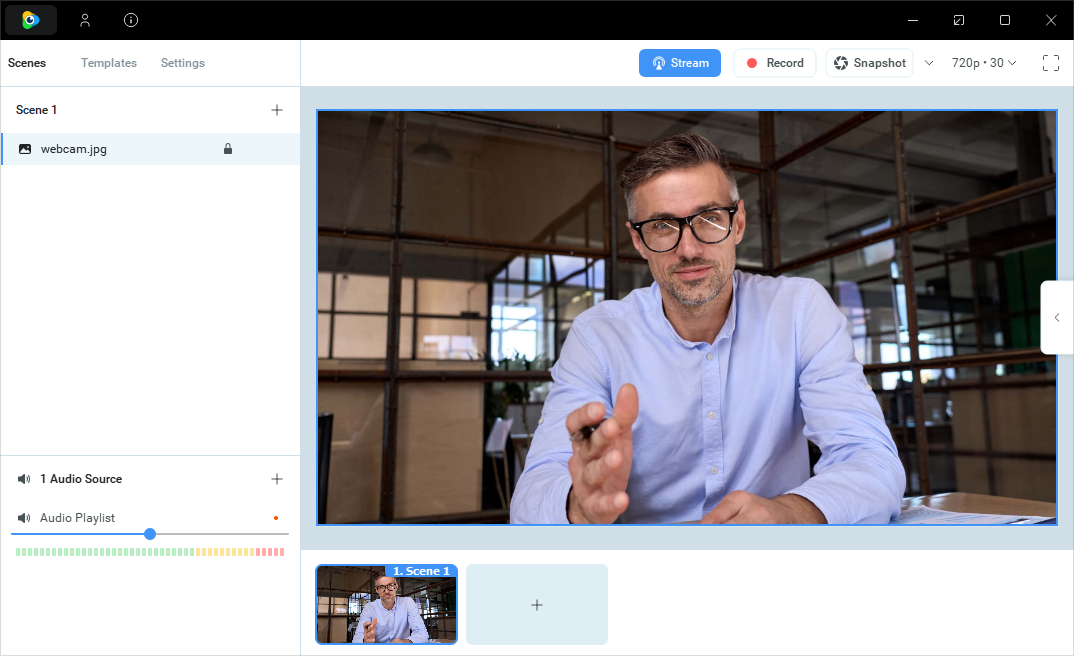
The ManyCam 9 main window: Scene 1 with one image source, the audio playlist, and the Stream, Record and Snapshot buttons at 720p and 30 fps.
Version 9 arrived in October 2024 with a redesigned settings screen and virtual background. Later updates added the real-time toolbar (January 2025), a new virtual video driver for Windows 11 (January 2026) and fixes for full-screen mode and virtual backgrounds under Windows 11 (July 2026).
Features
Many video sources in one feed
ManyCam takes video from webcams, capture devices, your phone through the ManyCam mobile app, IP cameras, your desktop or a single window, images and videos, PowerPoint and PDF files, YouTube links, web pages, NDI sources, RTMP servers, games and playlists. The Standard plan allows 4 sources at Full HD, Studio 50 at 4K and Premium 200 at 4K.
Picture-in-picture layers and scenes
ManyCam lets you stack sources as resizable layers, such as your webcam in a corner over a slide deck, or split the screen two or four ways. Layers can have rounded corners and adjustable opacity, and you save each layout as a preset to switch to with one click, with your choice of transition.
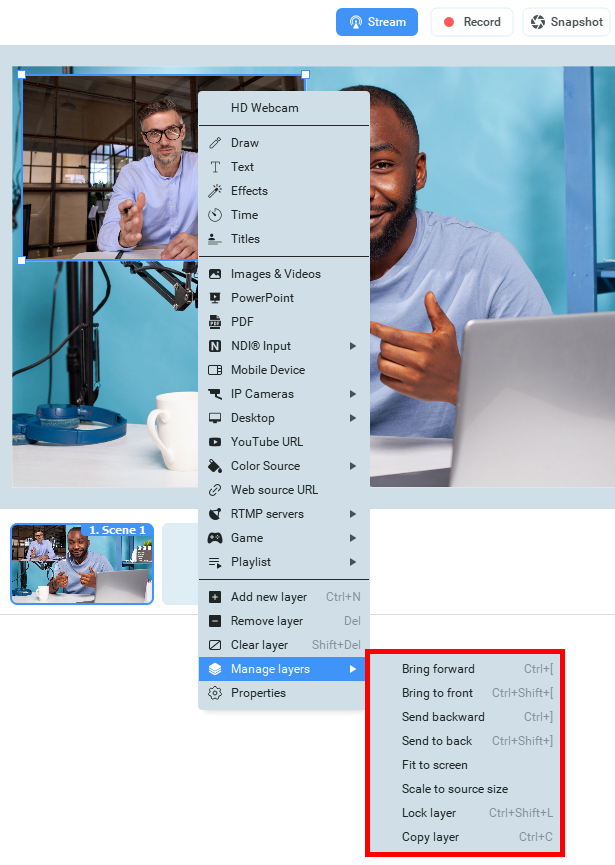
A picture-in-picture webcam layer over a second camera, with the right-click menu listing the source types and the layer-ordering commands.
A virtual webcam for any video-call app
ManyCam installs a "ManyCam Virtual Webcam" that you pick as your camera in Zoom, Teams, Meet, Skype or a browser. Whatever you build in ManyCam, including slides, titles and drawings, is what the other people on the call see. Paid plans let you rename the virtual webcam and add extra virtual webcams with custom watermarks: one on Standard, up to four on Studio and Premium.
Live streaming, recording and snapshots
ManyCam streams to YouTube, Facebook or any custom RTMP server. Standard streams to one platform at a time, while Studio and Premium stream to several at once. It also records your output to a file and takes snapshots, and it can use NDI to send video to, or receive it from, other production tools on your network.
Titles, whiteboard, drawing and effects
ManyCam adds animated titles (lower thirds) with your name or topic, text and a clock, and pens, highlighters and shapes you draw on the live video or on a virtual whiteboard. It has an unlimited library of effects and masks, and version 9's real-time toolbar puts text, drawing, effects, time and titles one click away while you're live.
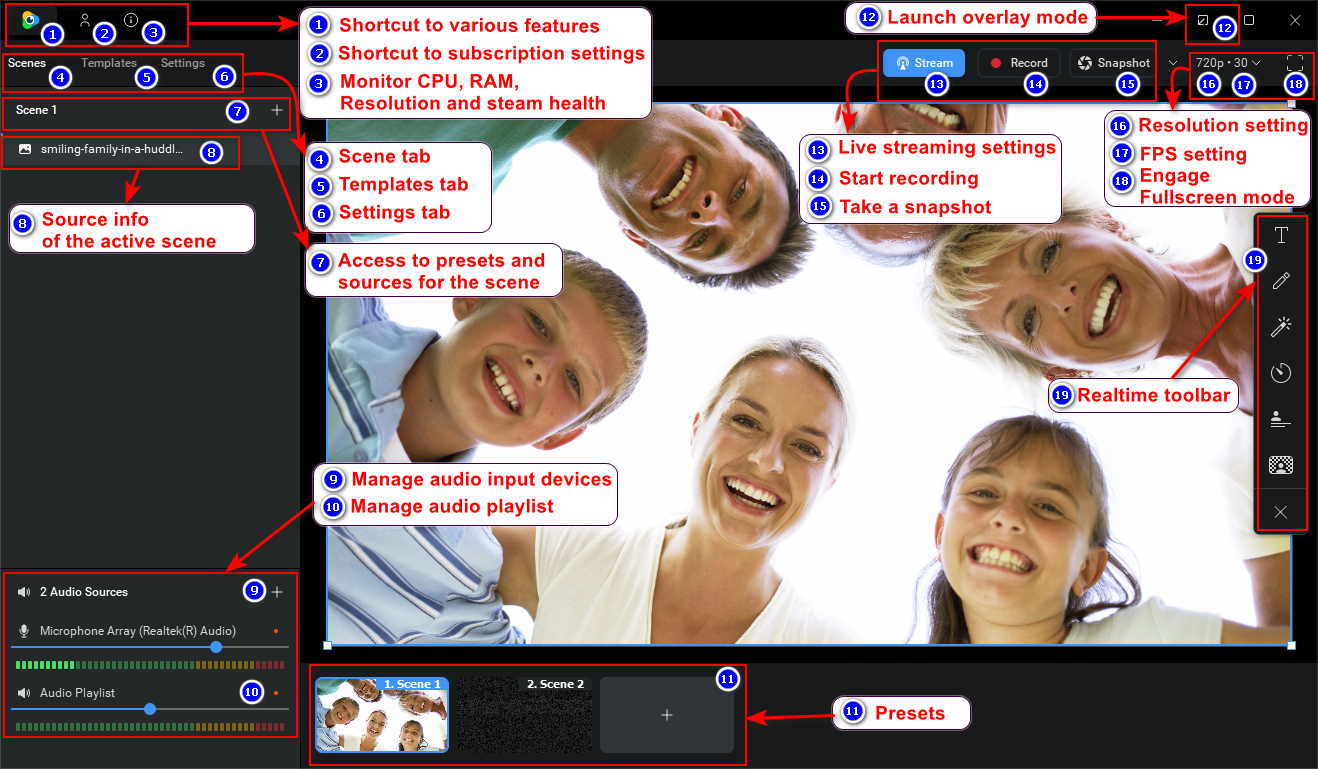
ManyCam's own labeled tour of the interface, with the realtime toolbar on the right, presets at the bottom and audio sources on the left.
Virtual backgrounds and chroma key (Studio and up)
ManyCam's Studio and Premium plans blur, remove or replace your background with an image or video without a green screen, and add chroma key for people who do have a green or blue screen. On Windows, virtual backgrounds need Windows 10 version 2004 or later and a DirectX 12-capable graphics card.
Benefits
- Look prepared on every call. Presets with your slides, logo and name banner are ready before the meeting starts.
- One setup for every app. Because it's a webcam, the same scenes work in Zoom today and Teams tomorrow.
- Use the cameras you already own. A phone, an IP camera or a DSLR on a capture card becomes a second angle.
- Less to learn than full broadcast software. It covers the common live-video jobs without the complexity of a full production suite.
Real-World Uses
- An online teacher shows a PDF worksheet with their webcam in the corner, then switches to the whiteboard to work through a problem.
- A small business webinar streams to YouTube and Facebook at once, with a lower-third title and a product video between segments (Studio or higher).
- A remote employee adds a company logo watermark and a background image to every Teams call (background replacement needs Studio).
- A telehealth or support session uses a phone camera as a close-up second angle.
- A streamer mixes a game capture with a webcam overlay and records the session locally.
Who It's For
ManyCam suits teachers, presenters, trainers and small businesses who want more than a plain webcam on video calls and simple streams, without learning a full production tool. Pick Studio if you need virtual backgrounds or multi-platform streaming. If you only need background blur, Zoom, Teams and Meet now do that for free. If you're a serious streamer comfortable with complex software, free tools like OBS Studio go further.
Usage Guide
- Install and launch. Download the installer from ManyCam (about 125 MB) and run it. It installs the ManyCam Virtual Webcam driver too.
- Add sources. In the Scenes tab, click the plus sign next to the scene, or right-click the picture, and choose a webcam, your desktop, a PowerPoint, a PDF or another source.
- Arrange the layout. Resize and drag layers for picture-in-picture, or pick a split-screen layout. Save it as a preset.
- Add titles and effects. Use the real-time toolbar on the right for text, drawing, effects, a clock and titles.
- Use it in your call. In Zoom, Teams or Meet, choose "ManyCam Virtual Webcam" as your camera.
- Stream or record. Click Stream to set up YouTube, Facebook or an RTMP server, or Record to save to a file.
- Activate your plan. Sign in to your ManyCam account in the app to turn on the paid features and remove the watermark.
What Users Say
Trustpilot: 1.4 out of 5 from 46 reviews
ManyCam's Trustpilot page is dominated by owners of old lifetime licenses who are angry that their licenses no longer cover the current version:
- "As you can see, many reviews are saying that lifetime license only covers version 8." — DM
- "SCAM! They sold lifetime licenses and then took them away." — SayNOtoScammers
- "Manycam new ownership rescinded the lifetime upgrades license granted when Customers bought this option." — Giorgio
Others complain about the paywall, refunds and offline use:
- "Absolute trash. Everything is behind a paywall, you're better off downloading a regular camera app." — Sofia Araos
- "I bought the basic license, tried it for 5 minutes and immediately wrote an email to support to receive a refund" — No How Marketing
- "I'd put ZERO stars if I could. A totally useless product if you do not have internet access." — Paul Goldbeck
The one five-star review on the first page comes from a long-time user who accepts the version limit: "I've been using Manycam for years. I bought a lifetime license, and yes, it only applies to the version" — Marko Stevanovic
Business software review sites
Reviews from working users are more mixed. Capterra shows 3.6 out of 5 from 11 reviews and G2 3.4 out of 5 from 27 reviews. Users praise the live-video extras, such as virtual backgrounds, overlays and screen sharing, and one Capterra reviewer wrote: "Overall, I have been extremely pleased with Manycam."
The criticisms are about the learning curve, support and compatibility. One Capterra reviewer warned, "This is not a plug and play product. There is a learning curve to using it effectively and efficiently." Another, a teacher, wrote: "Once I upgraded to windows 11 the software simply stopped working for me."
The pattern: people who use ManyCam daily value how much it adds to a plain webcam, but the company's handling of old lifetime licenses, refunds and support has cost it a lot of goodwill. Treat the free version as your test, and buy a yearly plan only once it works with your camera and apps.
Comparisons
ManyCam vs OBS Studio
OBS Studio is free, open-source and more powerful for streaming and recording, with its own virtual camera, but it takes longer to set up. ManyCam is quicker to learn, has a built-in whiteboard, titles and mobile-camera app, and is aimed at video calls and classes as much as streaming.
ManyCam vs the tools built into Zoom and Teams
Zoom, Teams and Meet already blur or replace your background and share your screen. ManyCam earns its price when you want things they can't do: several cameras, slides with your face in the corner in one feed, titles, drawing on the video, and the same setup across every app.
Editions and Pricing
| Plan | Price per year | Devices | Video sources and quality | What it adds |
|---|
| Standard | $59 | 1 | 4 sources, Full HD | No watermark, picture-in-picture, NDI, recording, titles, whiteboard, desktop capture, 1 RTMP stream |
| Studio | $79 (normally $99) | 2 | 50 sources, 4K | Virtual backgrounds, blur, chroma key, ManyCam Lite, unlimited streams |
| Premium | $99 (normally $119) | 3 | 200 sources, 4K | Everything in Studio plus priority support |
The free version shows a ManyCam logo on your video. Prices are from ManyCam's pricing page on October 14, 2026, which showed a ManyCam 9 launch discount on Studio and Premium. Enterprise plans for teams are quoted on request.
FAQs
Does ManyCam work with Zoom, Teams and Google Meet?
Yes. ManyCam works in any app that lets you choose a webcam: select "ManyCam Virtual Webcam" as your camera in Zoom, Microsoft Teams, Google Meet, Skype, WebEx or your browser.
Does the ManyCam Standard plan include virtual backgrounds?
No. ManyCam's virtual backgrounds, background blur and chroma key are included from the Studio plan up. Standard covers picture-in-picture, titles, the whiteboard, recording and one live stream.
Is there a Mac version of ManyCam?
Yes. ManyCam runs on macOS 10.15 and later, on Intel Macs and on Apple Silicon through Rosetta 2. The Mac version is a separate download, and virtual backgrounds need Metal hardware acceleration.
Can I use my phone as a camera with ManyCam?
Yes. The ManyCam mobile app for iOS and Android turns your phone into a video source, and it's included with the paid plans.
Does ManyCam work offline?
Only partly. ManyCam needs an internet connection to activate your subscription and for streaming, the mobile-app source, YouTube and web sources and motion detection.
What happened to ManyCam lifetime licenses?
ManyCam's old lifetime licenses only cover the version they were bought for. Many owners report that their license works with version 8 but not version 9. ManyCam's help center has an article on converting a lifetime license into a subscription.
Will ManyCam run on an ARM laptop like the Surface Pro X?
No. ManyCam's virtual backgrounds don't support ARM64-based Windows systems such as the Surface Pro X.
System Requirements
- Windows 11, 10, 8.1 or 7 (Windows 10 version 2004 or later for virtual backgrounds)
- Intel Core i3 or faster processor (Core i5 or better preferred)
- 2 GB RAM
- Up-to-date graphics drivers, and a DirectX 12-compatible GPU for virtual backgrounds
- Broadband internet connection for activation and streaming
- Mac: macOS 10.15 or later, Intel or Apple Silicon
Conclusion
ManyCam does something genuinely useful: it turns a plain webcam into a small video studio that works in every call and streaming app, and version 9 is the cleanest it has looked. But be clear about what you're buying. The $59 Standard plan has no virtual backgrounds, the company's customer ratings are poor after the lifetime-license dispute, and refunds aren't guaranteed. Install the free version, test it with your camera and your meeting app, and choose the plan whose features you actually need.
Download Free TrialBuy Now